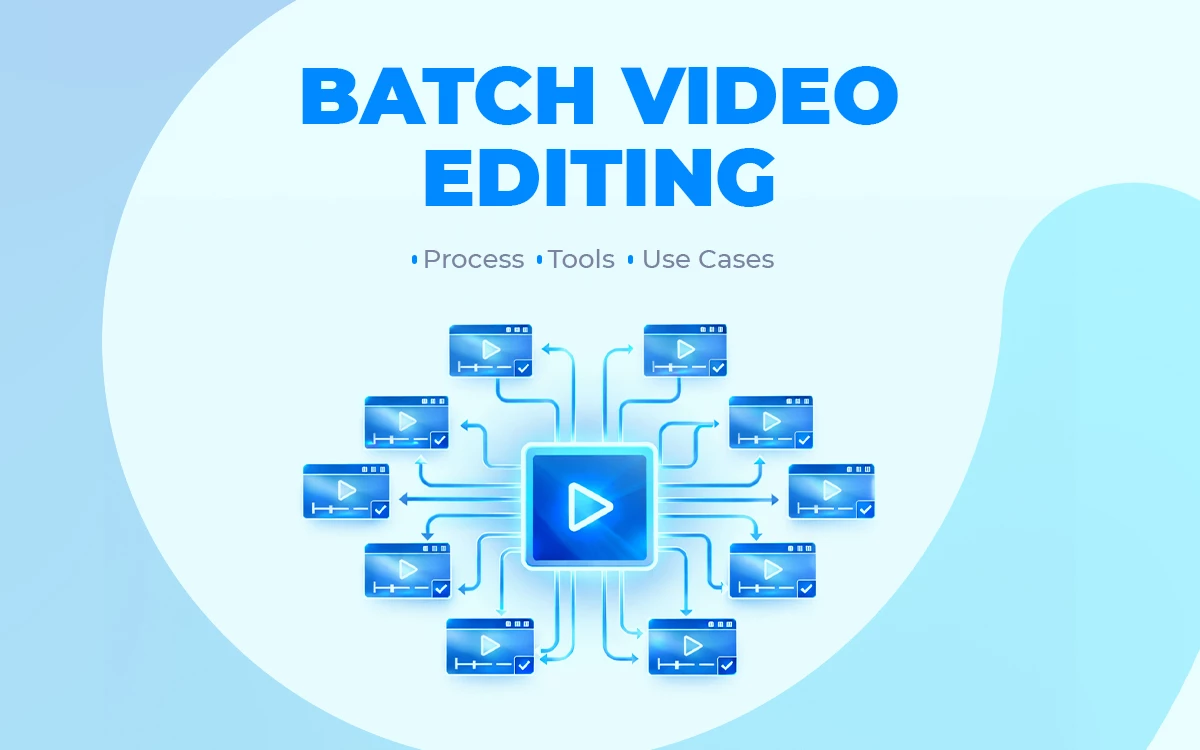
Batch video editing is a smart technique for applying the same edit, filter, and conversion to multiple videos simultaneously, rather than editing each file manually. Video editing in batch is only possible through the use of automation batch video editing software. Following such techniques greatly assists in saving time, staying consistent, and scaling video production. This guide explains the process, tools, and practical use cases.
What you’ll learn in this article
- 1 What is Batch Video Editing?
- 2 What Kind of Videos Can You Edit in Batches?
- 3 Why is Batch Video Editing Important?
- 4 What is the Best Batch Video Editing Software?
- 5 Should Businesses Outsource Batch Video Editing Services?
- 6 FAQ’s
- 6.1 What types of edits can be applied in bulk video editing?
- 6.2 Can I use a bulk video editor to personalize videos?
- 6.3 Can I edit videos in bulk using cloud rendering?
- 6.4 Can you batch edit videos in Adobe Premiere Pro?
- 6.5 What are the common batch editing tasks in video editing?
- 6.6 What are the limitations of batch video editing?
What is Batch Video Editing?
Batch video editing is the process of applying a similar set of edits to multiple video files at a time using automation software.
Instead of editing each video individually, you can define the changes at once, like trimming, resizing, adding overlays, or converting formats, and apply them across an entire batch.
Batch video editing is a highly time-efficient approach. It works best for large projects that require consistent, repeatable adjustments at scale, including social media content, product demos, training materials, and similar use cases.
How Does Batch Video Editing Work?
Batch video editing works in a simple and easy approach, where a single editing technique is applied to multiple videos at once to get a uniform result. Here is the step-by-step process to follow to achieve that:
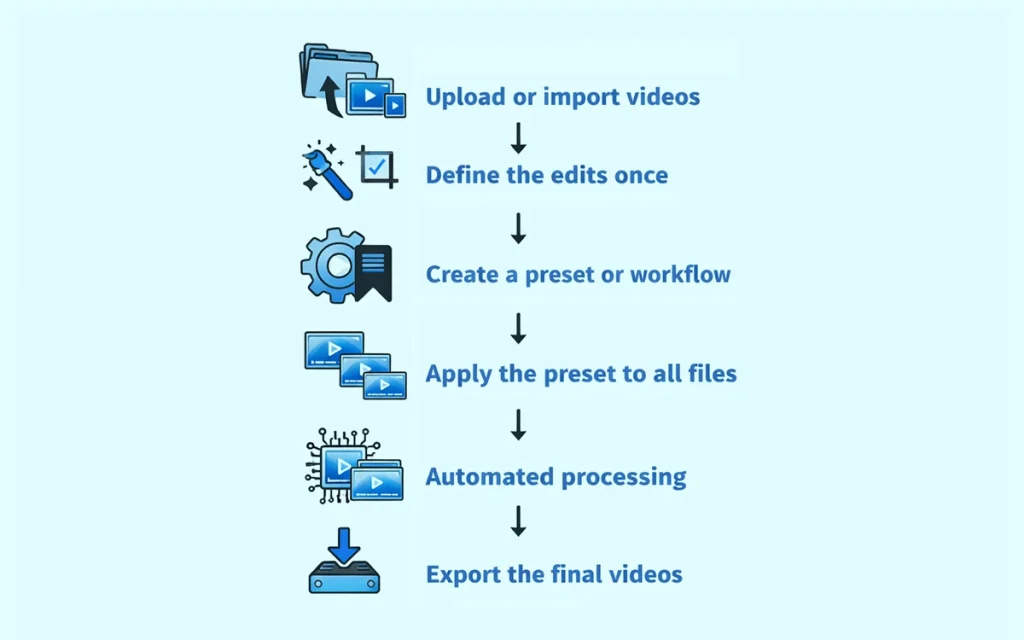
1. Upload or Import Videos: Add all the video files you want to edit into the batch editing software.
2. Define the Edits Once: Set your required changes, such as trimming, cropping, resizing, adding text, logos, filters, or captions.
3. Create a Preset or Workflow: Save these edits as a preset so they can be reused across multiple videos.
4. Apply the Preset to All Files: Select the videos in your batch and apply the saved workflow in one action.
5. Automated Processing: The software processes each video automatically using the same instructions.
6. Export the Final Videos: Download or export all edited videos in your chosen format, resolution, or platform-specific size.
What Kind of Videos Can You Edit in Batches?
You can’t apply batch video editing techniques to all types of video. It works best for a specific video that requires the same set of changes.
Here are common types of videos that are ideal for batch processing:
- Social Media Videos: Resizing one horizontal video into square and vertical formats for Reels, Shorts, and TikTok in a single batch.
- Product and E-commerce Videos: Adding the same logo, price tag, or call-to-action overlay to hundreds of product clips at once.
- Marketing and Ad Creatives: Creating multiple ad versions by swapping headlines or end screens while keeping the core video unchanged.
- Training and Educational Content: Applying captions, watermarks, or branded intros across an entire course library.
- Webinars and Podcasts: Trimming intros and outros, then exporting short highlight clips from multiple recordings together.
- Localization and Regional Videos: Replacing subtitles or voiceovers to produce the same video in different languages for different markets.
What Types of Videos Are Best Suited for Batch Video Editing?
The types of video that are best suited for batch video editing include product demos with branding overlays, multi-platform social media clips, educational courses with captions or watermarks, marketing ads with repeated messaging, and localized videos with multiple subtitle or audio versions.
Here are the types of videos that are best suited for batch video editing, with clear examples:
- Short-Form Social Media Videos – Perfect for platforms like TikTok, Instagram, and YouTube Shorts. Batch editing lets you resize, trim, and format multiple clips at once. It saves time while keeping content consistent across channels.
- Talking-Head Videos – Ideal for interviews, commentary, or vlogs. You can apply lower-thirds, captions, and branding to all recordings simultaneously. This ensures uniformity without editing each video individually.
- Tutorials and Course Content – Batch editing is great for lesson series or instructional videos. You can add intros, outros, watermarks, or captions to every video in one go. It keeps the entire course professional and cohesive.
- Product Demonstrations/Reviews – Useful for e-commerce or promotional content. Logos, price tags, or call-to-action overlays can be applied to multiple clips at once. It helps maintain branding consistency and speeds up production.
- Marketing Campaigns/Personalized Ads – Works for campaigns with repeated messaging or multiple variations. You can swap headlines, end screens, or branding while keeping the core footage the same. This allows faster creation of multiple ad versions.
- Event Coverage Highlights – Ideal for conferences, webinars, or live events. Trim, organize, and brand multiple recordings together. This makes it easy to produce highlight reels without manually editing each clip.
- Repurposed Content – Perfect for converting old videos into new formats or platforms. You can resize, crop, or add subtitles for different audiences quickly. It extends the life of existing content with minimal effort.
Who Can Benefit from Bulk Video Editing?
Bulk video editing works best for content creators who require the same editing technique for all their videos, such as social media content, vloggers, and e-commerce product demos. Below, you’ll find the key beneficiaries who use bulk video editing the most:
Social Media Teams & Marketers
They produce short-form videos, ads, reels, and platform-specific clips in high volumes. Bulk editing enables resizing videos, adding captions, logos, and CTAs across multiple assets simultaneously. This keeps campaigns consistent while meeting fast publishing schedules.
E-commerce Businesses
E-commerce teams create product demos, feature highlights, promotional videos, and catalog-style clips. Bulk editing is used to apply branding, pricing overlays, discount tags, or format conversions across hundreds of product videos efficiently.
Content Creators & Vloggers
Creators make long-form videos, shorts, highlight clips, and episode-based content. Bulk editing enables the addition of subtitles, intros, outros, and consistent formatting across multiple videos. It also makes repurposing content for different platforms much faster.
Sales Teams
Sales teams create personalized outreach videos, product walkthroughs, demo recordings, and follow-up messages. Bulk editing allows them to add names, branding, thumbnails, or CTAs at scale while keeping the core video consistent.
Agencies & Freelancers
They handle client ads, social media content, training videos, and branded campaigns. Bulk editing supports multi-client workflows by applying standardized edits, templates, and exports across large video sets. This improves turnaround time and scalability without increasing workload.
Why is Batch Video Editing Important?
Batch video editing is important because it’s the best strategy to be time efficient, achieve significant cost savings, and ensure a consistent brand identity. Here are the key benefits you can get by applying bulk editing techniques:
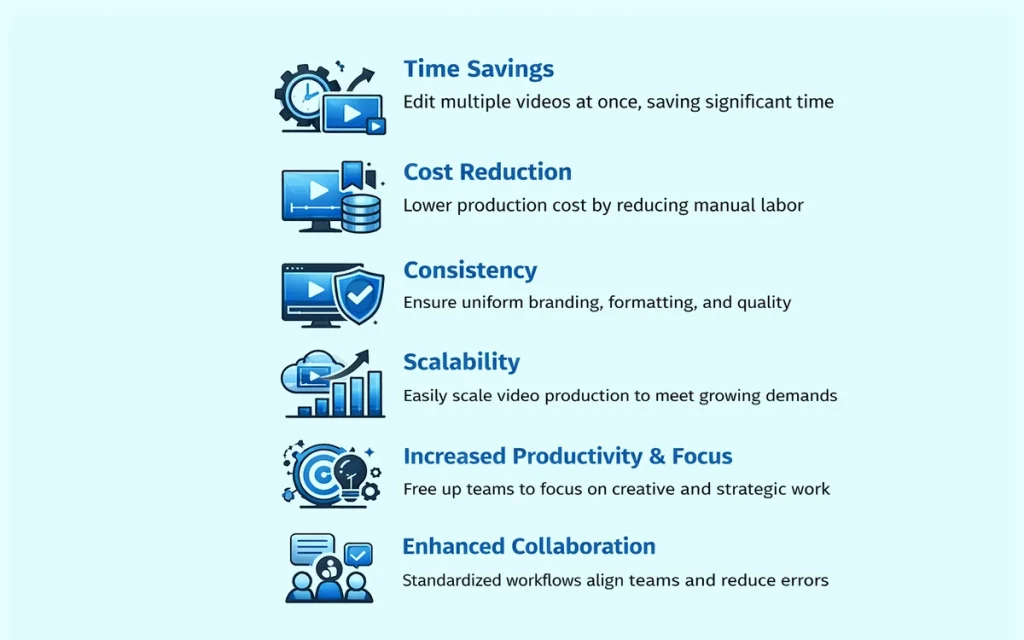
- Time Savings: Bulk video editing removes repetitive manual work from your workflow. Instead of editing each video one by one, you apply changes once and process everything together. Tasks that used to take hours or days can often be completed in minutes, freeing up time for higher-value creative work.
- Cost Reduction: Less manual editing means fewer labor hours and lower production costs. Teams can handle larger volumes of content without hiring additional editors or outsourcing repetitive tasks.
- Consistency: When edits are applied through a single preset or workflow, every video follows the same standards. Branding, formatting, captions, and visual elements stay uniform across all content. This reduces human error and ensures a professional, polished look every time.
- Scalability: Bulk editing makes it easy to grow your video output without increasing effort at the same pace. As content demands rise, the same workflows can process hundreds or thousands of videos.
- Increased Productivity and Focus: By automating repetitive edits, teams spend less time on mechanical tasks and more time on creative and strategic work. Editors can focus on storytelling, quality improvements, and experimentation instead of routine adjustments. This leads to better output without burnout.
- Strategic Planning and Content Buffer: Bulk video editing makes it easier to plan content and build a reliable content buffer. Teams can produce and schedule weeks or months of videos within a single cycle. This reduces last-minute pressure and ensures consistent publishing, even during busy periods.
- Enhanced Collaboration: Standardized workflows facilitate collaboration among multiple people. Editors, marketers, and content managers can align on presets, branding rules, and formats. This clarity reduces back-and-forth, speeds up approvals, and keeps everyone on the same page.
Why is Choosing the Right Video Style Important in Batch Video Editing?
Choosing the right video style is critical in batch video editing. A single, consistent editing style maintains brand identity, improves operational efficiency, and strengthens audience recognition. When editing hundreds of videos at once, pacing, framing, typography, transitions, and color choices get locked in for every video. Let’s break it down:
Consistency: A clear, intentional style makes every video feel like it belongs to the same world. That’s critical for brands, campaigns, and content series. Without it, batch editing creates a jumble of videos that look related only because they were produced together, not because they tell a coherent story.
Operational Efficiency: The right style simplifies decisions. Editors aren’t reinventing layouts, transitions, or motion rules for each clip. Templates actually work. Timelines stay clean. Revisions drop because everyone knows what “done” looks like.
Scalability: Some styles scale beautifully. Others fall apart the moment you try to automate or replicate them. Overly complex motion, heavy manual timing, or bespoke effects might look great once, but become painful across fifty versions. Choosing a scalable style means your batch workflow stays fast instead of fragile.
Audience Impact: Style affects how quickly a viewer understands the message. In batch content, especially for social or marketing, you’re often fighting for attention in the first second. A mismatched style can bury the message, no matter how good the content is.
Long-Term Flexibility: When the style is well chosen, you can swap footage, update text, localize content, or adjust formats without rebuilding everything. That’s the real payoff of batch editing done right.
What is the Best Batch Video Editing Software?
The best batch video editing software depends on the size and needs of the project. Industry-standard batch video editors include Creatomate, Shotstack, Zapier, Filmora Video Bulk, Adobe Media Encoder, DaVinci Resolve, Bandicut, HandBrake, and FFmpeg. Here’s a breakdown of some of the strongest batch video editing tools, along with their key features, pros, and limitations:
1. Creatomate
Creatomate is a cloud-based video automation platform that helps teams generate personalized videos at scale. It transforms templates, data, and APIs into dynamic video content, enabling the easy production of ads, social videos, and visual assets programmatically without manual editing.
Key Features
- Automates video creation using templates and dynamic data
- Supports large-scale personalization for ads and campaigns
- API-driven workflow for programmatic video generation
- Cloud-based rendering with no local software required
- Works with images, video, text, and audio layers
- Integrates easily with marketing and data tools
- Exports videos in multiple formats and resolutions
| Pros | Cons |
|---|---|
| Automates video production and saves time | Setup can feel technical for non-developers |
| Scales personalized videos across large campaigns | Customization depends heavily on template quality |
| Eliminates manual editing once workflows are set | Advanced visual effects may require extra tools |
| API-based and easy to integrate into existing systems | |
| Cloud-based with no software installation needed | |
| Supports text, images, audio, and video layers |
2. Bandicut
Bandicut is a simple video cutting tool built for speed and precision. It allows users to trim, split, and extract clips without re-encoding, preserving the original quality intact. Ideal for large files, it supports frame-accurate cuts and common video formats on Windows.
Key Features
- Fast video cutting without re-encoding
- Preserves original video and audio quality
- Frame-accurate trimming and splitting
- Supports large video files smoothly
- Works with popular video formats
- Simple, beginner-friendly interface
- Hardware-accelerated processing for faster output
- Runs efficiently on Windows systems
| Pros | Cons |
|---|---|
| Fast cutting and splitting without re-encoding | Limited advanced editing tools |
| Preserves original video quality | Free version adds export limits/watermarks |
| Frame-accurate editing | No multi-track timeline editing |
| Handles large files smoothly | |
| Beginner-friendly interface | |
| Supports common video formats | |
| Hardware-accelerated processing |
3. VideoBulk
VideoBulk is a comprehensive software that enables users to download, convert, and manage multiple videos simultaneously. With batch processing, fast downloads, and support for various formats and platforms, it simplifies video handling, saving time and effort for creators, marketers, and anyone working with large video collections.
Key Features
- Grab multiple videos from various platforms simultaneously.
- Convert videos to different formats in one go.
- Fast downloads and conversions to save time.
- Compatible with popular video formats and streaming sites.
- Manage, sort, and store videos efficiently.
- Quick preview before downloading or converting.
- Adjust resolution, format, and output location.
| Pros | Cons |
|---|---|
| Saves time with bulk downloading and conversion | Some platforms may not be supported |
| Supports many video formats and platforms | Large batches can consume significant storage |
| Fast processing speeds | |
| Easy organization and batch management | |
| Simple, user-friendly interface |
4. Shotstack
Shotstack is a cloud-based video editing platform that allows developers to create, edit, and render videos programmatically using a REST API. It handles transitions, effects, and media assets, enabling automated, scalable, and personalized video production without manual editing or managing infrastructure, ideal for high-volume video workflows.
Key Features
- Programmable video editing API with JSON‑based templates for dynamic, automated video creation.
- AI‑powered asset pipeline and template design, enabling voice, image, and script generation.
- Scalable cloud rendering that handles bulk jobs without managing servers.
- Data‑driven personalization for mass‑produced, customized videos.
- A white-label video editor SDK you can embed in your apps.
- Seamless integration with workflows, storage, and delivery platforms.
- Support for transitions, effects, audio, text, and multi‑format outputs.
| Pros | Cons |
|---|---|
| Easy to integrate the API with good documentation. | Limited advanced effects and transitions compared to dedicated editors. |
| Scales well for high-volume video production without managing infrastructure. | Render times and file size limits can slow workflows. |
| Fast rendering and solid video quality. | |
| Helpful, responsive customer support. | |
| Automates workflows and enables dynamic, personalized video creation. |
5. Adobe Premiere Pro + Adobe Media Encoder
Adobe Premiere Pro is a professional video editing software used for cutting, arranging, and enhancing footage. Adobe Media Encoder complements it by efficiently rendering and exporting projects in multiple formats. Together, they provide a seamless workflow for creating, encoding, and delivering high-quality videos across platforms quickly and reliably.
Key Features
- Non-linear video editing with multi-track timeline
- Support for 4K, 8K, and VR formats
- Advanced color grading and correction tools
- Motion graphics and visual effects integration
- Multi-format export via Adobe Media Encoder
- Audio editing and mixing capabilities
- Collaborative workflow with team projects
| Pros | Cons |
|---|---|
| Professional-grade video editing tools | Subscription can be expensive over time |
| Supports 4K, 8K, and VR formats | Occasional crashes or slowdowns with large projects |
| Seamless Adobe Creative Cloud integration | |
| Powerful export options via Media Encoder | |
| Advanced color grading, audio, and effects | |
| Regular updates with new features |
6. DaVinci Resolve
DaVinci Resolve is a comprehensive video production software that combines professional editing, advanced color grading, visual effects, motion graphics, and audio post-production in one platform. Trusted by filmmakers and content creators, it delivers precise control, high-quality output, and a streamlined workflow for everything from feature films to online videos.
Key Features
- Non-linear editing with multi-track timelines, trimming, ripple, roll, slip, and slide tools for precise cuts.
- Industry-leading color correction, HDR grading, color wheels, curves, and LUT support.
- Node-based compositing, motion graphics, keying, rotoscoping, and particle effects.
- Multi-track recording, mixing, ADR, sound effects, EQ, and immersive 3D audio tools.
- Optimized interface for fast editing, ideal for social media or tight deadlines.
- Multi-user workflow with real-time project sharing, timelines, and version control.
- Advanced media import, proxy workflows, metadata tagging, and organizational tools.
- Wide range of formats, resolutions, and codecs, including direct export to platforms like YouTube and Vimeo.
- Fast performance leveraging modern graphics cards for smooth playback and rendering.
| Pros | Cons |
|---|---|
| Industry-leading color grading and correction tools | Requires high-performance hardware for smooth playback |
| All-in-one platform: editing, VFX, motion graphics, audio | Some advanced features are limited to the paid Studio version |
| Node-based Fusion for advanced visual effects | |
| Professional Fairlight audio suite | |
| Multi-user collaboration for team projects | |
| Free version available with extensive features | |
| Cross-platform support: Windows, macOS, Linux |
7. Filmora, Movavi, HitFilm Express
Filmora is an intuitive video editor designed for beginners, featuring drag-and-drop editing, effects, transitions, and basic color correction for smooth, polished videos. Movavi provides easy-to-use editing with templates, filters, and quick export options, ideal for casual creators. HitFilm Express is a free, professional-grade editor combining timeline editing, visual effects, and compositing for more advanced projects.
Key Features
Filmora:
- Drag-and-drop editing for ease of use
- Wide range of effects, transitions, and titles
- Basic color correction and filters
- Audio editing and built-in music library
- Screen recording
- Easy export to multiple formats
Movavi:
- Pre-made templates for quick video creation
- Simple trimming, cropping, and merging tools
- Filters, transitions, and stickers
- Screen and webcam recording
- Fast export and sharing options
- Beginner-friendly interface
HitFilm Express:
- Advanced timeline editing
- Professional visual effects (VFX) and compositing
- 2D and 3D video effects
- Layer-based editing and masking
- Free with optional add-on packs for extra tools
| Software | Pros | Cons |
|---|---|---|
| Filmora | Easy to learn, beginner-friendly interface, wide effects & transitions, fast export | Limited advanced tools, watermark on the free version, and less control over fine details |
| Movavi | Simple template-based workflow, quick trimming/editing, screen/webcam capture | Basic effects, fewer advanced features, not ideal for complex projects |
| HitFilm Express | Powerful VFX and compositing, professional-grade features, 2D & 3D effects, free version | Steep learning curve, heavy on system resources, add-ons cost extra for full features |
8. FFmpeg
FFmpeg is an open-source multimedia framework that enables recording, converting, and streaming audio and video in almost any format. It supports a vast array of codecs, filters, and processing options, making it ideal for editing, transcoding, and real-time streaming. Lightweight yet powerful, it’s widely used by developers, broadcasters, and content creators for flexible media handling across platforms.’
Key Features
- Supports virtually all audio and video formats.
- Works with a wide range of codecs for encoding and decoding.
- Capable of live streaming and broadcasting media.
- Captures audio and video from multiple sources.
- Apply filters, overlays, and transformations to media.
- Automate conversions and edits for multiple files.
- Runs on Windows, macOS, Linux, and more.
- Full control through a versatile CLI for advanced workflows.
| Pros | Cons |
|---|---|
| Supports nearly all audio/video formats and codecs | Requires learning command-line syntax for advanced features |
| Lightweight and fast, even with large files | Complex features can overwhelm casual users |
| Powerful control for editing, transcoding, and streaming | |
| Free and open-source with community support | |
| Excellent for batch processing and automation |
9. HandBrake and VLC
HandBrake is a free, open-source video converter that lets you compress, convert, and optimize videos for different devices without losing quality. VLC is a powerful, versatile media player capable of playing almost any audio or video format, streaming content, and performing basic conversions. Together, they cover video playback, conversion, and compression needs efficiently and reliably.
Key Features
HandBrake:
- Converts videos to multiple formats (MP4, MKV, etc.)
- Compresses large video files without major quality loss
- Presets for devices like smartphones, tablets, and consoles
- Batch encoding for processing multiple files at once
- Subtitle support and basic video filters (deinterlacing, cropping, scaling)
VLC:
- Plays virtually all audio and video formats
- Media streaming and network playback
- Supports subtitles, playlists, and audio/video filters
- Basic video/audio conversion and format export
- Lightweight, cross-platform, and highly customizable interface
| Software | Pros | Cons |
|---|---|---|
| HandBrake | -Free and open source -Excellent video compression -Supports batch processing -Device-specific presets -Good subtitle and format support | -No video playback -Limited to conversion only |
| VLC | -Plays almost any media format -Lightweight and fast -Streaming and basic conversion support -Cross-platform availability | -Outdated interface -Limited advanced editing features |
How Do You Edit Videos in Batches?
To edit videos in a batch, start by choosing a single editing style that will be applied consistently across all videos. Here is a tutorial on how to edit videos in batches.
1. Define the Goal and Format First
Before opening any editing software, get clear on what you’re producing. Platform, duration, aspect ratio, and tone should all be locked. When these stay consistent, batching actually works.
2. Choose a Repeatable Video Style
Decide on fonts, colors, transitions, lower thirds, and pacing. Keep it simple and scalable. This style becomes the backbone of every video in the batch.
3. Organize Your Assets
Create folders for raw footage, music, graphics, captions, and exports. Name files clearly. Good organization up front saves hours later.
4. Build a Master Template
Create one timeline with placeholders for footage, text, and visuals. Set intro, outro, transitions, and effects once. This template is what you’ll duplicate for the entire batch.
5. Apply Global Edits First
Do things that apply to all videos in one go. Color correction, LUTs, audio cleanup, text styling, and branding elements. Avoid fine-tuning individual clips too early.
6. Duplicate and Replace Content
Copy the master timeline for each video. Swap footage and text while keeping the structure intact. This is where batching delivers real speed.
7. Tackle One Task at a Time
Instead of fully finishing one video, work in passes. First pass for cuts, second for text, third for audio, fourth for polish. Repetition keeps you fast and consistent.
8. Review as a Set
Watch the videos together, not individually. This makes inconsistencies easier to spot and helps maintain a unified look and feel.
9. Export in Bulk
Use preset export settings and queue all videos together. This reduces errors and keeps output consistent across platforms.
10. Save Everything for Future Batches
Keep your templates, presets, and style guides. The next batch should start faster than the last.
Should Businesses Outsource Batch Video Editing Services?
Yes, businesses should outsource batch video editing services, as it’s a strategic way to reduce costs while improving scalability and efficiency. Outsourcing video editing allows in-house resources to stay focused on other core functions like content creation and strategy, while still driving consistent and high-quality results. Here are some key reasons for outsourcing batch video editing:
Cost Efficiency: Outsourcing removes fixed costs like full-time salaries, software licenses, and infrastructure. You pay only for the work delivered. That makes spending predictable and easier to scale up or down.
Scalability and Flexibility: External teams can handle sudden spikes in video volume without hiring or training delays. You can scale output quickly for campaigns, launches, or seasonal demand. When volume drops, costs drop with it.
Access to Expertise and Advanced Tools: Specialized editors work across formats, platforms, and styles every day. They already use professional-grade tools and proven workflows. You benefit from that expertise without investing in it yourself.
Faster Turnaround Times: Dedicated editing teams operate with optimized pipelines and parallel workflows. Projects move forward while your internal team focuses elsewhere. This shortens delivery cycles significantly.
Focus on Core Competencies: Your team stays focused on strategy, messaging, and growth instead of production grind. Creative leadership and decision-making remain internal. Execution becomes a support function, not a distraction.
Fresh Perspective: External editors bring exposure to different industries and content styles. They often spot improvements that internal teams overlook. This can subtly elevate quality without changing your brand voice.
How Long Does it Take to Batch Edit Videos?
Even though batch video editing saves a significant amount of time by applying the same editing style across multiple videos, the total turnaround still depends on factors like complexity, niche, and the editor’s skill level. Below is a breakdown table showing the typical time required for batch video editing:
| Video Type | Typical Use Case | Avg Editing Time per Video | Daily Output (Small Team) |
|---|---|---|---|
| Simple Batch Edits | Social clips, basic cuts, captions, templates | 3–8 minutes | 40–80 videos |
| Moderate Complexity | Branding, motion graphics, multi-format exports | 15–30 minutes | 20–40 videos |
| Advanced / Layered | Heavy animation, storytelling, frequent revisions | 45–90 minutes | 5–15 videos |
How Much Does Batch Video Editing Cost?
The batch video editing cost depends on the complexity and volume of the project. Here is the clear breakdown of how much batch video editing typically costs, from simple outsourced jobs to more complex or ongoing arrangements.
| Pricing Model | Typical Cost Range | Notes |
|---|---|---|
| Per-Video Flat Rate (basic) | $20–$100 per video | Simple cuts, trims, captions, basic edits. Good for short social clips. |
| Per-Video Mid-Tier | $100–$300 per video | Includes color, audio tweaks, and motion graphics. |
| Subscription / Monthly Packages | $300–$1,000+ / month | Best for regular batch volumes; often faster turnaround and priority service. |
| Hourly Rates | $10–$150+ / hour | Freelancers and agencies vary widely by skill level and region. |
FAQ’s
What types of edits can be applied in bulk video editing?
In bulk video editing, you can apply consistent edits like trimming, color correction, transitions, text overlays, branding elements, audio adjustments, resizing, and compression. These uniform changes save time while maintaining a cohesive style across multiple videos efficiently.
Can I use a bulk video editor to personalize videos?
Yes, bulk video editors can personalize videos by using templates with variable elements like names, images, or messages. This allows you to automatically generate multiple customized videos while keeping a consistent style, saving time without sacrificing individual relevance.
Can I edit videos in bulk using cloud rendering?
Yes, you can edit videos in bulk using cloud rendering. By uploading your media and templates to a cloud-based platform, you can apply consistent edits, effects, and branding across multiple videos simultaneously, saving time and ensuring uniform quality.
Can you batch edit videos in Adobe Premiere Pro?
Yes, you can batch edit in Adobe Premiere Pro by using sequence templates, adjustment layers, and consistent effects. Combined with Adobe Media Encoder, you can queue multiple projects for export, ensuring uniform style, formatting, and efficient processing across numerous videos.
What are the common batch editing tasks in video editing?
Common batch editing tasks include trimming clips, resizing, adding watermarks or captions, applying color correction or LUTs, adjusting audio levels, converting formats, compressing files, and standardizing transitions or effects, enabling consistent, efficient editing across multiple videos simultaneously.
What are the limitations of batch video editing?
Batch video editing speeds up workflows but has limits: it’s less flexible for unique edits, can’t handle creative variations per video, may struggle with inconsistent footage, and errors in the template or settings propagate across all videos.