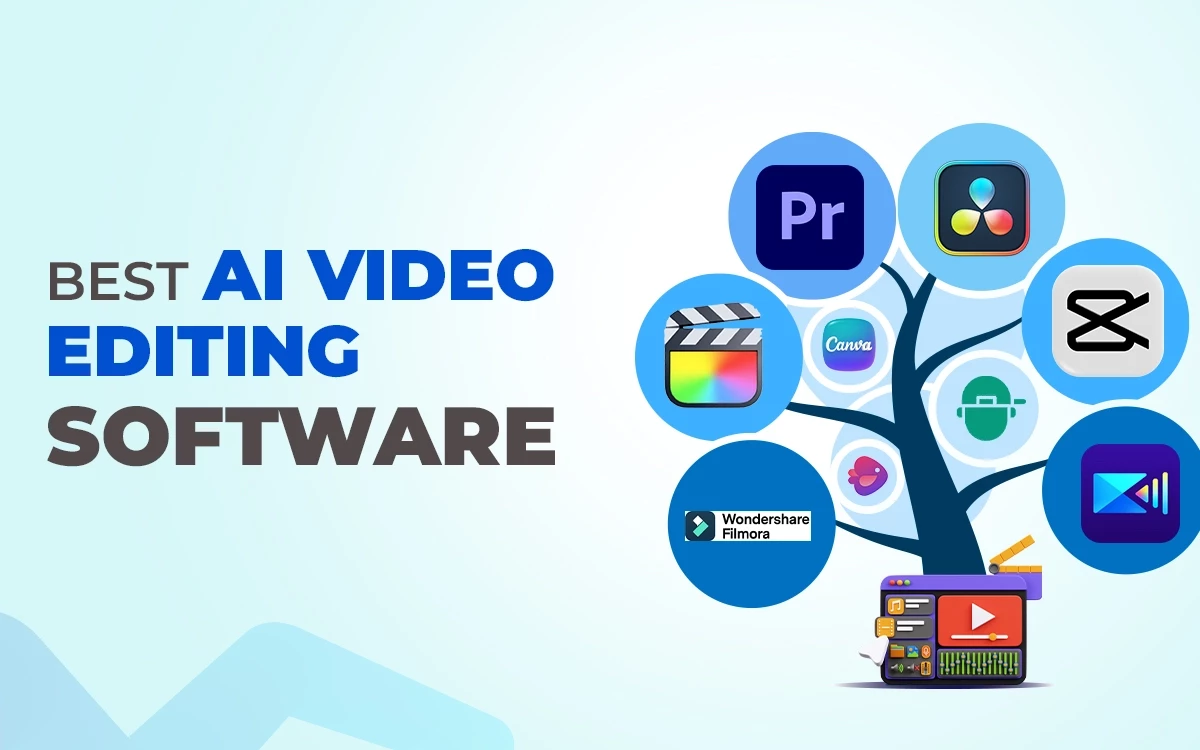
AI video editing software in 2026 transforms raw clips into polished videos within minutes. Some of the best tools are cut scene, fix audio, add captions, and generate effects using well-directed prompts. Among these tools, some are especially made for creators, some for teams, and others for social media speed.
This list highlights the 14 best AI video editing software in 2026 and explains how each tool works.
- Adobe Premiere Pro
- Blackmagic DaVinci Resolve Studio
- Final Cut Pro
- CapCut
- Wondershare Filmora
- CyberLink PowerDirector
- Canva
- HeyEddie.AI
- Invideo AI
- Colourlab AI
- Topaz Video AI
- Descript
- Microsoft Clipchamp
- Kapwing
What you’ll learn in this article
- 1 1. Adobe Premiere Pro
- 2 2. Blackmagic DaVinci Resolve Studio
- 3 3. Final Cut Pro
- 4 4. CapCut
- 5 5. Wondershare Filmora
- 6 6. CyberLink PowerDirector
- 7 7. Canva
- 8 7. HeyEddie.AI
- 9 Features
- 10 9. Invideo AI
- 11 10. Colourlab AI
- 12 11. Topaz Video AI
- 13 12. Descript
- 14 13. Microsoft Clipchamp
- 15 14. Kapwing
- 16 What is AI Video Editing Software?
- 17 Why Is AI Video Editing Software Becoming Popular?
- 18 Is AI Video Vditing Software Good for Product Videos?
1. Adobe Premiere Pro
Adobe Premiere Pro is a professional video editing software built for serious creators and production teams. It uses AI tools like auto captions, scene detection, and smart reframing to speed editing. The software handles complex timelines, high-resolution footage, and deep integrations with Adobe apps, making it a long-term choice for advanced video workflows in modern content pipelines today.
Features
- Professional timeline editing with multi-track control for video, audio, and effects
- Supports almost all video formats and camera files without conversion
- Advanced color correction and grading using Lumetri Color tools
- Built-in audio editing, mixing, and noise cleanup tools
- Collaboration tools with Team Projects and Frame.io feedback
- Multi-camera editing with automatic sync options
When to Use & When Not to Use
| When to Use | When Not to Use |
|---|---|
| Creating professional videos for film, TV, or online platforms | When speed and simplicity are more important than advanced features |
| Full creative control over editing, color grading, and effects is needed | For quick social media content or short-form videos |
| Working with multi-camera setups or complex timelines | When using a low-spec computer that struggles with heavy software |
| Integrating with other Adobe apps like After Effects or Audition | When advanced color grading or effects aren’t necessary |
| Applying precise audio mixing, transitions, and motion graphics | When beginner-friendly or minimal editing tools are preferred |
Pros and Cons
| Pros | Cons |
|---|---|
| Powerful AI-driven editing tools | Steep learning curve for beginners |
| Handles complex and long projects well | |
| Industry standard with wide format support | |
| Strong integration with other Adobe products |
Pricing
Adobe Premiere Pro price starts at $22.99/month with a 7-day free trial.
2. Blackmagic DaVinci Resolve Studio
Blackmagic DaVinci Resolve Studio is a professional video editing AI software suite designed for high-end production. It combines editing, color grading, visual effects, audio post, and AI-powered tools in one platform. Trusted by filmmakers and studios, it delivers precise control, cinematic quality, and powerful workflows for complex projects and long-form video creation.
Features
- Fusion visual effects and motion graphics inside the same software
- Supports high resolution formats, including 4K, 8K, and RAW workflows
- Multi-camera editing with automatic sync and angle switching
- Collaborative workflow for multiple editors, colorists, and sound designers
- GPU-accelerated performance for fast playback and rendering
- Advanced AI features, including face recognition, object tracking, and magic mask
When to Use & When Not to Use
| When to Use | When Not to Use |
|---|---|
| When working on professional film, TV, or commercial projects | For quick social media content with minimal editing |
| When advanced color grading and correction are required | When the hardware is not powerful enough for smooth playback |
| When editing multi-camera or high-resolution footage | If you need a beginner-friendly interface |
| When collaborative workflows with multiple editors and colorists are needed | When only basic trimming or simple edits are required |
| When needing integrated VFX, audio, and timeline editing in one software | When offline editing is necessary without system optimization |
Pros and Cons
| Pros | Cons |
|---|---|
| One-time purchase with no subscription fee | Steep learning curve for new users |
| Very stable for long and complex projects | Requires a powerful computer to run smoothly |
| Clean professional interface once learned | |
| Strong community and learning resources | |
| Frequent updates without extra cost |
Pricing
DaVinci Resolve is free to use, lifetime license cost $295.
3. Final Cut Pro
Final Cut Pro is Apple’s professional video editing software for Mac users, blending powerful editing tools with an intuitive workflow. Its magnetic timeline, advanced color grading, and motion graphics integration make high-resolution projects fast and efficient. AI-assisted tools speed up tasks like cropping, color balancing, and subtitle generation, making it ideal for filmmakers, content creators, and social media editors.
Features
- Magnetic timeline for intuitive trackless editing
- Voice isolation and auto subtitles for faster audio editing
- Optimized for Mac hardware with fast rendering
- Scene detection to identify cuts and simplify editing
- Automatic color balancing suggestions for consistent looks
- Motion tracking and object detection for effects without manual keyframes
When to Use & When Not to Use
| When to Use | When Not to Use |
|---|---|
| Editing primarily on Mac computers | Working on Windows or Linux computers |
| High-resolution video projects, such as short films or commercials | Projects needing extensive third-party plugin support outside the Apple ecosystem |
| Quick turnarounds with fast rendering and background processing | Large collaborative teams needing cloud-based shared projects |
| Projects requiring motion graphics or title-heavy sequences | Editing primarily for social media short-form content where speed over quality matters |
| Collaborating with other Apple software, like Motion and Compressor |
Pros and Cons
| Pros | Cons |
|---|---|
| Extremely fast rendering and export on Mac | Steep learning curve for users transitioning from track-based editors |
| Smooth and intuitive magnetic timeline workflow | Collaboration tools are not as robust for team projects |
| Excellent integration with other Apple creative tools | |
| Strong optimization for high-resolution and HDR workflows | |
| AI features speed up repetitive tasks like cropping, subtitles, and color balancing | |
| Regular updates with new features at no extra cost |
Pricing
Final Cut Pro cost $299.99 one-time purchase with a 90-day free trial available.
4. CapCut
CapCut is a beginner-friendly video editor designed for quick content creation on mobile and desktop. It combines manual editing with AI-powered features like auto captions, text-to-speech, and smart effects. Users can create social media videos, reels, and short films with minimal effort. Its intuitive interface and AI tools make editing fast without needing professional experience.

Features
- Speed adjustments, including slow motion and fast motion
- Audio editing with sound effects and background music
- Template library for social media content
- Supports portrait, landscape, and square aspect ratios
- Smart filters, transitions, and effects powered by AI
- Multi-track timeline with basic editing controls
When to Use & When Not to Use
| When to Use | When Not to Use |
|---|---|
| Creating short videos for TikTok, Instagram, or YouTube Shorts | Professional film or high-end video production |
| Quick social media content where speed is more important than precision | Complex color grading or advanced motion graphics |
| Adding AI captions or voiceovers automatically | Multi-camera feature films or large collaborative projects |
| Editing on mobile or low-spec computers | Projects requiring detailed audio mixing or post-production |
Pros and Cons
| Pros | Cons |
|---|---|
| Extremely easy to learn and use for beginners | Not suitable for long-form or cinematic projects |
| AI tools save time on captions, voiceovers, and effects | Less control over fine-tuned effects and transitions |
| Fast export for social media sharing | |
| Free with optional premium features | |
| Template library accelerates content creation |
Pricing
CapCut is free to use; paid plant costs $9.99 to $89.99.
Wondershare Filmora is a beginner-friendly video editor designed for quick and easy content creation. It combines drag-and-drop simplicity with professional tools like transitions, effects, and audio editing. Its AI-powered features include auto-captioning, scene detection, and smart background removal. Filmora suits creators who want polished videos without steep learning curves, making it ideal for YouTube, social media, and personal projects.

Features
- Drag-and-drop timeline editing with multi-track support
- Built-in transitions, filters, and a visual effects library
- Audio tools, including background noise removal and music synchronization
- Preset templates for intros, outros, and social media formats
- 4K video export with basic color grading tools
- Screen recording and webcam capture are built in
When to Use & When Not to Use
| When to Use | When Not to Use |
|---|---|
| Creating social media content like YouTube shorts, Instagram reels, or TikTok videos | High-end film or commercial production needing advanced color grading and audio mixing |
| Quick edits with AI assistance for captions, background removal, or scene detection | Multi-camera professional edits or complex collaborative workflows |
| Educational videos or tutorials with screen capture | Projects requiring extensive third-party plugin support or node-based visual effects |
| Projects where simplicity and speed are more important than deep manual control | Editing ultra-high resolution footage on lower-end hardware |
Pros and Cons
| Pros | Cons |
|---|---|
| Very beginner-friendly and easy to learn | Not suitable for high-end professional film projects |
| AI features save time on repetitive tasks | Rendering large projects can be slower on low-spec systems |
| Affordable compared to professional editors | |
| Fast workflow for short-form videos | |
| Regular updates with new templates and effects |
Pricing
Wondershare Filmora is free to use; the premium version cost starts at $19.99 per month.
6. CyberLink PowerDirector
CyberLink PowerDirector is a versatile AI software for video editing designed for beginners and pros alike. It combines traditional timeline editing with AI-powered tools for faster workflows, including motion tracking, style effects, and automatic scene detection. Its intuitive interface, broad format support, and smart tools make it suitable for YouTube videos, marketing content, or personal projects, balancing simplicity and advanced functionality.
Features
- Multi-track timeline editing with drag-and-drop interface
- Automatic scene detection and smart trimming
- Built-in transitions, titles, and filters
- Export presets for social media and broadcast platforms
- Fast rendering with GPU acceleration
- Integrated royalty-free media library
When to Use & When Not to Use
| When to Use | When Not to Use |
|---|---|
| Creating social media videos quickly with AI-assisted tools | High-end film or professional broadcast projects requiring precise color grading |
| Editing personal projects or YouTube content efficiently | Collaborative workflows with multiple professional editors |
| Working with 360° footage or multi-camera setups | Projects needing complex compositing beyond the built-in tools |
| Adding quick motion graphics or visual effects without heavy learning curves | Extensive plugin or scripting support for advanced customization |
Pros and Cons
| Pros | Cons |
|---|---|
| User-friendly for beginners yet powerful enough for pros | Advanced color grading is not as robust as DaVinci Resolve |
| Fast rendering and smooth playback on most systems | Not ideal for feature film-level post-production |
| Supports a wide variety of video formats | |
| Regular updates add features without requiring new versions | |
| Integrated stock media library simplifies content creation |
Pricing
CyberLink PowerDirector allows free use with limited features. Subscription-based pricing starts at $59.99, and a one-time purchase cost $139.99.
7. Canva
Canva is a web-based design platform that makes creating graphics, presentations, and videos simple. It combines drag-and-drop templates with AI-powered tools for quick edits, text-to-image generation, and automated resizing. While beginner-friendly, it also supports professional content creation, making it a versatile choice for social media, marketing, and light video projects without requiring advanced editing skills.
Features
- Video editing with basic trimming, transitions, and animations
- Automated resizing for social media and various screen formats
- Collaborative editing with real-time commenting and version tracking
- Brand kit to maintain logos, colors, and fonts consistently
- Drag-and-drop interface for quick visual content creation
- An extensive library of templates, stock photos, videos, and music
When to Use & When Not to Use
| When to Use | When Not to Use |
|---|---|
| Creating social media posts, stories, and short videos quickly | Complex, frame-by-frame video editing or cinematic production |
| Marketing presentations and promotional graphics | High-end color grading or professional motion graphics |
| Collaborative team projects needing fast, polished outputs | Projects requiring advanced audio manipulation |
| Prototyping visuals without advanced software skills | Offline or extremely high-resolution video rendering |
| AI-assisted content creation for speed and inspiration | Custom VFX or compositing work beyond template limitations |
Pros and Cons
| Pros | Cons |
|---|---|
| Fast content creation for beginners and non-designers | Heavily template-driven, restricting full creative freedom |
| AI tools speed up image generation, layout suggestions, and text animations | Dependent on the internet connection for full functionality |
| Web-based, accessible from anywhere, with collaboration features | |
| Large library of ready-to-use assets and templates | |
| Integrates branding tools for consistency across projects |
Pricing
Most of Canva’s features are free. Pro-version price starts at $12.99 per year.
7. HeyEddie.AI
HeyEddie.AI is an AI-driven video editing tool built to automate rough cuts and save time. It reviews raw footage, identifies usable moments, removes mistakes, and creates a clean first edit. The tool is designed for speed and consistency, making it useful for teams handling interviews, podcasts, and repeat content at scale.
Features
- AI automated rough cut generation
- Smart clip selection based on dialogue and activity
- Automatic removal of silences and mistakes
- Cloud-based workflow with no heavy local setup
- Text-based editing interface
- Designed for collaborative review workflows
When to Use & When Not to Use
| When to Use | When Not to Use |
|---|---|
| When editing podcast interviews or talking head videos | When precise creative editing is required |
| When speed matters more than creative control | When working on cinematic or story-driven projects |
| When handling large volumes of similar content | When advanced visual effects are needed |
| When teams need quick first cuts | When offline editing is necessary |
| When non-editors need usable edits fast | When full manual control is important |
Pros and Cons
| Pros | Cons |
|---|---|
| Huge time savings on repetitive editing work | Limited creative flexibility |
| Reduces the need for skilled editors on first passes | Output often needs manual refinement |
| Easy to use for non-technical users | |
| Consistent output across multiple videos | |
| Good fit for agencies and content teams |
Pricing
Alongside the free version, the premium version of HeyEddie.AI cost starts at $167.
9. Invideo AI
Invideo AI is an AI-powered platform that transforms text, scripts, or ideas into complete videos quickly. It automatically selects visuals, adds voiceovers, captions, music, and formats for different platforms. Designed for marketers, creators, and businesses, it simplifies video production, saves time, and allows anyone, even without editing experience, to produce polished, ready-to-publish content efficiently and at scale.

Features
- Text to video generation from prompts or scripts
- AI selected stock footage images and video clips
- Automatic voiceovers with multiple languages and tones
- Template-driven workflow for fast creation
- Built-in captions, subtitles, and on-screen text
- Pre-sized formats for social media platforms
When to Use & When Not to Use
| When to Use | When Not to Use |
|---|---|
| When you need videos quickly with minimal effort | When detailed manual editing is required |
| When creating marketing or promotional content | When working on cinematic or narrative projects |
| When producing social media videos at scale | When custom motion design is needed |
| When you don’t have editing experience | When footage-based storytelling is the priority |
| When turning blogs or scripts into videos | When full creative control matters |
Pros and Cons
| Pros | Cons |
|---|---|
| Very fast content production | Videos can feel generic |
| Easy for beginners and non-editors | Limited originality in visuals |
| Good for consistent brand output | |
| Reduces the cost of video production | |
| Useful for teams with tight deadlines |
Pricing
Invideo AI is free to use, users can access to premium features at starting cost at $20/month.
10. Colourlab AI
Colourlab AI is an AI-driven color grading tool designed to simplify and speed up professional video color correction. It uses machine learning to match tones, enhance skin tones, and maintain consistent looks across shots automatically. Ideal for filmmakers, colorists, and content creators, it streamlines grading workflows while preserving creative control and delivering cinematic, high-quality results efficiently.
Features
- AI-powered automatic color matching across shots
- Smart skin tone correction and enhancement
- Film look and LUT application with AI suggestions
- Node-based color grading workflow support
- Integration with DaVinci Resolve and other editors
- Batch color grading for multiple clips at once
When to Use & When Not to Use
| When to Use | When Not to Use |
|---|---|
| When consistent color grading is needed across multiple shots | When full manual color control is essential |
| When time constraints make manual grading impractical | When unconventional or highly stylized grading is required |
| When skin tones need accurate correction | For simple social media videos where grading isn’t needed |
| When working on professional film or video projects | When working offline without AI support |
| When using DaVinci Resolve or similar software | When the input footage is extremely low quality |
Pros and Cons
| Pros | Cons |
|---|---|
| Speeds up professional color grading | AI suggestions may not match artistic vision perfectly |
| Maintains consistent tone across scenes | Less control over extreme color effects |
| Reduces tedious manual adjustments | |
| Works well with multiple clips and long projects | |
| Preserves creative flexibility while assisting with workflow |
Pricing
Colourlab AI cost starts at $14 per month.
11. Topaz Video AI
Topaz Video AI is an AI-powered video enhancement tool that improves video quality automatically. It specializes in upscaling low-resolution footage, reducing noise, sharpening details, and creating slow-motion effects using machine learning. Ideal for filmmakers, content creators, and archivists, it saves time on restoration and enhancement tasks while delivering crisp, high-quality results from old or low-quality source material.

Features
- AI upscaling from SD to HD, 4K, or 8K
- Noise reduction and grain removal
- Motion interpolation for smooth slow-motion
- Detail enhancement and sharpening
- Batch processing for multiple videos
- Supports a wide range of formats
When to Use & When Not to Use
| When to Use | When Not to Use |
|---|---|
| When enhancing old or low-resolution footage | When heavy creative editing is required |
| When creating high-resolution content from standard or HD video | For complex visual effects projects |
| When reducing noise and grain in recordings | When the original footage is already high quality |
| When producing smooth, slow-motion effects | If the workflow requires full timeline editing |
| When restoring archival or historical footage | When real-time collaborative editing is needed |
Pros and Cons
| Pros | Cons |
|---|---|
| Significantly improves video clarity and resolution | Processing can be slow on large files |
| Automates time-consuming restoration tasks | Requires a powerful GPU for best performance |
| Supports batch processing for efficiency | |
| User-friendly interface | |
| Produces professional results with minimal effort |
Pricing
Topaz Video AI offers limited trial, premium pricing starts at $25.
12. Descript
Descript is an AI-driven video and audio editing tool that lets you edit content by editing text. It transcribes recordings, enables cut, copy, and delete edits on the transcript, and automatically updates the video or audio. Designed for podcasters, creators, and teams, it simplifies editing, adds captions, and speeds up content production without needing traditional timeline-based editing skills.

Features
- Text-based video and audio editing
- Automatic transcription with high accuracy
- Overdub AI voice replacement
- Screen recording and multitrack support
- Collaboration tools for teams
- Filler word removal and silence trimming
When to Use & When Not to Use
| When to Use | When Not to Use |
|---|---|
| When editing interviews, podcasts, or talking head videos | When advanced visual effects are required |
| When fast transcription and captioning are needed | For cinematic storytelling projects |
| When producing content with minimal video editing experience | When full timeline control is needed |
| When collaborating with remote teams | When working on multi-camera complex shoots |
| When creating educational or social media videos quickly | For high-end color grading or motion graphics |
Pros and Cons
| Pros | Cons |
|---|---|
| Simplifies editing for non-editors | Limited visual editing capabilities |
| Fast transcription and captioning | Not ideal for complex creative projects |
| Easy AI voice replacement | |
| Collaboration features built-in | |
| Reduces time spent on repetitive editing tasks |
Pricing
Descript is free to use.
13. Microsoft Clipchamp
Microsoft Clipchamp is a web-based AI software for video editing designed for quick content creation. It combines basic timeline editing with AI-assisted features like text-to-speech, auto-subtitles, and stock media integration. Geared toward social media creators, marketers, and educators, it allows users to produce polished videos fast without advanced technical skills, making editing accessible for beginners and teams working online.

Features
- Drag-and-drop timeline editing
- AI-powered text-to-speech narration
- Built-in stock video, audio, and images
- Pre-sized templates for social media platforms
- Basic transitions, filters, and effects
- Cloud-based editing with easy export options
When to Use & When Not to Use
| When to Use | When Not to Use |
|---|---|
| When creating social media content quickly | For professional film or cinematic projects |
| When you need beginner-friendly video editing | When advanced motion graphics are required |
| When adding voiceovers or captions automatically | When offline editing is necessary |
| When using stock footage to speed up production | For multi-camera or complex timeline edits |
| When working on small marketing or educational projects | When precise color grading is needed |
Pros and Cons
| Pros | Cons |
|---|---|
| Easy for beginners to use | For professional film or cinematic projects |
| Fast content creation with templates | When advanced motion graphics are required |
| AI tools simplify narration and captions | When offline editing is necessary |
| Cloud-based access anywhere | For multi-camera or complex timeline edits |
| Affordable and integrated with the Microsoft ecosystem | When precise color grading is needed |
Pricing
Microsoft Clipchamp has free version available, premium version cost starts at $11.99.
14. Kapwing
Kapwing is an online video editing platform that combines simple timeline editing with AI-powered tools for creators. It allows users to trim, resize, add captions, and generate content from text prompts. Designed for social media, marketing, and quick content production, Kapwing makes video editing accessible, collaborative, and fast without needing advanced software or technical expertise.
Features
- Online drag-and-drop video editor
- AI-powered auto-subtitles and captions
- Text-to-video generation tools
- Resizing and formatting for multiple platforms
- Basic transitions, filters, and effects
- Collaborative editing with team access
When to Use & When Not to Use
| When to Use | When Not to Use |
|---|---|
| When creating social media videos quickly | For advanced cinematic or story-driven projects |
| When automatic captions or subtitles are needed | When heavy visual effects or compositing are required |
| When resizing content for multiple platforms | When precise timeline control is essential |
| When working collaboratively with teams remotely | For offline editing needs |
| When editing short promotional or educational content | When full professional color grading is needed |
Pros and Cons
| Pros | Cons |
|---|---|
| User-friendly and accessible online | Limited advanced editing features |
| Fast content creation with AI assistance | Dependent on the internet connection |
| Supports team collaboration | |
| Flexible export options for different platforms | |
| Good for beginners and non-editors |
Pricing
Kapwing pricing starts at $16 per month.
What is AI Video Editing Software?
AI video editing software uses artificial intelligence to turn raw footage into a polished video in just a few hours, often with little to no manual work. It automates and streamlines the video production process, making it faster and more efficient.
With AI video editing software, users guide the tool using words, a script, or a simple idea instead of handling every small editing step. The AI can automatically cut clips, add transitions, music, captions, and voiceovers, and structure the video for you.
In short, AI video editing software helps you create videos faster by letting AI handle the repetitive work while you stay in control of the creative idea.
What Is The Difference Between AI Video Editing And Traditional Video Editing?
The difference between AI video editing and traditional video editing highlights automation versus manual control. AI video editing follows text-based instructions and completes repetitive tasks in seconds, reducing cost and production time. Traditional video editing relies on a hands-on timeline process, takes longer, and demands higher skill, but offers deeper creative control and precision.
Check out the table below for a clear breakdown of the differences between AI video editing and traditional video editing:
| Aspect | AI Video Editing | Traditional Video Editing |
|---|---|---|
| Editing process | Automated using AI | Fully manual |
| User input | Text, script, or simple instructions | Timeline-based editing |
| Speed | Very fast | Time-consuming |
| Skill required | Low to medium | Medium to high |
| Creative control | Limited but improving | Full control |
| Best for | Social media, ads, quick content | Films, documentaries, detailed projects |
How Does AI Video Editing Software Work?
AI video editing software works by using machine learning and automation to transform raw footage into a polished video with minimal effort. It can identify scenes, detect faces, remove background noise, add transitions, music, captions, and voiceovers automatically, streamlining the editing process while letting you focus on the creative direction.
Here’s how it usually works, step by step:
Step 1: Input your idea
You start by adding text, a script, raw footage, or a short prompt that explains what you want.
Step 2: AI analyzes the content
The software studies visuals, audio, scenes, and timing using trained AI models.
Step 3: Automatic editing
The AI cuts clips, arranges scenes, adds transitions, music, captions, and voiceovers.
Step 4: Review and adjust
You make quick changes using text commands or light manual edits.
Step 5: Export the video
Once satisfied, you export the finished video in your desired format.
Which Video Editing Software Has The Top AI Avatars?
Video editing software that generates top AI avatars includes HeyGen, Synthesia, DeepBrain AI, and Colossyan. These tools focus on turning text into video and provide realistic, high-quality digital presenters used mainly for marketing, training, and professional content.5 video editing software with AI Avatar include Synthesia, HeyGen, DeepBrain AI, Colossyan, and VEED (AI Avatars)
Why Is AI Video Editing Software Becoming Popular?
AI video editing is drastically getting popular as it reduces video production time, removes repetitive tasks, and requires technical skills. These tools are especially effective for creating short-form videos for social media platforms like TikTok, Instagram, and Facebook ads.
With this free AI video editing software, you no longer need hours of filming, a big crew, or deep editing skills to make something that looks tight and professional. Instead, you can type a script, pick a style, and let the AI do the rest.
Here’s what’s really driving the rise:
- It saves time: Editing used to eat up whole days. Now AI automates cuts, fixes mistakes, adds effects, and even builds talking-head avatars from text. What took hours can happen in minutes.
- It cuts costs: You don’t need a camera crew, studio, actors, or fancy gear. Solo creators, small teams, and businesses can produce high-quality video with far fewer resources.
- It’s easier to use: Tools are built for people who aren’t editors. Drag-and-drop, intuitive timelines, natural language prompts, and smart suggestions mean beginners can jump right in.
- It makes content faster for business goals: Marketing, training, onboarding, sales; every team wants more video. AI lets them churn out more content without burning people out.
- It expands creativity: You can experiment with styles, voices, languages, and digital avatars in ways that used to be expensive or slow. That opens up new formats and ideas that didn’t scale before.
What is the Best AI Video Editing Software for Large Teams?
The best AI video editing software for large teams includes Adobe Premiere Pro, Descript, and InVideo AI. These platforms combine powerful AI tools with enterprise-level features, making them well-suited for managing team workflows and large-scale video production. Top software choices for video editing for large teams include Adobe Premiere Pro (with AI tools like Adobe Sensei), Frame.io (part of Adobe), Blackmagic DaVinci Resolve, Descript and Synthesia.
Is AI Video Vditing Software Good for Product Videos?
Yes, AI video editing software is ideal for product videos. These recently trending tools are especially preferable for businesses that need fast, high-quality, and budget-friendly content. However, partnering with a professional video editing company can further enhance the results by combining AI efficiency with expert creativity and precision. These tools automate repetitive tasks like noise removal, color correction, background creation, video resizing, and adding captions or effects, while a video editing company ensures brand consistency, storytelling quality, and polished final output. This allows teams to focus on presenting the product while saving time and effort.
Here are the key reasons why video editing AI software is good for product videos:
- Speed and Efficiency: AI accelerates video creation, letting teams produce high-quality content in a fraction of the time.
- Cost-Effectiveness: Reduces the need for large crews, expensive equipment, or long editing hours.
- Automation of Tedious Tasks: Handles repetitive work like noise removal, color correction, resizing, and captioning.
- Platform-Specific Optimization: Quickly adapts videos for different social media and marketing channels.
- Enhanced Features for E-commerce: Offers tools to highlight products effectively, from dynamic backgrounds to eye-catching visual effects.