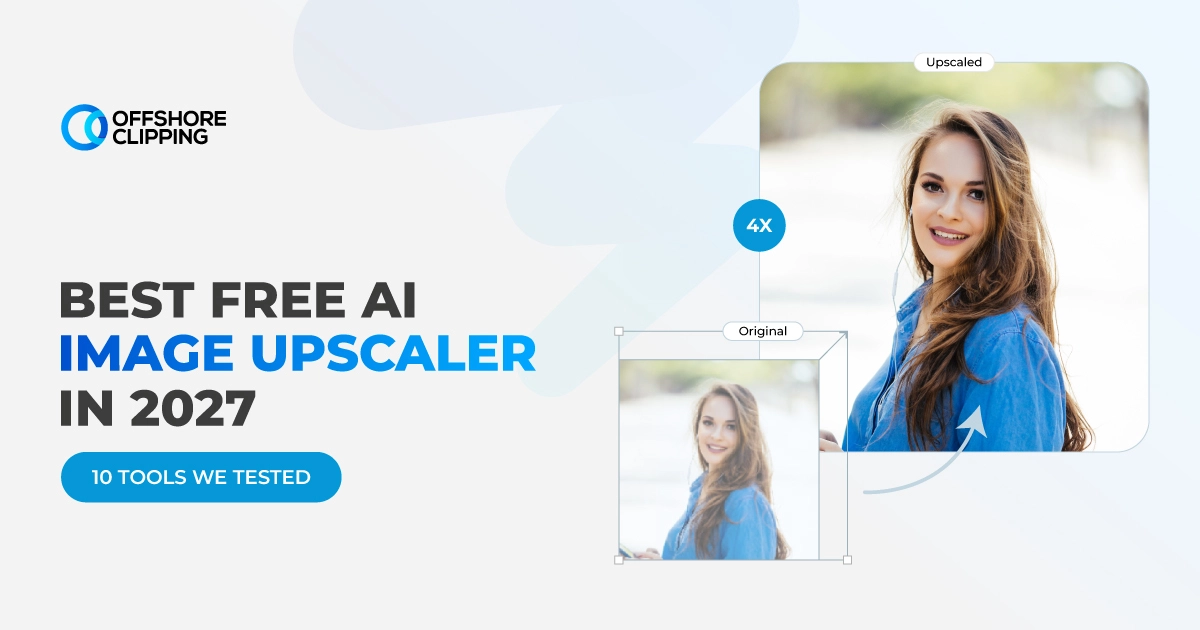
Plenty of AI upscalers are available online. Each claims to be the best & free! But how many of them actually live up to that claim? So, in our search for the best free AI image upscaler tool, we tested 10 tools that claim to be the best & free on their homepages. Are they actually the best? Let's find out.
We used 100 different image types, formats, and sizes to experiment with these 10 tools: Upscale. Media, Upscayl, Let's Enhance, Bigjpg, Pixelcut, ImgUpscaler, Fotor AI Upscaler, iLoveIMG, Nero AI Upscaler, and Media.io AI Upscaler.
We personally used each one of them from upload to final download. That’s when the differences become clearer. Some produced impressive results but restricted free credits heavily. Others required a sign-up before processing, imposed export limitations, or asked for payment at the final step.
After comparing, we filtered these 5 tools: Upscayl, iLoveIMG, Bigjpg, ImgUpscaler, and Nero AI based on free access, usability, and image quality.
In this article, we’ll show you how all 5 tools performed and why they are best compared to others.
Need more than extra pixels? Choose our professional photo retouching team to give your image more than an automated upscale.
What Is an AI Image Upscaler and How Does It Work?
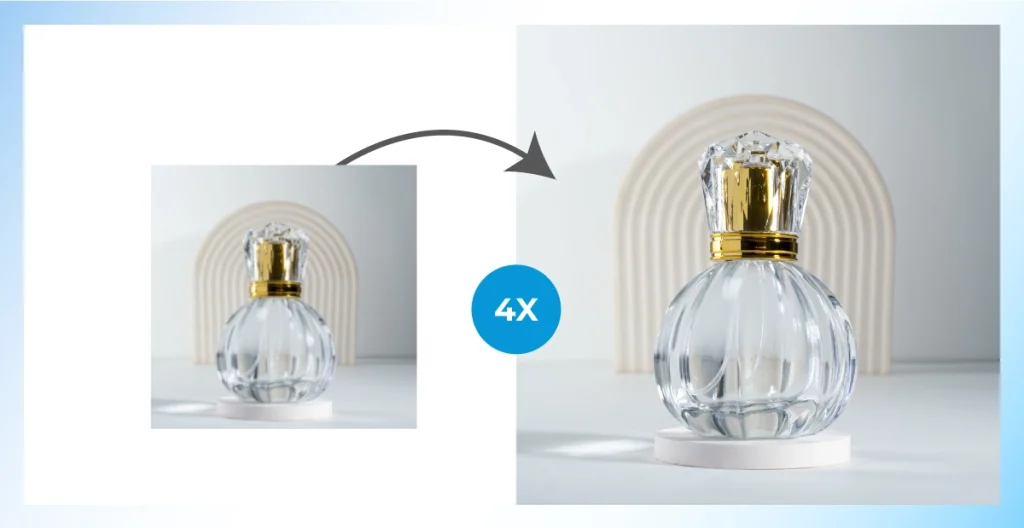
An AI image upscaler is a resolution enhancement tool that uses artificial intelligence to enlarge a digital image while preserving its edges, textures, shapes, and other visible details. This AI model is trained to understand how patterns, faces, textures, edges, and structures typically appear in higher-resolution images.
So, when you upload a low-resolution image, the algorithm analyzes its existing visual information and predicts the additional pixels needed to create a larger, more detailed version that looks natural.
This process relies on several key stages, from what AI learned during training to how it reconstructs and refines the final image:
- Trained AI model: The model is already trained on large datasets of high-resolution and lower-quality images. It knows how fine details, textures, edges, and shapes usually appear at different resolutions.
- Pattern recognition: The AI analyzes your image and identifies visual features such as patterns, facial details, hair, fabric texture, text, illustrated lines, and figures out how they will correlate in high-resolution images.
- Predictive modeling: Based on what it learns, the model predicts what missing or unclear details are most likely to look like in a higher-resolution version.
- Image reconstruction: The AI generates new pixels from those predictions and combines them with the existing image information to build a larger, more detailed version.
- Post-processing: Tools refine the result by smoothing rough edges, sharpening specific details, or removing compression artifacts, so the enlarged image looks more natural.
How We Tested the Best Free AI Photo Upscalers
We did not select these upres tools based solely on their feature pages. We used 100 images across six categories using Upscale. media, Upscayl, Let's Enhance, Bigjpg, Pixelcut, ImgUpscaler, Fotor, iLoveIMG, Nero AI, and Media.io to see how their free versions performed in real use.
We used portraits, product photos, anime and illustrations, old or compressed photos, text-based graphics, and landscape images in different sizes and formats. We used 2x enlargement as the main benchmark and also tested 4x, where the free plan allowed it.
For each tool, we looked at:
- Output quality: Sharpness, texture, edges, faces, text, product details, and visible AI artifacts.
- Free usage: How many images or credits can you process before payment is required?
- Free upscale limit: The highest enlargement available without upgrading to a paid plan.
- Processing speed: How long it took to move from upload to a downloadable result.
- Ease of use: How simple the upload, settings, preview, and download process felt.
- Watermark and signup: Whether an account was required and whether the free output included a watermark.
- Supported formats: Support for common files such as JPEG, PNG, WebP, HEIC, and AVIF.
- Batch processing: Can multiple images be processed together on the free plan?
Best Free AI Image Upscalers: Head-to-Head Comparison
Before going through each tool in detail, here is a quick comparison. Use this table to narrow down our options based on what we want to upscale, how much free usage you get, and whether you need features such as batch processing or no-signup access.
| Tool | Best For | Platform | Free Usage | Maximum Upscale | Batch Processing | Watermark | Signup |
|---|---|---|---|---|---|---|---|
| Upscayl | Overall, free use, privacy, and repeated workflows | Windows, macOS, Linux | No stated image limit | Up to 16x | Yes | No | No |
| iLoveIMG | Quick upscaling and everyday image tasks | Web | Basic plan is free; AI upscaling may require Premium | Up to 4x | Available across broader image tools | No standard watermark was stated | Not required for basic tools |
| Bigjpg | Anime, manga, illustrations | Web + mobile apps | 20 images/month, 5 MB max | 4x free | Paid plans | No | No for basic use |
| ImgUpscaler | Photos, anime, products, and regular light use | Web + apps | 50 credits/month | Up to 4x | Paid plans | No | Yes for recurring credits |
| Nero AI | Faces, anime, detailed reconstruction | Web + desktop/mobile apps | 10 one-time credits | 4x free; 8x paid | Available, credit-limited | No | Yes |
Free allowances, output limits, and account rules can change, so recheck the tool before publishing or processing a large batch.
5 Best Free AI Upscaler Tools We Tested
After using 10 different image upscaler tools with different image types and sizes, these five were the ones we would actually come back to. Each earned its place for a different reason.
One gave us the most freedom, another was better for illustrations, while others stood out for simple workflows, generous free usage, or specialized AI models.
1. Upscayl: Best Free Desktop AI Upscaler
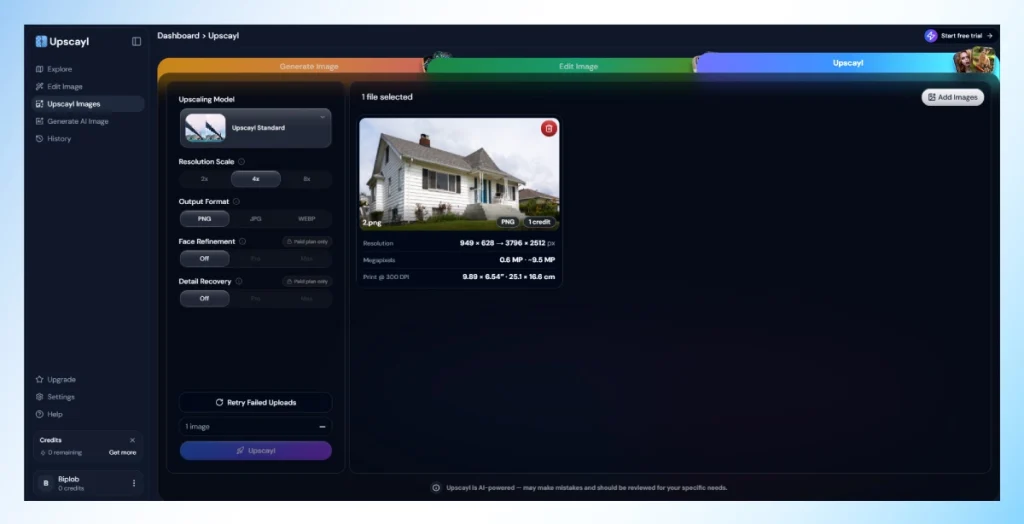
Upscayl was the easiest tool for us to put at the top of this list. Once installed, we can process images directly on our computer, switch between AI models, upscale multiple files together, and keep working without watching a credit counter after every image.
That is what makes it different from most of the browser-based tools we tested. The desktop version is completely free and open source, works without an internet connection, supports custom AI models, and imposes no image count limit. It can also upscale images by up to 16x.
What stood out: During testing, the ability to switch between AI models was particularly useful because the same setting did not suit every image type. We could also process multiple files in one batch instead of repeating the upload-and-download process for each image.
- Free limits: No stated image-count limit on the desktop version
- Max upscale: Up to 16x
- Platforms: Windows, macOS, Linux
- AI models: Multiple built-in models with custom model support
- Batch processing: Yes
- Privacy: Images can be processed locally without internet access
- Use it when: You regularly upscale images, handle private files, or need to process folders
- Watch out for: Processing speed depends on your GPU, source resolution, and selected model
Pricing: Upscayl Desktop is free and open source. Upscayl Cloud is a separate credit-based service.
2. iLoveIMG: Best for Quick Upscaling and Everyday Image Tasks
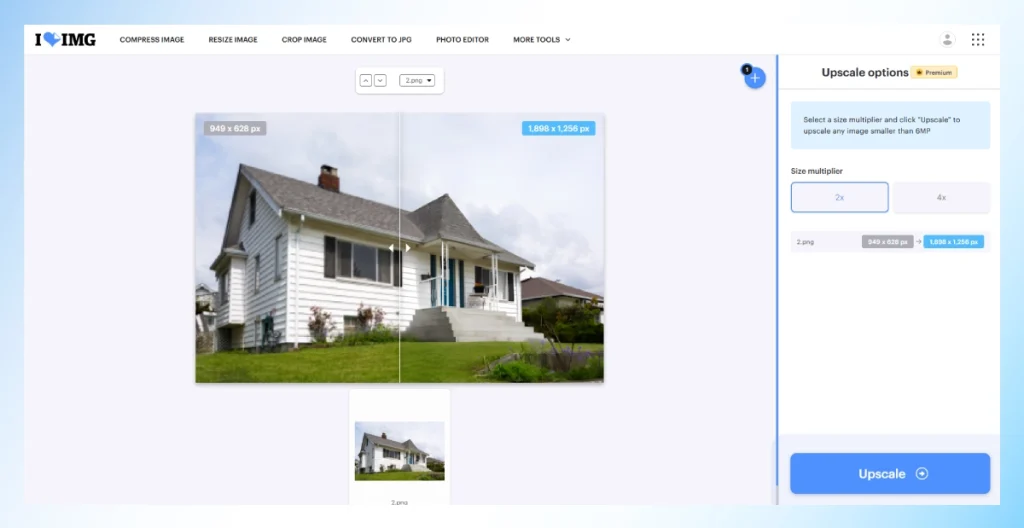
iLoveIMG felt familiar from the moment we opened it. There is very little to figure out. Upload the image, choose the enlargement, process it, and move on. That simplicity is its biggest advantage.
What made it useful during testing was not a long list of AI models. It included upscaling, plus the tools we expect from a basic image utility: resizing, cropping, compression, conversion, and other everyday edits. If you frequently need to handle several small image tasks, keeping them in a single browser workflow is convenient.
What stood out: During testing, the biggest advantage was how quickly we could move from upscaling to another basic image task without leaving the platform. If an image requires multiple types of edits like resizing, compression, or format conversion, iLoveIMG can handle it in the same workflow.
- Upscale options: 2x and 4x
- Input limit: The current tool accepts images below 6MP for upscaling
- Platform: Web
- Best for: Quick everyday image tasks
- Use it when: You also need resizing, cropping, compression, or file conversion.
- Watch out for: The current 2x and 4x upscale controls are marked Premium, so confirm free export availability before relying on it as a free upscaler
Pricing: iLoveIMG offers a free Basic plan, while the Premium plan currently unlocks its AI tools and higher processing capabilities.
3. Bigjpg: Best for Anime and Illustrations
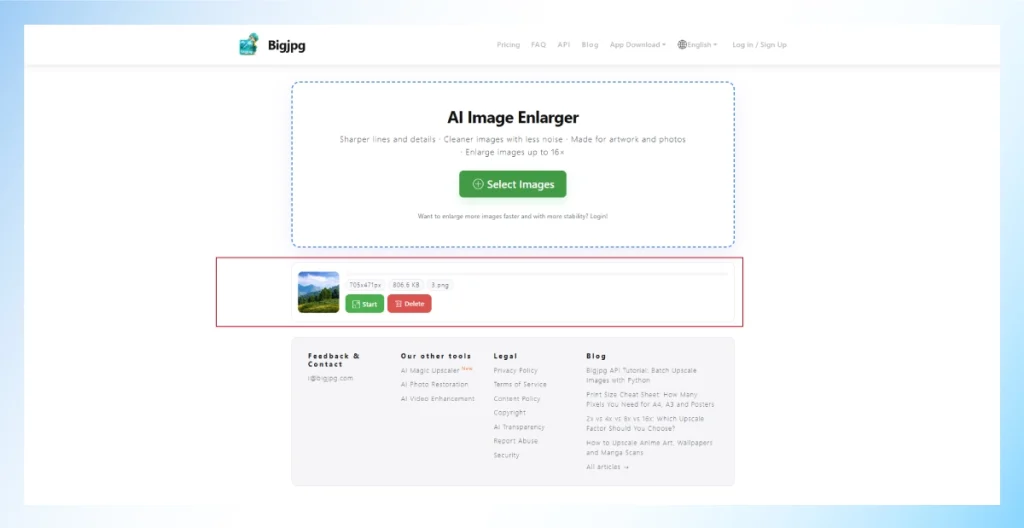
Bigjpg is best for images with heavy illustration. Unlike a general image upscaler that treats every upload the same way, Bigjpg lets you specify whether the source is artwork or a photo and choose the noise-reduction level before processing.
That small amount of control makes sense for anime, manga, cartoons, and digital illustrations. Clean outlines and flat-color areas need different treatment from skin, foliage, or photographic textures, and Bigjpg is clearly designed with that difference in mind.
What stood out: When we tested illustrated images, the artwork mode and noise controls gave us more useful control than the one-click tools. We could adjust the processing based on the image instead of accepting one fixed enhancement setting.
- Free limits: 20 images per month
- Free upload limit: 5MB per image
- Max upscale: 4x free, up to 16x on paid plans
- Processing: Free users use a shared server
- Batch processing: Not included in the free plan
- Use it when: You are enlarging anime, manga, cartoons, illustrations, or other line-based artwork.
- Watch out for: Free processing gets lower priority and can take longer when the server is busy.
Pricing: The free plan includes 20 images each month. Paid plans increase the upload size, enlargement ratio, processing priority, parallel processing, and batch support.
4. ImgUpscaler: Best for Regular Light Use
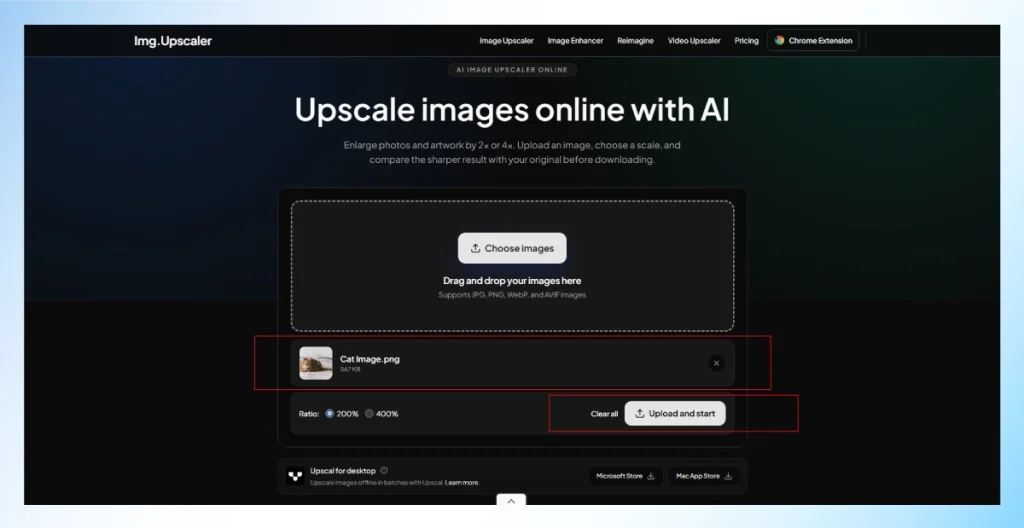
ImgUpscaler was one of the easiest tools to use during the test. You just upload a photo, choose 2x or 4x, process it, and download the result without first working through several AI model settings.
Its bigger advantage, though, is the free allowance. While several tools give you only a handful of free attempts, ImgUpscaler currently provides 50 credits each month. That gives you enough room to use the tool regularly instead of treating the free version as a short demo.
What stood out: We could run different image types through the same simple 2x or 4x workflow without changing models or working through extra settings. That made repeated testing much faster and easier than with more technical tools.
- Free limits: 50 credits per month
- Max upscale: 2x & 4x
- Formats: JPG, PNG, WebP, AVIF
- Free processing: One image at a time
- File handling: Uploaded images and results are automatically removed within 24 hours.
- Use it when: You need an online upscaler several times each month without a complicated setup.
- Watch out for: Batch processing is reserved for paid plans
Pricing: The free plan includes 50 monthly credits. Premium adds more credits and batch processing, while the Business plan removes the credit limit.
5. Nero AI Image Upscaler: Best for Faces and Specialized Enhancement
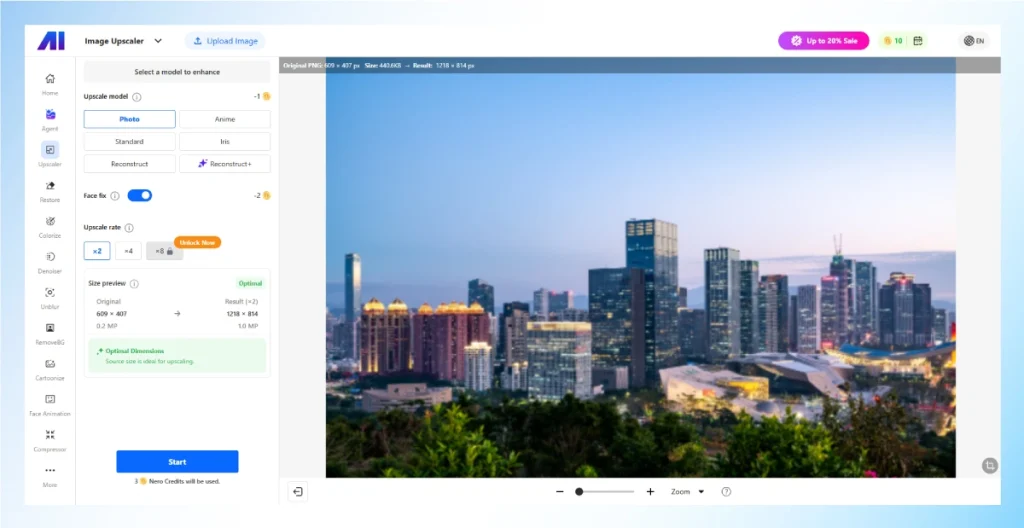
Nero AI Image Upscaler felt different from simpler tools because it wasn't limited to a single general enhancement model. Depending on the image, choose Photograph, Standard, Anime, Face Enhancement, Iris, or Reconstruct rather than asking a single model to handle everything.
That makes Nero particularly useful when the problem is more specific than low resolution. Face Enhancement targets blurry facial features, Iris focuses on details like eyes, hair, fur, and feathers, and Reconstruct handles harder cases involving portraits, text, products, digital art, and other fine details.
What stood out: Switching between models actually changed how Nero handled different details. Face Enhancement worked differently from Anime or Reconstruct, so we could match the processing more closely to the image instead of relying on one general model.
- Free access: Starts with free Nero Credits
- Upscale factors: 2x, 4x, and 8x depending on the model and available credits
- Formats: Supports JPG, PNG, WebP, AVIF, and other common formats
- Specialized models: Photograph, Standard, Anime, Face Enhancement, Iris, and Reconstruct
- Mobile option: Nero Lens provides the same core upscaling models on iOS and Android
- Use it when: You need targeted enhancement for faces, hair, anime, products, text, or other detailed subjects
- Watch out for: Model choice and enlargement factor affect credit usage, and stronger reconstruction can change fine details
Pricing: You can start with free Nero Credits. Additional processing requires credits once you use up the free allowance.
Where Photo Upscaler Is Most Useful?
AI image upscaling is most needed when the source is basically usable but too small for its next destination. Think of it as a resolution-and-detail-improvement step, not a universal repair button. These are the situations where an image enhancer can save real time.
- Enlarge small images for websites, presentations, wallpapers, and high-resolution screens without making them look pixelated.
- Increase image resolution when the original file doesn't have enough pixels for the required print size.
- Recover usable resolution after heavily cropping a photo around a subject, product, or important detail.
- Enlarge AI art, anime, illustrations, and digital artwork for posters, merchandise, wallpapers, or larger displays.
- Prepare product images for marketplace zoom, advertising, ecommerce layouts, and other larger-format uses.
- Improve low-resolution older digital photos so they are better suited for viewing, sharing, or printing.
How to Choose the Right AI Upscaler Tool?
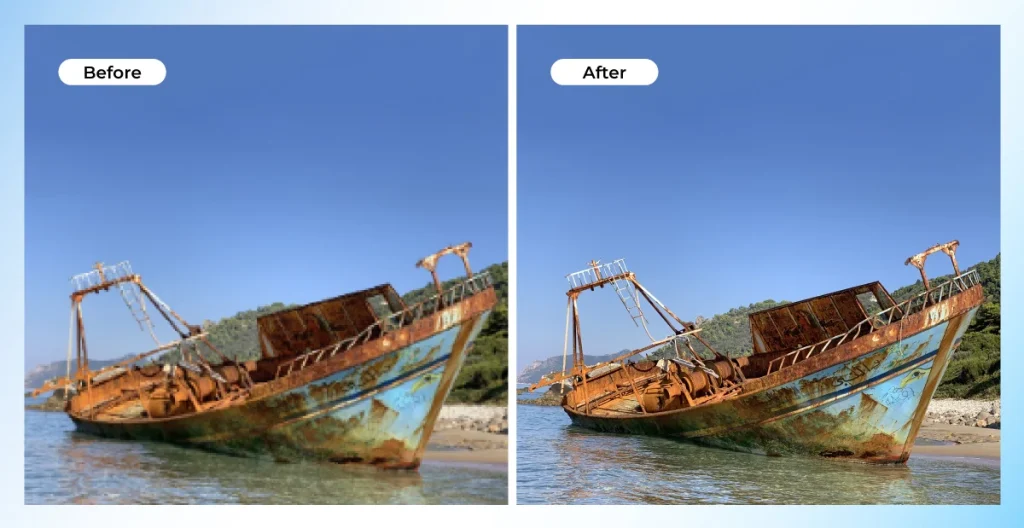
With so many tools promising sharper images and higher resolutions, choosing one can get confusing. Instead of chasing the biggest upscale number, focus on what you actually need from the image.
- Match the tool to your image type: A tool that works well on portraits may not be the best choice for anime, product photos, or graphics. Look for models designed for the type of image you are working with.
- Check what the free plan really gives you: “Free” can mean unlimited use, a few monthly credits, limited downloads, or watermarked exports. Check the signup requirement, watermark, resolution limit, and available upscale factors first.
- Choose online or desktop tools based on your workflow: Online tools are convenient for quick jobs, while desktop software is better for private client files, repeated editing, or offline image upscaling.
- Think about how many images you process: Upscaling one photo is very different from processing hundreds of product images. For larger workloads, batch image upscaling and predictable processing limits matter much more.
- Use only the upscale factor you need: Going from 2x to 4x or 8x does not automatically create a better image. Choose the smallest enlargement that meets your required output size, then check the details before proceeding.
Tips to Upscale an Image Without Losing Quality
Upscaling works best when you give the AI a clean source and avoid pushing the enlargement further than necessary. These simple tips can help you keep details sharp, reduce artifacts, and get a more natural-looking result.
- Use a clean, highest-quality source Image for better detail, and avoid a screenshot,
- Avoid a compressed download or a repeatedly saved image.
- Keep noise cleanup light so you don't remove useful texture
- Better to start with 2x and move to 4x or higher only when necessary.
- Choose accordingly, as only the right model can produce a cleaner result with fewer unwanted changes.
- To catch AI errors, zoom in to the highest level and look closely at faces, hair, logos, product labels, fabric, jewellery, and small text.
- Avoid too much sharpness, as it creates halos, rough skin, harsh edges, and fake-looking texture.
- Choose the export format based on how you will use the image.
When an AI Upscaler Tool Is Not Enough?
AI upscalers are useful when resolution is the main problem. But once the image also needs repair, cleanup, accurate color, or detailed retouching, adding more pixels will only take you so far. Here are the situations where I would stop relying on the upscaler alone:
- Severely blurry or motion-blurred images
- Heavily compressed images
- Damaged or incomplete old photos
- Product photos that need retouching, along with upscaling
- Images that need background removal or replacement
- Images with inaccurate color
When you reach this type of trouble, you force an AI enhancement tool to get a better result. You have to understand that you need professional help. Choose
Offshore Clipping's professional photo editing services let an editor handle tasks the upscaler cannot. They are best at resizing, cleanup, retouching, color work, background correction, and consistent ecommerce finishing. Just hand the file over and relax.
Offshore Clipping is also an expert at converting any artwork into vectors with their raster-to-vector service. Guaranteed to give you resolution-independent lines and curves instead of just adding new pixels.
Frequently Asked Questions
Is there a completely free AI image upscaler?
Yes. Upscayl Desktop is currently free and open-source, with local processing and no stated limit on the number of images. Cloud tools usually restrict credits, downloads, scale, or export.
How much can you upscale an image before quality breaks down?
There is no universal limit. A clean source may tolerate 4x well, while a tiny compressed image can show invented detail at 2x. Use the smallest useful factor.
Can AI restore an old, low-resolution photo?
It can improve resolution, reduce noise, and enhance certain facial details, but severe scratches, tears, fading, or missing areas require restoration beyond what ordinary super-resolution can provide.
How can I increase image resolution without making it blurry?
Start with the best source, use a conservative AI model, choose 2x or 4x first, reduce artifacts carefully, and inspect edges, faces, text, and texture before export.
Does AI upscaling create real details?
It creates plausible higher-resolution detail based on learned patterns. Some reconstructed textures may match the original scene, but the AI cannot guarantee that every new detail truly existed.
Conclusion
In the end, we want to give a clear recommendation to those searching for the best AI image upscaler. Upscayl is the best free AI image upscaler overall from the tools we tested.
It offers free desktop use, local processing, batch upscaling, multiple AI models, and no monthly image limit, making it the most practical option for regular use.
That said, the best tool can still change with the image. Bigjpg is a stronger choice for anime and illustrations, Nero AI is useful for faces and specialized enhancement, ImgUpscaler is convenient for regular online use, and iLoveIMG works well for quick everyday image tasks.
So, if you only want one tool to start with, choose Upscayl. If your image has a more specific need, pick the tool designed for that type of content.