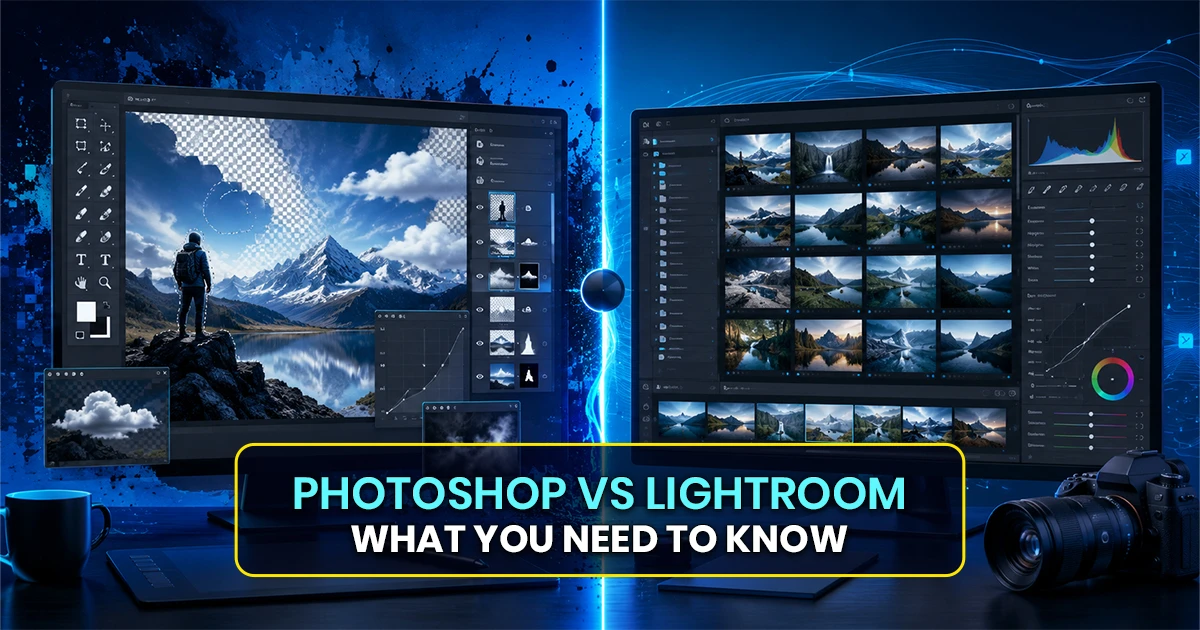
It’s a common dilemma for anyone starting photo editing: which tool gives the best results? When you start working, you may initially find Adobe Photoshop and Adobe Lightroom seem very similar, but you’ll soon realize they’re built for different jobs.
Photoshop works like a digital workshop. You can control every tiny detail, from removing objects to blending multiple images into one. It gives you full creative freedom, but it also takes more time and skill to master.
Lightroom, on the other hand, is more like a smart control panel. It helps you quickly organize, edit, and improve large groups of photos. You can adjust lighting, color, and tone with simple sliders, and apply the same edits across many images in seconds.
In this guide, you’ll learn the real differences between Photoshop and Lightroom, when to use each one, and how to choose the right tool based on your needs.
Photoshop Vs Lightroom: A Quick Overview
| Feature | Adobe Photoshop | Adobe Lightroom |
|---|---|---|
| Main Purpose | Advanced image editing and graphic design | Photo organization and quick editing |
| Best For | Detailed edits, retouching, and composites | Batch editing and photo enhancement |
| Editing Style | Pixel-level, highly precise | Non-destructive, slider-based |
| Learning Curve | Advanced | Beginner-friendly |
| Workflow | Single-image focus | Large photo libraries |
| Speed | Slower, detailed work | Fast and efficient |
| File Handling | Individual files | Catalog-based management |
| Ideal User | Designers, advanced editors | Photographers, beginners |
What is Adobe Photoshop?
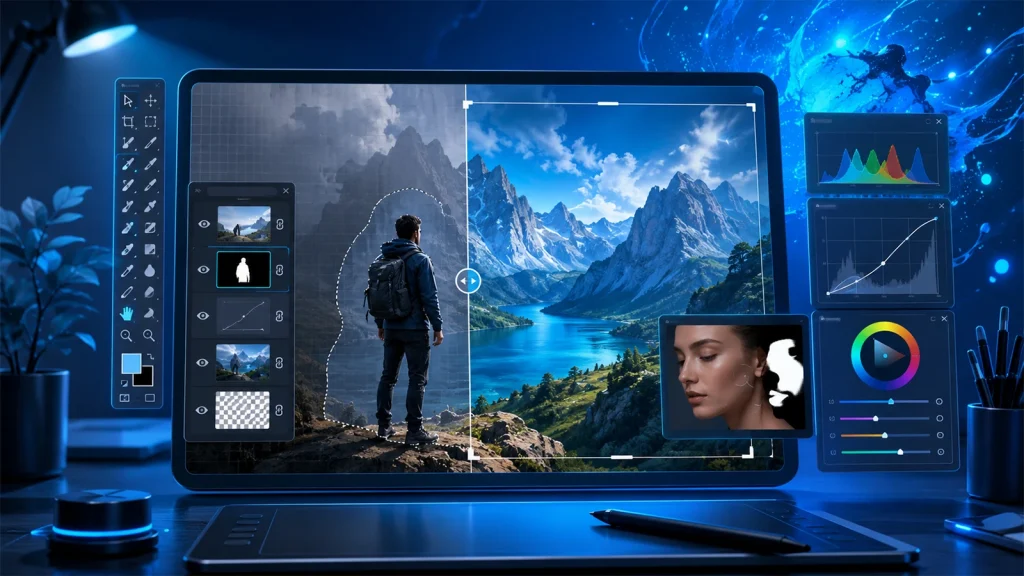
Adobe Photoshop is the most popular and widely preferred image editing software developed by Adobe. This software becomes a permanent solution to create and enhance digital visuals. Adobe Photoshop is suitable for both Windows and macOS.
Designers, photographers, creative professionals, and artists use it for image editing, retouching, compositing, and graphic design. With tools such as layers, filters, and brushes, it offers precise control and creative freedom for beginners and professionals worldwide. It supports formats and integrates well with other tools.
Features of Adobe Photoshop
Adobe Photoshop is a powerful editing tool used for creating and refining images with high precision. It offers advanced controls for retouching, designing, and manipulating visuals, making it popular among photographers, designers, and digital artists for both creative and professional work.
Here are its key features that make it stand out:
- Layers system: Work on different parts of an image separately without affecting the whole design.
- Advanced selection tools: Quickly select and edit specific areas using tools like Magic Wand and Lasso.
- Photo retouching: Remove blemishes, smooth skin, and fix imperfections with precision tools.
- Filters and effects: Apply creative effects like blur, sharpen, and artistic styles in seconds.
- Brush and drawing tools: Create digital paintings and custom designs with flexible brush settings.
- Text and typography: Add and style text with full control over fonts, size, and alignment.
- Color correction: Adjust brightness, contrast, and colors to enhance image quality.
- Smart objects: Edit images non-destructively, keeping the original file safe.
- Masking: Hide or reveal parts of an image without deleting anything.
- File format support: Works with many formats like JPEG, PNG, PSD, and more.
When to use Adobe Photoshop
Adobe Photoshop is best used when you need detailed control over images. It works well for advanced editing, design work, and fixing complex photo issues. It is ideal when simple adjustments are not enough.
Here’s when it makes the most sense to use it:
- Photo editing and retouching: Use it to fix lighting, remove blemishes, or enhance overall image quality.
- Graphic design work: Create posters, banners, social media posts, and digital ads.
- Image manipulation: Combine multiple images or create surreal, creative visuals.
- Digital painting and art: Ideal for drawing, painting, and concept art using brushes.
- Branding materials: Design logos, business cards, and marketing visuals.
- Content creation: Prepare eye-catching visuals for blogs, websites, and social media.
- Restoring old photos: Repair damaged or faded photographs.
- Working with layered designs: When you need detailed control over different parts of an image.
Benefits of using Adobe Photoshop
Adobe Photoshop is a powerful tool for editing and creating visuals. It gives you full control over images, from small touch-ups to complex designs. It works well for photographers, designers, and artists who want precision and creative freedom.
Here are the main benefits that make it so widely used:
- Professional-quality results: Create high-end visuals used by designers, photographers, and brands.
- Creative freedom: You can design anything from simple edits to complex digital art.
- Non-destructive editing: Edit images without losing the quality using layers and smart tools.
- Wide toolset: Access powerful features for editing, drawing, text, and effects in one place.
- High precision control: Fine-tune every detail, from color balance to tiny image elements.
- Industry standard software: Widely used across creative industries, making it a valuable skill.
- Supports many file formats: Work easily with JPEG, PNG, PSD, and more.
- Integration with Adobe apps: Connect smoothly with tools like Illustrator and Lightroom.
- Regular updates: Get new features and improvements to stay current with trends.
- Strong community support: Find tutorials, plugins, and resources from a large global user base.
What is Adobe Lightroom?
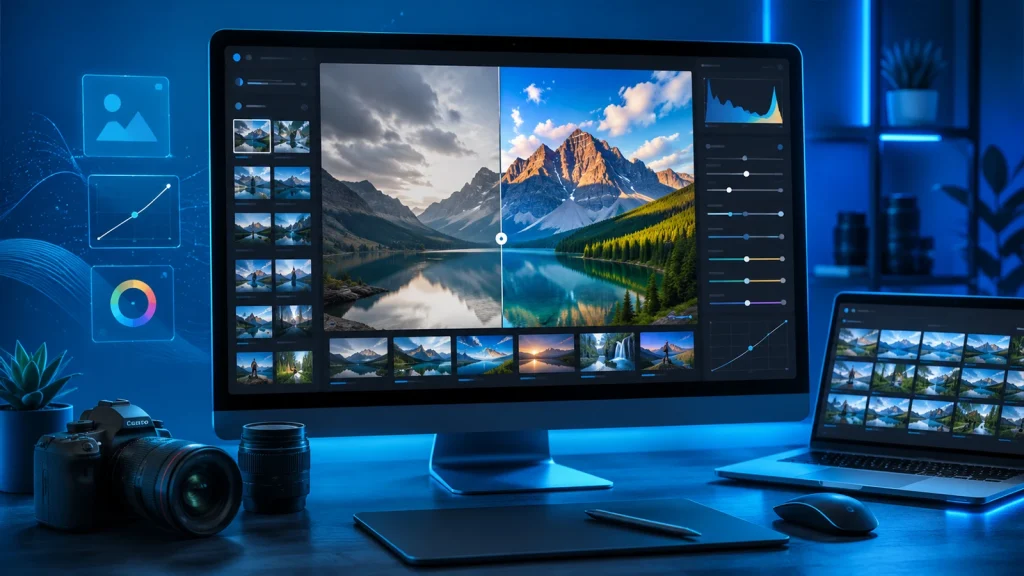
Adobe Lightroom is a cloud-based photo editing and management tool made for photographers and graphic designers. This software hugely helps in organizing, editing, and enhancing images with simple controls.
You can adjust light, color, and detail without damaging the original file. It also offers cloud storage, presets, and syncing across devices, making it easy to work anywhere and keep your photos consistent and polished.
Features of Adobe Lightroom
Adobe Lightroom is a perfect combination of editing and organizing photos in one place. This software can improve photos quickly, keep files sorted, and sync work across devices without losing quality or original details.
Here are the key features of Adobe Lightroom:
- Non-destructive editing: Edits never harm the original image. You can undo or change anytime.
- Advanced color and light tools: Adjust exposure, contrast, white balance, and tones with precision.
- Presets: Apply ready-made styles to photos in one click for consistent looks.
- Cloud syncing: Access and edit your photos across mobile, desktop, and web.
- Smart organization: Use keywords, ratings, and AI search to find photos fast.
- RAW file support: Edit high-quality images directly from your camera without loss.
When to use Adobe Lightroom
Adobe Lightroom is the best for fast, clean photo editing without complex tools. With Lightroom, you can keep your workflow simple while still giving strong control over light, color, and tone across many images at once.
Here is the following usage of Adobe Lightroom:
- Batch editing photos: Edit many images together with the same look, saving time and effort.
- Basic to advanced color correction: Fix exposure, white balance, and tones with easy sliders.
- Organizing large photo libraries: Sort, tag, and find images quickly without getting lost.
- Non-destructive editing: Make changes without harming the original photo file.
- Mobile and cloud workflow: Edit on phone or laptop and sync everything automatically.
Benefits of using Adobe Lightroom
Adobe Lightroom strongly helps you sort, improve, and handle your images without hassle. From beginners to professionals, it offers strong control while staying easy to use and understand.
Here are some beneficial reasons for using Adobe Lightroom:
- Non-destructive editing: Your original photo stays safe. All edits can be changed or undone anytime.
- Easy organization: Sort, tag, and find photos quickly using folders, ratings, and search tools.
- Powerful editing tools: Adjust light, color, sharpness, and more with simple sliders.
- Presets for fast editing: Apply ready-made styles in one click to keep a consistent look.
- Cloud syncing: Access and edit your photos across phone, tablet, and computer.
- User-friendly interface: Clean layout makes it easy to learn and use without confusion.
Lightroom vs Photoshop: Editing Capabilities Compared
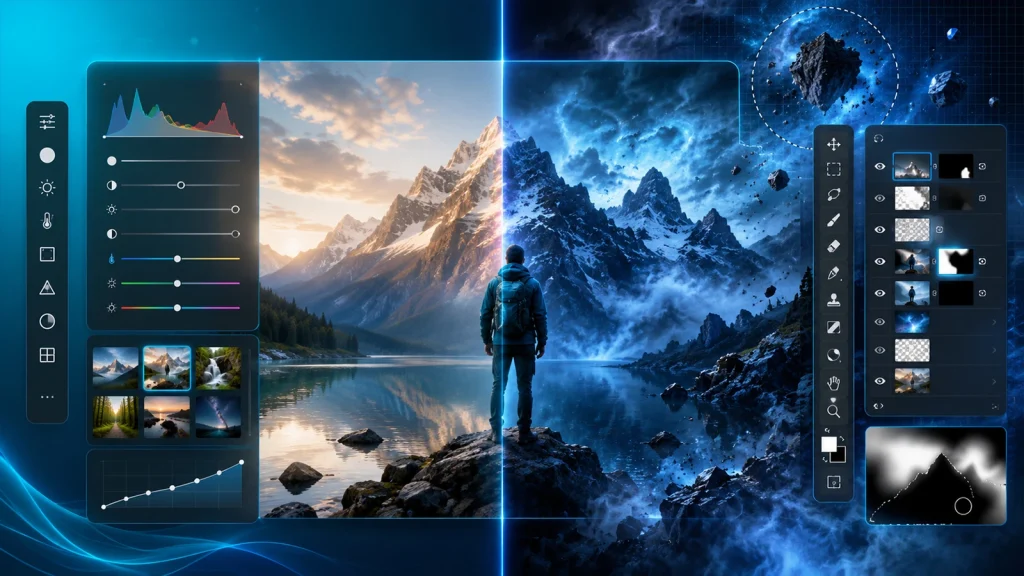
When comparing the editing capabilities of Adobe Photoshop and Adobe Lightroom, both offer powerful tools, but shine in different areas
Photoshop offers deep, pixel-level control, layers, and advanced retouching for complex edits. Lightroom focuses on fast, non-destructive adjustments like color, exposure, and batch editing. Photoshop suits detailed work, while Lightroom is ideal for quick, consistent photo enhancements across large collections.
Here are the key points to consider when comparing their editing capabilities:
| Feature | Photoshop | Lightroom |
|---|---|---|
| Editing approach | Pixel-level editing for full control | Non-destructive, global adjustments |
| Layers & masks | Advanced layers, masks, blending modes | No true layers, limited masking tools |
| Object removal | Precise object removal and manipulation | Basic healing and removal tools |
| Retouching | High-end skin retouching and detailed edits | Simple retouching, less control |
| Color correction | Deep color grading with curves, channels | Easy color sliders and presets |
| Workflow speed | Slower, detailed work | Fast, streamlined editing |
| Batch editing | Limited automation | Strong batch editing and syncing |
| Presets/actions | Actions for automation | Presets for quick, consistent edits |
| Local adjustments | Highly detailed, manual selections | Limited but easy brush and gradient tools |
| Best use case | Complex edits, design, composites | Photo enhancement and organization |
Photoshop vs Lightroom: Workflow and Usability
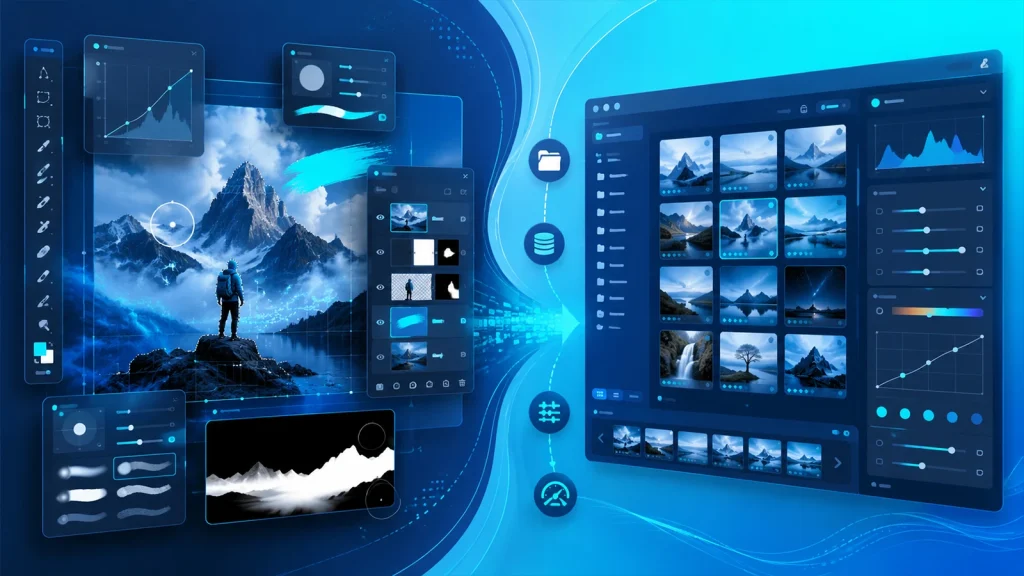
Adobe Photoshop and Adobe Lightroom differ in workflow and usability. Lightroom offers a smooth, step-by-step process for organizing and batch editing photos.
Photoshop, on the other hand, uses a layer-based workflow suited for detailed, manual edits, giving more control but requiring more time and skill to navigate effectively.
Here are the key points to consider when comparing their Workflow and usability:
| Aspect | Lightroom | Photoshop |
|---|---|---|
| Daily workflow | All-in-one flow. Import, sort, edit, and export quickly, especially for large shoots. | Not a full workflow tool. Used after selection for detailed edits. |
| When it becomes necessary | Best for basic to advanced photo adjustments like light and color. | Needed for heavy retouching, composites, and precise edits. |
| Working together | Main hub. Sends images to Photoshop and keeps everything organized. | Supports Lightroom. Edits return to Lightroom for final steps. |
| Learning curve | Easy to pick up. Clean layout and simple controls. | Takes time to learn. Tools like layers and masks need practice. |
| File management | Strong catalog system with tags, ratings, and search. | No built-in management. Files handled manually. |
| Editing style | Non-destructive. You can always tweak your edits later. | Layer-based and often destructive unless managed carefully. |
| Precision | Limited for fine detail work. | High precision with pixel-level control. |
| Best for | Photographers managing large collections. | Designers and photographers are doing detailed creative work. |
Photoshop vs Lightroom: Performance and Speed
In the case of performance and speed competition between Photoshop and Lightroom.
Lightroom is faster for handling large batches and quick edits, making it ideal for workflow efficiency.
Photoshop, while powerful, can feel slower due to its complex tools, especially when working on detailed, layer-heavy projects.
Here are the key points to consider when comparing their performance and speed:
| Aspect | Lightroom | Photoshop |
|---|---|---|
| Batch Editing | Very fast for bulk edits using presets and sync tools | Limited batch options, slower for large volumes |
| Workflow Organization | Built-in catalog system keeps everything structured and easy to find | No native catalog, relies on manual file handling |
| Intensive Retouching | Basic retouching, not ideal for heavy edits | Excellent for detailed, high-end retouching with layers and tools |
| Startup & Responsiveness | Faster startup, smoother browsing, and quick edits | Slower startup, especially with large files or complex projects |
| Hardware Dependence | Optimized to run well on mid-range systems | Needs a stronger CPU, GPU, and RAM for smooth performance |
| System Load | Lightweight during normal editing tasks | High resource usage with layers, effects, and large files |
| Export Speed | Fast batch export with consistent settings | Slower export, especially with complex edits |
| File Handling Speed | Quick preview and switching between images | Slower when opening and switching large files |
| Real-time Editing | Instant preview with slider adjustments | Can lag with heavy filters or multiple layers |
Photoshop vs Lightroom: Pricing and Plans
Both Photoshop and Lightroom have their own subscription-based pricing with a flexible plan. Lightroom is more affordable and focused on photographers, while Photoshop costs more due to its advanced design tools. Adobe also offers bundled plans that combine both apps for better value.
Here are the key points to consider when comparing their pricing and plans:
| Plan Type | Includes | Price (approx.) | Best For |
|---|---|---|---|
| Adobe Subscription Model | Access to apps via a monthly or yearly payment | Varies by plan | Users who want regular updates and cloud access |
| Photography Plan | Both apps + cloud storage (usually 1TB) | ~$19.99/month | Photographers who need full editing tools |
| Lightroom Plan | Lightroom + cloud storage | ~$9.99–$11.99/month | Beginners and mobile photographers |
Photoshop vs Lightroom: Pros and Cons
Adobe Photoshop and Adobe Lightroom serve different editing needs. Photoshop offers deep control for complex edits, while Lightroom focuses on fast, clean photo enhancement and organization.
Choosing between them depends on your workflow, skill level, and whether you need detailed design tools or efficient photo management.
Here’s a quick comparison to make the choice easier:
| Software | Pros | Cons |
|---|---|---|
| Photoshop | Limited advanced editing tools, no layer-based editing, not suitable for graphic design, less control over detailed retouching, requires subscription for full features | Steep learning curve, Slower for batch editing, Higher cost as a single app, Can feel complex for beginners, Requires stronger hardware |
| Lightroom | Easy to learn and useFast batch editing and presets, Strong photo organization tools, Non-destructive editing, Cloud sync across devices | Limited advanced editing tools, no layer-based editing, not suitable for graphic design, less control over detailed retouching, requires a subscription for full features |
Photoshop vs Lightroom: Which One Should You Choose?
Adobe Photoshop and Adobe Lightroom serve different purposes, so the right choice depends on your needs.
Photoshop is best for detailed editing and creative work, while Lightroom is ideal for quick edits and managing large photo collections. Understanding your workflow helps you pick the tool that fits best.
Here’s when to choose each one:
| Situation | Choose Photoshop | Choose Lightroom |
|---|---|---|
| Editing style | Complex edits, retouching, and design work | Quick edits, color correction, consistency |
| Skill level | Intermediate to advanced users | Beginners to professionals |
| Workflow | Working on single images in detail | Editing many photos at once |
| Purpose | Graphic design, composites, digital art | Photography and photo management |
| Speed vs control | More control, less speed | Faster workflow, less complexity |
Conclusion
In the end, Adobe Photoshop and Adobe Lightroom are not rivals in the real sense. They solve different problems. Photoshop gives you deep control for creative and detailed work. Lightroom keeps things fast, simple, and well organized for photography.
If you want full creative power, go with Photoshop. If you want speed and clean photo editing, Lightroom is enough. Many users even combine both to get the best of each world.
Get Professional Results – Without the Software Cost
Don’t worry about monthly Adobe subscriptions, expensive hardware upgrades, or complex editing techniques. Our dedicated team handles everything from basic exposure correction to advanced object removal and high-end skin retouching.
FAQs
Is Lightroom or Photoshop better for color grading?
Adobe Lightroom is usually better for color grading. It offers fast, clean color controls like HSL, tone curves, and presets. Adobe Photoshop gives more advanced control, but Lightroom is faster for most photographers.
What are Adobe Lightroom and Photoshop subscriptions?
Adobe Lightroom and Adobe Photoshop are part of Adobe’s subscription model. You pay monthly or yearly. Plans include single apps or a Photography Plan bundle with both apps and cloud storage access.
Are there any Lightroom and Photoshop alternatives?
Yes, there are alternatives to Adobe Lightroom and Adobe Photoshop. Popular options include Capture One, Luminar Neo, GIMP, and Affinity Photo. These tools offer editing, organization, and design features, often at a lower cost or with a one-time payment.
Do professional photographers use Photoshop or Lightroom?
Most professionals use both Adobe Lightroom and Adobe Photoshop. Lightroom handles bulk editing and organization, while Photoshop is used for detailed retouching, composites, and final image refinement, depending on project needs.
What can Photoshop do that Lightroom can’t?
Adobe Photoshop can do advanced tasks like layer-based editing, complex composites, object removal, and graphic design. Adobe Lightroom cannot handle layers or deep manipulation, focusing instead on faster photo adjustments and workflow efficiency.