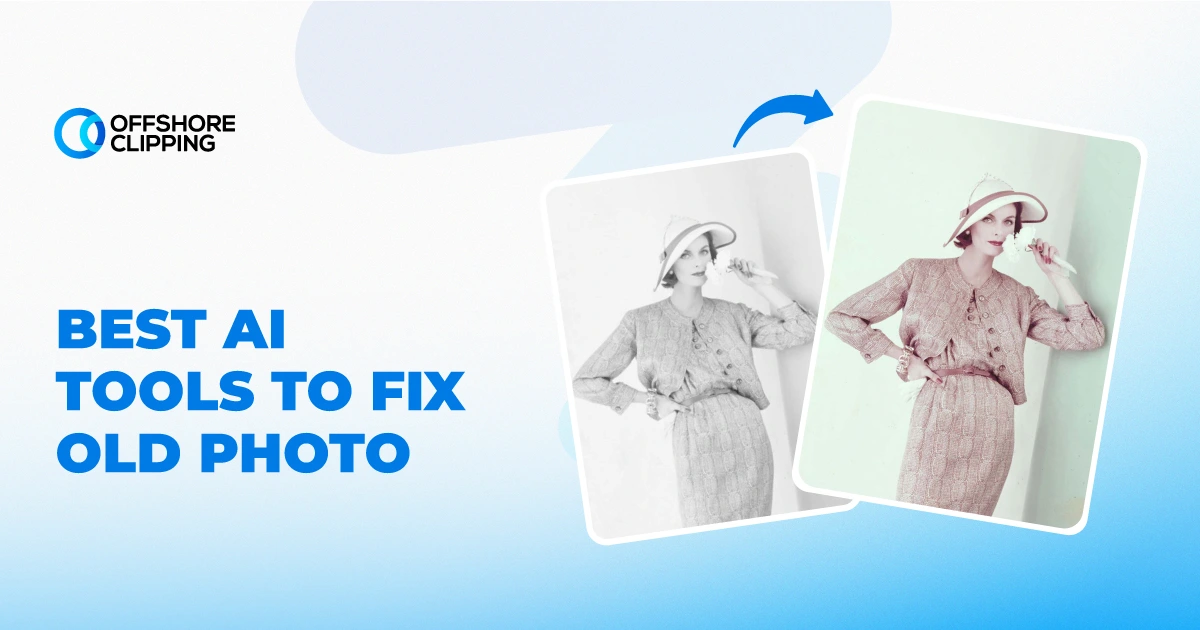
The best AI to fix old photos depends on the type of damage. Remini works best for blurry faces; Adobe Firefly and Photoshop suit tears and missing areas; Topaz Labs is strong for full-photo enhancement and upscaling; and Fotor or PicWish are good for quick online restoration. Whichever tool you use, compare the restored face with your original scan, because AI can change details that were never meant to change.
Quick Comparison Table
| Tool | Best For | Platform | Free Plan |
|---|---|---|---|
| Remini | Quick face and portrait enhancement | Mobile and web | Yes, with ads and limits |
| Adobe Firefly | Prompt-based damage repair | Web | Yes, 25 credits per month |
| Adobe Photoshop | AI plus manual control | Desktop | 7-day trial |
| Topaz Labs | High-quality enhancement and upscaling | Desktop | No |
| Let’s Enhance | Natural vintage look | Web | Yes, watermarked |
| Canva | Beginners | Web and app | Yes |
| VanceAI | Automatic old-photo restoration | Web and Windows app | Trial, 10 credits |
| HitPaw FotorPea | Desktop and batch restoration | Desktop | Free trial |
| Fotor | Simple online and batch restoration | Web | Yes, watermarked |
| PicWish | Choosing restoration by damage level | Web and app | Yes, with limits |
10 Best AI Tools to Fix Old Photos
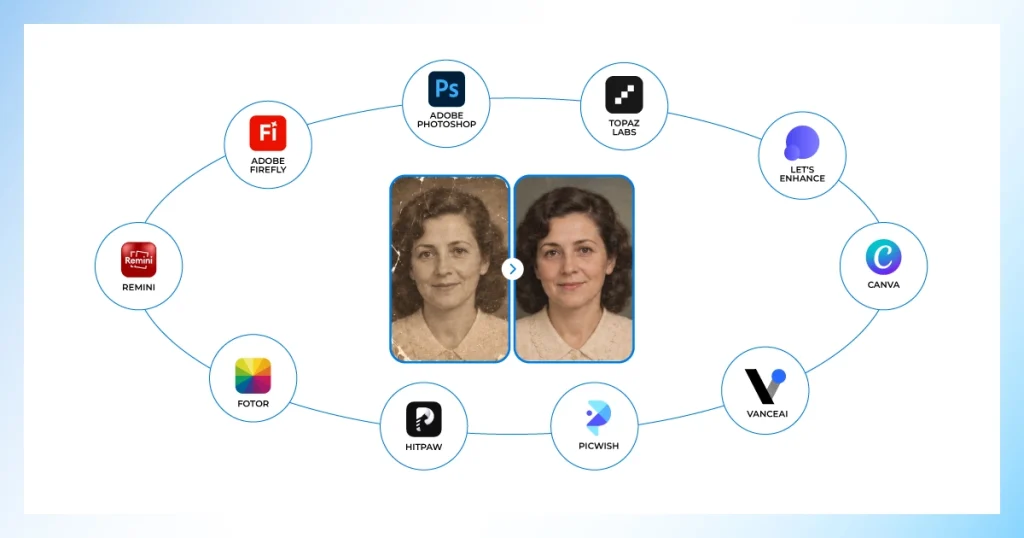
Each tool below is reviewed on what it fixes well, where it falls short, and what it costs, so you can match it to your photo’s damage.
Prices were last checked in October 2026 and can change. Confirm on each official site before subscribing.
1. Remini: Best for Quick Face and Portrait Enhancement
Platform: iOS, Android, web
Free plan: Yes, with ads, a daily limit, and a watermark on saved photos
Paid plans: Billed weekly, roughly $7 to $10 per week depending on platform and plan
What it does well
- Tuned for faces, so eyes and skin tend to look natural instead of waxy
- Results in seconds, with no sliders to learn
- Also handles basic old-photo repair and colorization
Where it falls short
- Can invent facial detail that was never in the original, especially on badly damaged faces
- Weekly billing adds up fast, and the free tier works more like a trial
- The cheaper Personal plan exports JPG only; PNG and TIFF need the Business plan
Verdict: A quick fix for a few blurry family portraits on your phone. For archive work or large prints, pick something with more control.
2. Adobe Firefly: Best for Prompt-Based Damage Repair
Platform: Web and Generative Fill inside Photoshop
Free plan: Yes, 25 generative credits per month
Paid plans: From $9.99 per month (Standard, 2,000 credits)
What it does well
- You brush over the damaged area, so the rest of the photo stays untouched
- Generative Fill accepts text instructions
- Works well when the damage is one tear, stain, or missing corner
Where it falls short
- Not a one-click restorer for the whole photo; you do the selecting
- Credits reset monthly, and unused ones do not roll over
- It generates new pixels, so check anything it builds near a face or handwriting
Verdict: The right pick for localized damage, especially if you already pay for Photoshop and have credits included.
3. Adobe Photoshop: Best for AI Plus Manual Control
Platform: Windows, Mac
Free plan: No free desktop version, 7-day trial
Paid plans: $22.99 per month; the Photo Restoration Neural Filter is included with no extra credits
What it does well
- AI does the first pass, then you fix whatever it got wrong by hand
- Sliders for image enhancement, face enhancement, and scratch reduction
- Layers let you mask out any AI change you do not like
Where it falls short
- Real learning curve
- Overkill if you only have one or two photos
Verdict: The only tool here where a near-miss is fixable by hand. Worth it for valuable photos, not for a quick cleanup.
4. Topaz Labs: Best for High-Quality Enhancement and Upscaling
Platform: Windows, Mac (also a plugin for Photoshop and Lightroom)
Free plan: No free tier; check the current trial policy on Topaz’s site
Paid plans: Personal $199 per year or $39 per month; Pro $599 per year. Subscription only
What it does well
- Runs on your own computer, so photos are not uploaded
- Separate controls for scratches, noise, and faces, so you can dial the AI back
- Strongest choice here for photos you plan to print large
Where it falls short
- No one-time purchase anymore
- Large batches are slow without a decent GPU
- Expensive for someone with only a few photos
Verdict: Best for serious archive scans and big prints. Skip it if you are restoring five photos once.
5. Let’s Enhance: Best for Preserving a More Natural Vintage Look
Platform: Web
Free plan: 10 credits; output carries a watermark
Paid plans: Starter $9 per month on annual billing (100 credits), Pro $24 (300), Max $34 (500). Monthly billing costs more
What it does well
- Authentic mode keeps more of the original vintage look
- Restoration and upscaling share one credit pool, so a batch comes out at a consistent size
- Unused credits roll over while you stay subscribed
Where it falls short
- The free tier is a watermarked trial
- On badly torn or heavily faded originals, it trails Topaz
Verdict: A good middle option when photos are headed for print or a photo book, and you want a natural look.
6. Canva: Best for Beginners Who Already Use Canva
Platform: Web, iOS, Android
Free plan: Yes, the photo restoration tool is free to use
Paid plans: Extras like Magic Edit, Magic Expand, and Magic Eraser need Canva Pro
What it does well
- Free and one-click, with no new app to learn
- Restore the photo, then resize it or drop it into a card or poster in the same editor
Where it falls short
- Not built for torn or heavily damaged photos
- AI colorization comes from a third-party app (Colorify) that needs Canva Pro and can miss elements in a photo
Verdict: If you already use Canva and the photo only has creases or mild fading, try this first.
7. VanceAI: Best for Automatic Old-Photo Restoration
Platform: Web, Windows desktop app
Free plan: Free trial with 10 credits
Paid plans: Web from $9 per month on annual billing (260 credits) up to $42 per month (2,600 credits). Windows app: $39.90 per month, $99.90 per year, or $129.90 lifetime
What it does well
- Damage repair, face enhancement, and colorization in one automatic pass
- Good value for a big box of family photos
- Desktop app for larger batches
Where it falls short
- Each full-resolution download uses a credit, so a big batch with colorization can drain a plan in about a week
- The free 10 credits are gone after one or two batches
- Like most tools here, it can fill in plausible but wrong detail on damaged faces
Verdict: The budget pick for a large batch. Count your photos against the credit limit before choosing a plan.
8. HitPaw FotorPea: Best for Desktop and Batch Restoration
Platform: Windows, Mac
Free plan: Free trial available
Paid plans: Windows: $22.39 per month, $90.39 per year, lifetime around $130. Mac App Store: $24.99 per month, $99.99 per year, $159.99 lifetime
What it does well
- One of the few tools here with a lifetime option
- Newer versions include a dedicated vintage restoration and colorization model
- Face restoration and batch enhancement in one desktop app
Where it falls short
- Monthly price is high compared with VanceAI or Let’s Enhance
- Check how many credits the lifetime plan includes before you buy
Verdict: Makes sense if you want to own desktop software instead of renting a web tool. Skip the monthly plan; yearly or lifetime is the better deal.
9. Fotor: Best for Simple Online and Batch Restoration
Platform: Web
Free plan: Limited Basic tier; exports are watermarked
Paid plans: Pro $47.99 per year, Pro+ $69.99 per year, Max $167.92 per year
What it does well
- Restore a photo and turn it into a finished card or poster without leaving the editor
- Batch tool for up to 50 photos at once
- Low annual price
Where it falls short
- Restoration is one feature of a general editor, so heavily damaged scans come out average
- Severely missing facial information still lowers accuracy
Verdict: Good for light damage across many photos, especially if you also need design tools.
10. PicWish: Best for Choosing Restoration by Damage Severity
Platform: Web, iOS, Android, Windows, Mac
Free plan: Yes, with usage limits
Paid plans: Credit-based. Subscriptions run from about $5.99 per month (50 credits) to $33.99 per month (1,000 credits); pay-as-you-go starts around $19.99 for 300 credits. The iOS app also sells a weekly plan
What it does well
- Mild, Moderate, and Severe modes, so you do not apply the same strength to every photo
- Text prompts to refine the result
- Low entry price
Where it falls short
- One reviewer reports that enhancement sometimes distorts the background
- Credits and multiple plan types make the real cost harder to predict
Verdict: A cheap way to match restoration strength to damage level. Test on one photo first and check the background.
Restore an Old Photo With Canva
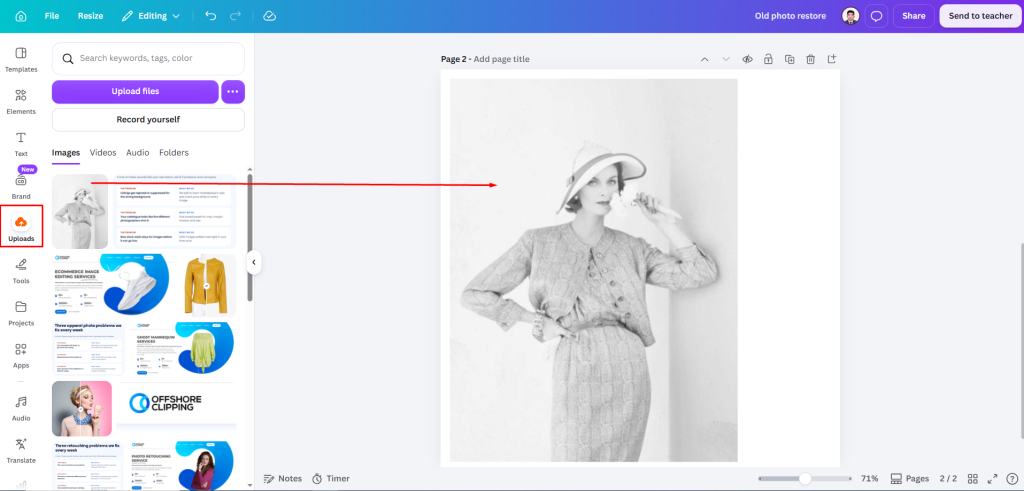
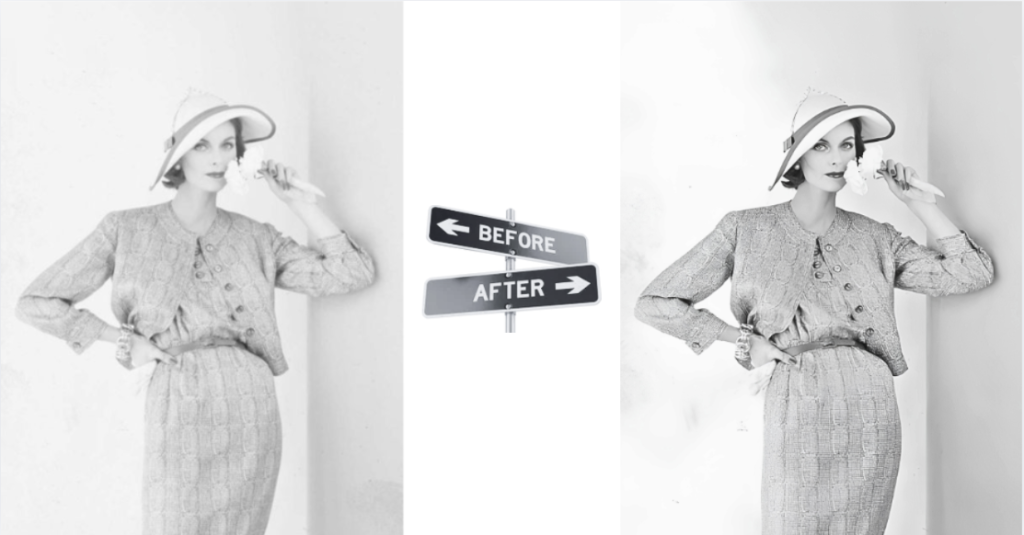
I restored this old studio portrait in Canva Pro, one step at a time. The photo is clean, and the face is clear, so it is a good example of what a light restoration looks like. Every edit was done on a duplicate page, so the original stayed safe.

Step 1: Look at the Photo Before You Touch It
I zoomed in and wrote down what was wrong. This took one minute and saved me from fixing things that were not broken.
- The tones are flat. The wall and the clothes are almost the same pale gray, so there is little contrast.
- The wall has soft gray patches and marks, mostly on the left side and in the bottom right corner.
- The file is small, so it will look soft if printed larger. [Add the exact size, e.g. 480 x 640 px]
Nothing is torn, and the face is sharp. So I skipped every tool that rebuilds or generates parts of the photo, and I skipped Face Retouch too. It smooths skin, and a restoration should keep the face as it is.
Step 2: Upload the Photo and Make a Safe Copy
I uploaded the scan and placed it on a blank page. Then I duplicated the page. version 1 is the untouched original. Everything below happened on version 2.
This gives me something to compare against at the end.
Step 3: Fix the Flat Tones With Adjust
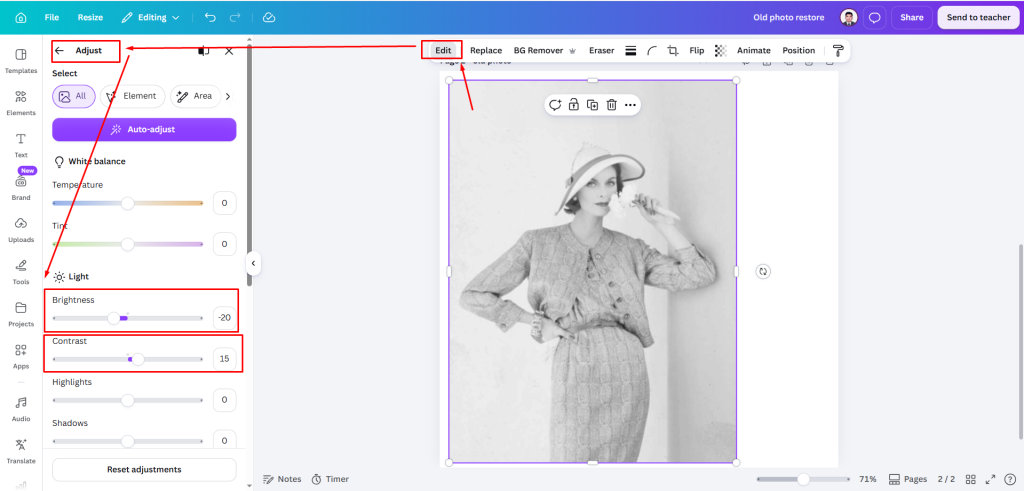
I selected the photo and opened Tools > Adjust.
- Contrast: I raised it slightly, from 0 to 15, so the dark hat band and the white flower stood out from the wall.
- Brightness: I changed it to -20 because the face looked a little too bright.
I moved one slider at a time, in small steps, and stopped when the flower still showed its petal shapes. When I pushed further, the flower turned into a flat white patch. That was my sign to go back.
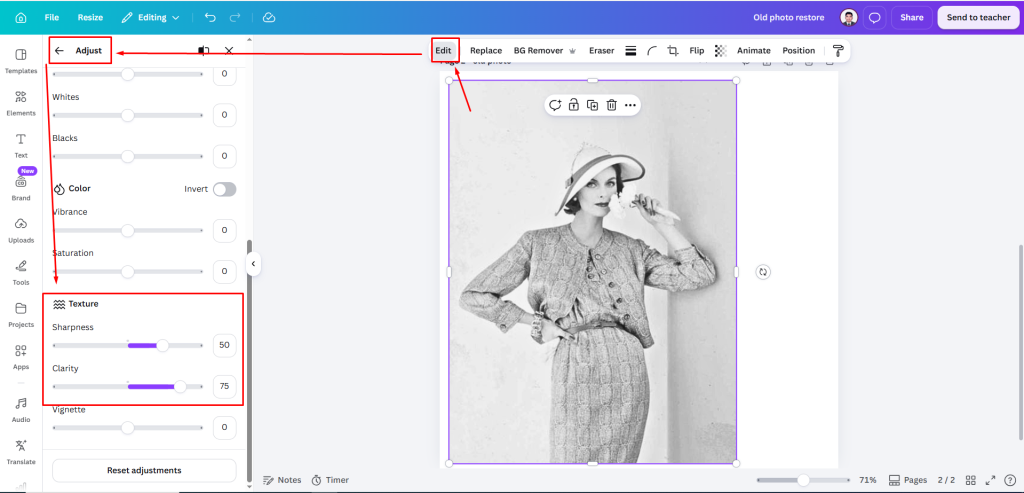
- Sharpness: I changed it to 50 because the face looked a little blurry.
- Clarity: I changed it to 70 because the face looked a little unclear.
Step 4: Remove the Marks on the Wall With Magic Eraser
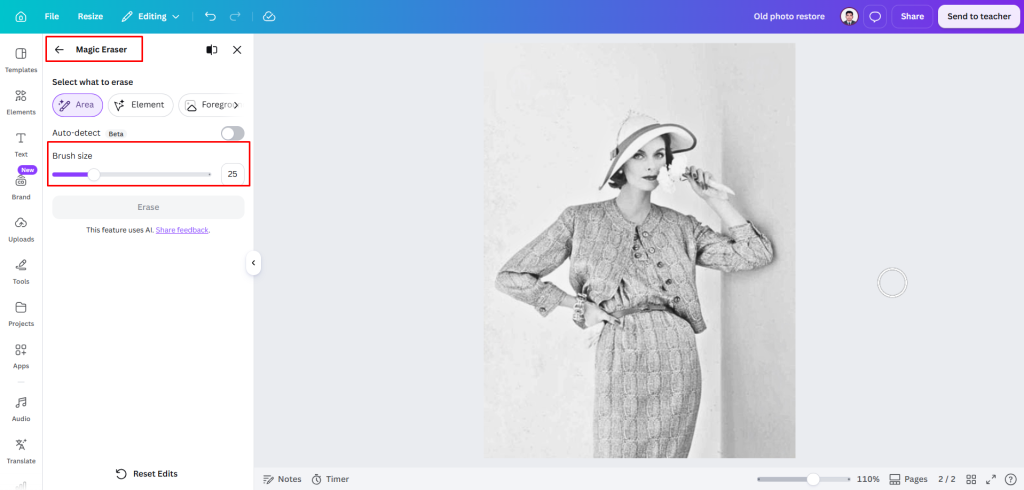
I opened Tools > Magic Eraser, zoomed in to 100%, and worked spot by spot with a small brush.
- I started with the wall because it is plain and easy to repair.
- I cleaned 3 marks on the left side and 2 in the bottom right corner.
- I left the jacket and dress pattern, the bracelet, and the flower alone. They can look like marks, but they are real details, and erasing them would change the photo.
Step 5: Make It Bigger, Last
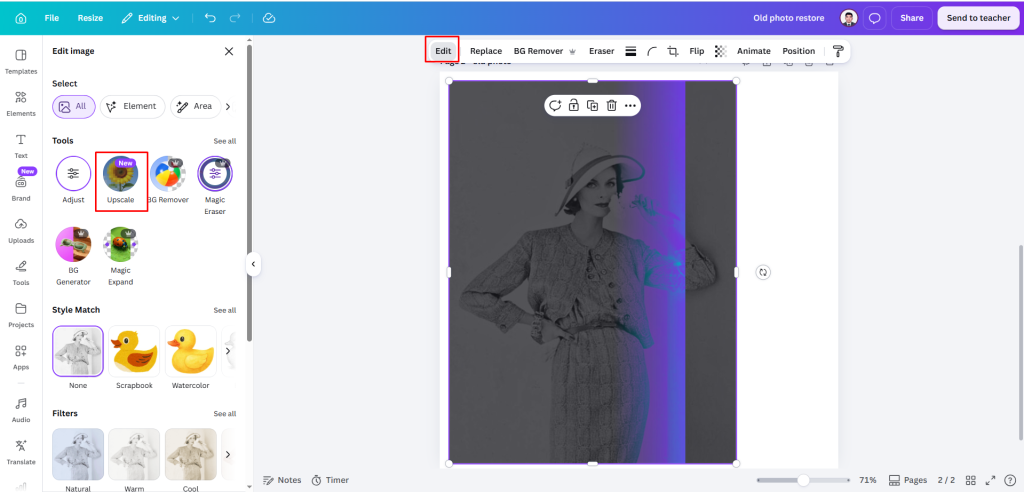
Because the file was small, I used Tools > Upscale at the end. I did it last so that any mistake from the earlier steps would not get enlarged too.
If you only need the photo for the web, you can skip this step.
Step 6: Compare With the Original and Download
I put version 1 and version 2 side by side and zoomed in on the parts AI changes most easily:
- Eyes and lips: same
- Flower petals: same
- Hat edge: same
- Jacket print and bracelet: same
[Write the most honest finding here. For example: “The face stayed the same, but the jacket pattern looked softer after upscaling.”]
Then I downloaded the restored photo as a new file, “photo-restored”, and kept the original scan. I also made a smaller JPEG for sharing and kept the full-quality file for printing.
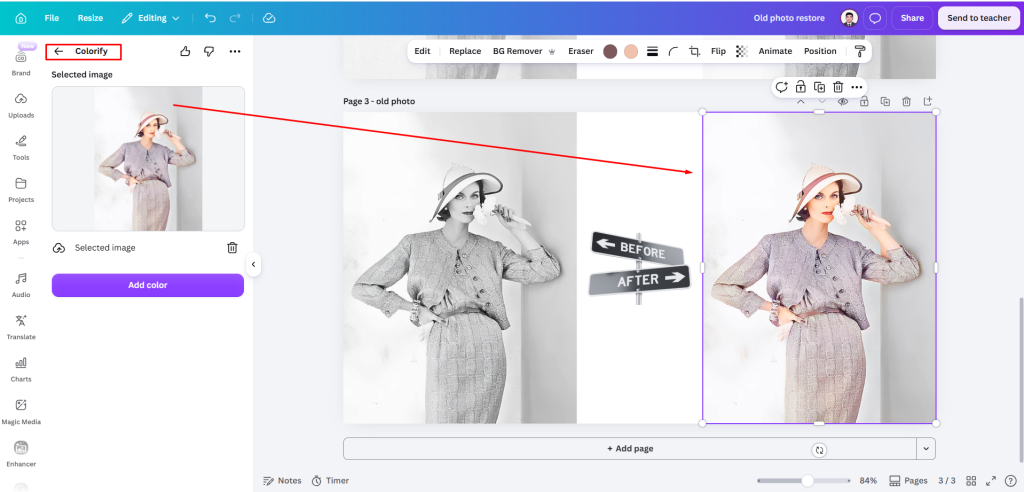
Want color? Canva’s Tools panel has no colorize tool. Open Apps and search for Colorify (needs Canva Pro). It works on black-and-white photos only, and the colors are AI’s guess, so keep your black-and-white copy.
Tips to Get Better Results From AI Photo Restoration
A few habits that the steps above do not cover, but make a real difference:
- Start with low or moderate face-restoration strength, then increase only if needed.
- Run two or three AI versions and compare them instead of accepting the first.
- Keep natural wrinkles, pores, grain, and signs of age.
- Avoid prompts like “make younger,” “beautify,” or “make perfect.”
- Keep the sepia tone when it is part of the photo’s character.
- Do not save intermediate files as JPEG over and over, because each save loses quality.
Be extra careful with portraits. When the source face is very weak, even tools built to preserve identity cannot reconstruct new detail faithfully.
What AI Can and Cannot Fix in Old Photos
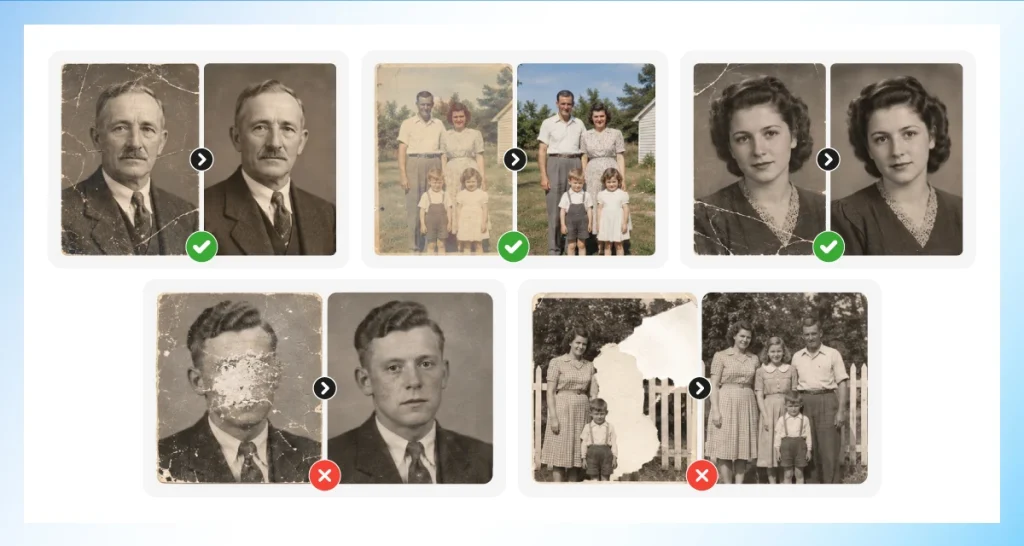
AI is good at cleaning up what a photo still shows. It struggles with what the photo no longer contains. Once information is gone, AI is guessing, and a good-looking guess is not the same as the original.
| Problem | What AI handles well | Where it stops | What to do |
|---|---|---|---|
| Dust and light scratches | Removes small marks and keeps the surrounding texture | Cannot recover detail destroyed under a deep scratch | Check the area at 100% zoom |
| Fading and color casts | Improves contrast and corrects tones | Cannot know the original colors once they are gone | Keep the original scan as a reference |
| Blurry or soft faces | Sharpens edges and makes features clearer | Cannot recover details the camera never captured | Compare eyes, mouth, and hairline with the original |
| Creases and small tears | Fills narrow gaps from nearby texture | Large gaps become guesses | Repair one area at a time on a copy |
| Low resolution | Upscales and cleans up edges | Cannot reveal fine detail that was never there | Start from the best scan you can make |
| Black and white to color | Adds plausible colors to skin, clothes, and backgrounds | Cannot confirm historically accurate colors | Treat color as an interpretation; keep a black-and-white copy |
| Missing sections (faces, objects, signs, backgrounds) | Rebuilds simple areas like walls, sky, and floors | Invents unique objects, text, and faces, so identity may change | Use manual retouching for important faces and text |
| Old text and handwriting | Improves contrast if part of the letters remain | Cannot recover words that are fully erased | Do not trust generated text |
When Professional Restoration Is Worth It
Professional help is worth considering when a photo is severely torn, a face is partly missing, mold or water damage affects large areas, or historical accuracy matters more than speed. It is also the safer choice when several AI tools keep changing the same person in different ways.
Manual photo retouching can use cloning, painting, masks, color correction, reference images, and localized reconstruction without forcing the whole photo through a generative model. Cost varies by damage and complexity, so compare scope and review requirements rather than relying on a universal per-photo price.
Frequently Asked Questions
Can AI colorize black-and-white photos?
Yes, AI can automatically colorize black-and-white photos by identifying objects, skin tones, and surroundings. However, the generated colors may need manual adjustments for accuracy.
Do I need a detailed prompt to restore a photo?
Not always. Many AI photo restoration tools work automatically, but a clear, detailed prompt can help you achieve more accurate and natural-looking results.
Can AI restore a photo with torn or missing sections?
Yes, AI can reconstruct tears and missing areas, but large gaps require generative guessing. Treat newly created faces, text, clothing, and historical details as unverified.
How long does AI photo restoration take?
Simple one-click restoration often finishes in seconds or minutes. Large files, generative repairs, batch processing, and high-resolution upscaling can take longer depending on the service.
Does AI work the same on very old, 100+ year-old photos?
No. Age alone is not the main issue. Results depend on the remaining detail, contrast, damage, scan quality, the original photographic process, and the extent of missing information.
Is there a free AI to fix old photos?
Yes, but most free options have limits. Canva’s photo restoration tool is free to use, Adobe Firefly gives 25 generative credits per month, and Remini, Let’s Enhance, and Fotor have free tiers with ads, limits, or watermarks. Topaz Labs has no free tier.
Which AI is best for restoring blurry faces in old photos?
Remini is the quickest option for blurry faces, and Topaz Labs gives you more control through separate face-recovery settings. With either one, compare the result with your original scan, because AI can invent facial detail that was never there.
Is it safe to upload old family photos to AI tools?
It depends on the tool. Topaz Labs runs on your own computer, so photos are not uploaded. Web tools process your files on their servers, so check each tool’s privacy policy and file-deletion rules before uploading photos you care about.
Conclusion
Using AI to fix old photos can turn hours of repetitive cleanup into a much faster first pass, especially for scratches, fading, mild blur, and small damaged areas. The best results still depend on a good scan, conservative settings, and careful comparison with the original.
Use AI to repair what the photograph still gives you evidence to repair. When important information is missing, treat the generated result as a reconstruction rather than a recovered history. For valuable heirlooms, badly damaged faces, or large missing sections, manual restoration remains the more dependable route.