
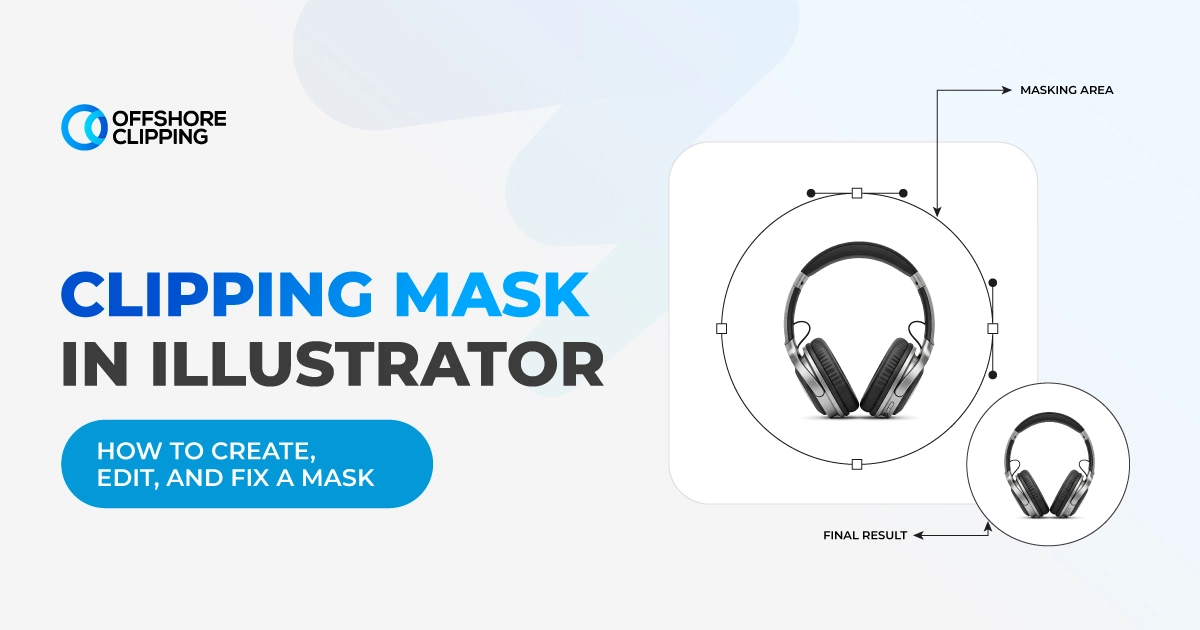
A client sends back twelve product shots with one note: "Can we crop these into rounded badges by tomorrow?" You could erase the edges by hand and hope for the best. Or you could use a clipping mask in Illustrator and finish the job in a few clicks, with every original pixel still safe underneath.
To make a clipping mask in Illustrator, place your artwork, draw a vector shape on top of it, and select both. Then go to Object > Clipping Mask > Make, or press Ctrl+7 (Windows) or Cmd+7 (Mac). The top shape becomes the visible boundary, and the artwork underneath stays fully editable.
A clipping mask lets one vector shape control which part of an image or artwork is visible, without deleting anything. Illustrator hides everything outside the shape and keeps the original intact. It works the same way whether you are shaping a logo, cropping a product photo into a badge, or building a patterned mockup.
Key Takeaways
- A clipping mask hides artwork outside a shape's boundary without deleting any original pixels or paths.
- The mask must be the top object, and it must be a vector path, compound path, or text.
- Several shapes can act as one mask once they are combined into a compound path.
- You can edit, release, or reverse a mask at any time without rebuilding the artwork.
How a Clipping Mask Works in Illustrator
A clipping mask is not cropping, and it is not deletion. It is a visibility rule applied through stacking order. Once you understand that rule, most masking problems become easy to solve.
The Top Object Defines the Visible Area
Illustrator always uses the topmost selected object as the mask. Whatever sits highest in the stacking order becomes the boundary, and everything beneath it shows only inside that edge. If the wrong object is on top, the mask will not behave the way you expect.
What Is a Clip Group?

When you apply the mask, Illustrator bundles the shape and the artwork into a clip group. In the Layers panel (Window > Layers), the group appears as <Clip Group>, and the name of the clipping shape is underlined. You can still select and edit everything inside the group.
Clipping Mask vs. Clipping Path
In Illustrator, the shape that defines the mask is called the clipping path. The term also has a second meaning in photo editing, where a clipping path is a vector outline used to isolate a subject from its background. Teams that edit a lot of product photos often use both: a clipping path to cut out the subject, then an Illustrator clipping mask to place it inside a layout. If you want to go deeper on the photo side, see our clipping path service guide .
What Happens to the Artwork Outside the Mask?
Nothing is deleted. The parts outside the mask are only hidden. If you move, resize, or release the mask, the full artwork comes right back. This is why designers prefer masking over permanent cropping for anything that might be revised later.
How to Create a Clipping Mask in Illustrator
The steps below work the same way in current versions of Illustrator. For reference, Adobe's own page on clipping masks covers the basics.
Step 1: Place or Draw the Artwork

Place the image with File > Place, or draw the vector artwork you want to mask. When placing a photo, you can link it or embed it. Linked files stay separate and are easier to swap later, but you must send them along with the Illustrator file when you hand it off.
Masking is the easy part. Preparing clean files for dozens of images is where the time goes, and our image masking service takes that work off your plate.
Step 2: Draw the Clipping Shape
Draw the shape that will define the visible area. It can be a circle from the Ellipse Tool, a custom outline from the Pen Tool, or a line of text from the Type Tool. One shape is enough for most crops.
Step 3: Place the Shape Above the Artwork

Make sure the shape sits above the artwork in the stacking order. If it is buried, select it and use Object > Arrange > Bring to Front (Ctrl+Shift+] on Windows, Cmd+Shift+] on Mac). This is one of the most common reasons a mask fails.
Step 4: Select Both Objects

Hold Shift and click both the shape and the artwork. If the artwork is made of several separate objects, you can group them first with Ctrl+G / Cmd+G. Grouping is optional, but it keeps the file tidy and makes the mask easier to manage.
Step 5: Apply the Clipping Mask in Illustrator

With both objects selected, use any of these routes. They all give the same result:
- Object > Clipping Mask > Make
- Ctrl+7 (Windows) or Cmd+7 (Mac)
- Right-click and choose Make Clipping Mask
- The Make/Release Clipping Mask button at the bottom of the Layers panel
- Quick Actions in the Properties panel
Step 6: Check the Result
Open the Layers panel and confirm the shape and artwork now sit inside one clip group. This quick check is especially useful on files with many masked elements across several artboards.
How to Use Multiple Shapes as One Clipping Mask
A clipping mask can only use one top object. To use several shapes as a single mask, combine them into a compound path first.
- Select all the shapes.
- Go to Object > Compound Path > Make, or press Ctrl+8 / Cmd+8.
- Place the compound path above the artwork.
- Select the compound path and the artwork, then press Ctrl+7 / Cmd+7.
Skipping the compound path step is a common reason a multi-shape mask does not apply correctly.
Punch Holes Into the Mask
A compound path also lets one shape cut a hole through another, which is useful for donuts, ring badges, and logos with negative space. When overlapping shapes show through each other in unexpected ways, open Window > Attributes and switch between the Even-Odd and Non-Zero Winding fill rules to see which one gives the result you want.
How to Make a Clipping Mask With Text in Illustrator

To fill letters with an image, the text must be the top object.
- Place your image on the artboard.
- Type your text with the Type Tool and move it above the image.
- Select both the text and the image.
- Press Ctrl+7 / Cmd+7.
The image now shows only inside the letters. You do not need to outline the text first, and it stays editable. Double-click into the clip group and use the Type Tool to change the wording. Bold, heavy fonts work best, because thin letters reveal very little of the image.
How to Reverse a Clipping Mask in Illustrator
A normal clipping mask shows the artwork inside the shape. A reverse clipping mask does the opposite: the artwork shows everywhere except inside the shape. Illustrator has no single "reverse" button, but there are two reliable methods.
Method 1: Reverse a Clipping Mask With Pathfinder

This gives you a hard-edged result.
- Draw a rectangle that is larger than your artwork.
- Place your shape on top of the rectangle.
- Select both and open Window > Pathfinder.
- Click Minus Front. The shape is cut out of the rectangle, leaving a rectangle with a hole.
- Move this new shape above your artwork, select both, and press Ctrl+7 / Cmd+7.
- The artwork now shows around the hole instead of inside it. This is a common technique for frames and badge overlays.
Method 2: Reverse With an Opacity Mask

This gives you a soft or gradient-based result.
- Place a shape above the artwork and fill it with white and black. White reveals, black hides, and gray gives partial transparency.
- Select both objects and open Window > Transparency.
- Click Make Mask.
- Tick the Invert Mask checkbox to swap the hidden and visible areas.
This is the easiest way to reverse a mask without redrawing anything, and it is ideal for fading artwork into a background. The logic is similar to a layer mask in Photoshop. If you work in both programs, see our Photoshop clipping mask guide .
How to Edit a Clipping Mask in Illustrator

You never need to rebuild a mask when the layout changes. Enter the clip group and edit its parts.
Enter the Clip Group
Double-click the clip group on the artboard, or right-click it and choose Enter Isolation Mode. This lets you work on the shape and the artwork separately without breaking the mask.
Move the Artwork Inside the Mask
Select only the artwork and drag it to change what shows through the mask. This is a fast way to recenter a product photo without touching the mask shape.
Resize or Reshape the Mask
Select the top shape to change the boundary. Scaling, rotating, or moving anchor points with the Direct Selection Tool updates the visible area right away.
Work With Nested Clip Groups
Complex layouts sometimes place masks inside other masks. Give each clip group a clear name in the Layers panel and keep related groups together. This saves time when another designer opens the file later.
How to Release a Clipping Mask in Illustrator

Releasing a mask removes the clipping effect and gives you the shape and the artwork back as two separate objects.
- Select the clip group.
- Go to Object > Clipping Mask > Release, or press Ctrl+Alt+7 / Cmd+Option+7.
To release several masks at once, select all the clip groups first and run the same command. There is no separate "release all" option. Your selection controls how many masks are released.
If masks are nested, one release only opens the outer layer. Select the inner clip groups and release them again until every mask is gone.
A clipping shape loses its fill and stroke when it becomes a mask. After you release it, the shape can look invisible. Select it and apply a new fill or stroke to see it again.
Release the mask rather than deleting the clip group. Deleting removes both the shape and the artwork.
Clipping Mask Not Working in Illustrator? Common Problems and Fixes
Most masking issues come from a small number of causes. Work through them in order.
Check your selection first. A large share of problems come from selecting the wrong objects, or only one object instead of both. Reselect the top shape and the artwork, then try again.
The mask does not apply at all. Either only one object is selected, or the top object cannot act as a mask. The masking object must be a vector path, compound path, or text. A placed raster image on top will not work. If Make Clipping Mask is grayed out, reselect both objects and try again.
The artwork disappears completely. The shape may be too small, in the wrong position, or placed below the artwork. Check the stacking order with Object > Arrange.
The clipping path is buried below the artwork. Illustrator uses the top object as the mask. Bring the shape to the front, then select both objects again.
A compound path leaves odd holes. This usually means a fill rule conflict. Open Window > Attributes and switch between Even-Odd and Non-Zero Winding.
You cannot select the masked object. Objects inside a clip group do not respond to a normal click from outside. Double-click to enter isolation mode, or select the object directly in the Layers panel.
Clipping Mask vs. Clipping Path vs. Compound Path vs. Opacity Mask
A clipping mask hides parts of artwork outside a vector shape, while an opacity mask uses grayscale values to control transparency. These four terms are often mixed up, but each does a different job.
| Technique | How It Controls Visibility | Multiple Shapes | Transparency Control | Best Use |
|---|---|---|---|---|
| Clipping Mask | Top vector shape defines a hard-edged boundary | Yes, once merged into a compound path | No | Cropping images or artwork into custom shapes |
| Clipping Path (photo isolation) | A saved vector outline used to isolate a subject | Limited without extra editing | No | Cutting a subject out of a photo for use in other apps |
| Compound Path | Merges several shapes into one object with holes | Yes, by design | No | Donut shapes, cutouts, logos with negative space |
| Opacity Mask | Grayscale values control partial transparency | Yes | Yes | Fading artwork or blending soft edges |
For photo-heavy projects, the choice follows similar logic: hard edges favor a path, while soft or hair-level detail favors image masking. Many catalog teams cut out the subject first with a background removal service or in Photoshop, then finish the layout in Illustrator.
Clipping Mask Illustrator Shortcuts and Commands
| Action | Windows | macOS | Menu Command |
|---|---|---|---|
| Make Clipping Mask | Ctrl+7 | Cmd+7 | Object > Clipping Mask > Make |
| Release Clipping Mask | Ctrl+Alt+7 | Cmd+Option+7 | Object > Clipping Mask > Release |
| Make Compound Path | Ctrl+8 | Cmd+8 | Object > Compound Path > Make |
| Release Compound Path | Ctrl+Alt+8 | Cmd+Option+8 | Object > Compound Path > Release |
| Group Objects | Ctrl+G | Cmd+G | Object > Group |
| Bring to Front | Ctrl+Shift+] | Cmd+Shift+] | Object > Arrange > Bring to Front |
| Paste in Front | Ctrl+F | Cmd+F | Edit > Paste in Front |
Clipping Mask Best Practices for Professional Work
A mask that looks fine on screen can still fall apart when someone else edits it. These habits keep files clean.
- Keep the artwork editable. Do not rasterize it before masking, so you can still move or resize it later.
- Use clean vector paths. Fewer, well-placed anchor points mask more predictably and avoid stray kinks along the edge.
- Name your clip groups. Clear names in the Layers panel help on files with many masked elements.
- Use compound paths for multi-shape masks. Merge shapes properly instead of stacking separate masks.
- Check edges at high zoom. Zoom to 400% or more to spot gaps, overlaps, and stray points.
- Package linked images. Use File > Package when you hand off a file, so linked images do not go missing.
- Clean up before handoff. Release masks you no longer need and remove hidden or unused artwork.
FAQ
Can a clipping mask have a stroke in Illustrator?
The clipping shape loses its fill and stroke once the mask is applied, because Illustrator only uses its outline. To keep a visible border, duplicate the shape before masking and place the copy above the clip group with a stroke and no clipping function.
Can I copy a clipping mask to another Illustrator document?
Yes. Select the whole clip group, copy it with Ctrl+C / Cmd+C, and paste it into the new document. The mask, the artwork, and the stacking order all transfer together.
Can I duplicate a clipping mask without rebuilding it?
Select the clip group and Alt-drag (Windows) or Option-drag (Mac) to place a copy elsewhere. You can also copy it with Ctrl+C / Cmd+C and paste it with Ctrl+F / Cmd+F to paste in front. The duplicate keeps its mask and can be moved independently.
Can I use a clipping mask inside another clipping mask?
Yes. Nested masks are supported and common in layered designs. Each clip group can contain another clip group, but a tidy Layers panel becomes more important as the nesting gets deeper.
Does a clipping mask affect the original image quality?
No. A clipping mask only changes what is visible. The image file, its resolution, and its pixel data stay untouched, which is why masking is better than destructive cropping for work that may be revised.
Can I save a clipping mask in an SVG file?
Yes. Illustrator exports clipping masks as the SVG clip-path property, and most modern browsers render it correctly. Preview the exported file, because very complex compound paths can behave differently across renderers.
Can I use a clipping mask with Illustrator symbols?
Yes, symbols can sit inside a clip group like any other object. Masking usually works more predictably if you apply the mask at the group level around the symbol, or break the symbol link first.
Conclusion
A clipping mask in Illustrator turns a slow cropping job into a quick, fully reversible edit. Once the stacking order and compound path logic click, the same few steps cover everything from a simple circular crop to text fills, reverse masks, and multi-shape product tiles. For teams working at scale, pairing a clean Illustrator workflow with dedicated clipping path and masking support keeps output consistent without adding hours to the schedule.