
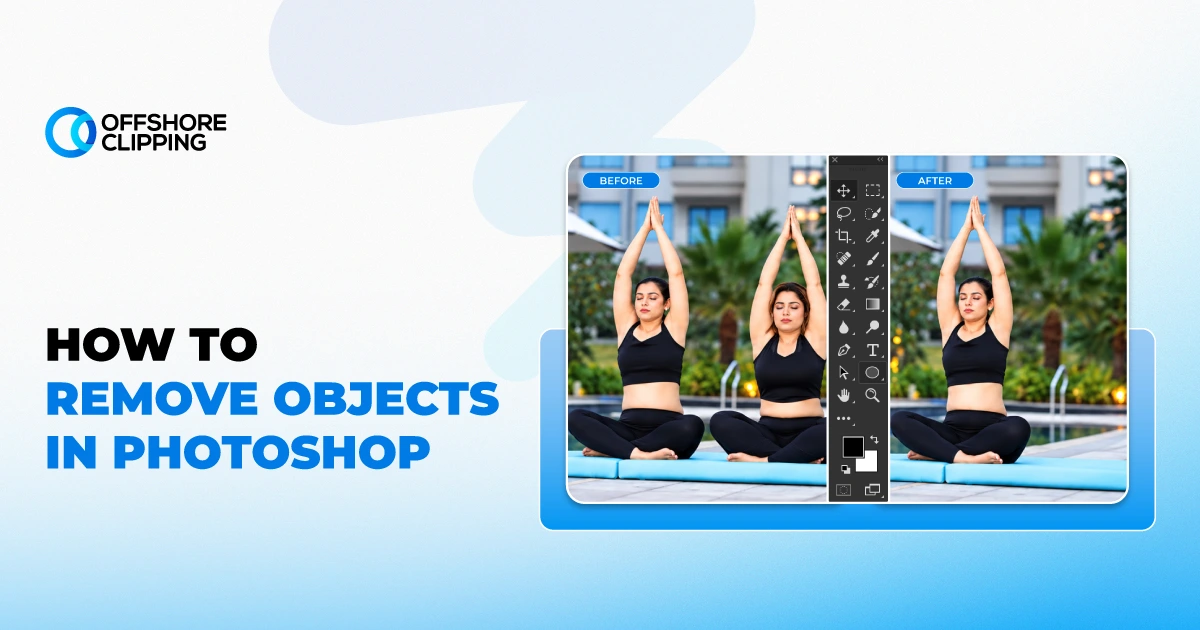
One stray tourist walks into a wedding shot. A parked car sits behind a real estate listing photo. A tangled cable cuts across a product image meant for a store page. Three different jobs, one shared skill: knowing which Photoshop tool actually removes an unwanted object without leaving a trace.
To remove objects in Photoshop, select the unwanted object, then use the Remove tool, Content-Aware Fill, or Generative Fill. Each fills the gap using pixels or AI-generated detail based on the rest of the photo.
Photoshop 2026 gives you eight ways to do it, from one-click AI tools to precise manual techniques. Some finish a removal in seconds. Others take more control but hold up better under tricky lighting and texture. The real skill isn't learning all eight. It's knowing which one fits the photo in front of you.
I will inform you of every method step-by-step, using Adobe Photoshop 2026. Plus, the tools are worth knowing when the newest AI options fall short.
Before You Start Removing Objects in Photoshop
A few small setup steps save a lot of rework later. Skip them, and even the best tool can leave a mess behind.
Check Your Photoshop Version
Photoshop 2026, where the Remove tool and Generative Fill sit fully inside the Tools panel. Older versions have similar options, but menu names may look slightly different.
Understand Non-Destructive Editing
Non-destructive editing means changes happen on separate layers instead of the original photo. If a removal looks off later, you edit or delete that layer instead of starting the whole image over.
Duplicate the Background Layer
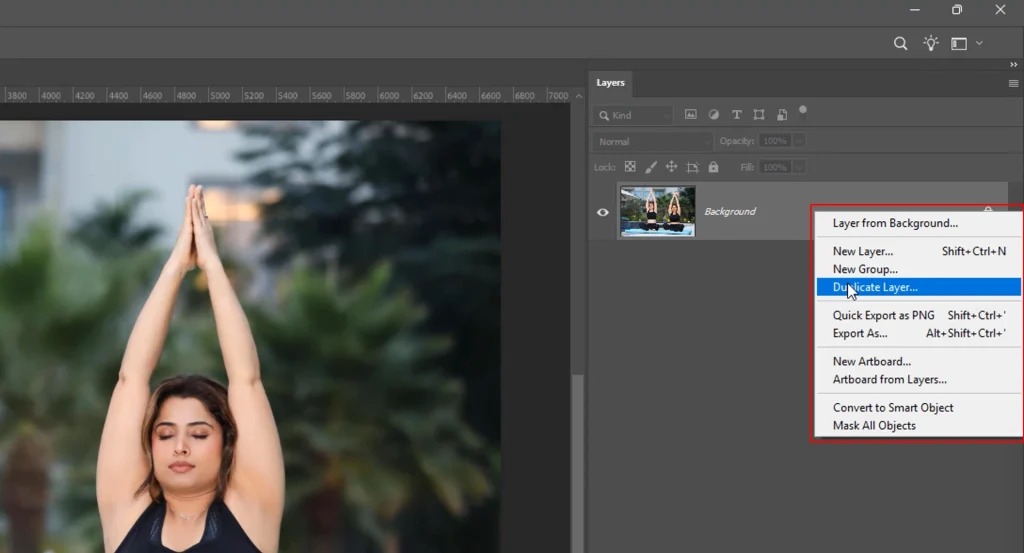
Press Cmd+J (or Ctrl+J on Windows) to duplicate the background layer before touching anything. This keeps the original photo untouched underneath as a safety net.
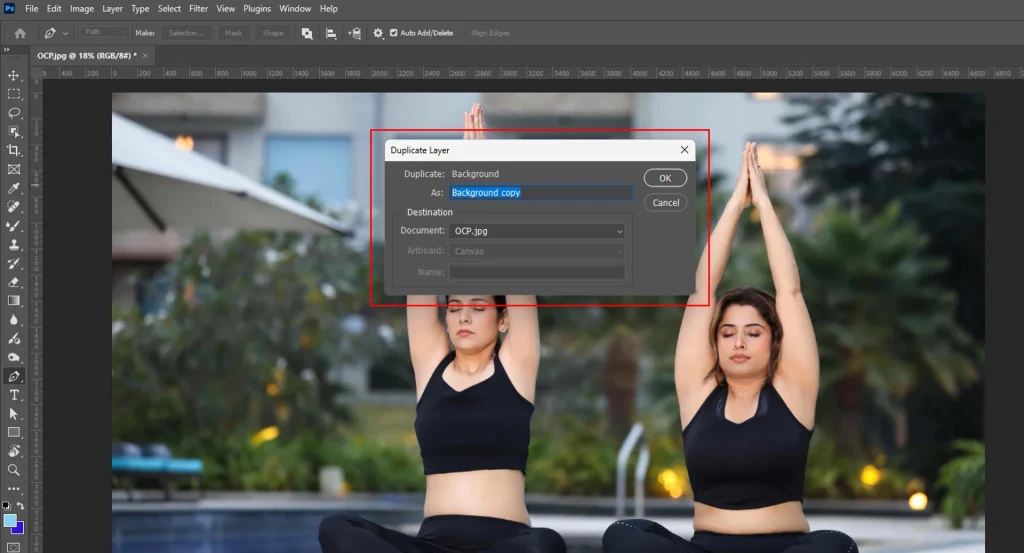
Create a New Empty Layer
Many tools, including the Remove tool, work best when edits land on a new empty layer placed above the photo, rather than directly on the pixels below.
Enable Sample All Layers
Found in the Options bar, this setting tells Photoshop to pull texture and detail from every visible layer, not just the one currently selected.
Choose the Right Workspace
Switch to the Photography or Essentials workspace from the menu bar. Both keep the Tools panel, Layers, and History visible, which matters when comparing before-and-after results.
Best Photoshop Tools for Object Removal
Photoshop offers eight core tools for removing unwanted objects, and each one suits a different situation. Some lean on Adobe's generative AI. Others use pixel-sampling techniques that have been part of Photoshop for over two decades.
The table below breaks down all eight before the full step-by-step section.
| Tool | Type | Speed | Best For |
|---|---|---|---|
| Remove Tool | AI-powered | Fast | Small to mid-size objects, quick cleanup |
| Generative Fill | Generative AI | Fast | Large objects, backgrounds, creative fills |
| Content-Aware Fill | AI-assisted | Medium | Medium objects, repeating patterns |
| Spot Healing Brush | Hybrid | Fast | Dust spots, blemishes, small marks |
| Healing Brush | Manual | Medium | Wrinkles, skin texture, fine detail |
| Clone Stamp | Manual | Slower | Logos, precise pixel replacement |
| Patch Tool | Manual | Medium | Large uniform areas like walls or sky |
| Content-Aware Move | AI-assisted | Medium | Repositioning objects instead of deleting them |
Beginners usually start with the Remove tool since it needs the least manual adjustment. Retouchers working on commercial or product images often combine two or three tools in the same photo to get a clean result.
Not every photo needs a step-by-step fix.
If you're managing a full product catalog or a weekly content calendar, cleaning up images one at a time doesn't scale
Professional Retouching!
How to Remove Objects in Photoshop
Eight methods, each suited to a different kind of fix. Start with whichever one matches the object in front of you, or work through them to build a full toolkit.
Method 1 – Remove Objects Using the Remove Tool (Fastest Method)
What Is the Remove Tool?
The Remove tool is Photoshop's dedicated one-brush object eraser. Paint over anything you want gone, and Photoshop rebuilds the area behind it using on-device or cloud AI processing, based on the surrounding pixels.
When Should You Use It?
It's the default choice for everyday cleanup. The go-to for anyone who needs a fast, clean fix without setting up manual sampling or writing a prompt.
Advantages
It works in real time, needs no prompt, and handles common clutter, such as stray hairs, power lines, and small photobombers, in one or two strokes.
Limitations
Large objects or busy backgrounds, like a person standing in front of a detailed storefront, can still confuse it and leave a soft, blurred patch behind.
Here are the steps to remove objects in Photoshop with the Remove tool:
Step 1 – Open Your Image
Open the photo in Photoshop 2026 and duplicate the background layer first.
Step 2 – Create a New Layer
Add a new empty layer above it. This keeps the removal editable and separate from the original file.
Step 3 – Select the Remove Tool
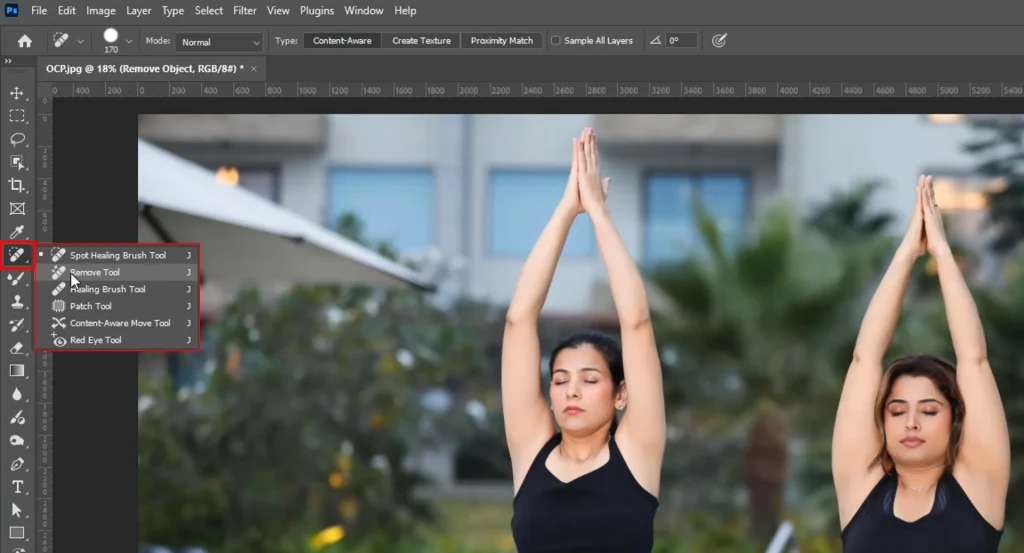
Find the Remove Tool in the Tools panel, grouped with the healing tools near the top-left of the toolbar.
Step 4 – Adjust Brush Settings
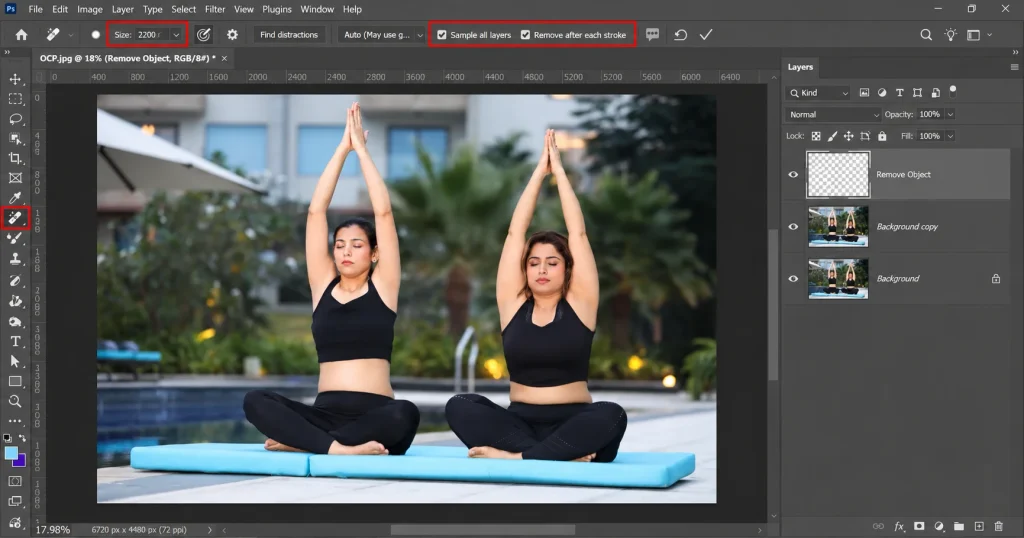
Set the brush slightly larger than the object. Keep Hardness soft, around 80–100%. Turn on Sample All Layers so the tool reads from every visible layer, and leave Remove After Each Stroke on for a live preview as you paint.
Step 5 – Paint Over the Object
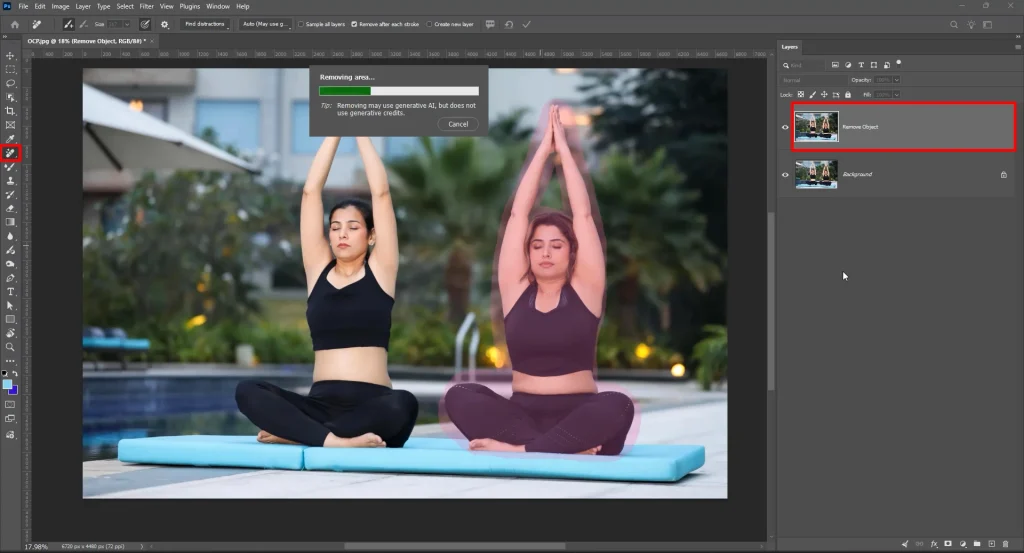
Drag the brush across the unwanted object. Photoshop fills it in almost instantly with matching texture and color.
Step 6 – Review the Result
Zoom to 100% and check the edges closely for blur or repeated patterns before moving to the next area.
Step 7 – Clean Up Remaining Artifacts
If a faint outline remains, paint over it again with a slightly larger brush and a second, lighter pass.
Step 8 - Final Export
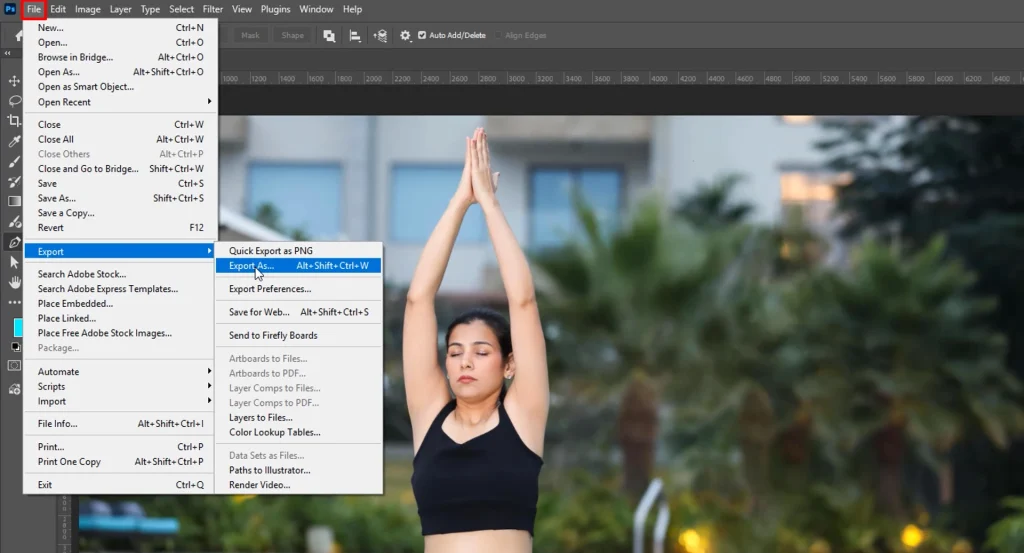
Go to the menu bar and click on File. Then select Export, then Export As.
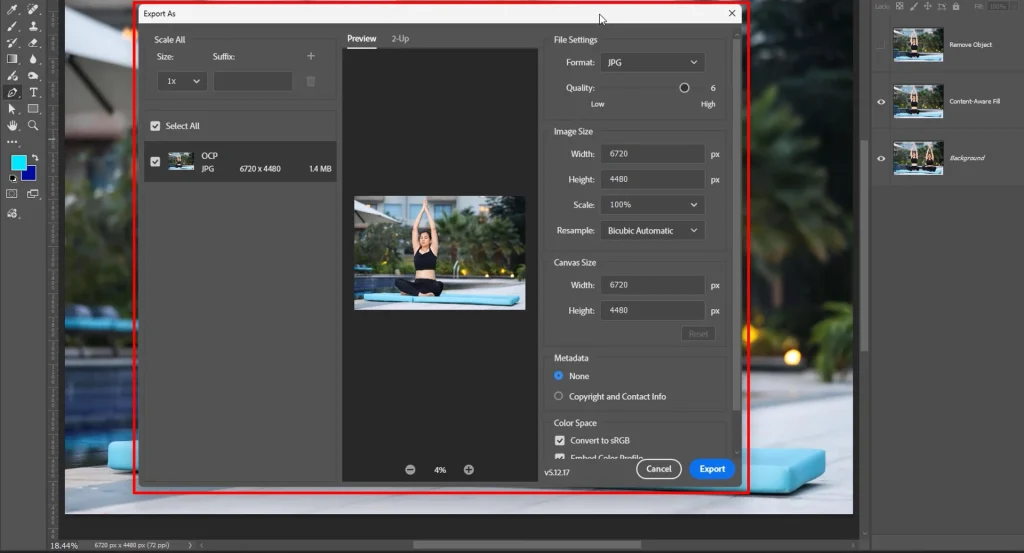
This is how you can save the output in your local file wherever you want.
Pro Tips for Better Results
Work in short strokes instead of one long pass. Smaller areas give Photoshop less to rebuild at once, which usually means a cleaner, more believable fill.
Method 2 – Remove Objects Using Generative Fill
What Is Generative Fill?
Generative Fill uses Adobe Firefly, Adobe's generative AI, to replace a selected area with new pixels based on the surrounding photo or a written prompt.
Best Use Cases
It handles large objects well. A car, a building, a crowd of people, or whatever in situations where the Remove tool doesn't have enough surrounding detail to draw from.
Limitations
Results vary each time you generate them, and the tool can misread branded products or on-image text. This matters a great deal for commercial and e-commerce photography.
Step 1 – Select the Object
Use the Object Selection tool or Quick Selection Tool to select exactly what needs to go.
Step 2 – Expand the Selection
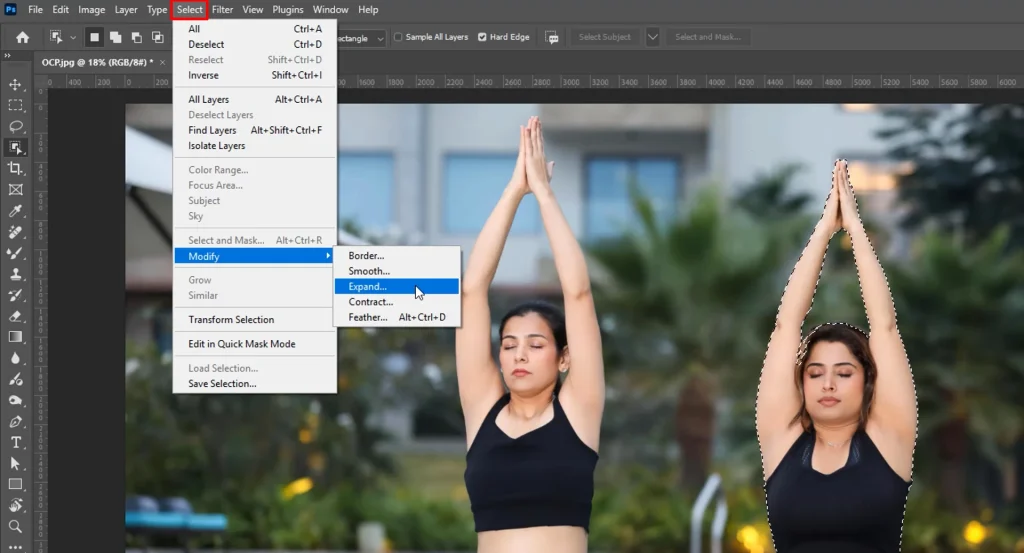
Expand the selection by a few pixels through Select > Modify > Expand, giving Photoshop room to blend the edges naturally.
Step 3 – Open Generative Fill
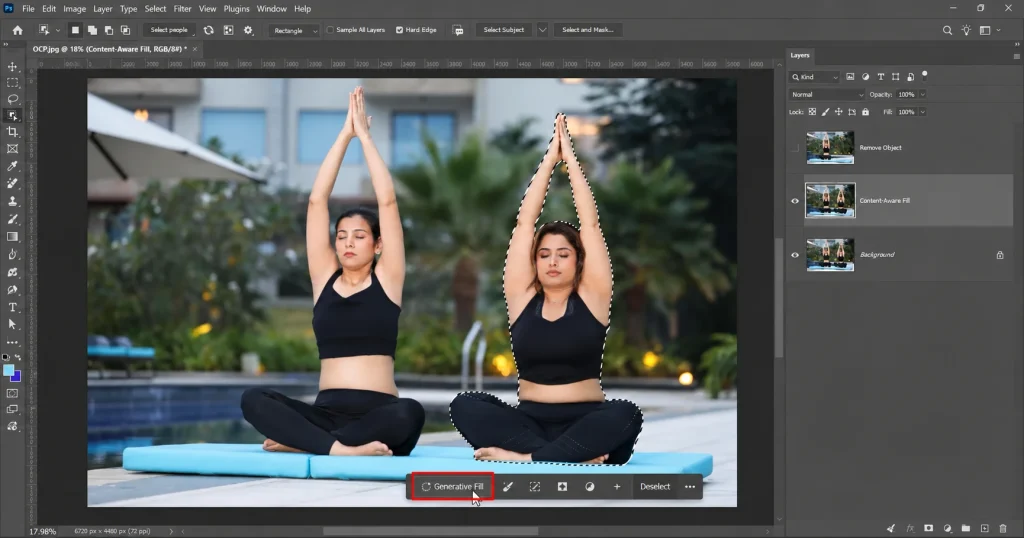
Click Generative Fill in the contextual toolbar that appears just under the active selection.
Step 4 – Leave the Prompt Blank
Leave the text field empty and press Generate. Photoshop fills the space using context pulled from the rest of the photo.
Step 5 – Compare the Variations
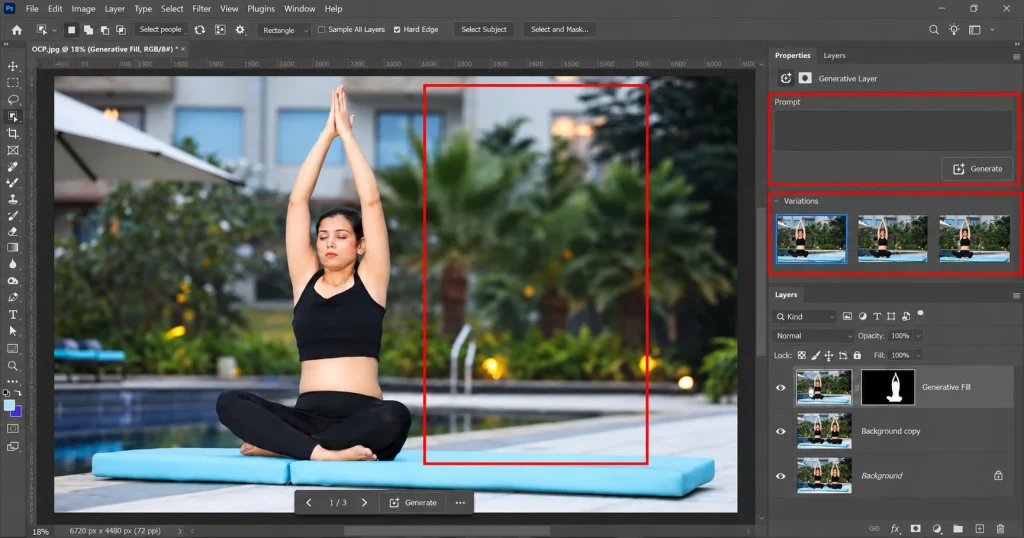
Photoshop generates three variations at once. Click through them in the Properties panel and pick whichever looks most natural.
Step 6 – Blend the Best Result
If an edge looks slightly off, add a soft layer mask and blend it into the background. Offshore Clipping’s guide to using layer masks in Photoshop shows the process in detail.
Professional Tips
Avoid Generative Fill on logos or anything brand-sensitive. Generative credits are also limited on some Creative Cloud plans, so save it for objects the Remove tool genuinely can't handle.
Method 3 – Remove Objects with Content-Aware Fill
What Is Content-Aware Fill?
Content-Aware Fill is Photoshop's earlier, non-generative removal engine. It samples nearby pixels and stitches them together instead of generating brand-new detail. This makes it more predictable when a background already has consistent texture to draw from.
Best Situations
A strong choice for backgrounds with repeating patterns, such as a fence, a brick wall, or a plain sky. This is where Photoshop can borrow texture from elsewhere in the same frame. It also holds up well on large, fairly empty spaces that don't need any invented detail.
Step 1 – Make a Selection
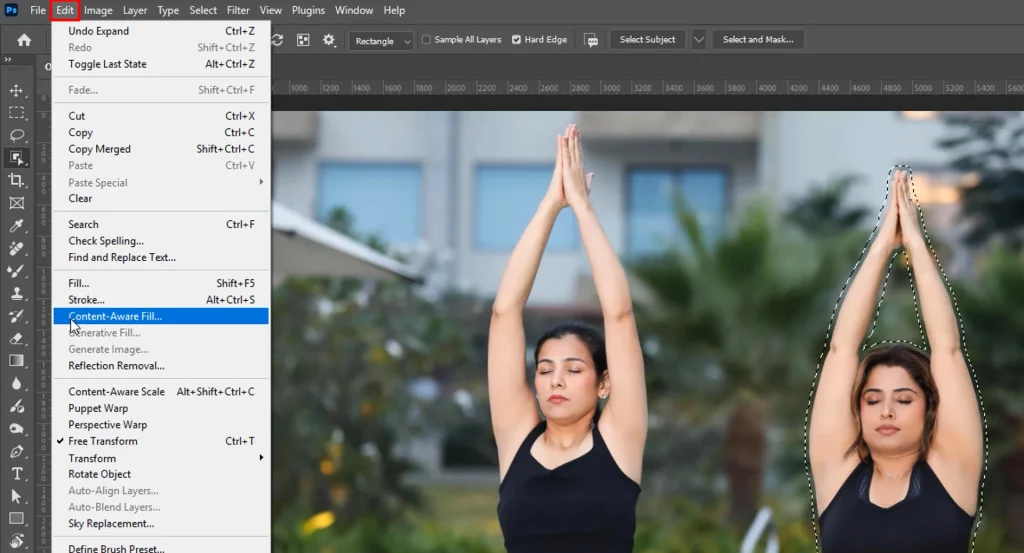
Select the object with the Lasso tool, keeping the selection loose rather than tight against the edges.
Step 2 – Open the Dialog
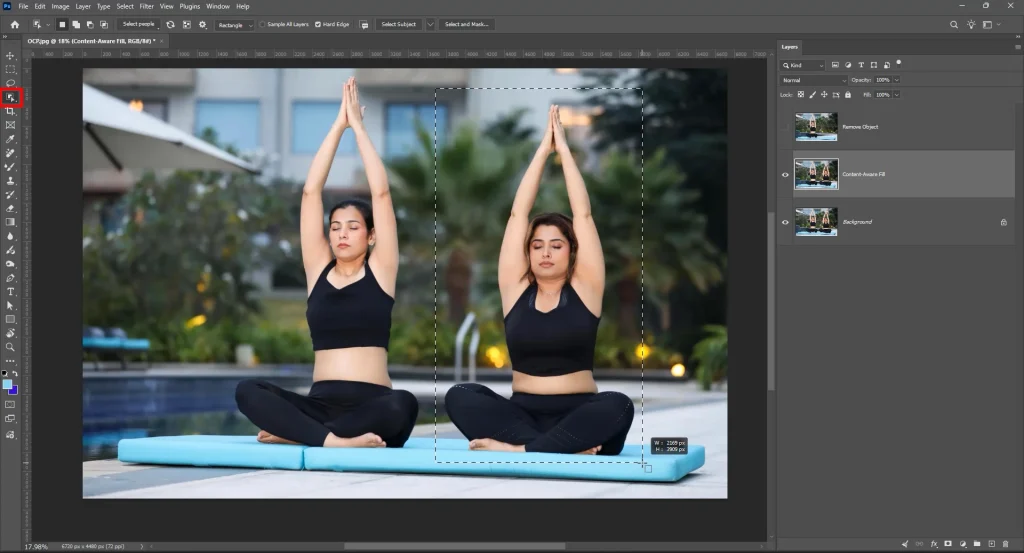
Go to Edit > Content-Aware Fill. A preview window opens with the image on one side and a green sampling overlay on the other.
Step 3 – Check the Preview
Look at the live preview before generating anything, since Content-Aware Fill updates it in real time as the sampling area changes.
Step 4 – Adjust the Sampling Area
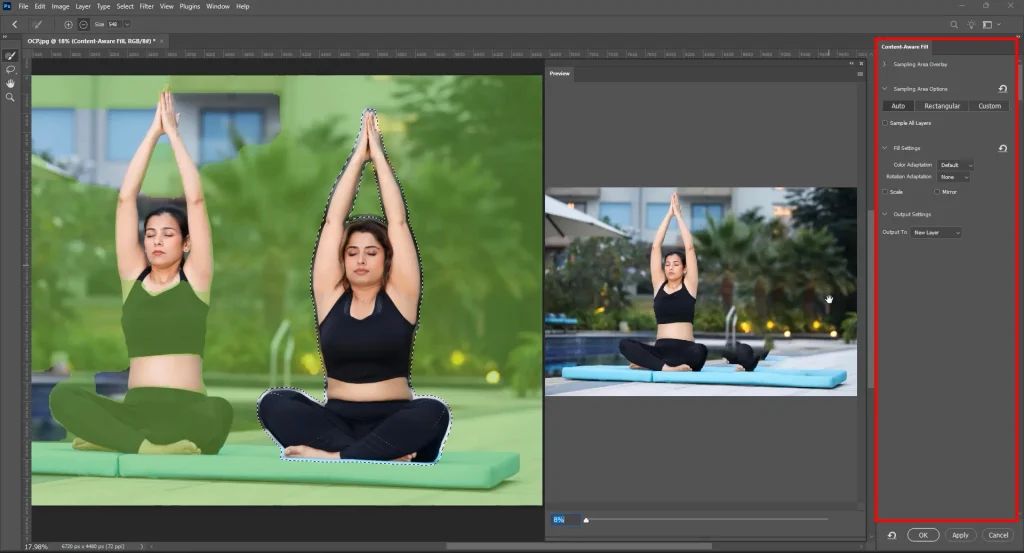
Use the sampling brush to add or remove regions Photoshop should pull texture from.
Step 5 – Set the Output
Choose New Layer under Output Settings so the fill lands above the original image.
Step 6 – Apply and Review
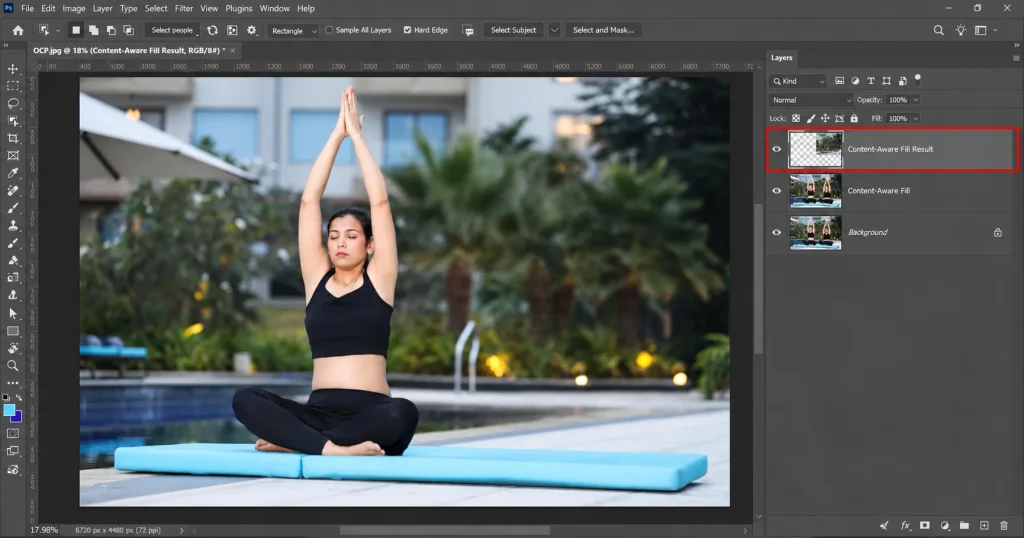
Click OK, then zoom in to check the seams before flattening anything.
Customize the Sampling Area
Drag the sampling brush to add or remove areas Photoshop should pull texture from. Excluding busy areas, like a person or a sign, usually gives a cleaner fill, since the algorithm won't try to blend unrelated detail into the result.
Output Settings
Choose to output the result as a new layer, which keeps the original image completely untouched underneath. This also makes it easy to lower the opacity of the fill layer later if the blend needs softening.
Content-Aware Fill vs Remove Tool
Content-Aware Fill gives more manual control over the sampling area to remove objects in Photoshop. While the Remove tool is faster for quick, small fixes. Many retouchers reach for Content-Aware Fill on backgrounds and the Remove tool everywhere else, since the two rarely compete for the same job.
Method 4 – Remove Small Objects Using the Spot Healing Brush Tool
Best Uses
Ideal for dust spots, sensor marks, and small blemishes. This kind of detail work is common in portrait and beauty photography. It's also a fast first pass before switching to more precise tools for anything the brush can't fully clear.
Step-by-Step Tutorial
Step 1 – Select the Tool
Choose the Spot Healing Brush from the Tools panel, grouped with the other healing tools.
Step 2 – Size the Brush
Set a brush size just larger than the spot you want to remove.
Step 3 – Check Sample Settings
Leave Sample All Layers on if working across multiple layers so the tool reads texture correctly.
Step 4 – Click or Drag
Click once directly on small spots, or drag lightly across slightly larger marks.
Step 5 – Review the Blend
Zoom in to confirm the tone and texture match the surrounding skin or surface.
Step 6 – Repeat as Needed
Move to the next spot and repeat, adjusting brush size for each one.
Tips
Use a smaller brush for precision work like skin retouching, where a single portrait may need dozens of tiny corrections. Working at a higher zoom level also makes it easier to catch spots that are easy to miss at a normal view.
Common Mistakes
A brush set too large can smear surrounding detail instead of fixing the spot. Keep strokes small and check zoomed-in results often, especially on skin, where an oversized brush tends to soften texture that should stay sharp.
Clearing a wedding gallery or a full product shoot takes time. Offshore Clipping's photo editing services handle it at scale.
Start Your Cleanup!
Method 5 – Remove Objects with the Healing Brush Tool
How It Differs from Spot Healing
Unlike the Spot Healing Brush, the Healing Brush lets you choose the exact source point to sample from, using Alt (or Option) plus a click. This extra control matters when the area around a blemish isn't uniform enough for Photoshop to guess correctly on its own.
Best Uses
Better suited to wrinkles, fine lines, and any area where control over exactly which texture gets copied actually matters. It's also useful on skin tones that shift slightly across a face, where an automatic sample could pull from the wrong patch.
Step-by-Step Guide
Step 1 – Select the Tool
Choose the Healing Brush from the Tools panel.
Step 2 – Set the Source
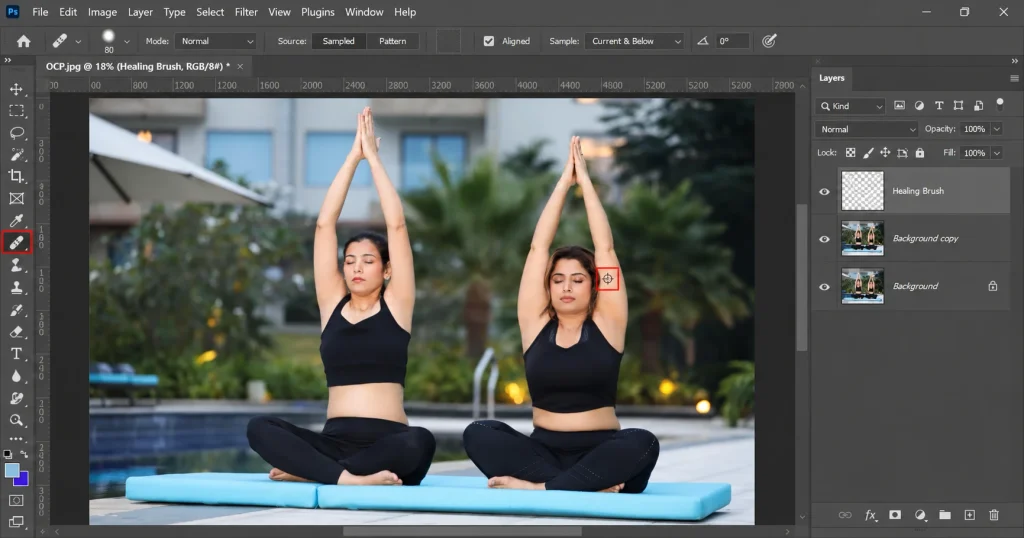
Alt-click (or Option-click) a clean area with matching tone and texture.
Step 3 – Adjust Brush Size
Match the brush to the size of the area you're fixing.
Step 4 – Paint Over the Area
Paint over the target area in short strokes, letting Photoshop blend tone and texture automatically.
Step 5 – Resample as You Go
Reset the source point periodically to avoid repeating the same patch of texture.
Step 6 – Check the Result
Zoom in to confirm the blend holds up at full resolution.
Pro Tips
Resample the source point often when working across a large area. So, the texture doesn't repeat in an obvious, telltale pattern. This matters most on skin and fabric, where even a small repeated patch tends to stand out under close inspection.
Method 6 – Remove Objects Using the Clone Stamp Tool
What Is Clone Stamp?
The Clone Stamp tool copies pixels exactly from one part of the image to another, with no blending or AI involved at all. That makes it the most literal of the removal tools, and often the most reliable when accuracy matters more than speed.
Best Situations
When can you use this tool to remove objects in Photoshop? The right call for logos, watermarks, and any object where precise, literal pixel replacement matters more than a soft, generated blend. It also works well on small, isolated objects sitting against a simple background.
Step-by-Step Tutorial
Step 1 – Select the Tool
Choose the Clone Stamp from the Tools panel.
Step 2 – Set the Source
Alt-click a clean area that matches the lighting and perspective of the target.
Step 3 – Match Brush Settings
Set brush size and hardness to suit the detail you're replacing.
Step 4 – Paint Over the Target
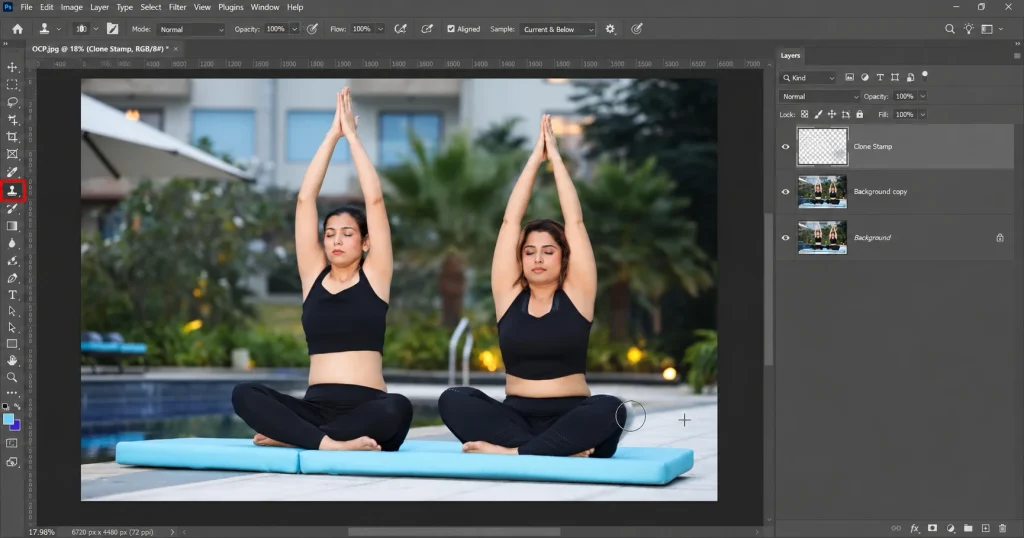
Paint over the object, watching the crosshair that tracks your source point as you go.
Step 5 – Reset the Source When Needed
Alt-click a new source area if the current one starts repeating an obvious pattern.
Step 6 – Zoom In to Verify
Check the edges closely, since Clone Stamp leaves no automatic blending to hide a mismatch.
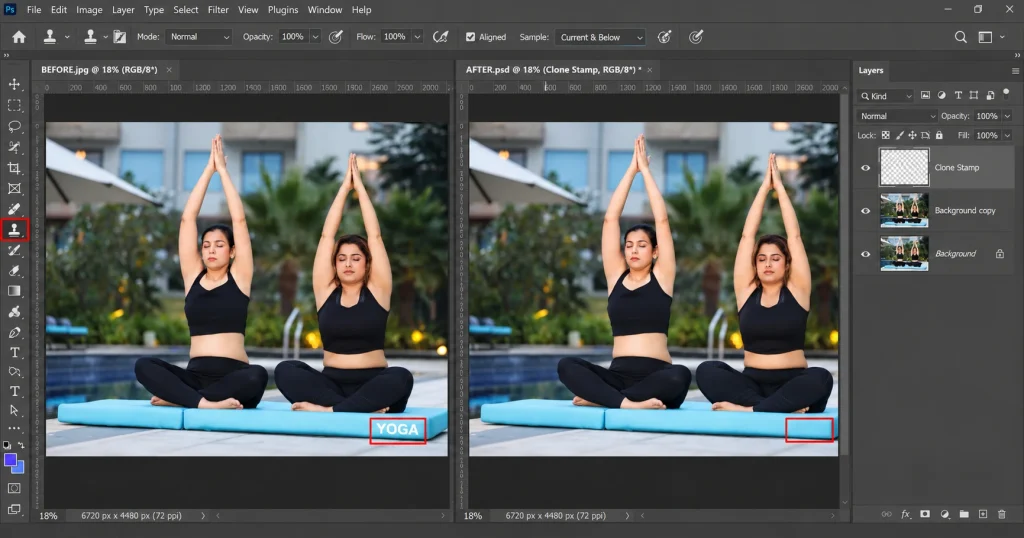
Choosing the Right Clone Source
Pick a source area with matching lighting and perspective. A mismatched source is the most common reason a Clone Stamp edit ends up looking obvious, especially on curved surfaces or angled product shots where perspective shifts quickly.
Blending Tips
Lower the opacity slightly and use a soft brush edge to avoid a harsh, cut-out appearance around the fix. A light second pass at reduced opacity often smooths a hard edge better than trying to fix it in one stroke.
Common Mistakes
Cloning from an area with different lighting or a repeating pattern, which creates a visible seam or an obviously duplicated detail. Skipping the zoomed-in check afterward is the second most common mistake, since flaws in Clone Stamp work rarely show up at a normal viewing size.
Method 7 – Remove Large Objects Using the Patch Tool
What Is the Patch Tool?
The Patch Tool lets you draw a selection around an object, then drag it over a clean area to replace it in a single motion. It behaves like a hybrid of a selection tool and a healing tool, blending the dragged area automatically once released.
When Should You Use It?
Best for larger, fairly uniform areas. A section of wall, sky, or floor where dragging a patch is faster than brushing pixel by pixel. It's also a good option when a Content-Aware Fill selection is too large to sample cleanly on its own.
Step-by-Step Guide
Step 1 – Select the Tool
Choose the Patch Tool from the Tools panel, nested with the Healing tools.
Step 2 – Draw the Selection
Draw a loose selection around the object you want to remove.
Step 3 – Choose Source Mode
Set the tool to Source in the Options bar so the selection pulls from a clean area.
Step 4 – Drag to a Clean Area
Drag the selection onto a matching area of the photo.
Step 5 – Release and Preview
Release the mouse to see Photoshop blend the patch automatically.
Step 6 – Refine if Needed
Deselect and zoom in to check the result, repeating with a smaller patch if the blend looks uneven.
Patch Tool vs Healing Brush
In terms of removing objects in Photoshop, the Patch Tool moves an entire selection at once, while the Healing Brush works in smaller strokes. Reach for the Patch Tool when speed matters more than fine detail, and switch to the Healing Brush when the area has finer texture that needs a gentler touch.
Method 8 – Move or Remove Objects with the Content-Aware Move Tool
What Is the Content-Aware Move Tool?
Instead of deleting an object outright, this tool moves it to a new spot in the frame and fills the space it left behind. It's less about removal and more about repositioning, which makes it a slightly different tool than the rest of this list.
Move Mode vs. Extend Mode
Move mode repositions the object. Extend mode duplicates it, which is useful for extending a background in Photoshop or adding extra elements like foliage. Choosing the right mode up front saves a step, since switching mid-edit can undo part of the selection.
Step-by-Step Guide
Step 1 – Select the Object
Use the Lasso or Object Selection tool to select what you want to move.
Step 2 – Choose the Tool
Select the Content-Aware Move Tool from the Tools panel.
Step 3 – Pick a Mode
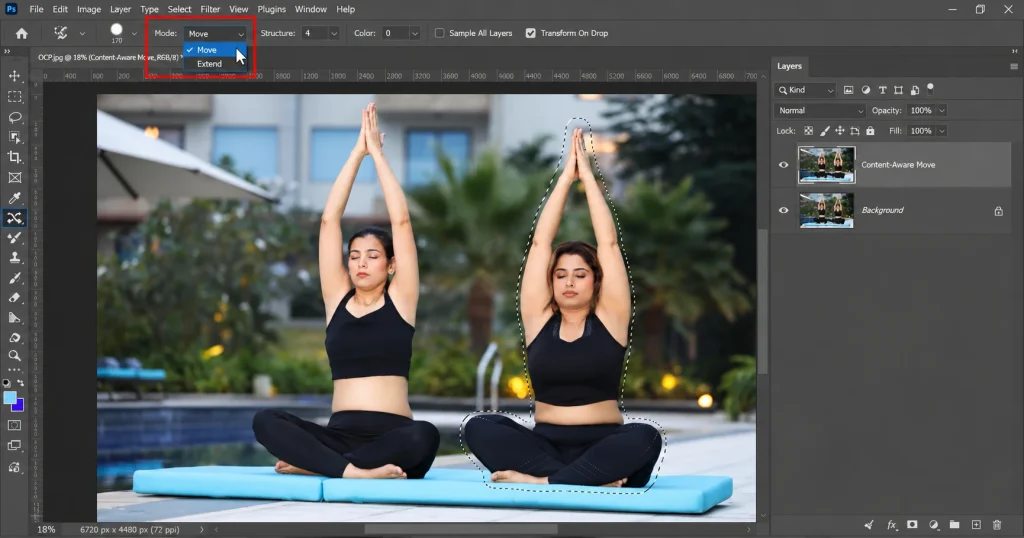
Choose Move or Extend in the Options bar, depending on whether you want to relocate or duplicate the object.
Step 4 – Drag to the New Position
Drag the selection to where it should sit in the frame.
Step 5 – Let Photoshop Fill the Gap
Release the mouse, and Photoshop fills the space left behind automatically.
Step 6 – Adjust and Blend
Nudge the object with the arrow keys if it needs fine positioning, then flatten once the blend looks right.
Best Use Cases
Useful for composition fixes, like recentering a subject, without losing the original background detail sitting behind it. It also comes in handy when a subject is technically well-lit but poorly placed within the frame.
Which Method Works Best for Different Objects?
Not sure which method fits your photo? Here's a fast lookup based on the object you're removing.
| Object | Best Tool |
|---|---|
| People | Remove Tool / Generative Fill |
| Power lines | Remove Tool |
| Dust spots | Spot Healing Brush |
| Acne | Spot Healing Brush |
| Telephone poles | Content-Aware Fill |
| Logos | Clone Stamp |
| Large buildings | Generative Fill |
| Watermarks | Clone Stamp + Healing Brush |
| Wrinkles | Healing Brush |
| Cars | Generative Fill |
This isn't a strict rulebook. A crowded street scene with people and cars might need two or three tools layered together, which is completely normal, even for experienced retouchers.
Which Photoshop Object Removal Tool Should You Use?
If you only learn one tool, make it the Remove tool. It covers most day-to-day cleanup. It cleans stray objects in travel photos, small distractions in social content, and minor clutter in a listing photo without extra setup.
Add Generative Fill once you're comfortable, for anything too large or complex for the Remove tool alone. Save the Clone Stamp, the Patch Tool, and the Healing tools for situations that need exact control: commercial retouching, logo removal, or skin work where AI-based tools tend to blur too much detail.
For anyone shooting product catalogs or managing a high volume of images, consistency across a batch usually points toward standardized techniques rather than trial and error on every single photo.
Best Photoshop Settings for Cleaner Object Removal
Small setting changes make a bigger difference than switching tools entirely. A few to check before every removal:
- Brush Size: Keep it slightly larger than the object itself, not the whole area around it. Oversized brushes blur nearby detail that didn't need fixing.
- Brush Hardness: 80–100% works for most removals. Lower it near soft edges like hair or foliage for a more natural transition.
- Feather: A 1–2px feather softens the transition around a fix without visibly blurring the result.
- Opacity: Full opacity for most tools. Lower it for Clone Stamp work when blending two similar but not identical areas.
- Flow: Lower flow on the Healing Brush allows for a gradual, more natural build-up instead of one heavy pass.
- Sampling Options: Keep Sample All Layers turned on so edits inherit detail from every visible layer, not just the active one.
- Layer Settings: Always work on a duplicate or new layer. Never edit directly on the original background layer.
Professional Tips for Seamless Object Removal
A handful of habits separate a clean removal from one that gives itself away:
- Zoom In Frequently: Check your work at 100% zoom. Small artifacts are easy to miss at a smaller view.
- Preserve Natural Texture: Avoid over-smoothing. Some grain should remain, or the fix reads as plastic.
- Match Lighting: Study where light falls before filling an area, especially with the Clone Stamp or the Patch Tool.
- Keep Shadows Consistent: Removing an object often means removing its shadow too. Check the ground and nearby walls.
- Remove Objects in Small Sections: Break large removals into smaller passes instead of one broad selection.
- Combine Multiple Photoshop Tools: Use the Remove tool for the bulk of an object, then Clone Stamp for fine edges.
- Use Layer Masks Instead of Erasing: A layer mask keeps every edit reversible, unlike erasing pixels outright.
- Work Non-Destructively: Keep original layers intact underneath every fix, always.
Common Photoshop Object Removal Mistakes
A few habits explain most removals that don't quite hold up:
- Editing the Original Layer: Working directly on the background means there's no way back if a removal goes wrong.
- Using an Oversized Brush: A brush bigger than needed blurs surrounding detail that didn't need fixing.
- Ignoring Patterns: Repeating patterns, like tile or brick, need extra sampling care, or they'll look duplicated.
- Removing Shadows Incorrectly: Leaving a shadow behind after removing its object is one of the most common giveaways.
- Leaving Halos: A faint outline around a fixed area usually means the brush edge was too hard.
- Stretching Background Texture: Content-Aware and Generative Fill can stretch a pattern unnaturally near selection edges.
- Using Generative Fill on Logos or Products: AI-generated fills can distort brand marks and product details in ways clients notice immediately.
- Overusing AI: Leaning on automatic tools for every fix, instead of learning when manual control gives a cleaner result.
Why Object Removal Sometimes Looks Fake
Most object removals in Photoshop fail for the same handful of reasons, and after working through thousands of commercial and e-commerce images, the pattern is predictable.
Repeated textures show up when a tool samples the same small patch twice, creating an obvious duplicate. Broken perspective happens when a filled area doesn't follow the same vanishing point as the rest of the photo, which is common in architecture and product shots.
Lighting mismatch is the single most common reason a removal looks fake: the fill doesn't carry the same direction or intensity of light as the pixels around it. Shadow mismatch is closely related. A removed object's shadow left behind is an instant giveaway.
AI hallucinations appear when Generative Fill invents detail that doesn't belong, especially on branded products or text, where accuracy matters more than realism. Pattern repetition shows up in fabric, tile, or brickwork whenever a sampled section repeats too obviously.
None of this means the tool failed. It usually means the area needs a second pass, often with a different tool than the one used first.
Troubleshooting Photoshop Object Removal Problems
Why Does Photoshop Leave Blurry Areas?
Usually, a brush is set too large or too soft for the detail nearby. Reduce brush size and work in smaller passes, since a tighter brush gives Photoshop less area to guess at once. Zooming in before painting also helps catch a blur before it spreads across a wider section of the photo.
Why Doesn't the Remove Tool Work?
Complex backgrounds with little repeating detail can confuse it. Switch to Generative Fill or Content-Aware Fill instead, since both handle unfamiliar detail differently than the Remove tool's texture-matching approach. A pending Photoshop update or a missing on-device component can also cause the tool to stall, so it's worth checking for updates if the issue persists.
Why Does Content-Aware Fill Look Fake?
The sampling area likely included the wrong texture. Adjust the green sampling overlay before generating again, removing any busy or unrelated detail from the sample. Running the fill a second time with a narrower sampling area often clears up a result that looked stretched or smeared on the first pass.
Why Is Generative Fill Disabled?
It requires an active Creative Cloud subscription and enough generative credits remaining for the month. A weak or interrupted internet connection can also disable it temporarily, since cloud-based generation needs a stable connection to send and receive the request.
Why Are AI Results Different Every Time?
Generative tools produce fresh variations on every run by design. Regenerate until one fits, or switch to a manual tool for consistency, especially on a job where the client expects the same result across multiple images. This variability is normal behavior, not a sign that something went wrong.
Comparing Photoshop Object Removal Techniques
A side-by-side view of all eight tools, from fastest to most precise when you remove objects in Photoshop:
| Tool | AI | Speed | Accuracy | Best For | Difficulty |
|---|---|---|---|---|---|
| Remove Tool | Yes | Fast | High | Small-medium objects | Beginner |
| Generative Fill | Yes | Fast | Varies | Large objects, backgrounds | Beginner |
| Content-Aware Fill | Partial | Medium | High | Patterned backgrounds | Intermediate |
| Spot Healing Brush | Partial | Fast | High | Small marks, blemishes | Beginner |
| Healing Brush | No | Medium | High | Wrinkles, fine detail | Intermediate |
| Clone Stamp | No | Slow | Very High | Logos, precise areas | Advanced |
| Patch Tool | No | Medium | High | Large uniform areas | Intermediate |
| Content-Aware Move | Partial | Medium | High | Repositioning objects | Intermediate |
Beginners typically start at the top of this table. Advanced retouchers often reach for the bottom of it when precision matters more than speed.
Frequently Asked Questions
Is there an eraser tool in Photoshop?
Yes. The Eraser tool removes pixels entirely, leaving transparency behind. It doesn't fill the space, so it's rarely used for object removal on a flat background.
Can I remove items from a picture?
Yes. Photoshop's Remove tool, Generative Fill, and Content-Aware Fill can all delete an object from a photo and rebuild the space behind it automatically.
How do I remove people from photos?
Select the person with the Object Selection tool, then use the Remove tool for a quick fix or Generative Fill for a full-body removal against a complex background.
Which Photoshop tool removes objects best?
There's no single best tool. The Remove tool suits fast, everyday fixes, while Generative Fill and Clone Stamp handle larger or more precise jobs.
Can beginners remove objects in Photoshop?
Yes. The Remove tool needs no manual sampling or prompts, which makes it approachable for anyone new to Photoshop 2026.
Is Generative Fill better than Content-Aware Fill?
Not universally. Generative Fill handles large, complex areas well, but Content-Aware Fill often gives more predictable results on patterned backgrounds.
Can Photoshop remove large objects automatically?
Yes, mainly through Generative Fill, though results should always be reviewed for lighting and perspective accuracy before finalizing an image.
Final Thoughts
Removing an object in Photoshop 2026 comes down to picking the right tool for the object, not just the fastest one. The Remove tool and Generative Fill handle most everyday work, while Content-Aware Fill, Clone Stamp, and the Healing tools step in when precision matters. Start simple, review at 100% zoom, and combine tools when one alone doesn't finish the job cleanly.