
If you are preparing Amazon A+ Content, one of the first things you need to get right is the image size. But the confusion starts when you come across multiple sizes, which can lead to choosing the wrong dimension.
That is why I have structured this article as a practical guidebook for Amazon sellers, designers, and brand teams. You can use it to find the Amazon A+ Content image sizes, file requirements, mobile specifications, video dimensions, and other technical requirements you need before creating or exporting your assets.
Amazon uses different dimensions for different Basic and Premium A+ modules, so there is no single image size you can use across the entire page.
Instead of searching through multiple documents every time you work on a new module, you can use the bullet points below as a quick reference throughout your A+ Content workflow.
Here is a quick overview of the key dimensions:
- Basic A+ modules: Image requirements vary by module, from smaller assets such as 135 × 135 px to larger layouts such as 970 × 600 px.
- Premium Full Image: 1464 × 600 px for desktop and 600 × 450 px for mobile.
- Premium Background Image with Text: 1464 × 600 px for desktop and 600 × 450 px for mobile.
- Premium Dual Images with Text: 650 × 350 px per image.
- Premium Single Image with Text: 800 × 600 px.
These are only quick-reference dimensions. For more sizes for different modules, view the detailed Basic and Premium tables below before preparing your final files.
Struggling to keep A+ visuals consistent across multiple modules and ASINs?
Get our Amazon product infographic design service
Amazon A+ Content Image Sizes & Requirements for 2026
The image size you need really depends on the A+ module you choose. Basic modules have their own minimum dimensions, while Premium modules follow different dimensions for desktop and mobile layouts.
So, choose the module first and then prepare the image for that placement. The tables below give you the minimum dimensions to use as a reference before briefing a designer or exporting the final files.
Basic Module Image Sizes
Keep in mind that these specifications apply specifically to A+ modules. Your main and secondary listing images follow separate Amazon product image requirements, including their own dimensions, background, content, and presentation rules.
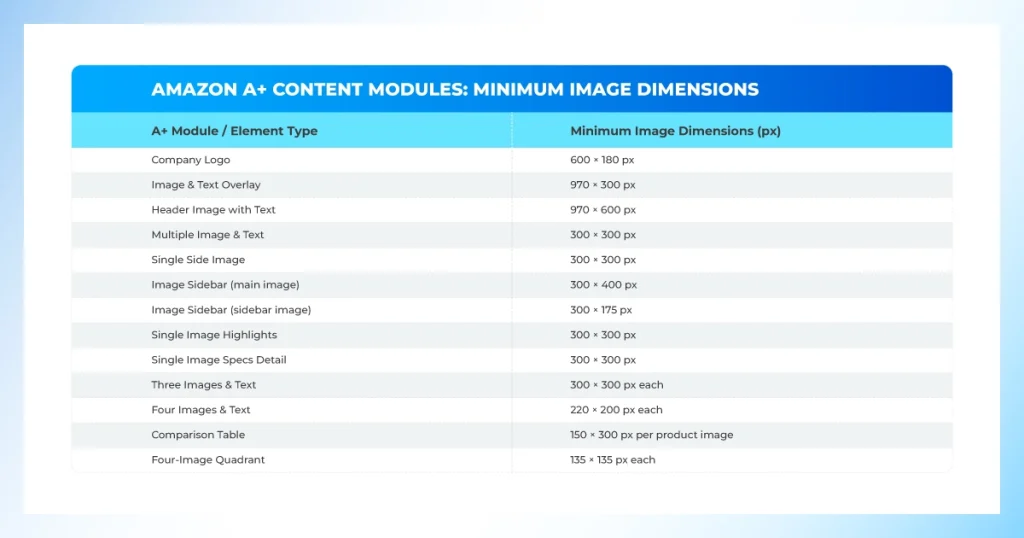
Amazon’s official A+ Content documentation specifies the following minimum image dimensions for its standard modules.
- Company Logo: 600 × 180 px
- Image & Text Overlay: 970 × 300 px
- Header Image with Text: 970 × 600 px
- Multiple Image & Text: 300 × 300 px
- Single Side Image: 300 × 300 px
- Image Sidebar (main image): 300 × 400 px
- Image Sidebar (sidebar image): 300 × 175 px
- Single Image Highlights: 300 × 300 px
- Single Image Specs Detail: 300 × 300 px
- Three Images & Text: 300 × 300 px each
- Four Images & Text: 220 × 200 px each
- Comparison Table: 150 × 300 px per product image
- Four-Image Quadrant: 135 × 135 px each
By maintaining the specified size above, you can keep the product image sharp, well-framed, and properly positioned without stretching or reusing a smaller image.
The important point here is that 970 × 300 px is not a universal Basic image size. It applies to the Image & Text Overlay module, while other layouts have their own minimum dimensions.
Premium Module Image Sizes
Premium A+ Content introduces larger layouts, comparison formats, hotspots, carousels, and modules that may use separate desktop and mobile-specific image versions. Amazon’s Premium A+ Module Guide provides the minimum dimensions for each layout.
| Premium module | Desktop image | Mobile display |
|---|---|---|
| Full Image | 1464 × 600 px | 600 × 450 px separate image |
| Background Image with Text | 1464 × 600 px | 600 × 450 px separate image |
| Four Images & Text | 300 × 225 px each | Desktop images reused |
| Dual Images with Text | 650 × 350 px each | Desktop images reused |
| Single Image with Text | 800 × 600 px | Desktop image reused |
| Comparison Table 1 | 200 × 225 px | Desktop images reused |
| Comparison Table 2 | 300 × 225 px | Desktop images reused |
| Comparison Table 3 | 488 × 700 px per panel | 600 × 450 px per panel |
| Hotspots | 1464 × 600 px | 600 × 450 px |
| Navigation Carousel | 1464 × 600 px per panel | 600 × 450 px per panel |
| Regimen Carousel | 1464 × 600 px per panel | 600 × 450 px per panel |
| Simple Image Carousel | 1464 × 600 px per panel | 600 × 450 px per panel |
| Video Image Carousel Preview | 800 × 600 px | Desktop asset reused |
| Q&A Module | 1464 × 600 px | Desktop asset reused |
For example, Amazon specifies 1464 × 600 px for the Premium Full Image desktop layout and 600 × 450 px for its mobile layout. Other modules, such as Four Images & Text, Dual Images with Text, and Single Image with Text, reuse the desktop image rather than requiring a separate version.
When a module provides a separate 600 × 450 px field for mobile display, prepare that image independently rather than simply shrinking the 1464 × 600 px desktop version. The aspect ratios differ, so a dedicated crop gives you better control over the product’s position, focal point, and any important information within the frame.
Quick takeaway: There is no single image size that works across every module. Select the layout first, check its minimum dimensions, and then prepare the image for that specific placement.
General Image File Requirements
Pixel dimensions are only part of Amazon’s requirements. According to the Premium A+ Module Guide, images used within the modules should also meet these technical specifications:
- File type: JPG, BMP, or PNG
- Maximum file size: 2 MB per image
- Resolution: At least 72 dpi
- Color space: RGB
- Animated GIFs: Not supported
Amazon also notes that oversized images can be resized within the content tool, while images smaller than the module limits will not be enlarged to meet those requirements.
If you are preparing a large number of marketplace assets, professional eCommerce image editing services can also help standardize cropping, backgrounds, product positioning, retouching, and final exports before the files are uploaded.
For production work, however, it is better to prepare the correct dimensions before uploading. That gives you more control over cropping, edge quality, product scale, and final sharpness.
Premium Video and Preview Image Requirements
Premium layouts can also include video, but specifications vary by module. Amazon currently documents Full Video, Video with Text, and Video Image Carousel layouts, each with different minimum dimensions and preview image requirements.
| Video module | Minimum video dimensions | Preview image | Maximum size | Maximum length |
|---|---|---|---|---|
| Full Video | 960 × 540 px | 1464 × 600 px | 200 MB | 180 seconds |
| Video with Text | 800 × 600 px | 800 × 600 px | 200 MB | 180 seconds |
| Video Image Carousel | 800 × 600 px | 800 × 600 px | 200 MB | 180 seconds |
Amazon allows you to reuse the desktop video and preview assets for mobile display in these layouts, so you do not need to prepare a separate mobile video file.
Prepare each video and preview image for the selected module, rather than relying on a single export for every Premium layout. This helps avoid unexpected cropping, poor framing, and unnecessary resizing during upload.
How to Prepare Images Without Losing Quality
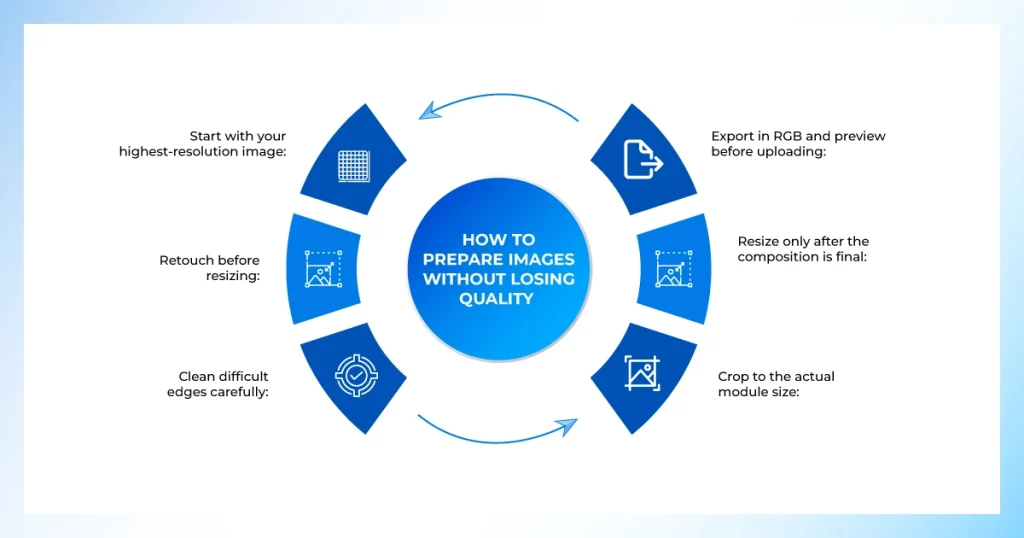
Maintaining image quality for Amazon A+ Content starts before resizing. Work from a clean, high-resolution master image, then prepare a separate version for each module and aspect ratio. This helps prevent blurry details, stretched products, rough edges, and unnecessary quality loss during resizing and export.
- Start with your highest-resolution image: Keep the original master untouched. Create separate copies for each A+ module rather than repeatedly resizing a single small file.
- Retouch before resizing: Remove dust, scratches, unwanted reflections, and small imperfections while you still have enough detail to work with.
- Clean difficult edges carefully: Products with hair, fur, glass, fabric, or transparent areas need softer edge control.
- Crop to the actual module size: Do not force a single composition into every layout. Reposition the product and important details for each desktop or mobile aspect ratio.
- Resize only after the composition is final: Set the required pixel dimensions once, then check labels, textures, and small details for sharpness.
- Export in RGB and preview before uploading: Use JPG or PNG, keep the file within Amazon’s limits, and check both desktop and mobile views before approving the final asset.
Common Image Preparation Problems and How to Fix Them
Even when you use the correct module dimensions, production and export mistakes can still affect how your images appear after upload. Here are some common image preparation problems and practical ways to fix them.
- Image looks blurry: Go back to the high-resolution master, crop for the correct module, then resize once. Avoid enlarging an already small image.
- Amazon crops an important product detail: Rework the composition for that module’s aspect ratio instead of forcing the same crop into every layout.
- Mobile cuts off text or the product: If the module supports a separate mobile-specific version, create the 600 × 450 px image independently rather than shrinking the desktop banner.
- The image file is rejected: Check the required dimensions, RGB color mode, and supported file formats, and ensure the final image stays under 2 MB.
- Colors look different after export: Convert the file to RGB before the final export and compare it with an approved product reference.
- Hair, fur, glass, or transparent edges look rough: Use careful masking instead of a hard cutout so soft and semi-transparent details remain natural.
- A+ modules look inconsistent across products: Keep the same crop style, product scale, shadow treatment, and export settings across related ASINs.
If you are handling a large volume of A+ assets, our professional Photoshop services can help with consistent resizing, masking, retouching, and final export preparation.
Pre-Upload Checklist for Amazon A+ Images
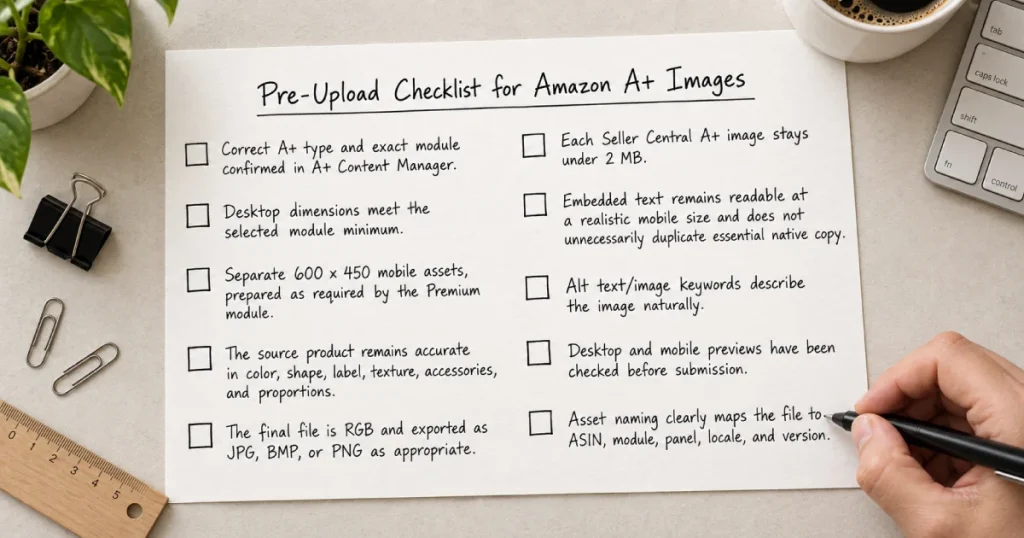
Before the designer exports the final batch, run one checklist against every module. It is cheaper to catch a wrong crop or color profile in the master file than to catch the same mistake after it has been exported across dozens of ASINs.
- Correct A+ type and exact module confirmed in A+ Content Manager.
- Desktop dimensions meet the selected module minimum.
- Separate 600 x 450 mobile assets, prepared as required by the Premium module.
- The source product remains accurate in color, shape, label, texture, accessories, and proportions.
- The final file is RGB and exported as JPG, BMP, or PNG as appropriate.
- Each Seller Central A+ image stays under 2 MB.
- Embedded text remains readable at a realistic mobile size and does not unnecessarily duplicate essential native copy.
- Alt text/image keywords describe the image naturally.
- Desktop and mobile previews have been checked before submission.
- Asset naming clearly maps the file to ASIN, module, panel, locale, and version.
Frequently Asked Questions
What happens if I upload the wrong dimensions?
Amazon may resize oversized images, but undersized files may not meet the module requirement. Using the correct aspect ratio gives you better control over cropping and framing.
Are A+ Content dimensions different from Amazon listing image dimensions?
Yes. Product-gallery images and A+ Content assets use different placement and specification settings. Keep a high-resolution master and export separate versions for each Amazon placement.
Can I use text inside an A+ Content image?
Yes, but keep embedded text minimal. Amazon recommends native module text for essential information because image text can become harder to read after resizing.
What are Amazon EBC image sizes?
Amazon EBC image sizes refer to older Enhanced Brand Content terminology. For current A+ production, check the selected module dimensions inside A+ Content Manager before exporting.
Does Amazon A+ Content help with SEO?
Amazon does not describe A+ Content itself as a direct ranking factor. However, Amazon says A+ image alt text can help products appear in search results. Use descriptive alt text naturally, but continue optimizing your title, bullets, attributes, and search terms separately.
How much does Amazon A+ Content cost?
Amazon provides A+ Content at no additional charge for eligible sellers. However, photography, design, retouching, localization, and other production work may create separate costs.
How long does it take for A+ Content to be approved?
Amazon says an A+ Content review can take up to seven business days, with publication usually following approval. Leave extra time for revisions or resubmission.
Can I use the same A+ Content for multiple products?
Yes. You can apply A+ Content to multiple eligible ASINs, but confirm that every image, claim, specification, and comparison remains accurate for each product.
Conclusion
The safest way to work with Amazon A+ Content image sizes is to stop treating 970 x 300 or 1464 x 600 as universal templates. Those are useful headline references, but the correct production size comes from the actual Basic or Premium module, its desktop layout, and its mobile behavior.
Lock the module plan before editing, keep one high-resolution master, create separate crops for different aspect ratios, export in RGB, stay under Amazon’s file-size limit, and inspect the live preview. That workflow reduces redesigns and makes it easier to scale a consistent A+ system across many ASINs.