
DaVinci Resolve is currently the best video editor for creators in 2026. It delivers Hollywood standard color grading, built-in audio mixing, and visual effects in one robust (and free) program with the paid version being just a one-time payment. Adobe Premiere Pro is easy to use, excels in fast editing workflows and can integrate with all Adobe Creative Cloud apps, but requires a $22.99 monthly subscription.
Choosing between them isn’t about which is better overall. It’s about which fits you, your workflow, and your budget. Some creators care deeply about cinematic color, others about efficient turnaround, while teams may prioritize stability under tight deadlines.
In this guide, we compare DaVinci Resolve and Premiere Pro in detail. We cover important factors such as ease of use, technical requirements, feature set, AI tools, and cost so you can confidently choose the right video editor for your projects in 2026.
What you’ll learn in this article
DaVinci Resolve vs Premiere Pro: Definition
Both DaVinci Resolve and Adobe Premiere Pro are professional-grade video editing platforms, but they come from slightly different worlds. Davinci Resolve is the go-to for color and post-production, while Premiere Pro shines in flexibility and integration.
What is DaVinci Resolve?
DaVinci Resolve is a powerful media editing software, developed by Blackmagic Design, and is known for its advanced color correction and grading tools.
It became famous as the preferred color grading tool in Hollywood, but over time, it evolved into a full-fledged media editing software with editing, audio, visual effects, and color all in one place.
DaVinci Resolve works by dividing your editing workflow into 6 specialized “pages”. Media to import and organize, Cut/Edit to build your timeline, Fusion for effects, Color to grade, Fairlight to mix audio, and Deliver to export. It supports professional formats and streamlines post-production efficiently.
Here are some of its key features:
- All-in-One Editing: It’s a single program where you can cut your video, create special effects, color grade, and mix audio without switching to other software.
- Hollywood-Grade Color Tools: It’s famous for its powerful color correction, allowing you to fix lighting issues and create beautiful, cinematic looks for your footage.
- Fusion Visual Effects: A built-in special effects studio where you can create motion graphics, animated titles, and complex visual effects like explosions or object removal.
- Professional Audio Studio: The Fairlight page gives you advanced tools to clean up dialogue, remove background noise, and perfectly mix music and sound effects.
- One Powerful Free Version: It offers a fully-featured free version that includes almost all of its professional tools, making it accessible to everyone.
- Collaboration Features: Multiple editors, colorists, and sound engineers can all work on the same project at the same time.
What is Adobe Premiere Pro?
Adobe Premiere Pro is a professional grade video editing software that has long been the industry standard for content editing.
It’s part of Adobe’s Creative Cloud ecosystem, which means it works seamlessly with other Adobe apps like After Effects, Photoshop, and Audition. Adobe Premiere Pro is designed to handle everything from YouTube videos to large-scale film projects.
Adobe Premiere Pro works using an intuitive timeline-based editor. You import your clips, arrange and trim them on the timeline, layer video and audio, apply effects and color, and then export using optimized presets or custom settings via Media Encoder.
Here are some of its key features:
- Deep Adobe Ecosystem Integration: It works seamlessly with other Adobe apps like After Effects for animation and Photoshop for images, allowing you to edit and update those files directly in your timeline.
- Industry-Standard Professional Editing: It’s the go-to tool for many professionals, featuring a robust timeline, precise cutting tools, and multi-camera editing to handle complex projects from web videos to feature films.
- AI-Powered Tools (Sensei): Automate tedious tasks using Adobe’s AI, which can automatically reframe videos for different social media platforms, remove background noise, and generate accurate captions.
- Vast Library of Plug-ins and Templates: Access a massive ecosystem of third-party plug-ins, effects, graphics, and templates to dramatically expand the program’s capabilities and speed up your workflow.
- Reliable Workflow and Organization: It provides a stable and intuitive environment for managing large amounts of footage with powerful project management and clip organization tools.
- Universal Format Support: It can natively edit a very wide range of video formats from different cameras and phones without needing to convert the files first.
Let’s look at how these powerful editors stack up against each other at a glance. As these are both very powerful software with a wealth of features between them, we’ll only be focusing on key differentiators.
| Feature | DaVinci Resolve | Adobe Premiere Pro |
|---|---|---|
| Cost | Free (full version available) or $295 one-time for Studio | $22.99/month subscription required |
| Color Grading | Industry-leading, professional-grade tools (Used in Hollywood) | Good basic color tools, less advanced |
| Editing Interface | Steeper learning curve, more complex initially | More intuitive, easier for beginners |
| Audio Editing | Built-in professional audio suite (Fairlight) | Basic tools, often needs Adobe Audition(Paid tool) |
| Visual Effects | Built-in Fusion (advanced compositing) | Basic effects, usually requires After Effects(Paid tool) |
| Software Integration | Standalone, all tools in one app | Seamlessly integrates with Adobe apps (Photoshop, After Effects, etc.) |
| Learning Resources | Growing community, good tutorials available | Massive community, tutorials everywhere |
| Industry Use | Rapidly growing, especially in film/color | Industry standard in most professional settings |
| System Requirements | Needs good GPU (graphics card) | More CPU-focused, less demanding on GPU |
| Best For | Filmmakers, colorists, all-in-one creators on a budget | Editors in professional environments, Adobe ecosystem users |
| Plugin Support | Growing plugin ecosystem, VST audio plugins (Studio only) | Extensive third-party plugin library available |
| Free Option | Yes – fully functional (some limitations) | No – only 7-day trial |
| Strengths | Color grading, audio, VFX, value for money | Ease of use, ecosystem, industry adoption |
Both applications are professional-grade video editing software. DaVinci Resolve excels as an all-in-one powerhouse with unmatched color and audio tools, making it ideal for independent creators and filmmakers who want complete control at a fair price. Adobe Premiere Pro has a strong integration ecosystem, industry standardization, and ease of use for straightforward editing projects.
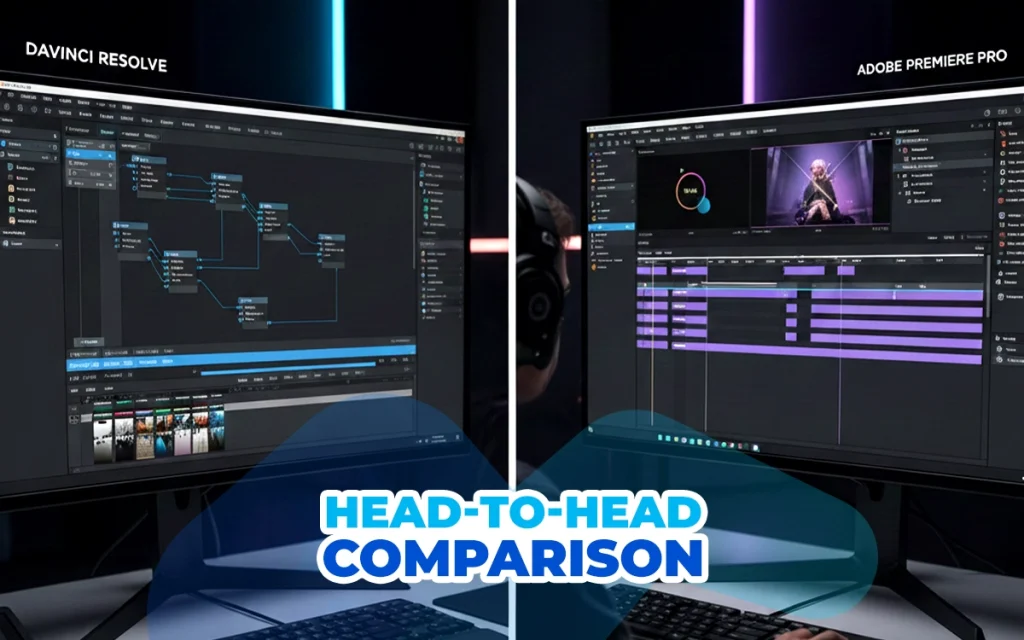
DaVinci Resolve vs Adobe Premiere Pro: Head-to-Head Comparison
Let’s move beyond feature lists and look at how these editors actually perform in real-world situations. This comparison focuses on what matters when you’re sitting down to edit every day.
1. Ease of Use
Premiere Pro is easier to learn for beginners than DaVinci Resolve. The interface uses a traditional NLE layout with the timeline at the bottom, monitors up top, and bins on the left.
This familiar arrangement means most editors can start cutting footage within minutes of opening the application. Adobe recently improved its Import and Export workflows, making the initial experience more intuitive.
DaVinci Resolve uses a page-based interface with separate workspaces for Media, Cut, Edit, Fusion, Color, Fairlight, and Deliver.
This structure can be overwhelming for first-time users. The learning curve is steeper so expect to spend several hours understanding how the pages work together.
However, once mastered, this organization becomes highly efficient because each page is purpose-built for specific tasks. They also provide very detailed training videos to make the process of learning easier and faster.
Winner: Adobe Premiere Pro
Key takeaway: If you’ve never edited a video before, Premiere Pro provides a gentler introduction. If you’re willing to invest time upfront, Resolve’s page system offers long-term efficiency benefits.
2. Scope of Features
Adobe Premiere Pro is designed to work within the Adobe Creative Cloud ecosystem. It handles editing exceptionally well but relies on companion applications for specialized tasks.
Motion graphics require After Effects, complex audio work needs Audition, and graphics come from Photoshop.
Dynamic Links enable seamless integration between these applications, but you’re still managing multiple programs.
DaVinci Resolve is an all-in-one post-production solution. A single application includes professional editing, color grading (Color page), visual effects (Fusion page), audio mixing (Fairlight page), and delivery tools.
This integrated approach means solo creators and small teams don’t need multiple software subscriptions or separate applications for each post-production stage.
Winner: Depends on workflow preference
Key takeaway: Premiere Pro has a larger and more mature third-party plugin ecosystem. DaVinci Resolve’s plugin library is growing but currently offers fewer options. Choose Premiere if you prefer specialized tools for each task. Choose Resolve if you want everything in one application.
3. Platform and Media Support
Cross-platform availability: Both editors run on Mac and Windows with native support for Apple silicon and Windows on Arm. DaVinci Resolve is the only major professional NLE with official Linux support, making it the default choice for Linux users.
Media format compatibility: Both applications handle most standard codecs including 4K, HDR, and various log formats. The main difference is that DaVinci Resolve has native support for Blackmagic RAW (BRAW) camera files, while Premiere Pro requires a plugin for BRAW footage. If you shoot on Blackmagic cameras, Resolve provides better workflow integration.
Basic Effects
Premiere Pro includes an extensive built-in effects library with tools like Warp Stabilizer for footage stabilization, Lumetri Color for basic corrections, and Ultra Key for green screen work.
The Essential Graphics panel makes adding animated titles straightforward without opening another application.
DaVinci Resolve offers solid basic effects in the Edit page, including color correction, keying, and transformations.
More complex effects require using the Fusion page, which uses a node-based system instead of layers. This adds a setup step but provides more control.
Winner: Adobe Premiere Pro (for speed)
Key takeaway: For quick effects and standard corrections, Premiere Pro is faster. For building complex effect chains, Resolve’s Fusion offers more precise control.
4. Advanced Visual Effects
Adobe Premiere Pro handles basic VFX but professional motion graphics and compositing work happens in After Effects.
After Effects uses a layer-based system that most designers find intuitive. It’s the industry standard for motion graphics, with the largest template library and tutorial base.
Dynamic Link integration means you can move between Premiere and After Effects without rendering intermediate files.
DaVinci Resolve’s Fusion page is a professional compositing tool built directly into the editor. It uses a node-based workflow similar to Nuke, providing precise control over complex visual effects.
Fusion includes professional tools for 3D compositing, particle systems, and advanced keying. The learning curve is steeper than After Effects’ layer system, but everything stays in your timeline without round-tripping to another application.
Winner: Depends on VFX complexity
Key takeaway: If you’re an editor who occasionally needs VFX, Premiere Pro with After Effects is easier. If you do VFX-heavy work regularly and want to avoid switching applications, Fusion is more efficient.
5. Audio Editing
Adobe Premiere Pro includes the Essential Sound panel for basic audio mixing, dialogue enhancement, and automatic music ducking.
These tools work well for YouTube videos, corporate content, and simple projects. For serious audio post-production, editors typically use Adobe Audition, which requires switching applications.
DaVinci Resolve Studio includes Fairlight, a full digital audio workstation (DAW) integrated into the video editor. Fairlight provides a professional mixing console, automation, ADR tools, advanced audio repair, and support for immersive audio formats. This level of audio capability rivals standalone audio software like Pro Tools.
Winner: DaVinci Resolve (Fairlight)
Key takeaway: If audio simply supports your visuals, both editors work fine. If sound design is crucial to your projects, Fairlight provides professional-grade tools without leaving your timeline.
6. Color Correction and Color Grading
Adobe Premiere Pro includes the Lumetri Color panel with color wheels, curves, HSL editing, and LUT support. These tools handle basic color correction and simple grades adequately. You can match shots, fix exposure, and apply creative looks.
However, for complex work like specific skin tone isolation, tracked power windows, or elaborate secondary corrections, Lumetri’s layer-based approach shows limitations.
DaVinci Resolve was originally designed as dedicated color correction software, and color grading remains its strongest feature.
Professional colorists use Davinci for Hollywood features because of its node-based workflow, advanced scopes, precise tracking, and powerful secondary corrections.
Features like HDR grading, color warper, and magic mask are unmatched in the industry.
Winner: DaVinci Resolve
Key takeaway: If color grading is central to your work, DaVinci Resolve provides professional-grade tools that will save time and deliver better results. For basic corrections, Premiere Pro is sufficient.
7. Project and Media Organization
Adobe Premiere Pro uses a traditional bin system with folder-based organization. You create bins, organize clips, and add metadata tags. Adobe’s Media Intelligence feature uses AI to auto-tag clips, enabling natural language search like “find clips with people talking.”
DaVinci Resolve uses a database system managed through the Media page. This structured approach includes smart bins and powerful metadata filtering. For large projects with thousands of clips, Resolve’s database can be more efficient. For smaller projects, some editors find it unnecessarily complex.
Key takeaways: Premiere Pro integrates with Frame.io for cloud collaboration and supports Productions for team editing workflows. DaVinci Resolve Studio includes project server functionality that allows multiple editors to work on the same project simultaneously.
8. AI Capabilities
Adobe Premiere Pro AI features:
- Auto Reframe: Automatically adjusts compositions for different aspect ratios (square for Instagram, vertical for TikTok)
- Scene Edit Detection: Identifies cuts in existing videos
- Speech-to-Text: Transcribes dialogue with speaker detection and translation to 27 languages
- Content-Aware Fill: Removes unwanted objects from video
The base subscription for Premiere Pro comes with only 25 credits. You can find the full breakdown of their generative credit allowances by plan.
DaVinci Resolve AI features (Neural Engine):
- Magic Mask: AI-powered rotoscoping for complex selections
- Face Refinement: Automatic face detection and enhancement
- Object Removal: Removes unwanted elements from footage
- Smart Reframe: Reframes content for different aspect ratios
- Speed Warp: Creates smooth slow-motion from normal footage
Key takeaway: Premiere’s AI focuses on content creation workflows (social media reformatting, captions, speaker detection). Resolve’s AI emphasizes post-production tasks (object removal, tracking, face refinement).
9. Performance
DaVinci Resolve is GPU-intensive and requires a good graphics card, especially for the Color page. With strong GPU hardware, Resolve generally runs smoother thanks to better GPU optimization.
On laptops or systems with weak graphics cards, performance suffers noticeably.
Adobe Premiere Pro is more CPU-focused, making it more forgiving on mid-range systems and performing more consistently across different hardware configurations.
However, Premiere Pro has a documented reputation for crashes under heavy workloads, while DaVinci Resolve is generally more stable during long editing sessions.
Proxy workflows: Both support proxy editing for 4K and RAW footage. DaVinci Resolve’s proxy generation is fast with seamless switching between proxy and full resolution. Adobe Premiere Pro’s proxy system works well but feels less integrated into the workflow.
Winner: Depends on setup
Key takeaway: If you have high-end hardware (especially a strong GPU), DaVinci Resolve performs better. For mid-range systems, Premiere Pro offers more consistent performance.
DaVinci Resolve vs Premiere Pro: Technical Requirements
The technical requirements for Davinci Resolve and Adobe Premiere Pro are as follows. Both programs need good computers, but they use your computer’s power in different ways.
GPU vs CPU
Here’s the main thing you need to know:
Premiere Pro needs a good processor more than a good graphics card. It can work on laptops with basic graphics. The performance won’t be amazing, but it will work.
DaVinci Resolve needs a strong graphics card, especially when you’re working with colors. If your graphics card is weak, you’ll notice the program runs slowly. But if you have a strong graphics card, it works very fast.
Recommended System Specs by Use Case
| Component | Budget Setup (1080p) | Mid-Range (4K) | Professional (4K+/Heavy Grading) |
|---|---|---|---|
| CPU | Intel i5 / Ryzen 5 | Intel i7 / Ryzen 7 | Intel i9 / Ryzen 9 / Threadripper |
| RAM | 16GB | 32GB | 64GB+ |
| GPU | GTX 1660 / RX 6600 | RTX 3060/4060 / RX 6700 XT | RTX 4070 Ti+ / RX 7900 XT+ |
| Storage | 500GB SSD | 1TB NVMe SSD + 2TB HDD | 2TB NVMe SSD + multiple drives |
- Budget Setup
Good for YouTube videos, basic editing, and learning. Premiere Pro works better here because it doesn’t need a strong graphics card. DaVinci’s free version works too, but you may need to create smaller preview files for smoother editing.
- Mid-Range Setup
This is the best choice for most video creators. Both editors work great with these specs. You can edit 4K videos easily, fix colors without lag, and exports won’t take forever.
- Professional Setup
For people making films and doing advanced color work. DaVinci Resolve works best with powerful computers like this. The Color tools need this much power to run smoothly.
RAM
- 1080p editing: 16GB works fine for both
- 4K editing: 32GB makes life much easier
- Heavy color grading/VFX: 64GB is what pros use
Your device should have a minimum of 16GB RAM no matter which one you choose to use.
Storage
Premiere Pro is flexible. It works with external drives and regular hard drives. SSD drives are faster, but regular drives still work.
DaVinci Resolve really needs an SSD drive for its database and temporary files. Your video files can be on slower drives, but the program itself needs to be on a fast drive or it will feel slow.
Mac vs PC vs Linux
Mac (Apple M-series chips): Both editors work great. DaVinci Resolve feels slightly better on newer Macs. The way Apple built these chips helps DaVinci run smoother.
Windows: Both work excellent. You have more choices for computer parts and usually get better value for your money if you’re building a PC.
Linux: Only DaVinci Resolve works on Linux. Premiere Pro doesn’t work on Linux at all.
Can You Edit on a Laptop?
Yes, but it depends on which laptop you have for video editing you have.
- MacBook Pro (M2/M3 Pro or better): Both editors work really well. Even 4K editing is smooth.
- Gaming laptops with good graphics cards: Works decently for both editors. But the battery drains fast when editing.
- Thin laptops with basic graphics: Premiere Pro will struggle but can work for 1080p videos. DaVinci Resolve will be very slow, especially when fixing colors.
Quick Decision Based on Your Hardware
- Choose Premiere Pro if: Your graphics card isn’t very strong, you’re working on a laptop without a gaming graphics card, or you’re mostly editing 1080p videos.
- Choose DaVinci Resolve if: You have a strong graphics card, 16GB or more RAM, and an SSD drive. The free version lets you test it for free before deciding.
Both programs have free trials so you can test them on your own computer before choosing.
DaVinci Resolve vs Premiere Pro: When to Use
Choosing between these editors isn’t about which is “better”. It’s about matching the tool to your specific video style and workflow. Here’s when each editor makes the most sense.
By Video Style and Project Type
| Video Style | Best Choice | Why |
|---|---|---|
| YouTube Content | Premiere Pro | Faster for quick edits, works better with social media, can change videos to different sizes automatically |
| Short-Form Social Media | Premiere Pro | Can change video sizes automatically, easier to make vertical videos, faster to finish |
| Corporate Videos | Premiere Pro | Industry standard in agencies, easier collaboration, client compatibility |
| Wedding Films | DaVinci Resolve | Superior color grading for that cinematic look, better audio mixing with Fairlight |
| Music Videos | DaVinci Resolve | Advanced color grading, Fusion for creative effects, better for stylized looks |
| Documentaries | DaVinci Resolve | Professional audio tools built in, excellent color tools, everything in one program |
| Short Films/Narratives | DaVinci Resolve | Hollywood-level color tools, effects built in, professional audio mixing |
| Commercial/Advertising | Either | Depends on agency. Premiere for team compatibility, Resolve for high-end color work |
| Vlogs | Premiere Pro | Quick cuts, simple colors, speed is more important than advanced features |
| Travel Videos | DaVinci Resolve | Beautiful color grading for cinematic look, handles different lighting well, good stabilization |
Quick Decision Guide
| Choose DaVinci Resolve | Choose Premiere Pro |
|---|---|
| Your video style needs beautiful cinematic colors and the look of your video is very important. | Your video style needs speed and you need to finish videos quickly. |
| You’re working alone and want all tools in one program without needing other expensive software. | You work in companies or need your clients to be able to open your files easily. |
| You’re on a tight budget. | You already use Photoshop, After Effects, or other Adobe programs. |
| Complex visual effects are part of your work. | You’re new to editing and want an easier program to learn at first. |
DaVinci Resolve vs Premiere Pro: Cost
DaVinci Resolve cost: DaVinci Resolve Studio (the paid version) costs $295 as a one-time purchase. You own it forever with free updates. It unlocks advanced features, collaboration tools, and removes the few limitations of the free version.
The DaVinci Resolve free vs paid comparison is straightforward.
The free version lacks some advanced features like HDR grading tools, AI features, stereoscopic 3D tools, and collaboration features. For most creators, the free version provides everything needed for professional work.
Premiere Pro price: Adobe Premiere Pro download requires a subscription at $22.99 per month for the single-app plan or $69.99 per month for the full Creative Cloud suite (which includes After Effects, Photoshop, Audition, and other Adobe apps).
There’s no free version. Only a Premiere Pro free trial for 7 days.
DaVinci Resolve offers unmatched value with its powerful free version and affordable one-time purchase. Premiere Pro’s subscription makes sense if you need the full Adobe ecosystem, but costs significantly more over time.
Which One Wins in 2026?
For most creators in 2026, DaVinci Resolve is the better overall choice.
The free version is fully functional with no limits. Users get professional color grading, built-in effects, and audio mixing without paying anything. That alone makes it stand out. For those who need advanced features, $295 buys the software forever with no monthly payments eating into budgets year after year.
Premiere Pro is still excellent, especially for editors who already use Photoshop and After Effects daily, or those working in agencies where everyone uses Adobe. The integration is smooth, and the learning curve is gentler. But the $276 annual cost adds up fast, and that’s money spent every year just to keep using the software.
The reality is that DaVinci Resolve has caught up to Premiere in almost every way that matters. The color tools are still better. The audio tools with Fairlight are superior. Fusion handles most effects without needing another program. Yes, there’s a learning curve, but the payoff is worth it for creators willing to invest the time.
The recommendation: Start with DaVinci Resolve’s free version. Give it a week to learn the basics. If it doesn’t work out or Adobe integration is required for work, then Premiere Pro is the fallback. But most creators will find Resolve does everything they need without the subscription cost.