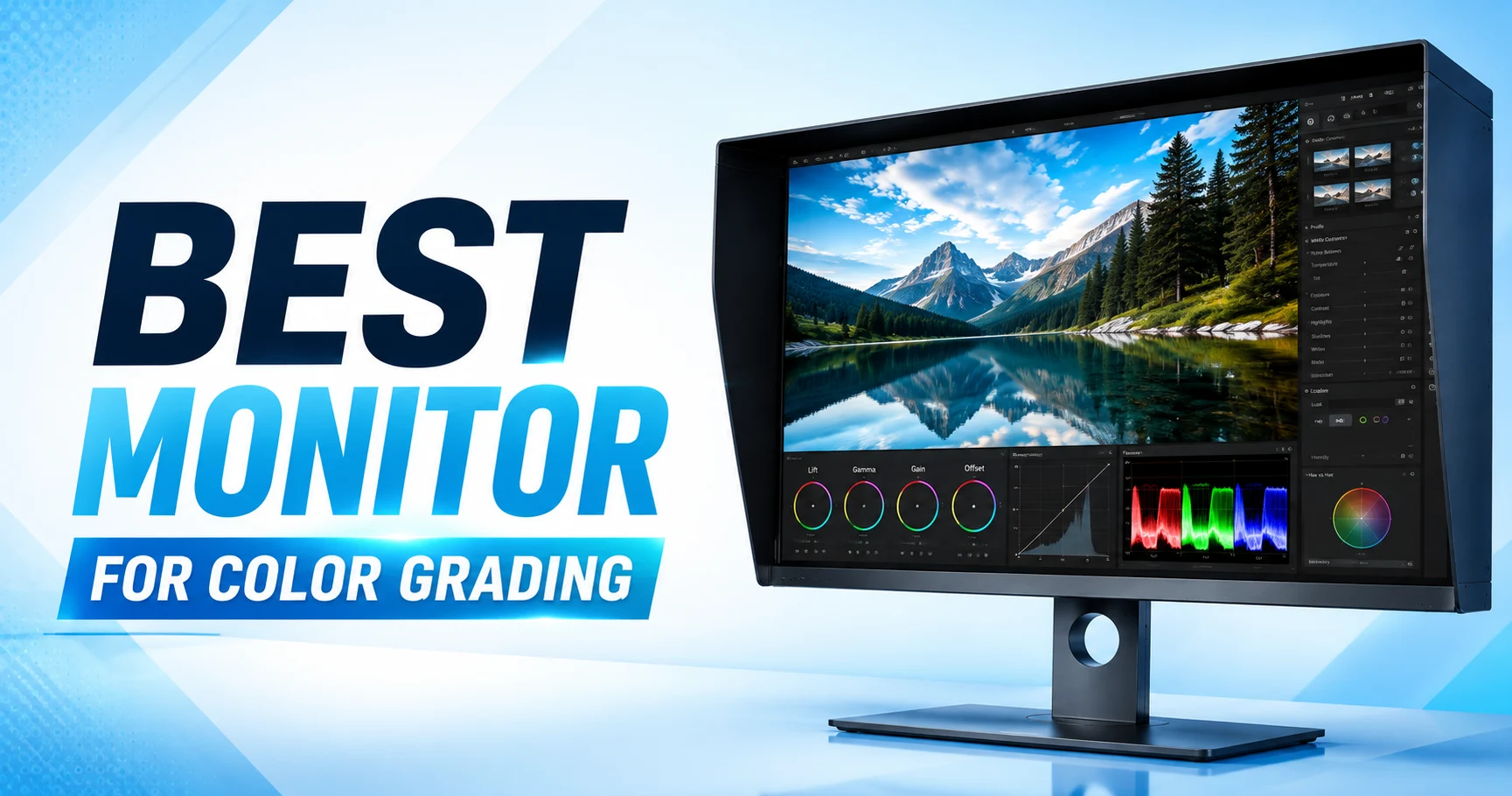
A shot can be lit perfectly, exposed perfectly, and still fall apart the moment you grade it on the wrong screen. That’s the quiet risk of color grading on an uncalibrated or inaccurate monitor. What looks warm and cinematic on your desk can look sickly green on a client’s laptop, a phone, or a projector.
For most editors, the ASUS ProArt PA279CRV is the best all-round 4K color-grading monitor for the price. The MSI MPG 321URX QD-OLED is the best overall pick for OLED contrast. And the ASUS ProArt PA248QV is the best budget option under $200.
This guide is built for the people who live inside a color panel every day. Video editors cutting in Premiere Pro, colorists grading in DaVinci Resolve, photographers matching prints to screen, and YouTubers trying to make a thumbnail look the same on every device it lands on.
In Offshore Clipping’s production house, we are using these monitors for color grading and other high-end professional tasks. From that perspective, we are suggesting these monitors.
Affiliate Disclosure: This article may contain affiliate links. If you buy through these links, we may earn a small commission at no extra cost to you.
Quick Comparison Table on Specs
Here’s the short version before we get into the details. Resolution, panel type, gamut coverage, and connectivity are the four specs worth scanning first.
| Monitor | Best For | Resolution | Panel | Color Coverage | HDR | Connectivity |
|---|---|---|---|---|---|---|
| MSI MPG 321URX | Best Overall OLED | 4K UHD | QD-OLED | 99% DCI-P3 | True Black 400 | USB-C 90W |
| BenQ PD3225U | Pro Video Editing | 4K UHD | IPS Black | 98% P3 / 100% sRGB | HDR400 | Thunderbolt 3, 85W |
| ASUS PA32UCDM | Premium HDR Grading | 4K UHD | QD-OLED | 99% DCI-P3 | HDR10/HLG/Dolby Vision | 2x TB4, 96W |
| ASUS PA279CRV | Best 4K Value | 4K UHD | IPS | 99% P3 / 99% AdobeRGB | HDR10 | USB-C 96W |
| ASUS PA248QV | Best Budget | WUXGA | IPS | 100% sRGB | — | HDMI/DP |
| ASUS XG27ACDNG | OLED + Gaming Hybrid | 1440p | QD-OLED | 99% DCI-P3 | True Black 400 | USB-C 90W, KVM |
| Dell U3223QE | Editor Productivity | 4K UHD | IPS Black | 99% sRGB | HDR400 | Thunderbolt hub, KVM |
| BenQ SW272U | Photography | 4K UHD | IPS | 99% AdobeRGB/P3 | HDR10/HLG | USB-C 90W |
| INNOCN 40C1U | Best Ultrawide | 5K (21:9) | IPS | ~99% sRGB / ~95% P3 | HDR400 | USB-C 65W |
| INNOCN 27C1U | Best Budget 4K | 4K UHD | IPS | 100% sRGB | HDR400 | USB-C 65W |
Our Top 10 Picks for the Best Monitors for Color Grading
Every monitor below made the list because its color claims are verifiable, not just printed on a box. We’ve flagged where independent testing found real-world numbers that differ from the marketing spec, since that gap matters more than the spec sheet itself.
Best professional pick: ASUS ProArt PA32UCDM
Best overall: MSI MPG 321URX QD-OLED
Best value: BenQ PD3225U
Best budget: ASUS ProArt PA248QV
Best for photography: BenQ SW272U
1. MSI MPG 321URX QD-OLED: Best Overall OLED Monitor for Color Grading
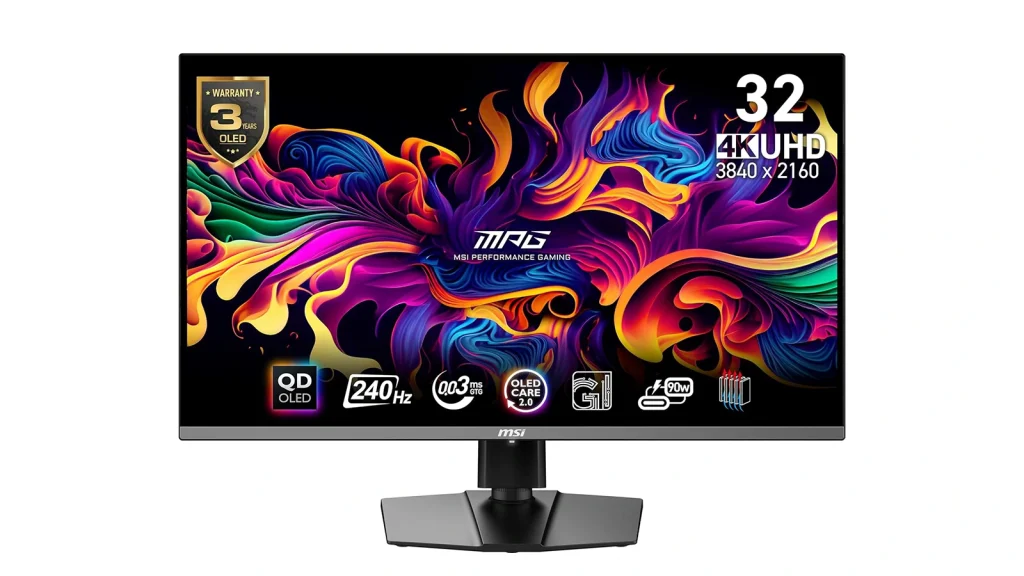
The MPG 321URX brings genuine QD-OLED contrast to a price point that used to be reserved for gaming displays. Because it uses Samsung’s third-generation QD-OLED panel, blacks are per-pixel true black, and the 240Hz refresh rate makes scrubbing through timelines feel instant.
Independent lab testing found DCI-P3 coverage around 99% with strong Adobe RGB coverage too. Though wide-gamut accuracy is more mixed at factory defaults, switching into the built-in sRGB mode brings Delta E down to a genuinely professional level.
For a video agency running a social or narrative content pipeline, that’s a fair trade for the contrast and speed you get in return.
Key Specs:
- Screen: 31.5″ QD-OLED panel at 3840×2160 (4K UHD) resolution
- Speed: 240Hz refresh rate with 0.03ms response time for instant timeline scrubbing
- Color: 99% DCI-P3 coverage with 1.07 billion colors
- HDR: VESA DisplayHDR True Black 400 certified
- Ports: 2× HDMI 2.1, 1× DisplayPort 1.4, 1× USB-C with DP Alt Mode and 90W Power Delivery
- Extras: 2× USB-A 2.0, 1× USB-B 2.0 upstream, plus a built-in KVM switch
| Pros | Cons |
|---|---|
| True per-pixel blacks and near-infinite contrast | Factory-default wide-gamut mode needs correcting for critical work |
| 240Hz refresh rate keeps scrubbing and playback fluid | SDR peak brightness is modest, typical of OLED panels |
| Excellent accuracy once switched into sRGB mode | Some settings are locked, limiting unit-to-unit correction |
| KVM switch and generous port selection for a multi-device desk |
Best for: Video agencies and freelance editors who want OLED contrast and gaming-grade speed for social and narrative color grading.
Being unable to cover the client’s video edit on time?
We offer professional editing services with a quick turnaround for video agencies and individuals!
Get Started Today!
2. BenQ PD3225U: Best Professional Monitor for Video Editing and Color Grading
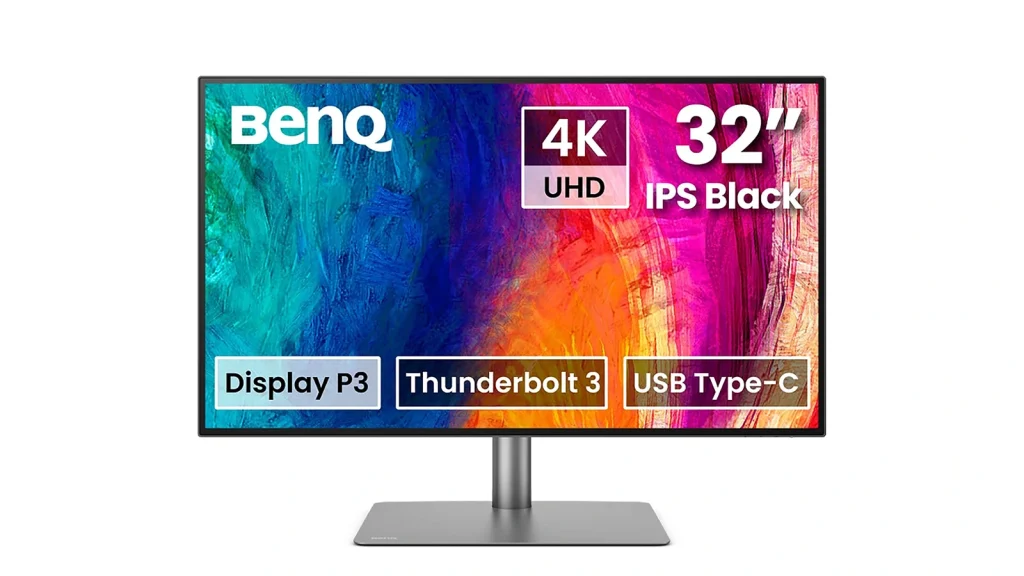
The BenQ PD3225U is one of the best monitors for color grading. BenQ built the PD3225U specifically around Mac-based creative workflows, and it shows. It ships factory-calibrated to Delta E ≤2 with 98% DCI-P3 and 100% sRGB coverage, Calman Verified and Pantone validated. So, you’re not chasing accuracy out of the box.
The single-cable Thunderbolt 3 connection doubles as a dock with 85W of charging, and Display ColorTalk syncs its color output directly to your MacBook’s panel. This matters for freelance producers who edit on a laptop and finish on a bigger screen.
Its IPS Black panel also delivers deeper contrast than typical IPS displays, though it isn’t the brightest screen in this list.
Key Specs:
- Screen: 31.5″ IPS Black panel at 3840×2160 (4K UHD) resolution
- Accuracy: Factory calibrated to Delta E ≤2, Calman Verified, Pantone validated
- Color: 98% DCI-P3, 100% sRGB, and 100% Rec.709 coverage
- Connectivity: Thunderbolt 3 with 85W Power Delivery and daisy-chain support
- HDR: DisplayHDR 400 certified
- Extras: Built-in KVM switch, HotKey Puck for quick settings, Display ColorTalk for Mac color matching
| Pros | Cons |
|---|---|
| Factory calibrated to Delta E ≤2, Calman Verified and Pantone validated | Max brightness tops out around 400 nits in HDR mode |
| Thunderbolt 3 daisy-chaining doubles as a docking station | Daisy-chain support is limited on M1/M2 Macs |
| Display ColorTalk matches color output to MacBook screens | Some workflow features depend on BenQ’s own software |
| IPS Black panel improves contrast over standard IPS |
Best for: Freelance video producers and agencies on Mac who want single-cable docking with verified factory color.
3. ASUS ProArt PA32UCDM: Best Premium HDR Color Grading Monitor
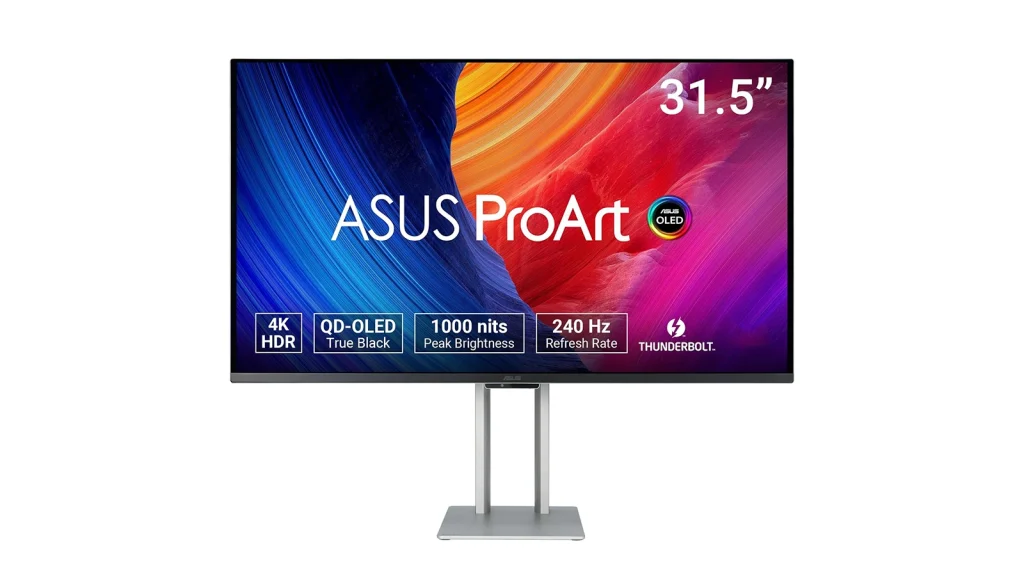
This is the monitor for studios that need one screen to do everything. Grade HDR footage, review 4K masters, and still feel fast at 240Hz. ASUS claims a factory-calibrated Delta E under 1, and independent lab testing confirms excellent DCI-P3 coverage in the high-90s percent range. Even if it lands a point or two under the marketing number depending on the calibration path used.
It supports HDR10, HLG, and Dolby Vision, which is rare on a computer monitor, and dual Thunderbolt 4 ports with 96W power delivery make it a genuine hub as well as a display. It’s priced accordingly, but for a studio grading HDR deliverables for streaming clients, this is the closest thing to a true reference display on this list.
Key Specs:
- Screen: 31.5″ QD-OLED panel at 3840×2160 (4K UHD) resolution
- Speed: 240Hz refresh rate with true 10-bit color depth
- Accuracy: Factory calibrated toward Delta E <1
- Color: 99% DCI-P3 coverage
- HDR: Supports HDR10, HLG, and Dolby Vision
- Connectivity: 2× Thunderbolt 4 ports with 96W Power Delivery and daisy-chaining
- Extras: Compatible with Calman and ColourSpace hardware calibration tools
| Pros | Cons |
|---|---|
| Factory-calibrated toward Delta E <1 with true 10-bit color | Independent testing shows minor gamut variance between OS and calibration method |
| Supports HDR10, HLG, and Dolby Vision | Overkill for teams that only need sRGB accuracy |
| Dual Thunderbolt 4 with 96W power delivery | |
| Hardware calibration compatible with Calman and ColourSpace |
Best for: Photography studios and video agencies grading HDR deliverables who need a near-reference display.
4. ASUS ProArt PA279CRV: Best 4K Monitor for Color Grading
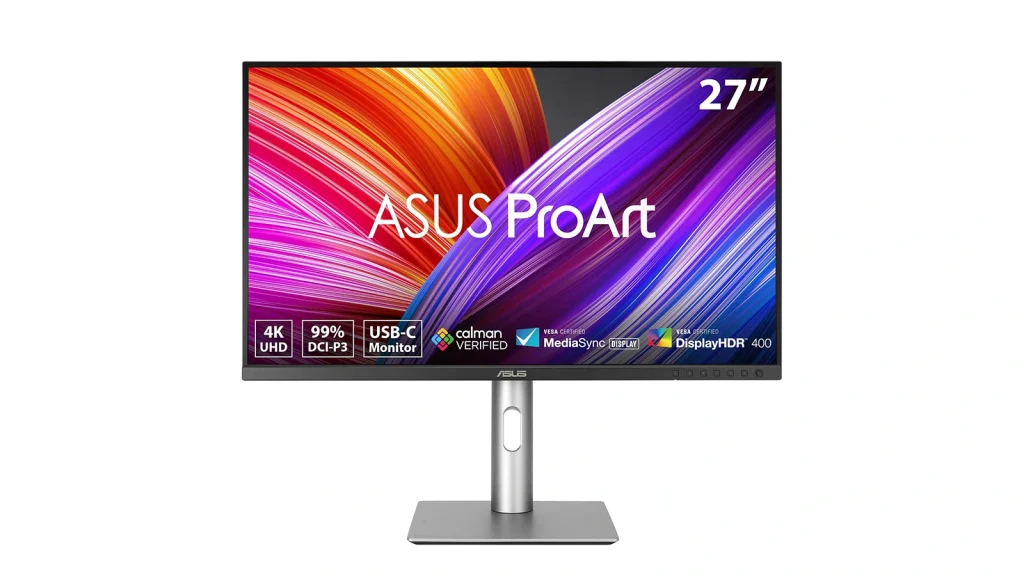
If you only buy one monitor from this list, this is the one most editors should look at first. The PA279CRV covers 99% DCI-P3, 99% Adobe RGB, and 100% sRGB, all factory pre-calibrated to Delta E <2 and Calman Verified, at a price closer to a mainstream monitor than a professional one.
A 96W USB-C port with DisplayPort Alt Mode means most laptops can connect and charge over a single cable. DisplayPort daisy-chaining makes a dual-monitor edit bay easy to build.
HDR10 support exists, but independent reviewers note the panel doesn’t have the brightness or contrast to deliver a convincing HDR image, so treat that as a checkbox feature rather than a reason to buy.
Key Specs:
- Screen: 27″ IPS panel at 3840×2160 (4K UHD) resolution
- Accuracy: Factory pre-calibrated to Delta E <2, Calman Verified
- Color: 99% DCI-P3, 99% Adobe RGB, and 100% sRGB coverage
- HDR: HDR10 support, VESA DisplayHDR 400 certified
- Connectivity: USB-C with DisplayPort Alt Mode and 96W Power Delivery
- Extras: DisplayPort daisy-chain support for multi-monitor setups
| Pros | Cons |
|---|---|
| 99% DCI-P3 and 99% Adobe RGB coverage, factory calibrated to Delta E <2 | HDR10 support is present but not visually convincing |
| 96W USB-C with DisplayPort Alt Mode for single-cable laptop workflows | 60Hz refresh rate, fine for grading but not motion-heavy review |
| DisplayPort daisy-chain support for multi-monitor setups | |
| Strong value relative to color accuracy delivered |
Best for: Freelance photographers, e-commerce brand teams, and video producers who want wide-gamut accuracy without premium pricing.
Nurturing product for your e-commerce brand?
Your product image should attract consumers. Not to make them feel hazy about it. Offshore Clipping claims your success with editing.
Fix My Product Photos
5. ASUS ProArt PA248QV: Best Budget Color Accurate Monitor
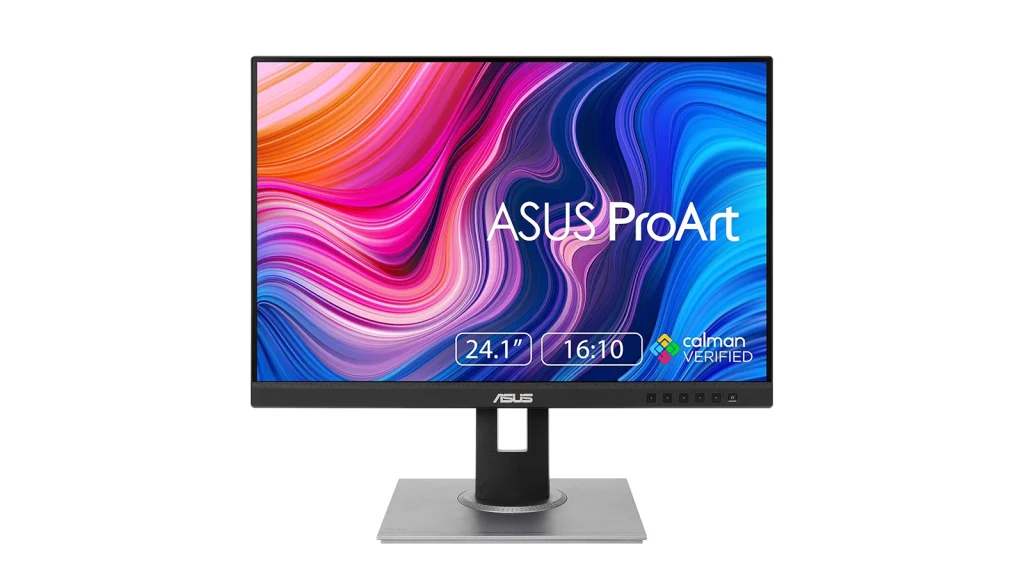
Asus ProArt is another of the best monitors for color grading within a budget. The PA248QV proves that accurate color doesn’t require a four-figure budget. At a price close to $200, it delivers 100% sRGB and Rec.709 coverage with Delta E <2 factory calibration, Calman verified, on a 24.1-inch WUXGA panel.
The 1920×1200 resolution and 16:10 aspect ratio give a little extra vertical space for timelines and panels compared to a standard 16:9 screen. It won’t handle wide-gamut HDR work, and it lacks USB-C.
But for a freelance photographer or a course creator building their first proper editing station, it’s a legitimate professional-grade starting point rather than a compromise.
Key Specs:
- Screen: 24.1″ WUXGA IPS panel at 1920×1200 resolution, 16:10 aspect ratio
- Accuracy: Factory calibrated to Delta E <2, Calman Verified
- Color: 100% sRGB and Rec.709 coverage
- Brightness: 300-nit peak brightness with a 1,000:1 contrast ratio
- Connectivity: HDMI and DisplayPort inputs only, no USB-C
- Extras: Fully ergonomic, height-adjustable stand even at this price
| Pros | Cons |
|---|---|
| 100% sRGB/Rec.709 coverage with Delta E <2 factory calibration | No wide-gamut coverage for Adobe RGB or DCI-P3 work |
| 16:10 aspect ratio adds useful vertical workspace | 1920×1200 resolution limits fine detail review |
| Genuinely affordable entry point into color-accurate monitors | |
| Fully ergonomic, height-adjustable stand even at this price |
Best for: Freelance photographers, students, and course creators setting up their first color-accurate or corrected monitor on a tight budget.
6. ASUS ROG Strix XG27ACDNG: Best OLED Gaming & Editing Hybrid
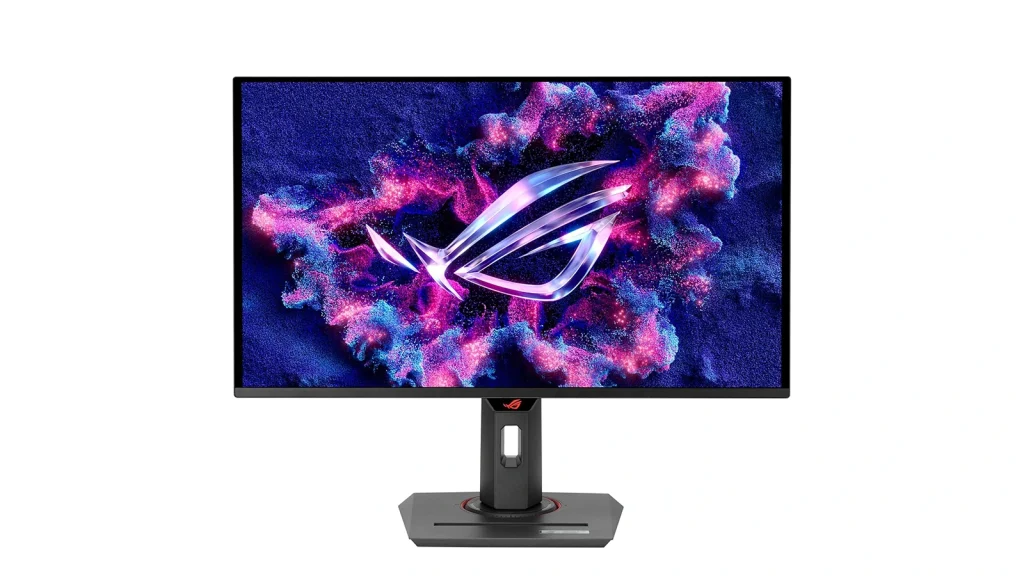
Gaming monitors usually make poor color grading tools, since most prioritize refresh rate and motion clarity over accuracy. The XG27ACDNG is the exception. It’s a QD-OLED panel with a factory Delta E rated under 2. Independent lab testing measured an average Delta E of about 2.3, still respectable for a 360Hz gaming display doing double duty.
It covers 99% DCI-P3 with true 10-bit color. The QHD 1440p resolution keeps detail sharp without needing the GPU horsepower 4K demands. For a YouTuber or content creator who edits and games on the same machine, this lets one monitor cover both roles convincingly.
Key Specs:
- Screen: 27″ QD-OLED panel at 2560×1440 (QHD) resolution
- Speed: 360Hz refresh rate with true 10-bit color depth
- Accuracy: Factory Delta E rated under 2, independently measured near 2.3
- Color: 99% DCI-P3 coverage
- HDR: VESA DisplayHDR 400 True Black certified
- Connectivity: USB-C with 90W Power Delivery and a built-in KVM switch
| Pros | Cons |
|---|---|
| 99% DCI-P3 with true 10-bit color depth | 1440p resolution, not 4K, so less detail for master-grade review |
| 360Hz refresh rate, useful for review speed and dual-purpose gaming | SDR peak brightness limited, typical of OLED panels |
| Factory Delta E rated under 2, independently measured near 2.3 | Primarily marketed as a gaming monitor, so color tools are lighter than dedicated ProArt models |
| KVM switch and 90W USB-C power delivery included |
Best for: YouTubers and content creators who want one high-refresh monitor for both editing and gaming.
7. Dell UltraSharp U3223QE: Best Productivity Monitor for Editors
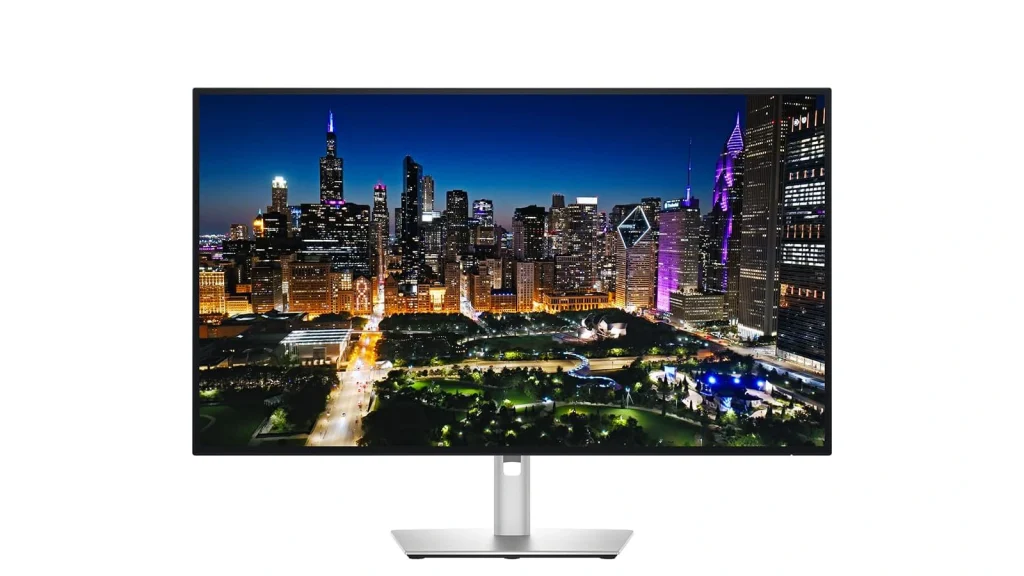
One of the best color-grading monitors for productive editors. The U3223QE was one of the first monitors for color grading to use LG’s IPS Black panel technology, promising a 2,000:1 contrast ratio, roughly double a standard IPS panel. In testing, that contrast bump is real but subtle rather than dramatic, and HDR400 certification without local dimming means this isn’t a true HDR display despite the badge.
Where it earns its place is connectivity and everyday reliability. A Thunderbolt hub, built-in KVM switch, and strong sRGB accuracy make it an excellent one-cable editing bay monitor for teams that need consistent color across multiple seats.
Key Specs:
- Screen: 31.5″ IPS Black panel at 3840×2160 (4K UHD) resolution
- Speed: Standard 60Hz refresh rate
- Contrast: 2,000:1 contrast ratio, roughly double a standard IPS panel
- Color: 99% sRGB coverage
- HDR: DisplayHDR 400 certified, without local dimming
- Connectivity: Thunderbolt hub with a built-in KVM switch
- Ergonomics: Full tilt, swivel, height, and pivot adjustment
| Pros | Cons |
|---|---|
| IPS Black panel delivers noticeably deeper contrast than standard IPS | HDR400 certification without local dimming isn’t true HDR |
| Thunderbolt hub with built-in KVM switch for multi-device desks | 60Hz refresh rate is standard, not fast |
| Strong, consistent sRGB color performance out of the box | Not built as a wide-gamut Adobe RGB/DCI-P3 reference monitor |
| Excellent ergonomics: tilt, swivel, height, and pivot |
Best for: Video agencies and post-production teams standardizing multiple edit bays on one dependable, connective monitor.
8. BenQ SW272U: Best Color Grading Monitor for Professional Photographers
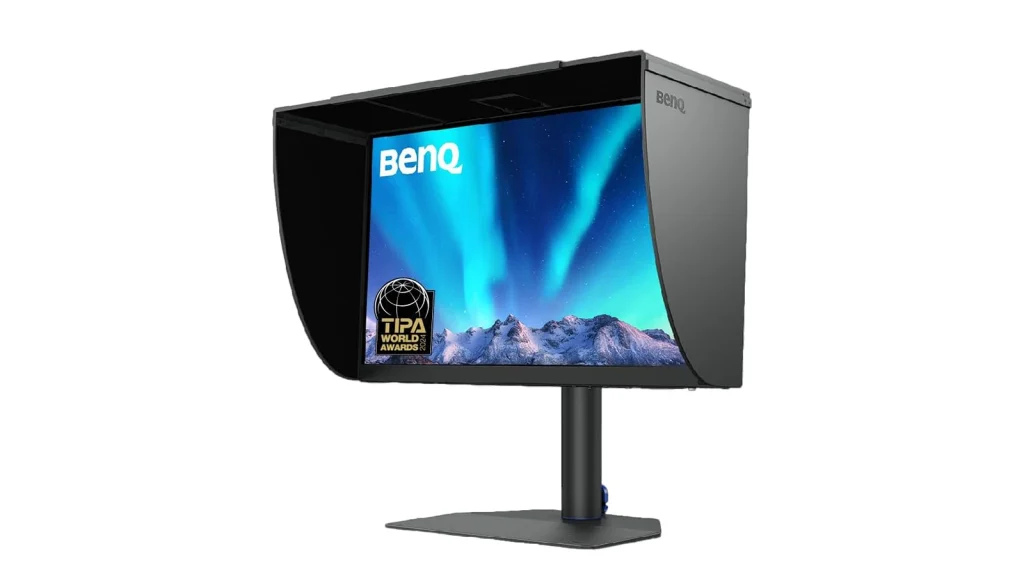
The SW272U is purpose-built for photographers who need their screen to match a printed page, not just look good digitally. It covers 99% Adobe RGB and 99% DCI-P3 with 100% sRGB, factory calibrated to Delta E ≤1.5, Calman Verified and Pantone SkinTone validated.
The standout feature is Paper Color Sync. This simulates how an image will look once printed on specific paper stocks, alongside a 16-bit 3D LUT for smoother color blending.
A Nano Matte anti-reflective panel keeps glare down during long retouching sessions. This is a studio tool first, built around print-accurate skin tones and natural color, which makes it a strong fit for portrait, wedding, and product photography studios.
Retouching is an expertise that not everyone can handle.
Most of the time, your image gets rejected for bad retouching. We save your image from rejection.
Retouch My Photos
Key Specs:
- Screen: 27″ IPS panel at 3840×2160 (4K UHD) resolution
- Accuracy: Factory calibrated to Delta E ≤1.5, Calman Verified, Pantone SkinTone validated
- Color: 99% Adobe RGB, 99% DCI-P3, and 100% sRGB coverage
- Depth: 10-bit color with a 16-bit 3D LUT for smoother color blending
- Panel: Nano Matte anti-reflective coating for glare-free retouching
- Extras: Paper Color Sync for screen-to-print color matching
- Connectivity: USB-C with 90W Power Delivery
| Pros | Cons |
|---|---|
| 99% Adobe RGB and DCI-P3 coverage with Delta E ≤1.5 factory calibration | Premium, photography-specific pricing versus general-purpose 4K monitors |
| Paper Color Sync simulates print output for screen-to-print accuracy | 60Hz refresh rate, not built for motion review |
| 16-bit 3D LUT and Pantone SkinTone validation for portrait work | Some features tied to BenQ’s Palette Master Ultimate software |
| Nano Matte panel reduces glare for long editing sessions | Overkill for teams that only shoot and deliver in sRGB |
Best for: Photography studios and freelance photographers who need print-accurate color and skin tone fidelity.
9. INNOCN 40-inch 5K Ultrawide (40C1U): Best Ultrawide Monitor
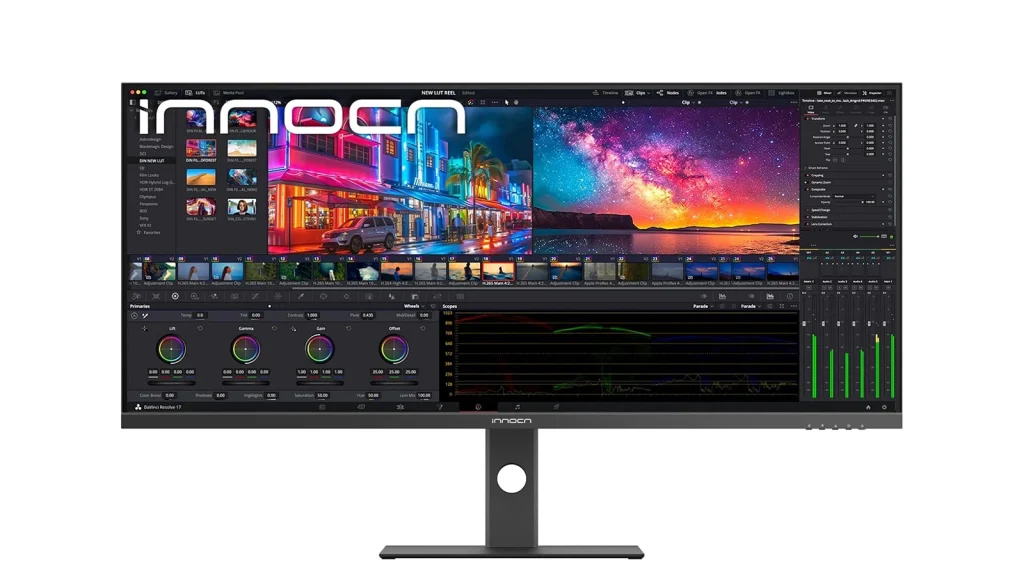
Best color grading monitor with ultrawide feature. A 40-inch, 21:9, 5120×2160 canvas is a genuinely different editing experience: a full DaVinci Resolve or Premiere timeline, color wheels, scopes, and preview window can all sit open at once without stacking windows.
INNOCN factory-calibrates it to Delta E <2. While independent testing measured slightly more conservative gamut coverage than INNOCN’s own 135% sRGB/106% DCI-P3 marketing figures, the panel still lands in genuinely usable territory for creative work.
At a price that undercuts comparable ultrawide displays from bigger brands by a wide margin, it’s one of the best value plays for editors who work with dense timelines and multi-window layouts all day.
Key Specs:
- Screen: 40″ IPS panel at 5120×2160 resolution, 21:9 ultrawide
- Speed: 100Hz refresh rate
- Accuracy: Factory calibrated toward Delta E <2
- Color: Independently tested near 99% sRGB and 95% DCI-P3
- Connectivity: USB-C with 65W Power Delivery, 2× HDMI 2.1, 1× DisplayPort 1.4
- Value: Significantly lower price than comparable ultrawide 5K displays from larger brands
| Pros | Cons |
|---|---|
| 5K resolution across a 40-inch, 21:9 ultrawide canvas | 100Hz refresh is good but not class-leading |
| Factory calibrated toward Delta E <2 out of the box | Large desk footprint required |
| Significantly lower price than comparable ultrawide alternatives | Brand has a shorter track record than BenQ, ASUS, or Dell |
| USB-C with 65W power delivery plus dual HDMI 2.1 |
Best for: Video agencies and colorists who want maximum timeline real estate without an ultra-premium price tag.
10. INNOCN 27-inch 4K USB-C (27C1U): Best Budget 4K Monitor
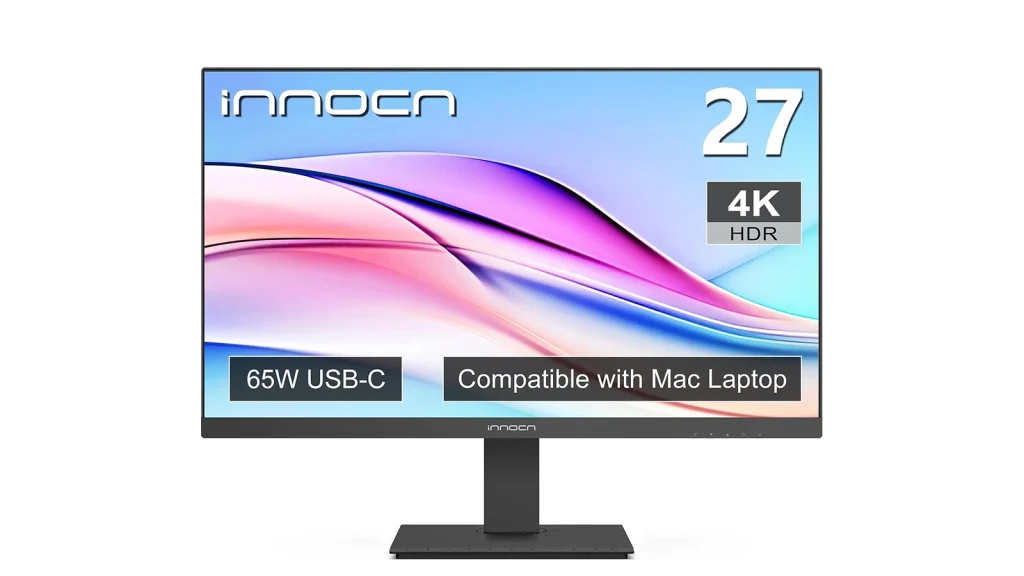
For creators who need a genuine 4K panel without the price of a professional-grade display, the 27C1U covers 100% sRGB with factory calibration to Delta E <2 on an IPS panel with 178-degree viewing angles.
USB-C with 65W power delivery lets it double as a single-cable dock for a laptop, and HDR400 support gives some added dynamic range for casual HDR viewing, though it isn’t a substitute for a true wide-gamut reference display.
At its price point, this is squarely an entry-level color grading monitor: a smart first upgrade for freelancers, students, and small teams before stepping up to a wide-gamut ProArt or PhotoVue panel.
Key Specs:
- Screen: 27″ IPS panel at 3840×2160 (4K UHD) resolution
- Accuracy: Factory calibrated to Delta E <2
- Color: 100% sRGB coverage
- Viewing angles: 178-degree viewing angles for consistent off-axis color
- HDR: HDR400 support, a checkbox feature rather than true HDR
- Connectivity: USB-C with 65W Power Delivery for single-cable laptop docking
| Pros | Cons |
|---|---|
| Genuine 4K resolution with 100% sRGB factory-calibrated accuracy | No wide-gamut Adobe RGB or DCI-P3 coverage |
| USB-C with 65W power delivery for single-cable laptop docking | 60Hz refresh rate, standard for the price tier |
| Strong value relative to panel size and resolution | HDR400 support is a checkbox feature, not true HDR |
| 178-degree viewing angles keep color consistent off-axis |
Best for: Freelance photographers, e-commerce teams, and course creators who want an affordable, genuinely accurate 4K starting point.
Buying Guide — How to Choose the Best Monitor for Color Grading
To find the best color-grading monitors, you have to verify some key points thoroughly.
Panel Technology
IPS panels remain the safest all-round choice: consistent color from any angle, no burn-in risk, and dependable long-term accuracy, which is why most photography studios still default to them.
OLED and QD-OLED panels deliver true blacks and much higher contrast, ideal for HDR grading and cinematic footage, but carry a small burn-in risk with static interface elements over years of use.
Mini-LED sits between the two, using local dimming zones to boost brightness and contrast without OLED’s burn-in concern, though blooming can appear around bright objects on dark backgrounds. VA panels offer strong native contrast at a lower price but typically can’t match IPS or OLED for off-angle color consistency.
Color Accuracy
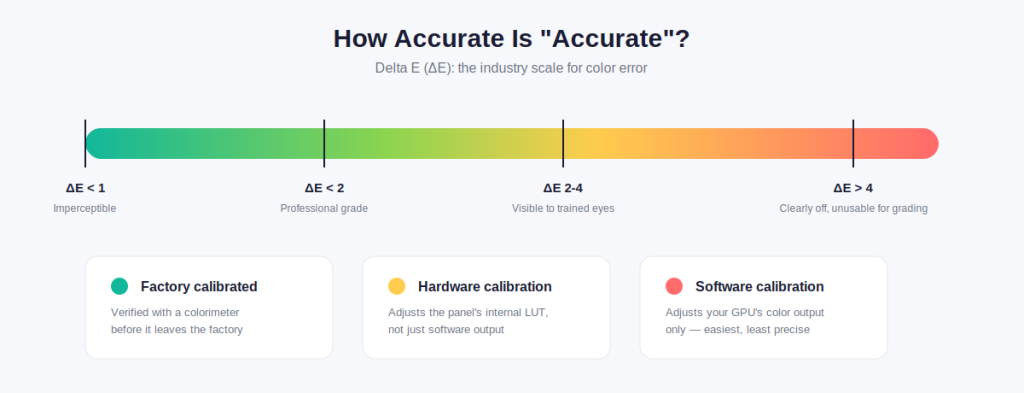
Delta E (ΔE) measures the visible gap between a color a monitor displays and the color it’s supposed to display. A ΔE below 2 is generally considered professional-grade and effectively invisible to the eye; anything above 4 becomes noticeable even to untrained viewers.
Factory calibration means the manufacturer measured and corrected the panel with a colorimeter before shipping it. Hardware calibration goes further, letting you or a calibration device adjust the monitor’s internal lookup table directly, which holds its accuracy longer than software calibration that only adjusts your GPU’s output.
Color Gamut
sRGB is the baseline standard for web, social media, and most day-to-day delivery. DCI-P3 and Display P3 cover a noticeably wider range of colors and are the standard for cinema and most modern streaming deliverables. Adobe RGB extends coverage further into greens and cyans, which matters most for print photography.
Rec.709 and Rec.2020 are broadcast-specific gamuts, with Rec.2020 covering the widest range for next-generation HDR content. Buying more gamut than your delivery format needs adds cost without adding value, so match the monitor’s gamut to where the work actually ships.
Resolution
1440p is workable for smaller-screen delivery but limits detail review on anything shot or mastered in 4K. A native 4K panel is the practical minimum for most professional video and photo work today, letting you view footage at 100% without scaling artifacts.
5K and ultrawide 5K panels add extra desktop real estate for timelines, scopes, and reference windows, which matters more for workflow speed than image quality itself.
HDR Performance
DisplayHDR 400 is an entry-level certification that many monitors meet without genuine local dimming, so treat it as a minor bonus rather than real HDR capability. DisplayHDR 600 and 1000 tiers require higher peak brightness and, at the top tier, full local dimming zones for meaningful highlight detail.
True Black HDR certifications are reserved for OLED panels. Per-pixel dimming delivers HDR contrast that backlit LCDs can’t match regardless of their certification tier.
Brightness
SDR brightness around 300–400 nits is comfortable for most indoor editing environments. HDR grading benefits from higher peak brightness, though OLED panels trade some peak brightness for superior contrast and black levels. This matters more for perceived HDR impact than raw nit count alone.
Connectivity
USB-C and Thunderbolt let a single cable carry video, data, and power to a laptop, which studios increasingly treat as a baseline requirement rather than a nice-to-have. HDMI 2.1 and DisplayPort 1.4 remain necessary for desktop workstations and higher refresh rates. Daisy-chaining and KVM switches simplify multi-monitor and multi-device desks, both common in agency and studio environments juggling several projects at once.
Screen Size
24-inch panels suit tight desks or secondary monitors. 27-inch is the sweet spot for most single-monitor editing setups. 32-inch panels give more room for scopes and panels alongside the preview window. 40-inch ultrawide panels replace a two-monitor setup entirely for editors who want everything visible without switching windows.
Ergonomics
Height adjustment, tilt, swivel, and pivot matter more over an 8-hour edit session than most buyers expect, and VESA mount compatibility future-proofs the display for arm-mounted setups.
Anti-glare coatings reduce reflections in bright studio environments, though photographers doing print-matching work sometimes prefer a very light matte finish that doesn’t soften perceived sharpness.
OLED vs IPS vs Mini-LED for Color Grading
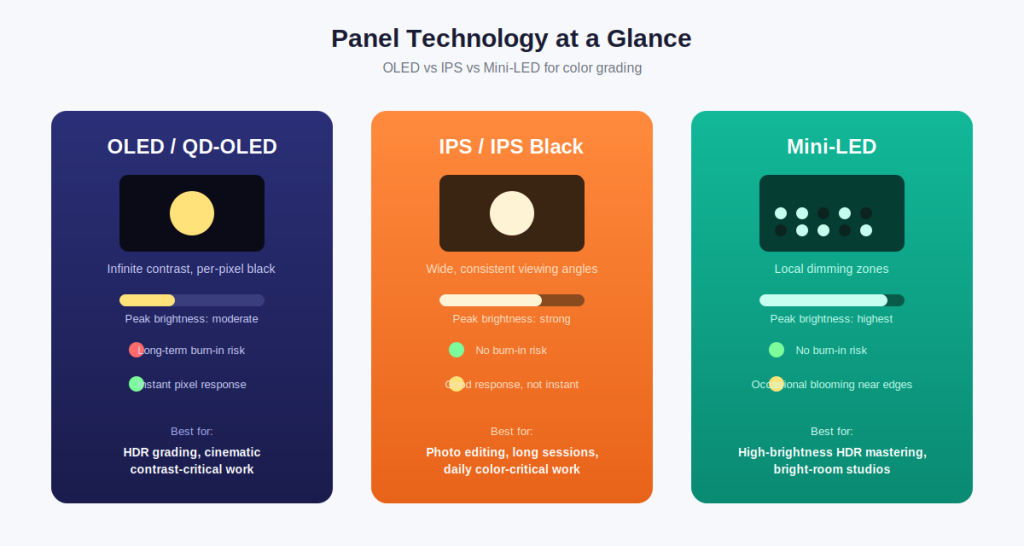
Choosing between these three technologies usually comes down to what you’re grading and where you’ll use the monitor. Here’s the direct comparison.
| Factor | OLED / QD-OLED | IPS | Mini-LED |
|---|---|---|---|
| Brightness | Moderate peak, high perceived contrast | Strong, consistent SDR brightness | Highest peak brightness of the three |
| Contrast | Near-infinite, true per-pixel black | Good, backlight bleed limits blacks | Very good, some blooming possible |
| Burn-in Risk | Present with static UI over years | None | None |
| Color Accuracy | Excellent once clamped to sRGB/P3 | Excellent and stable long-term | Very good, panel-dependent |
| HDR Suitability | Best-in-class for HDR grading | Limited without local dimming | Strong HDR with enough dimming zones |
| Professional Use | Cinematic, HDR-heavy grading | Daily color-critical editing, photo work | Bright-room studios, budget HDR mastering |
Do You Need a Reference Monitor?
A true reference monitor, the kind used in broadcast mastering suites, is built to an entirely different standard than any monitor on this list. Extreme uniformity, hardware LUT processing, and certification against broadcast delivery specs, often at a price of $10,000 or more.
Almost no independent editor or small studio needs one. A well-calibrated editing monitor, like the ASUS ProArt or BenQ PhotoVue models above, is accurate enough for 4K delivery, client review, and most streaming platform requirements.
The exception is broadcast and film finishing work with strict delivery specs, such as network television masters or theatrical DCPs, where a client or distributor may explicitly require reference-grade certification.
If you’re an agency or studio delivering to those specs regularly, budget for a dedicated reference monitor as a separate line item rather than expecting a ProArt-class display.
Being unable to cover the client’s video edit on time?
We offer professional editing services with a quick turnaround for video agencies and individuals!
Get Started Today!
Monitor Calibration Tips for Accurate Color Grading
Even a factory-calibrated monitor drifts over months of use, so a hardware colorimeter, such as a Datacolor Spyder or Calibrite ColorChecker Display, is worth owning if color accuracy is part of your income.
Most professional monitors in this list pair with either the manufacturer’s own software (BenQ Palette Master Ultimate, ASUS ProArt Calibration) or third-party tools like Calman for hardware-level correction.
Ambient lighting affects perceived color more than most editors expect. A room lit with mixed color temperatures, or direct sunlight hitting the panel, will throw off your judgment even on a perfectly calibrated screen. A neutral gray wall and consistent, dim lighting behind the monitor is the simplest fix.
Recalibrate every 200–300 hours of use for critical work, or roughly monthly for a full-time editing setup. Always let the panel warm up for 20–30 minutes before a calibration pass since brightness and color temperature shift during warm-up.
Frequently Asked Questions
Is an OLED monitor good for color grading?
Yes, particularly for HDR and contrast-heavy work, thanks to true per-pixel blacks. The trade-off is a long-term burn-in risk with static UI elements and generally lower SDR peak brightness than IPS panels.
Is 4K necessary for color grading?
It’s the practical minimum for most professional delivery today. A 1440p monitor works for smaller-format delivery, but 4K lets you review footage at native resolution without scaling artifacts.
Which monitor is best for DaVinci Resolve?
The ASUS ProArt PA32UCDM pairs well with Resolve’s HDR grading tools thanks to its Dolby Vision, HDR10, and HLG support alongside near-reference color accuracy.
IPS or OLED for professional editing?
IPS is the safer long-term choice for daily, color-critical work with no burn-in risk. OLED wins for HDR contrast and cinematic grading where budget allows for eventual panel replacement.
Do I need hardware calibration?
If color accuracy affects your income, yes. Hardware calibration corrects the monitor’s internal lookup table and holds accuracy far longer than software-only calibration.
Can I use a gaming monitor for color grading?
Some can, like the ASUS ROG Strix XG27ACDNG, provided it has a verified sRGB or DCI-P3 clamp mode and independently tested color accuracy, not just a high refresh rate.
Is HDR important for a color grading monitor?
It matters if you deliver HDR content for streaming platforms. For standard SDR delivery, DisplayHDR certification is a nice-to-have rather than a requirement.
What size monitor is best for video editing?
27-inch is the most common sweet spot. Studios doing dense multi-window work often prefer 32-inch or ultrawide 40-inch panels instead.
How often should I calibrate my monitor?
Every 200–300 hours of active use for critical work, or roughly once a month for a full-time editing setup, is a reasonable baseline.
Final Verdict
If you need one clear recommendation: the ASUS ProArt PA279CRV covers the widest range of use cases at the best price-to-accuracy ratio on this list. For studios and colorists grading HDR deliverables, step up to the ASUS ProArt PA32UCDM.
Photography studios matching print output should look at the BenQ SW272U, and anyone starting out on a tight budget can trust the ASUS ProArt PA248QV to deliver genuine, factory-verified color accuracy without the premium price tag.