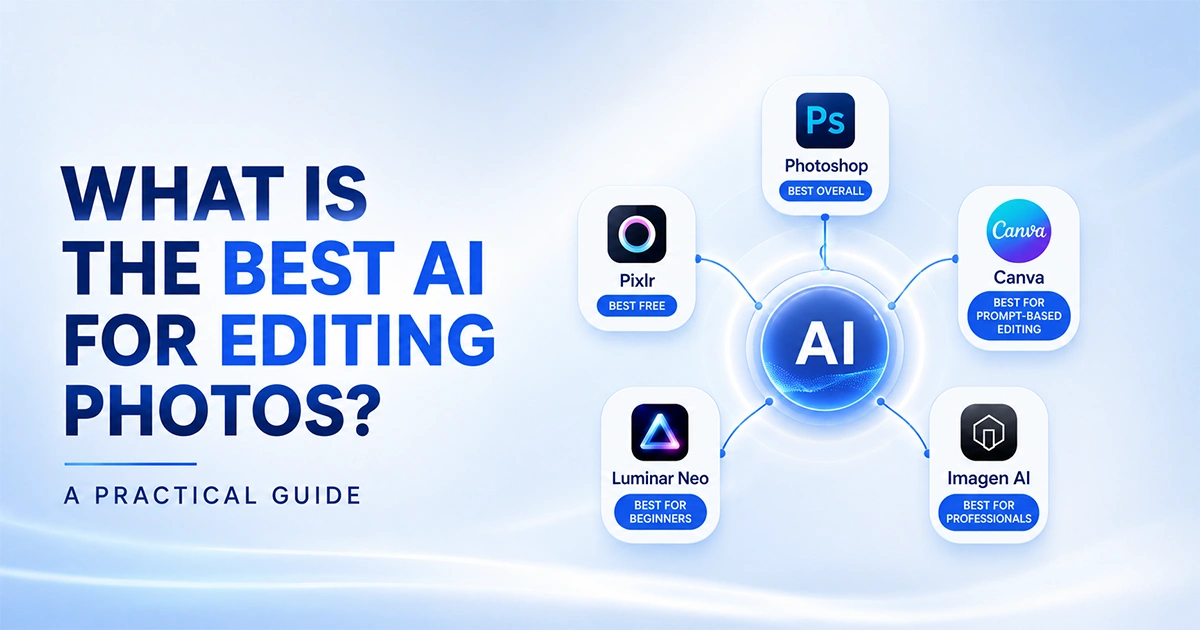
Adobe Photoshop remains the most complete AI photo editor overall. Pixlr wins as the best free AI photo editor. Luminar Neo suits beginners best, and Imagen AI leads for professional, high-volume editing.
You can ask ten photographers what the best AI for editing photos is, and you will get ten different answers. The real answer depends on three things: what you are editing, how many images you have, and how much creative control you want to keep.
But don’t worry, I’ve got everything covered in this article. This guide breaks down the best AI photo editing tools by use case. It also explains what separates a real editor from an image generator and shows exactly where AI still needs a human hand.
So, read till the end to find your best editing tool.
If your photos need pixel-perfect, brand-consistent results at scale, our photo editing services combine expert retouchers with the best enterprise-level editing tools.
Best AI Photo Editors: Full Comparison Table
Here is how the top AI photo editing tools stack up side by side, based on the categories covered in the rest of this guide.
| Tool | Best For | Free Plan | RAW Support | Mobile App | Starting Price |
|---|---|---|---|---|---|
| Adobe Photoshop | Full-featured editing | Trial only | Yes | iPad, web | From $19.99/mo |
| Pixlr | Free AI photo editor | Yes, limited credits | No | iOS, Android, web | Free |
| Canva | Prompt-based editing | Yes, limited AI tools | No | iOS, Android, web | Free |
| Luminar Neo | Beginners | Trial only | Yes | Desktop + companion app | From $119 one-time |
| Imagen AI | Professional/bulk workflows | Trial credits | Yes | Desktop app | From $0.05/photo |
| Lensa | Free AI app for photo editing | Yes, 1 save/day | No | iOS, Android | Free |
| Topaz Photo AI | Sharpening and upscaling | Trial only | Yes | Desktop plugin | From $199/yr |
| Adobe Lightroom AI | Non-destructive RAW workflow | Trial only | Yes | iOS, Android, desktop | From $13.99/mo |
Topaz Labs also sells Gigapixel AI separately, for anyone who only needs a dedicated upscaler rather than the full Topaz Photo AI suite.
Prices change often across every tool on this list, so treat the figures throughout this guide as a starting point rather than today’s exact rate.
How We Evaluated These AI Photo Editors
We evaluated each tool based on editing quality, workflow efficiency, pricing, export fidelity, AI capabilities, and suitability for different types of users, not brand recognition or marketing claims.
• Editing quality: does the AI output look natural, or does it read as overprocessed
• Ease of use: how many steps stand between opening the tool and getting a usable result
• AI feature depth: culling, generative fill, relighting, and upscaling, not just a filter pack
• Pricing and value: what you pay for versus what you can realistically use
• Export quality: resolution loss, compression artifacts, and color accuracy on export
• Mobile and desktop support: whether the tool fits where you actually work
• Batch editing: whether 50 photos are as easy to process as one
• Privacy: what happens to your photos once they leave your device
What Is AI Photo Editing?
AI photo editing tools, sometimes called AI image editing tools or AI editing software, use machine learning to recognize what’s in a photo. Then they automatically adjust, retouch, or rebuild parts of it.
This can be as simple as one-click color correction and image enhancement, or as advanced as generative fill that invents new pixels to replace an object you erase.
The technology is not new. Content Aware Fill shipped in Photoshop back in 2010.
Most AI photo editing tools today still build on the same pattern recognition principles used across AI photography. They just run faster, with far more training data behind them.
AI adoption among photographers has moved from niche to mainstream fast. A recent industry survey found eighty-three percent of photographers now use AI somewhere in their workflow, and over half use it weekly or daily.
Wondering how you can edit images with AI without learning Photoshop from scratch? Here’s the short version: most tools now let you type what you want changed, and the AI handles the technical work from there.
AI Photo Editor vs. AI Photo Generator: What Is the Difference?
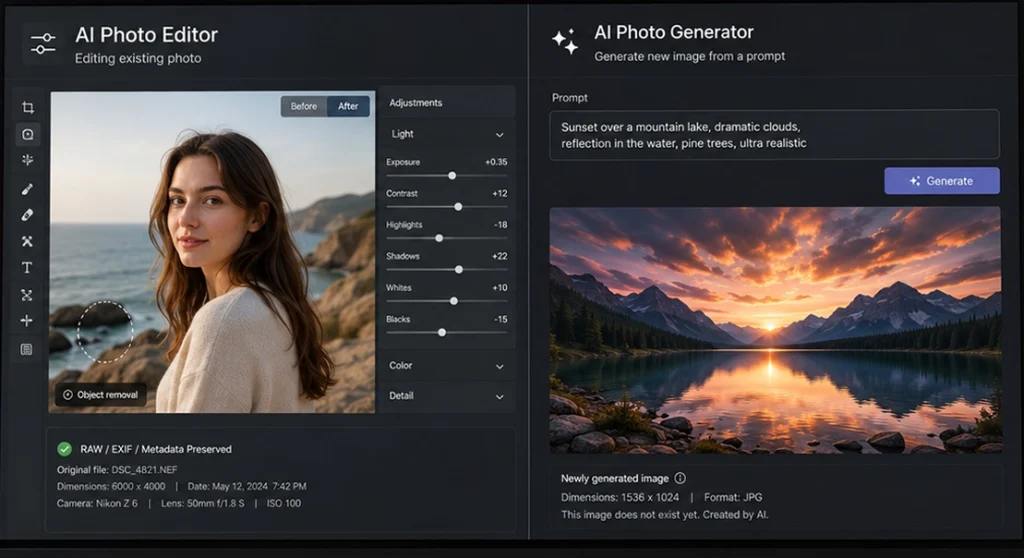
An AI photo editor modifies a photo you already have. It works with your original pixels, adjusting exposure, removing objects, or replacing a background, while keeping the rest of the image untouched.
An AI image generator creates a new image instead, a process usually called image generation rather than editing. It works from a text prompt or from an existing photo used as a loose reference, rather than editing the original file directly.
Editors also tend to preserve your file’s original EXIF metadata and RAW workflow. A generator typically does not carry that over, since it’s building a new image from scratch rather than modifying yours.
• AI photo editor: works with an existing photo, keeps your original pixels, EXIF data, and RAW workflow intact
• AI photo generator: creates a new image from a prompt or reference, without preserving the original file or its metadata
ChatGPT‘s image tool, now built on OpenAI’s GPT Image 2 model, Google’s Nano Banana inside Gemini, and Adobe Firefly’s standalone generator all fall into the AI image generation category. ChatGPT is often the tool people mean when they ask what AI is better than ChatGPT for image creation, and for creating something from scratch, it’s genuinely competitive.
GPT Image 2 also lets you set the aspect ratio before generating, so you’re not stuck cropping a square image into a banner later. For editing a real photo, though, it still tends to recreate the image rather than truly edit it, which shows up as lost detail and shifted colors compared to the original file.
The line between editing and generation is blurring. Some tools now handle both, though their editing workflow still behaves more like regeneration than like targeted retouch.
Developer-facing models like FLUX Kontext Pro from Black Forest Labs blur this line even further, editing an existing image from a prompt while keeping the rest of the frame pixel-for-pixel intact.
If pixel accuracy matters, such as with a product photo or a client portrait, a dedicated AI photo editor will outperform a general-purpose generator every time.
Best AI Photo Editing Tools by Category
Best AI Photo Editor Overall: Adobe Photoshop
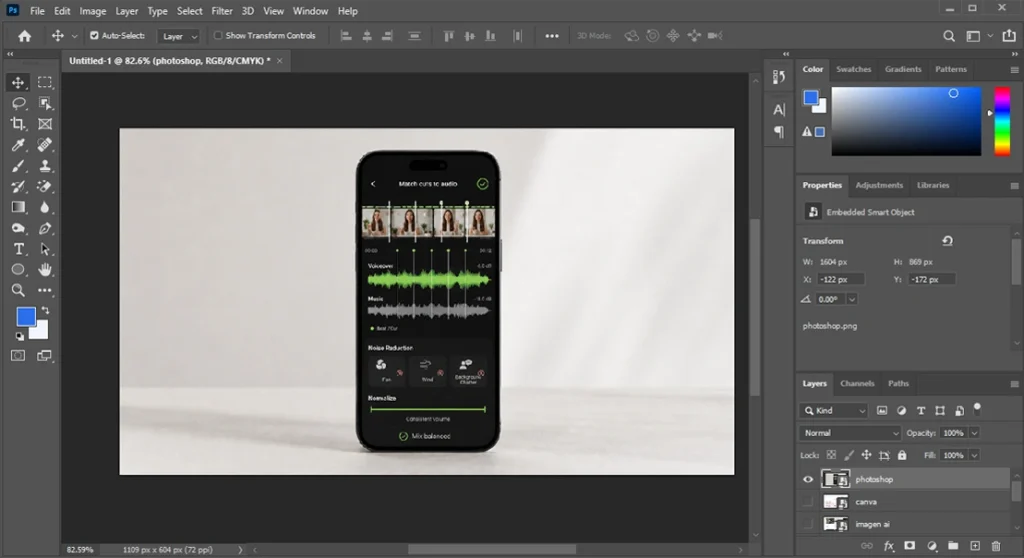
Photoshop remains the most complete AI photo editor. It combines decades of manual editing power with genuinely useful AI features.
The Remove tool cleans up unwanted objects better than anything else in this guide. Generative Fill and Generative Expand can replace a background, extend the canvas, or add elements from a simple text prompt.
Remove Distractions can automatically find and erase wires, cables, or people from a shot in one click, and Select Subject builds a clean mask around your subject for faster edits elsewhere.
Neural Filters layer quick, AI-driven adjustments like skin smoothing on top of all that, and manual tools like the Spot Healing Brush and Clone Stamp are still there for the pixel-level fixes AI cannot get right.
Pros
• Deepest AI feature set of any editor on this list
• Full manual control when the AI gets something wrong
• Works across desktop, iPad, and web
Cons
• Steep learning curve for first-time users
• Generative AI features run on a separate credit system
Best AI Photo Editor for Non-Destructive RAW Workflows: Adobe Lightroom AI
Lightroom’s AI tools are built directly into the same RAW workflow photographers already use for culling and organizing, rather than living in a separate app.
Generative Remove, powered by Adobe Firefly, erases distractions and even people from a scene and fills the gap with synthesized detail. AI Masking adds one-click Select Subject, Select Sky, Select People, and Select Background options, and AI Denoise cleans up high-ISO noise without smearing detail.
Because most of these run locally or on lightweight cloud credits included with a subscription, Lightroom AI tends to fit naturally into a batch workflow that starts with culling and ends with export.
Pros
• AI features are built into the same RAW workflow, not a separate step
• Strong masking and noise reduction that most competitors still lack
Cons
• Generative Remove needs an internet connection for its full-quality result
• Requires a Creative Cloud subscription rather than a one-time purchase
Best Free AI Photo Editor: Pixlr
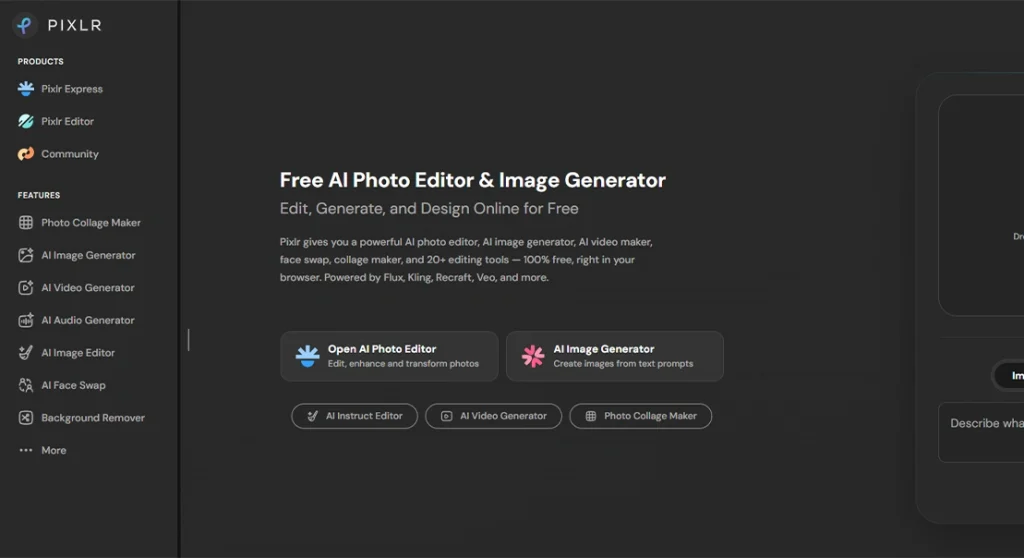
Pixlr offers the most usable free AI photo editing tools without forcing a subscription.
Its AI Cutout tool separates a subject from its background in one click. The generative Backdrop feature replaces it with something new, all inside a browser.
Pixlr is best for social media touch-ups, quick one-off edits, and for anyone who wants to stay entirely in the browser without installing anything.
For product photos that need this done at scale, with clean edges on every single image, professional background removal is usually faster and more consistent than any free AI tool.
Pros
• Genuinely free tier, no credit card required
• Fast, browser-based, no installation
Cons
• Free plan limits you to 3 saved images a day
• Output quality drops on complex or high-resolution images
Free AI App for Photo Editing: Lensa
Lensa is the strongest free AI app for photo editing on mobile, especially for portraits and selfies.
Its Magic AI tool automatically identifies a portrait and applies natural-looking retouching. The free plan lets you save one edited photo a day at no cost.
Pros
• Excellent automatic portrait retouching
• Genuinely free tier with unlimited edits, one save a day
Cons
• Full AI editing assistant is a paid feature
• Small mobile screen limits precision editing
For beauty-focused edits, apps like YouCam Enhance add AI make-up, an AI hairstyle changer, and even an AI clothes changer, which are handy for a quick portrait preview rather than professional retouching.
Best AI for Photo Editing With Prompt: Canva
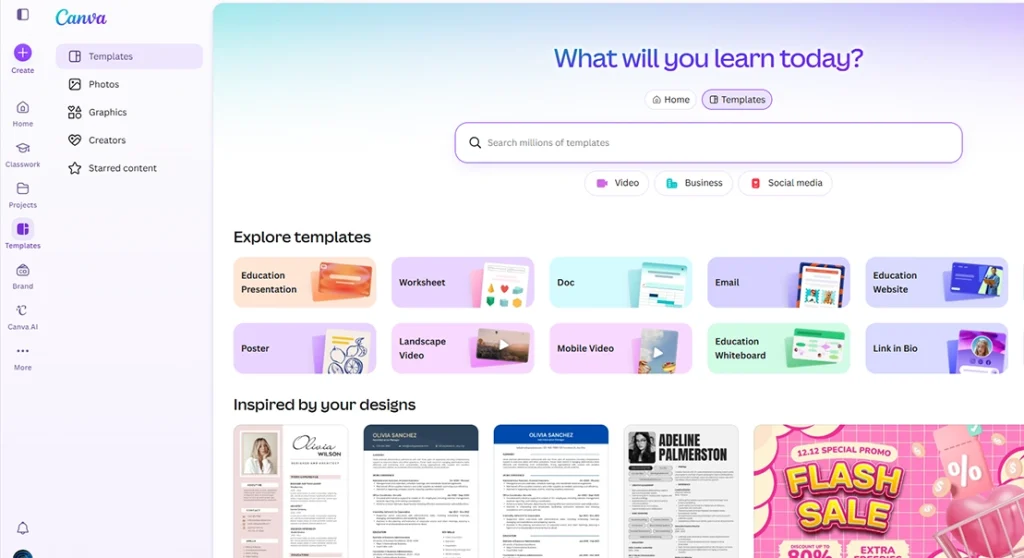
Canva’s Magic Edit is the easiest way to make a prompt-based edit without any design background.
Brush over the part of the photo you want changed, type what you want instead, and Canva generates a handful of options to choose from. Magic Eraser handles the simpler job of removing an object with a click, no prompt required.
Canva also offers a library of AI art styles you can apply as a creative filter layer, separate from a straight photo edit.
Pros
• No design experience required
• Useful for marketing graphics, not just raw photos
Cons
• Prompt results can miss the mark on complex requests
• Free plan does not include Magic Studio’s AI tools
Best AI Photo Editing Apps for Beginners: Luminar Neo
Luminar Neo is built for people who are new to photo editing but still want real AI power.
Every tool includes a plain-language explanation. One-click features like Sky AI and Auto Enhance produce a usable result before you even understand what a single slider does.
Pros
• Guided interface with built-in explanations
• One-time purchase, no ongoing subscription required
Cons
• Expensive relative to subscription-based alternatives
• Some AI tools misfire on complex object removal
Best AI Photo Editor for Professional and Bulk Workflows: Imagen AI
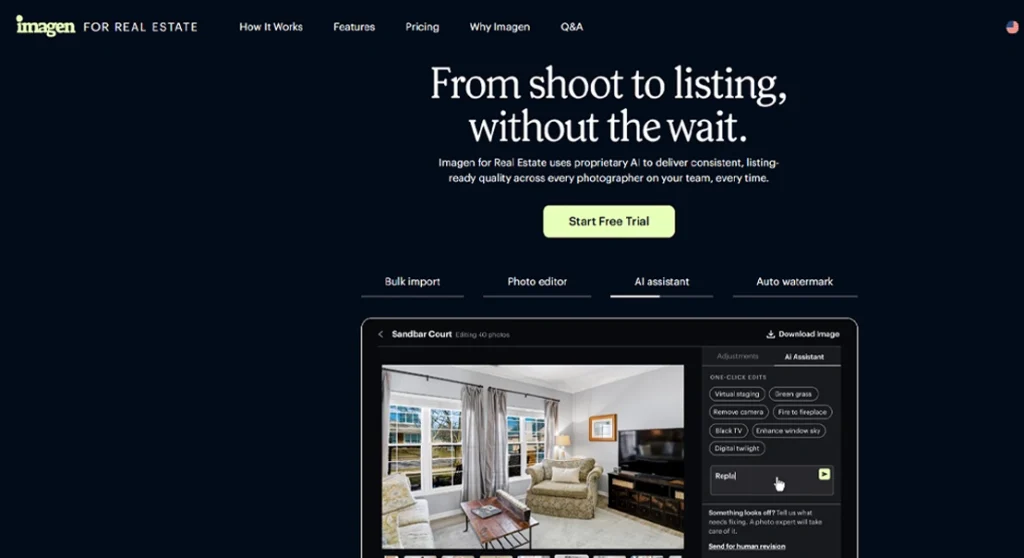
Imagen AI is built for photographers editing hundreds or thousands of images at once, and wedding and event photographers make up much of its user base.
It studies roughly 2,000 of your previously edited photos to build a Personal AI Profile. From there, it applies your own editing style automatically across an entire shoot.
In testing reported by professional reviewers, Imagen edited over 200 portraits in about 16 minutes. The same batch took two hours in Lightroom, with Imagen’s results close enough to manual editing that only minor touch-ups were needed.
That pay-per-image pricing runs on cloud credits rather than a flat subscription, so cost tracks directly with how many photos you actually process.
Pros
• Learns your specific editing style, not a generic preset
• Dramatic time savings on high-volume batches
Cons
• Requires cloud upload, not ideal for strict data policies
• Pay-per-image pricing adds up for casual users
Also Worth Knowing: Capture One and Photomator
Capture One has closed most of its AI gap with dedicated AI Masking, including Subject Masking, Background Masking, and People Masking, plus a Match Look tool that copies the color grading from a reference image. It remains a favorite among studio and tethered-shoot professionals.
Photomator, from the makers of Pixelmator, is built specifically for the Apple ecosystem, with ML-powered repair tools and quick, one-tap AI adjustments for anyone editing entirely on an iPhone or Mac.
Best AI App for Photo Generation
If your goal is to create a brand-new image rather than edit an existing photo, the best AI app for photo generation is not an editor at all.
GPT Image 2, Google’s Nano Banana inside Gemini, and Adobe Firefly’s standalone generator are built specifically for that job.
Use these when you need an image that does not exist yet, such as a concept visual or a stylized graphic. Use a dedicated AI photo editor when you need to preserve the accuracy of a real photograph.
Quick Head-to-Head Comparisons
Photoshop vs. Luminar Neo
Photoshop wins on depth and manual control, with the deepest AI toolkit and full manual backup when it misses. Luminar Neo wins on ease of use and a one-time price. Choose Photoshop for professional-grade control; choose Luminar Neo if you want AI to do more of the work for you.
Canva vs. Pixlr
Both are generous on the free tier, but they solve different problems. Canva leans toward design and marketing graphics with AI layered on top. Pixlr leans toward straightforward photo fixes. Pick Canva for social posts and campaigns, Pixlr for a quick, no-frills photo edit.
Imagen AI vs. Adobe Lightroom AI
Lightroom AI’s masking and Generative Remove are strong and already included in a Creative Cloud subscription. Imagen AI’s Personal AI Profile learns your specific editing style and is built for high-volume batches. Many wedding and event photographers run both together, Lightroom for the toolkit, Imagen for style consistency at scale.
Pricing Comparison: Free Plans, Credits, and Watermarks
Sticker price rarely tells the full story with AI photo editing tools. Credit limits and watermark rules often matter more than the number on the pricing page.
Searching for a watermark remover is usually solved by upgrading tiers, since most paid plans simply turn the free export watermark off instead of requiring a separate tool.
| Tool | Free Plan | Watermark on Free Output | Monthly Price | Annual / One-Time |
|---|---|---|---|---|
| Adobe Photoshop | Trial only | N/A | From $19.99 | N/A |
| Pixlr | Yes, 3 saves/day | No | From $2.49 | N/A |
| Canva | Yes, limited AI tools | No | From $18 | N/A |
| Luminar Neo | Trial only | N/A | N/A | From $119 (one-time) |
| Imagen AI | Trial credits | N/A | From $129 (Limitless plan) | From $1,548/yr |
| Lensa | Yes, 1 save/day | No | From $4.99 | N/A |
| Topaz Photo AI | Trial only | N/A | N/A | From $199 (1-yr license) |
| Adobe Lightroom AI | Trial only | N/A | From $13.99 | N/A |
What Features Matter Most in an AI Photo Editor?
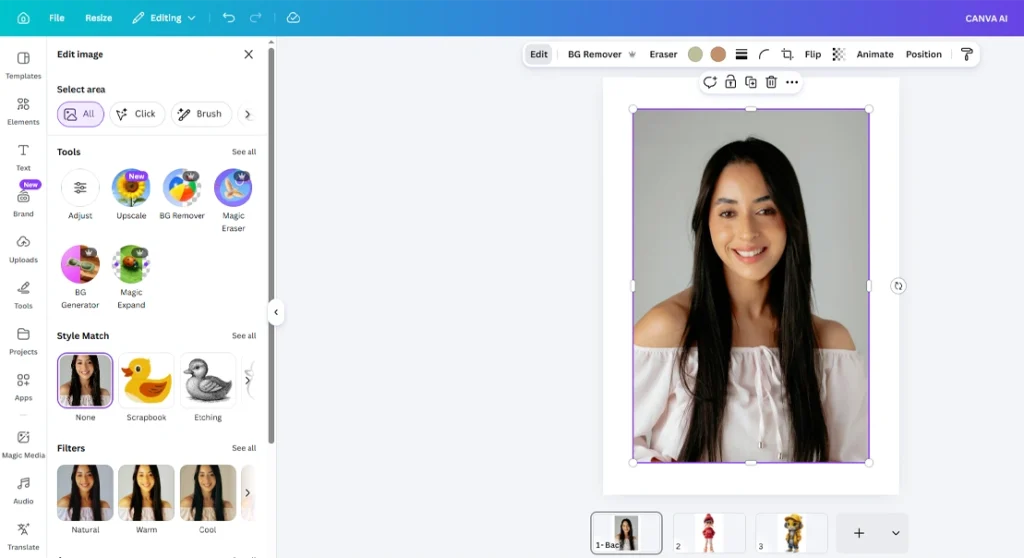
Before comparing specific tools, it helps to know what actually separates a useful AI photo editor from a gimmick with a few filters attached.
• Object removal: erasing unwanted elements and filling the gap convincingly
• AI masking: automatically selecting a subject or area without manual selection tools
• Background replacement: swapping or removing a background without visible edges
• Generative fill: adding or extending image content from a written prompt
• Relighting: adjusting how light falls on a subject after the photo was taken
• Face and skin enhancement: smoothing, brightening, or correcting features naturally
• Upscaling: increasing resolution without the image looking artificial or waxy
• RAW editing: working directly with camera RAW files, not just JPEGs
• Batch editing: applying the same adjustments across many photos at once
• Prompt-based editing: describing a change in plain language instead of using sliders
Best AI Photo Editor by Device
Most tools in this guide work across platforms, but a few stand out for a specific device rather than being equally strong everywhere.
• Mac: Photomator and Luminar Neo are both built with deep macOS integration; Lightroom AI runs natively too
• Windows: Photoshop, Luminar Neo, and Topaz Photo AI all run at full strength on Windows
• iPhone: Lensa, Photomator, and YouCam Enhance are the strongest dedicated iOS apps
• Android: Lensa, Pixlr, and Canva cover the AI photo editing apps most Android users need
Quick Answers by Editing Task
If you already know the specific job you need done, here’s the fast version, all pointing back to the fuller reviews above.
• Best for removing backgrounds: Pixlr for a quick free edit, professional background removal for catalogs at scale
• Best for portrait retouching: Lensa for casual use, Photoshop or professional retouching for client work
• Best for old photo restoration: Luminar Neo or Photoshop’s Neural Filters for light damage, a restoration specialist for torn or water-damaged originals
• Best for product photos: Pixlr or Photoshop for backgrounds, Lightroom AI for consistent color across a catalog
• Best for color correction: Adobe Lightroom AI’s masking and Adaptive Profile tools
• Best for upscaling: Topaz Photo AI, or Gigapixel AI if you only need the upscaler
Which AI Photo Editor Is Right for You?
Matching the best AI for editing photos to your actual use case matters more than picking whatever tops a generic ranking.
Casual Users
If you edit a handful of photos a month for social media or personal use, Pixlr or Canva covers almost everything you need for free, without a steep learning curve.
Ecommerce Sellers
Product catalogs need consistent color, sizing, and background across hundreds of listings. That’s exactly where consumer AI tools start to struggle.
Many sellers run a quick AI first pass, then send the final, brand-consistent version through outsourced photo editing to keep every listing looking like it belongs to the same catalog.
Real Estate Photographers
Luminar Neo’s Sky AI and HDR-style enhancement tools handle exterior shots well. Imagen AI’s real estate-specific features cover perspective correction and sky replacement for listing photos at volume.
People Restoring Old or Damaged Photos
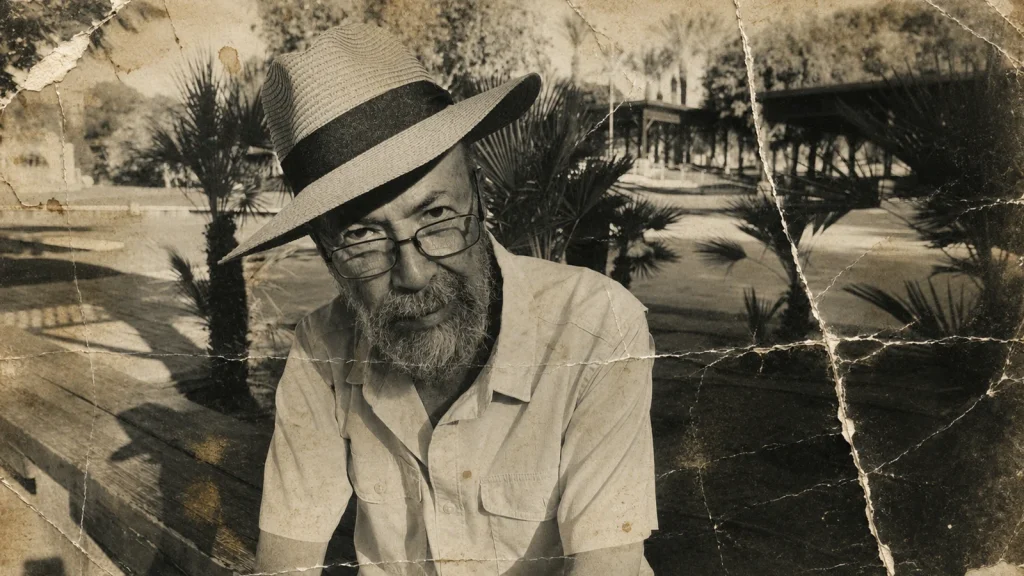
AI tools like Luminar Neo and Photoshop’s Neural Filters handle basic photo restorations well, such as reducing scratches or fixing faded color. Severely damaged originals still need a trained eye, which is where our old photo restoration service covers the cases AI restoration tools tend to botch, like torn originals or heavy water damage.
Portrait Photographers
Lensa and Luminar Neo both handle basic portrait retouching well for personal use.
For client-facing work where skin, hair, and color need to be flawless, professional photo retouching still outperforms fully automated tools on fine detail.
Social Media Creators
Canva’s Magic Edit and ready-made templates make it fast to turn a raw photo into a finished post. Its free tier covers most casual posting needs without a subscription.
Adobe Express is a solid alternative if you want Firefly’s generative tools inside a similarly template-driven editor.
Beginners
Luminar Neo is the most forgiving starting point. Every tool explains itself as you use it, and one-click AI presets get you a usable edit before you learn what any slider does.
Professionals and Studios
Imagen AI and Photoshop cover most creative production needs between them: Imagen for volume consistency, and Photoshop for the final, hands-on detail work AI still cannot fully automate.
AI Photo Editors With Fewer Restrictions
Every reputable AI photo editor enforces content policies for legal and ethical reasons, and that is not going away.
What people usually search for as the best image editing AI without restrictions really means fewer usage limits. Think no forced watermarks, no tiny credit allowances, and fewer refusals on ordinary, harmless edits.
Photoshop and Luminar Neo offer the most creative control. Their AI features work alongside full manual tools, so you are never stuck with only what the AI decides.
Free tools like Pixlr and Canva are more restrictive by design. They cap credits and lock advanced generative features behind a paid plan.
If a free tool’s AI keeps refusing an ordinary request, like removing a logo from your own photo, it is usually a credit limit or an overly cautious content filter, not a genuine policy violation. Switching to a paid tier or a different tool usually resolves it.
How to Edit a Photo With AI (Step-by-Step)
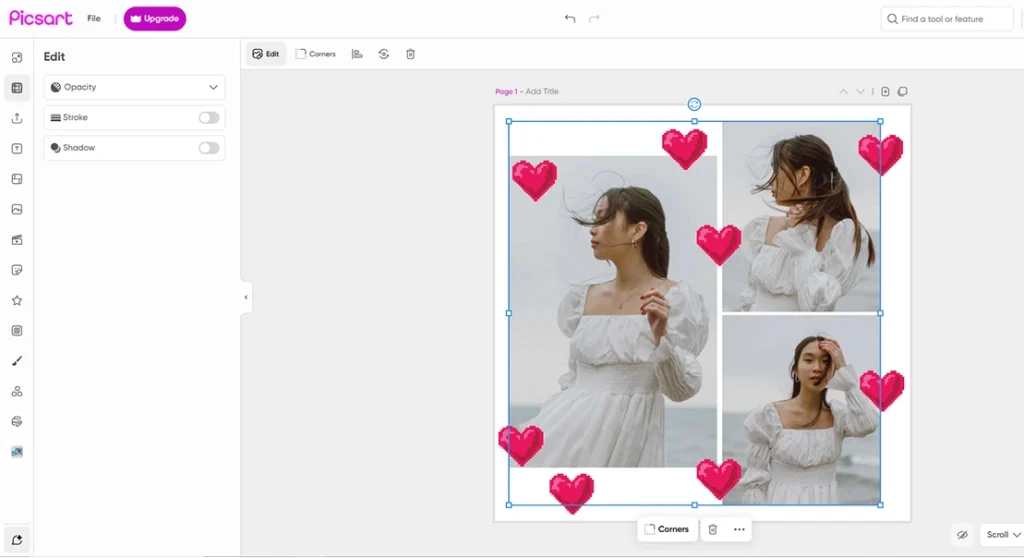
If you are asking how you can edit images with AI for the first time, the process is close to identical across most tools.
• Upload your photo in the highest resolution you have available
• Select or brush over the area you want changed, or skip this step for whole-image adjustments
• Type a prompt describing the change, or choose a one-click AI tool like Auto Enhance
• Review the result against your original at full zoom before accepting it, since this is exactly where a dedicated image enhancer earns its keep, as edits that look fine at preview size often reveal artifacts at full resolution
• Make small manual corrections where the AI missed details, like edges or shadows
• Export at full resolution, since most tools compress previews to save processing time
Example Workflows
Wedding Photographer Workflow
1. Cull the shoot with an AI culling tool to cut review time down
2. Apply Imagen AI’s Personal AI Profile for consistent color across the full gallery
3. Fine-tune hero shots in Adobe Lightroom AI or Photoshop
4. Export and deliver the gallery
Ecommerce Seller Workflow
5. Remove the background with Pixlr or Photoshop
6. Correct color and lighting so every product matches across the catalog
7. Clean up shadows and reflections
8. Batch export at consistent dimensions for every listing
Where AI Photo Editing Still Falls Short
AI photo editing tools are fast, but they are not flawless.
Hands, jewelry, small text, and reflections are still the most common places where generative AI invents details that were never in the original photo.
Skin can come out over-smoothed. Faces can shift slightly between separate edits of the same subject, and text rendered inside a generated image is frequently garbled or misspelled.
A few other situations still trip up most AI tools:
• Blurred or half-closed eyes that the AI sharpens into an unnatural, glassy look
• Extreme motion blur, where there’s not enough clean detail left for the AI to reconstruct
• Incorrect perspective on architecture or straight lines that AI tools don’t reliably correct
• Heavy compression artifacts that get mistaken for real detail and sharpened further
• Severe noise in very low light, where denoising starts smearing away real texture
For ecommerce catalogs specifically, AI tools struggle to keep color, shadow direction, and cropping consistent across hundreds of product photos. That matters more for brand trust than any single edit looking good in isolation.
None of this means AI is replacing skilled photo editors any time soon. It means AI works best as a fast first draft, a point explored in more depth here, with a human reviewing anything client-facing or commercial.
This lines up with how working photographers actually use it. A survey of retouching professionals found that most want AI to handle no more than 70 to 80 percent of the work, not the entire job.
84 percent said their main reason for using it at all was to save time on repetitive tasks.
Privacy and Ownership: What Happens to Your Photos?
Most AI photo editors process your image in the cloud, which means your photo temporarily leaves your device.
Reputable providers use encrypted connections and delete processed images after a set retention window. Policies vary significantly between free and paid tiers.
Some tools process entirely on-device, while others require a cloud upload for their best results. That distinction matters more for law firms, healthcare providers, and enterprise or agency teams handling sensitive images than it does for a casual edit.
Check whether a tool’s terms allow your uploads to be used for training future AI models. Many free plans reserve this right by default, while paid and enterprise plans usually let you opt out.
For commercial work, confirm you retain full usage rights to the edited output before relying on a tool for client or product photography. Most major platforms grant this, but the exact wording differs enough to be worth an actual read.
Some platforms, including OpenAI’s GPT Image 2, now attach content credentials: a tamper-evident metadata record showing how an image was created or edited. That’s useful for proving a photo was not manipulated without disclosure, especially for commercial or journalistic use.
If your photos involve client faces, private property, or unreleased products, a local desktop tool like Luminar Neo or Topaz Photo AI keeps processing off the cloud entirely.
Can You Use AI-Edited Photos Commercially?
Most mainstream AI photo editors grant you commercial usage rights to what you create, but the details differ by platform and by whether the output includes third-party or trademarked content.
Adobe Firefly, which powers Photoshop’s Generative Fill and Lightroom’s Generative Remove, is trained on licensed and public domain content, and Adobe backs commercial output with IP indemnification for enterprise customers.
GPT Image 2 output is generally usable commercially, including marketing materials, packaging, and client work, though the exact usage rights depend on your OpenAI plan.
Canva’s Magic Studio outputs are cleared for commercial use on every plan, including free, though it’s worth staying mindful of any recognizable logos, art styles, or faces a prompt might reproduce.
The safest practice across any tool is to avoid prompts naming real brands, copyrighted characters, or living public figures, and to keep the original photo on file alongside any heavily AI-edited commercial output.
What’s New in AI Photo Editing in 2026
As generative AI technologies mature, the biggest shift this year is natural-language, multi-turn editing. Instead of one prompt and one result, newer tools let you refine an edit conversationally, closer to how you would direct a human retoucher.
This trend toward AI editing chatbots, where you describe a change instead of hunting for the right slider, is showing up inside chat assistants as much as inside dedicated editors.
Identity preservation has also improved. Earlier generative tools would subtly change a person’s face between edits. Current models are noticeably better at keeping the same person recognizable across multiple changes.
Context-aware object replacement is catching up, too. A generated shadow or reflection now matches the lighting of the original photo far more often than it did even a year ago.
Newer, AI-native editing tools are also being built around this conversational workflow from day one, rather than having AI features bolted onto older, slider-based software.
Frequently Asked Questions
What is the best AI to edit real photos?
For editing real, existing photos rather than generating new ones, Adobe Photoshop and Luminar Neo lead the category. Both combine AI automation with full manual control when the AI result needs correcting.
Can ChatGPT edit photos?
ChatGPT can modify an uploaded image based on a prompt, but it works more like regenerating the image than making a targeted edit. That often changes fine detail and color accuracy compared to the original file.
Is there a totally free AI photo editor?
Yes. Pixlr and Canva both offer genuinely free tiers with no watermark on exported images, though each limits how many AI-assisted edits or saves you get per day before asking you to upgrade.
Which AI photo editor supports RAW files?
Photoshop, Luminar Neo, Imagen AI, Topaz Photo AI, and Adobe Lightroom AI all support RAW editing. Most browser-based free tools, including Pixlr and Canva, skip RAW processors entirely and only work with JPEG and PNG files.
Is AI photo editing safe?
Reputable AI photo editors use encrypted uploads and disclose their data retention policies. The bigger risk is usually the fine print on training-data usage, so it’s worth checking a tool’s terms before uploading client or private photos.
Can AI edit multiple photos at once?
Yes. Batch editing is one of the strongest use cases for AI. Tools like Imagen AI, Luminar Neo, and Adobe Lightroom can apply consistent adjustments across hundreds of photos in a single pass.
Which AI photo editor works offline?
Luminar Neo and Topaz Photo AI both run their core editing locally on desktop. That makes them more reliable choices when you need to edit without a stable internet connection.
Can you use AI-edited photos commercially?
Generally, yes, across Photoshop, Lightroom, Canva, and GPT Image 2, though the exact usage rights depend on your plan and whether the output includes recognizable third-party content.
Final Verdict
There is no single best AI for editing photos that fits every situation.
Photoshop remains the strongest all-around choice for anyone who wants full control alongside AI automation. Pixlr and Canva cover free, everyday editing well. Luminar Neo is the easiest entry point for beginners, Adobe Lightroom AI fits naturally into an existing RAW workflow, and Imagen AI is built specifically for photographers editing at volume.
Whichever tool you choose, treat the AI output as a strong first draft rather than a finished file. That matters most for anything client-facing or commercial, where the difference between a good edit and a great one is still often a trained eye.