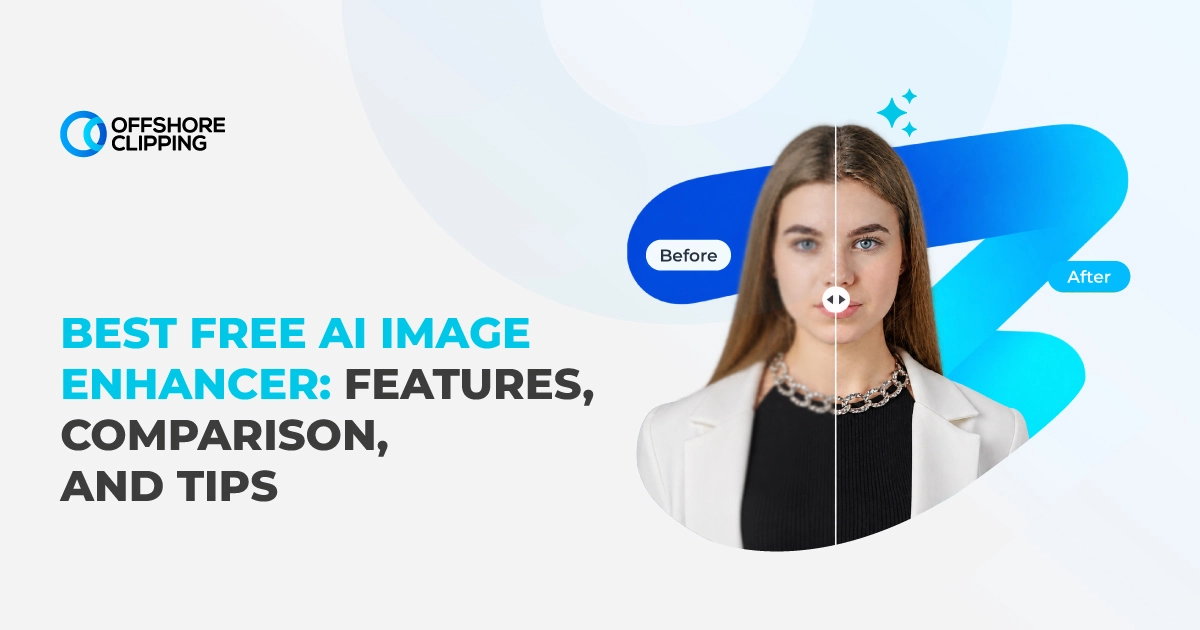
Upload a blurry photo to the wrong tool, and you'll get it back with a logo stamped across the face. Or a “sharpened” result that looks smoothed with a butter knife. Free image enhancers overpromise constantly. And most search results push the same handful of tools that don't hold up past the first upload.
PhotoGrid comes out on top as the best free AI image enhancer overall, Upscayl is the strongest fully offline pick, and Remini leads for faces and old family photos.
We tested 11 free AI image enhancing tools ourselves. The same tools are recommended everywhere: on a portrait, a product shot, an old scan, and a low-light phone photo. Some suit content creators polishing a thumbnail before it goes live. Others fit e-commerce sellers cleaning up a catalog, real estate agents prepping listing photos, or photography studios restoring a client's old family print. Here's what actually held up.
Key takeaways:
- PhotoGrid is the most reliable free, watermark-free pick for quick, one-click fixes.
- Upscayl is the best choice for unlimited offline upscaling with zero recurring cost.
- Free tiers vary widely: some cap resolution, some add watermarks, and some just limit daily credits.
What Is an AI Image Enhancer?
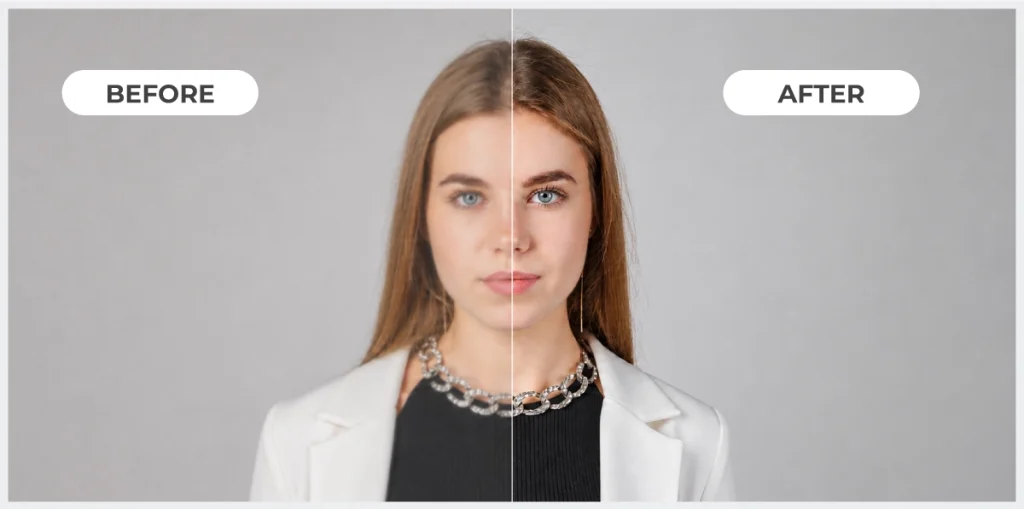
An AI image enhancer uses a trained neural network to analyze a photo and rebuild the parts that look soft, noisy, or low-resolution. Instead of stretching existing pixels, it applies image denoising, deblurring, and super-resolution models trained on millions of reference photos. This allows you to reconstruct texture, edges, and fine detail that a simple filter can't recover. The result is a sharper, cleaner image rather than a bigger, blurrier one.
How AI Enhancement is Different from a Simple Sharpen/Filter
A basic sharpen filter increases contrast along existing edges, which can make a photo look crisper without adding any real detail. AI enhancement works differently: it relies on generative AI reconstruction to predict what fine detail, like skin texture, fabric weave, or hair strands, probably looked like at full resolution, then rebuilds it. That's why a genuinely good enhancer can rescue a photo; a sharpen filter only makes it look more pixelated.
Enhancer vs. Upscaler vs. Restoration tool: What Each Term Means
These three terms get used interchangeably, but they solve different problems. An enhancer improves overall quality (sharpness, noise, color) without necessarily changing size. An upscaler focuses on increasing resolution and pixel count. A restoration tool repairs actual damage: scratches, fading, tears, or badly blurred faces on old photos. Most tools blend two or three of these into one workflow.
If you're weighing AI against a full editing suite rather than just an enhancer, this breakdown of the best AI for editing photos covers the wider landscape.
| Term | What It Solves | Example From Our List |
|---|---|---|
| Image Enhancer | General sharpness, noise, color, and lighting fixes | PhotoGrid |
| AI Upscaler | Increasing resolution and pixel count for print or zoom | Upscayl |
| Restoration Tool | Repairing scratches, fading, or restoring faces | Remini |
How We Tested These Free Image Enhancing Tools
What We Looked for (real detail recovery, no forced watermark, usable free tier)
We ranked every tool on the same criteria:
- Real detail recovery instead of surface-level smoothing,
- No forced watermark on the free tier,
- A free plan you can actually use more than once or twice, and
- Reasonable processing speed.
A tool that only “passes” on a demo image but breaks down on a genuinely low-quality photo didn't make the cut.
The Test Images Used (portrait, product shot, old scan, low-light photo)
We ran every tool against a blurry portrait, a product photo shot on a plain background, an old, slightly faded family scan, and a grainy low-light phone photo. That mix mirrors what most people, from casual users to content creators and online sellers, actually upload.
For a wider look at what generative tools can and can't fix beyond enhancement, see our guide on whether AI can edit photos.
What Are the Best AI Image Enhancers in 2027?
Here's how all 11 tools performed, ranked by real-world usefulness rather than marketing claims. The quick overview below covers what each tool is best for and where its free tier falls short, before the full breakdown of each one.
| Tool | Best For | Free Tier Highlight | Watermark? |
|---|---|---|---|
| PhotoGrid | Best overall, everyday quick fixes | Unlimited, no signup | No |
| Upscayl | Unlimited offline upscaling | Free forever, desktop | No |
| Remini | Faces and old family photos | Daily cap | Yes |
| LetsEnhance | Print-ready upscaling | 10 credits on signup | No |
| Pixlr | All-in-one editing plus enhancement | Shared AI credit pool | No |
| Fotor | Social media touch-ups | 2x upscale only | Yes |
| VanceAI | Mixed enhancement jobs | Web credits | No |
| Canva AI Enhance | Teams already designing in Canva | Preview only, no download | N/A |
| PicWish/Pixelcut | Background removal plus enhancement | Batch up to 30 images | PicWish: Yes |
| AVCLabs PhotoPro AI | Offline, privacy-first enhancement | Free desktop download | No |
| Autoenhance.ai | Real estate listing photos | No signup trial | Yes |
Enhancing images is professionals’ favorite! Professionals like us are here to elevate your image enhancement to the next level!
Explore Our Services!
1. PhotoGrid: The Top Overall Pick (no signup, no watermark)
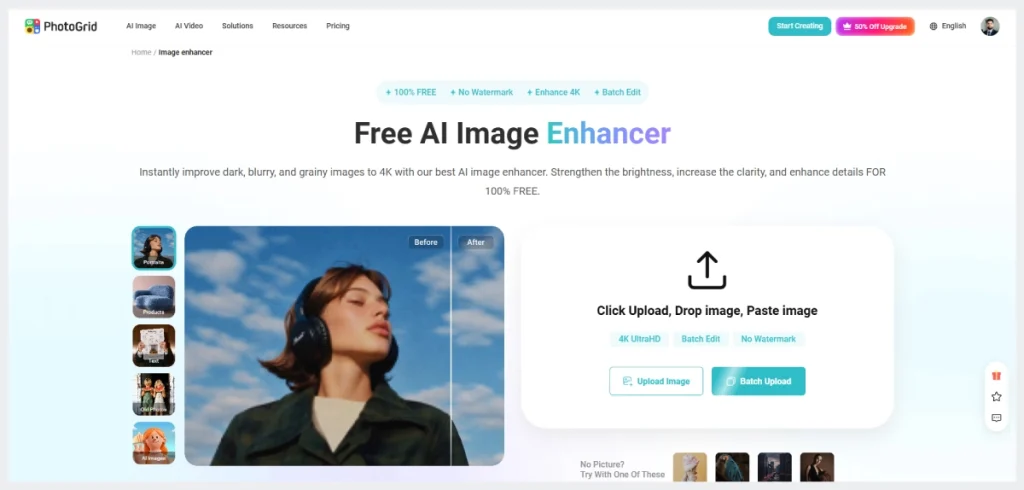
PhotoGrid is our pick for the best free AI image enhancer overall in 2027. There's no signup, no watermark, and no credit limit blocking you after a couple of uploads. Upload a photo, click once, and it handles denoising, sharpening, and light upscaling automatically in about five seconds.
It also bundles a background remover and object eraser in the same dashboard, useful if you're a content creator cleaning up a shot before it goes on social media. It won't give you manual sliders to fine-tune the effect, and very large batches can slow it down, but for one free tool that just works, it's hard to beat.
Strengths:
- Genuinely free with no watermark or signup required
- One-click processing in about five seconds
- Batch editing plus background and object removal in one dashboard
Weaknesses:
- No manual control over enhancement strength
- Large batches can slow down processing
2. Upscayl: The Most Generous Free Tier (unlimited, desktop)
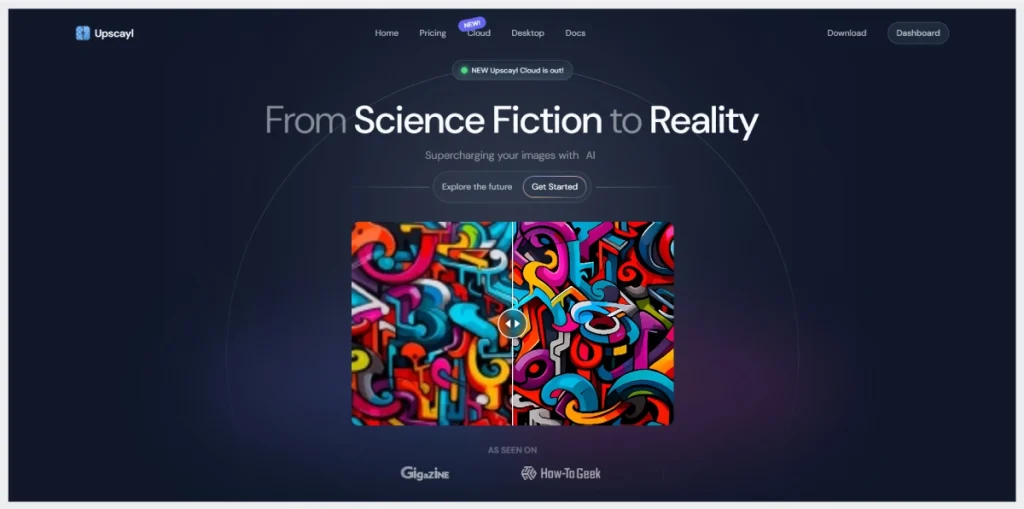
Upscayl is free and open-source, and unlike most tools here, that means no credits, no daily cap, and no watermark, ever. It runs locally on Windows, macOS, and Linux using Real-ESRGAN models, so photos never leave your machine. This matters if you're a freelance photographer handling client images you'd rather not upload to a stranger's server.
Six AI models cover different content types, from General Photo to UltraSharp for fine detail, and you can chain two 4x passes for up to 16x enlargement. The catch: it needs a Vulkan-compatible GPU to run well, and it's desktop-only.
Strengths:
- Completely free forever, no watermark or credit limit
- Processes entirely offline for full privacy
- Six specialized AI models plus batch folder processing
Weaknesses:
- Needs a Vulkan-compatible GPU for good performance
- Desktop only, no web or mobile version
3. Remini: The Strongest Choice for Faces and Old Family Photos
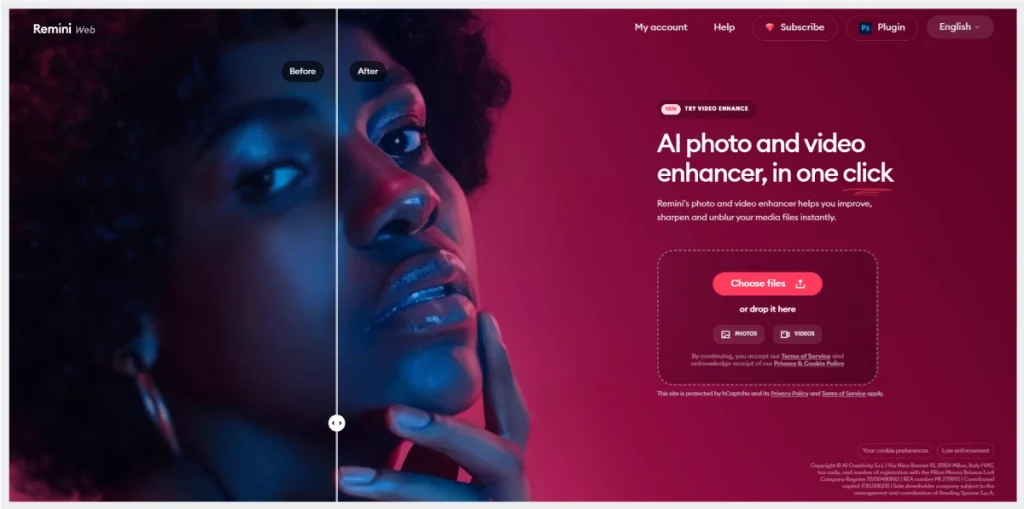
Remini leans hard into face restoration, and it shows. On a blurry or low-quality portrait, it recovers eyes, skin, and facial structure more convincingly than almost anything else tested here, exactly what a photography studio or freelance photographer needs when a client hands over a damaged family print.
The tradeoff: it can over-process everything that isn't a face, and fabric or background texture often ends up looking painted rather than photographed. Free downloads carry a watermark, and daily use is capped unless you subscribe.
Strengths:
- Best-in-class face restoration on old or low-quality photos
- Simple, one-tap mobile workflow
Weaknesses:
- Over-smooths fabric and background texture
- Free tier is watermarked with daily caps
Restoring a photo that means too much to risk on a free tool? Learn the manual process in our guide on how to restore old photos in Photoshop
4. LetsEnhance: The Go-to for Print-ready Upscaling
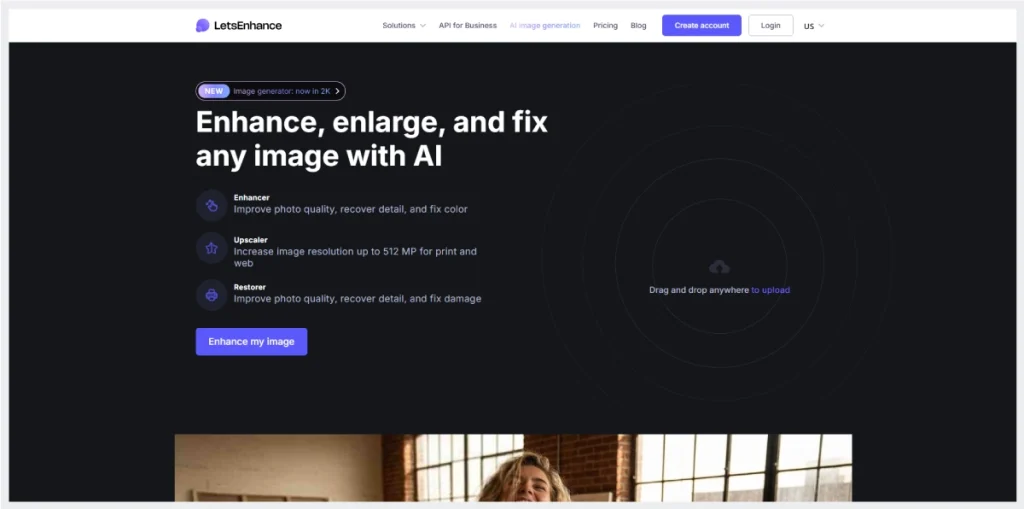
LetsEnhance is built around seven specialized super-resolution models instead of one generic algorithm, including a dedicated Old Photo mode and a Prime model tuned for natural, high-fidelity texture. That specificity matters for a photography studio prepping a print-ready file, since the tool supports 300+ DPI output and built-in printing presets for standard poster and photo sizes.
It's browser-based, so nothing to install, and batch processing handles up to 20 images at once. It isn't fully free, though: you get 10 credits on signup, then it moves to a paid plan.
Strengths:
- Seven models tuned to specific content types, including old photos
- Built-in DPI control and print presets
Weaknesses:
- Only 10 free credits before you need to pay
- Cloud-only, so it needs a stable connection
5. Pixlr: An All-in-One Editor with AI Enhancement Built-in
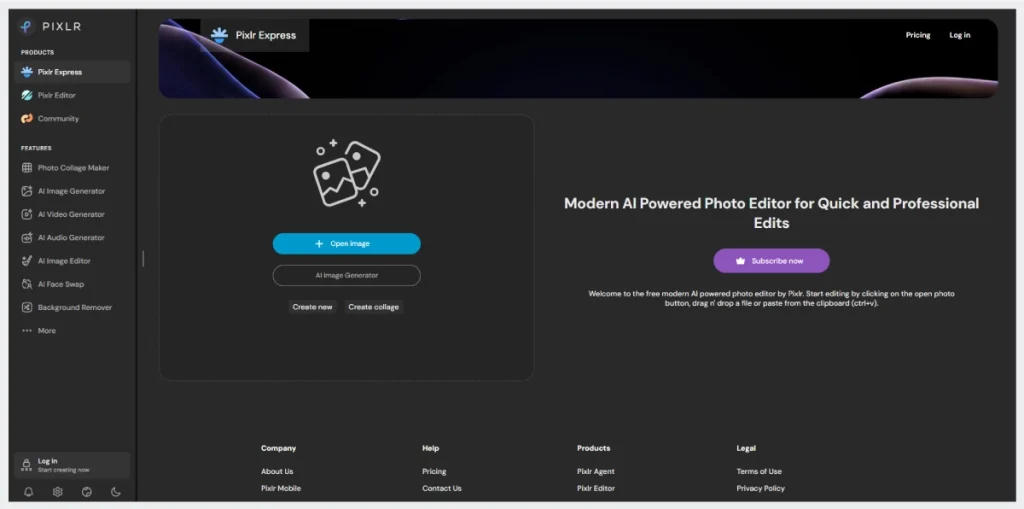
Pixlr bundles AI enhancement (it calls the tools Super Scale and Super Sharp) inside a full browser-based photo editor, alongside background removal and generative fill. That breadth suits marketing managers or social media coordinators who need quick photo fixes and design templates in the same tab.
Core editing tools stay watermark-free on the free tier, but the shared AI credit pool that powers enhancement, background removal, and generation together runs out faster than expected with daily use, and there's no RAW file support.
Strengths:
- Combines enhancement with background removal and templates
- Watermark-free exports on core editing tools
Weaknesses:
- Shared AI credit pool empties quickly with regular use
- No RAW file support
6. Fotor: A Quick, One-click Option for Social Media Touch-ups
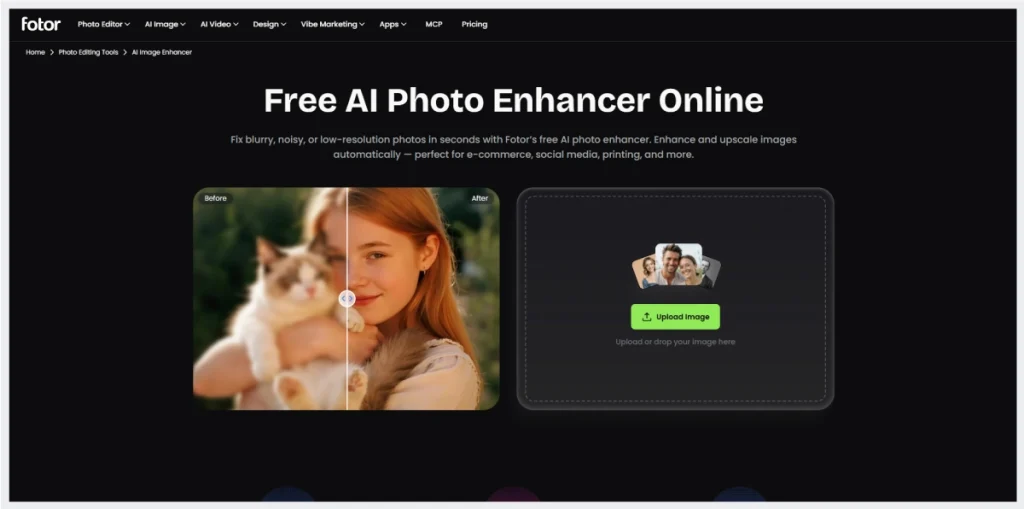
Fotor pairs one-click AI enhancement with a full design suite of templates, filters, and text tools, which suits course creators and coaches who need a fast thumbnail touch-up without leaving their design workflow.
The free plan only allows 2x upscaling, though, and every export carries a visible watermark until you upgrade. Processing is also noticeably slower than most tools here, often close to a minute per image, so it fits occasional design work better than everyday photo fixes.
Strengths:
- Combines enhancement with a full design and template library
- Simple, beginner-friendly one-click workflow
Weaknesses:
- Free exports carry a visible watermark
- Slower processing than most competitors
7. VanceAI: A Broad Toolkit for Mixed Enhancement Jobs
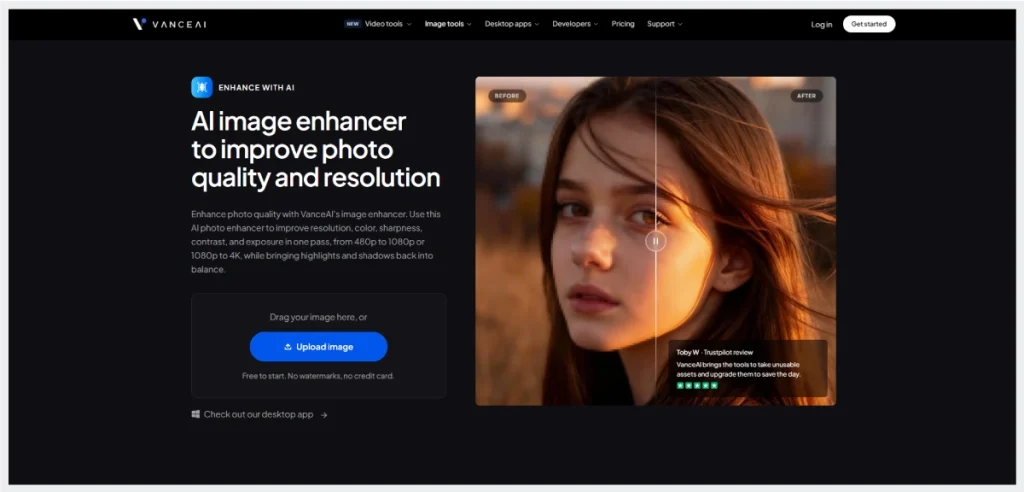
VanceAI covers a wide spread of tasks, upscaling, denoising, sharpening, face refinement, and restoration, in one web and desktop toolkit. This appeals to video agencies or production teams that would rather run one subscription than five separate apps.
Quality holds up for web-sized output, but close inspection shows softer eyes and skin texture than top-tier enhancers, so it fits casual or social use better than large prints. Pricing runs on web credits plus a separate desktop license, which can get confusing to track.
Strengths:
- One toolkit covers upscaling, denoising, and face refinement
- Reasonable pricing for light to medium use
Weaknesses:
- Fine detail is softer than top-tier tools under close zoom
- Separate web credits and desktop pricing can confuse
8. Canva AI: Enhance The Easiest Tit if You Already Design in Canva
If your team already lives inside Canva for social graphics and marketing decks, its built-in AI enhance sits one click from the design canvas, which is convenient for marketing managers and brand managers producing campaign assets.
Canva Pro supports up to 10x upscaling, but free users can only preview the enhanced result; downloading a watermark-free version requires a paid plan, and even Pro usage draws from a monthly AI credit pool rather than being unlimited.
Strengths:
- Enhancement built directly into an existing design workflow
- Up to 10x upscaling available on Pro
Weaknesses:
- Free plan can't download enhanced images without upgrading
- Monthly AI credit cap applies even on paid plans
9. PicWish/Pixelcut: Ideal for Background Removal Plus Light Enhancement
Both tools share the same e-commerce-editing lineage and pair background removal with a lighter enhancement pass, a good fit for e-commerce brand owners and SKU managers cleaning up catalog photos at volume.
PicWish batches up to 30 images at roughly 8 seconds each, though free downloads carry a watermark. Pixelcut caps free upscaling at 2x but skips the watermark entirely, making it the cleaner pick when you only need a modest quality boost rather than a dramatic rescue of a badly blurred photo.
Strengths:
- Fast batch processing built for product catalogs
- Pixelcut skips the watermark on its free 2x tier
Weaknesses:
- PicWish free downloads carry a visible watermark
- Enhancement strength is modest next to dedicated upscalers
10. AVCLabs PhotoPro AI: Best Fully Offline/Desktop Enhancer for Privacy

AVCLabs PhotoPro AI runs locally on Windows and Mac with seven AI models and, unlike most one-click tools, lets you select specific parts of an image to enhance rather than processing the whole frame. That precision suits photography studios handling client work where only certain areas, a face or a product surface, need attention.
It's free to download and try, with upscaling up to 3-4x. Its separate online tool, AVC.AI, offers cloud processing but deletes uploaded photos automatically after 72 hours.
Strengths:
- Selective, region-based enhancement rather than whole-image only
- Fully offline processing for client-sensitive work
Weaknesses:
- Desktop installation required, no lightweight web option
- Advanced features like object removal take practice to use well
11. Autoenhance.ai: Best for Real Estate and Property Listing Photos
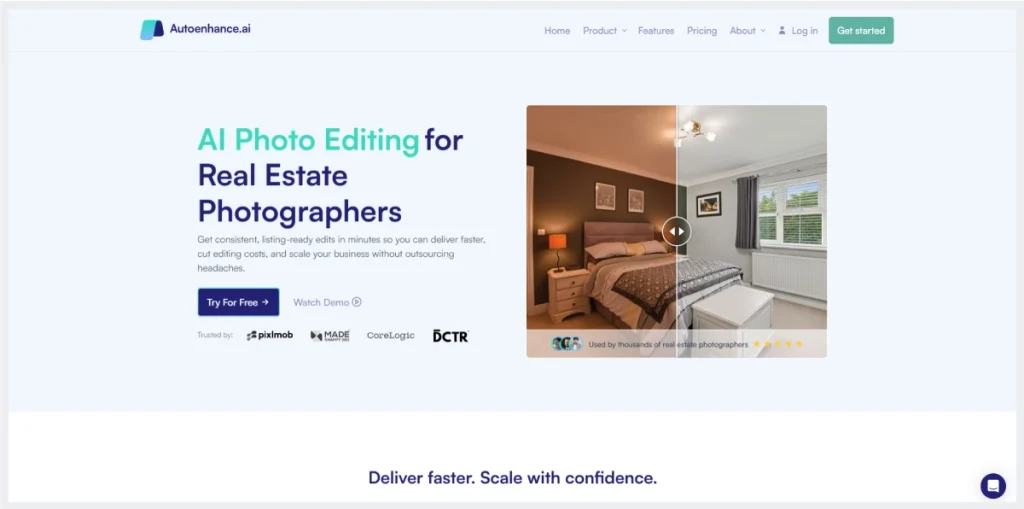
Autoenhance.ai is purpose-built for property photography, automating sky replacement, HDR merging from bracketed exposures, perspective correction, and relighting in one pass. That specialization makes it the clear pick for real estate agents and property consultants who need listing photos to look market-ready without manual HDR editing.
You can test it with no signup, though results come watermarked until you subscribe. Paid plans start around $29 a month for 50 images, scaling up for photographers or agencies editing at higher volume.
Strengths:
- Purpose-built for sky replacement, HDR, and perspective fixes
- Free trial requires no sign-up or credit card
Weaknesses:
- Free trial output is watermarked
- Pricing scales quickly for high-volume agencies
Facing problems in restoring old photos that could bring valuable assets? Our professional old photo restoration service meets your expectations and helps you to achieve your goal! Restore My Old Photos
How to Choose the Right Free AI Image Enhancer
Picking the best free AI image enhancer for your workflow comes down to a handful of practical checks, not marketing copy. And if a dedicated app still feels like overkill for a single quick fix, describing the change in plain language through Gemini prompts for photo editing is worth trying before you install anything new.
Check the Free Tier Limits (credits, resolution cap, daily limits)
Free plans cap you differently. Some limit daily uploads, some restrict resolution, and some charge in credits shared across every AI feature on the platform. Check what “free” actually allows before you build a workflow around it.
Watermark or No Watermark on Free Exports
A watermark on the one part of the photo you needed fixed defeats the purpose. Confirm the free export is genuinely clean before relying on it for anything client-facing or public.
Signup/Account Requirements
Some tools, like PhotoGrid and Upscayl, need nothing more than an upload. Others require an account before you can download anything, adding friction if you just want to test quality first.
Cloud-based vs. Desktop/Offline Processing (Privacy)
Cloud tools are convenient but mean your photo temporarily leaves your device. If you're editing client faces, unreleased products, or private property listings, a desktop tool like Upscayl or AVCLabs PhotoPro AI keeps everything local.
Batch Processing Support (for multiple photos at once)
If you're processing more than a handful of images, a full product catalog or an old photo album, batch support saves real time over uploading one photo at a time.
Output Quality vs. Speed Trade-off
The fastest tools aren't always the sharpest. PhotoGrid and Pixelcut lean toward speed; LetsEnhance and Remini lean toward maximum detail recovery, even if that means a slower render.
When to Upgrade to a Paid Plan
Upgrade once free limits actively slow down your work: recurring watermark removal, resolution caps that hurt print quality, or credit limits you hit weekly. At that point, a paid tier usually costs less than the time lost working around it.
Types of Free AI Image Enhancement Tools
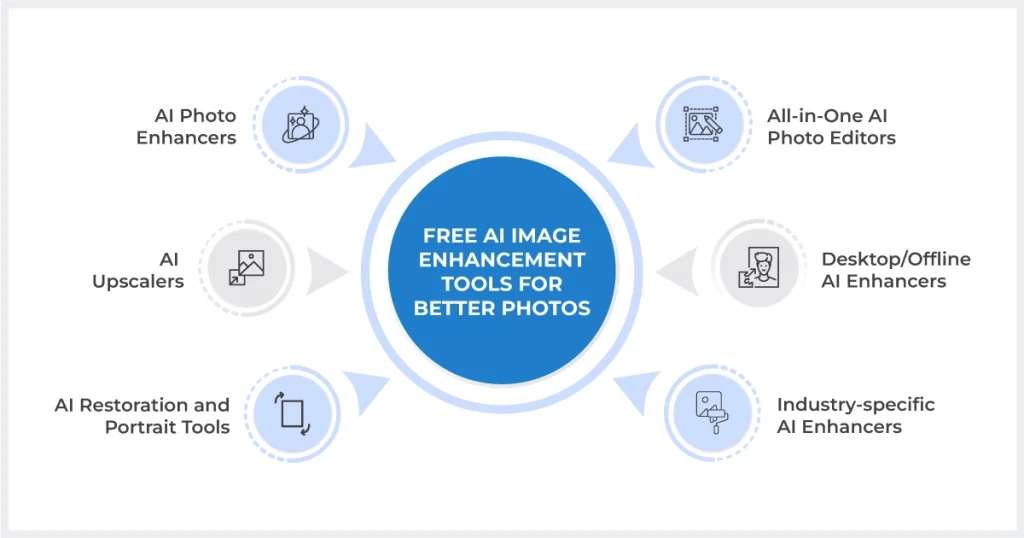
AI Photo Enhancers (denoise, sharpen, color/lighting fix) — e.g., PhotoGrid, Fotor
These tools focus on overall image quality rather than size. They reduce noise, sharpen soft detail, and correct color or lighting in a single automated pass, without necessarily changing the resolution of the file.
PhotoGrid and Fotor both fall into this category, and they're the right starting point when a photo just looks a little flat, grainy, or dull rather than genuinely damaged or undersized. Most people reach for this category more often than any other, since it covers the everyday case of a decent photo that simply needs a quick polish before it gets used.
AI Upscalers (resolution and detail increase) — e.g., Upscayl, LetsEnhance
Upscalers solve a different problem: increasing the actual pixel count and resolution of an image using super-resolution models, rather than just cleaning up what's already there. Upscayl and LetsEnhance both specialize here, and the difference shows up clearly once you try to print a small photo or zoom into a cropped detail.
A general enhancer might sharpen a low-resolution image without making it any bigger, while a dedicated upscaler reconstructs the missing pixels so the file actually holds up at a larger size.
AI Restoration and Portrait Tools (old photos, faces) — e.g., Remini
This category targets damage and facial detail specifically, rather than general sharpness or size. These tools repair scratches, fading, creases, and blur on old scans, or recover fine facial structure on portraits that came out soft or low-quality.
Remini leads this category by a clear margin, since its models are trained heavily on faces rather than general scenery. That specialization is exactly why it struggles more with backgrounds and fabric, the tradeoff for being so strong where it matters most for this use case.
All-in-One AI Photo Editors (enhancement + background/object removal) — e.g., Pixlr, Canva, VanceAI, PicWish/Pixelcut
These combine enhancement with background removal, object erasing, and design templates inside a single dashboard, which suits anyone who wants one tool for an entire workflow rather than switching between apps. Pixlr, Canva, VanceAI, and PicWish/Pixelcut all sit here, and each one treats enhancement as one feature among several rather than the main focus.
For a more conversational alternative, some content creators now handle light touch-ups through prompt-based chat tools instead of a dedicated app, using ChatGPT photo editing prompts to describe the change in plain language rather than hunting through menus.
Desktop/Offline AI Enhancers (processing runs locally) — e.g., Upscayl desktop, AVCLabs PhotoPro AI
These tools process entirely on your own machine rather than uploading anything to a server, which matters most when privacy is a real concern rather than a nice-to-have. Upscayl and AVCLabs PhotoPro AI both run locally on Windows, macOS, or Linux, and neither one needs an internet connection once installed. That makes them the natural choice for freelance photographers and studios handling client faces, unreleased products, or any image that shouldn't sit on someone else's server, even briefly.
Industry-specific AI Enhancers (built for one niche) — e.g., Autoenhance.ai
This is the smallest category, built to solve one job extremely well rather than to handle general photos of any kind. Autoenhance.ai focuses entirely on real estate photography, automating tasks that a generic enhancer simply doesn't attempt, like replacing a dull sky, merging bracketed exposures into a single HDR shot, or correcting the perspective distortion common in interior shots. If your entire workload sits in one niche like this, a specialized tool almost always beats a general-purpose one.
Difference between Free and Paid Versions
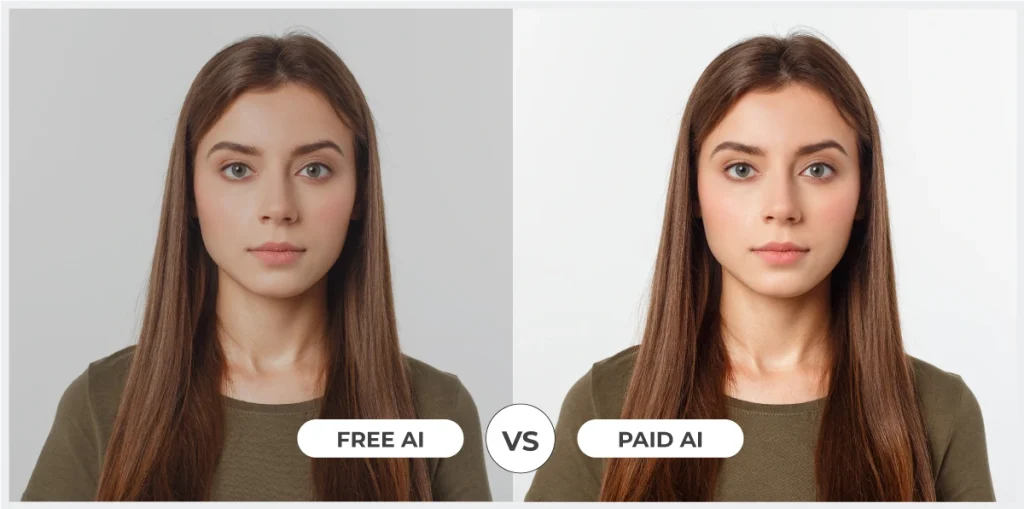
What Free Tiers Typically Cap (resolution, credits, watermark)
Most free plans cap one of three things: a maximum resolution or upscale factor, a limited number of credits shared across features, or a visible watermark on export. A handful, like PhotoGrid and Upscayl, avoid all three, which is rare enough to be worth noting.
Signs You've Outgrown a Free Tool
You've likely outgrown a free tool once you're hitting daily or weekly limits, manually working around watermarks, or needing batch processing the free tier doesn't support. At that point, the paid tier of the same tool is usually simpler than switching tools entirely.
| Aspect | Free Version | Paid Version |
|---|---|---|
| Resolution/Upscale Limit | Often capped at 2x, e.g. Fotor, Canva | 4x to 16x or higher, uncapped on most tools |
| Watermark | Common on free exports, e.g. Remini, Fotor, PicWish | Removed on nearly every paid tier |
| Daily/Credit Limits | Shared AI credit pool or a small daily cap | Higher monthly credit allowance or unlimited use |
| Batch Processing | Limited or unavailable on most free tiers | Full folder or catalog batch support |
| Support & Retention | Standard retention window, community support | Extended file retention, priority support on some tools |
Is It Safe to Upload Your Photos to These Tools
What Happens to Uploaded Images on Cloud-based Tools
Cloud tools process your photo on their servers, which means it briefly leaves your device. Reputable providers delete files after a set window, like AVC.AI's 72-hour retention, but policies vary. So it's worth checking whether a free plan reserves the right to use your uploads for training.
Desktop/Local Tools vs. Cloud Tools for Privacy
Desktop tools like Upscayl and AVCLabs PhotoPro AI process everything locally, so nothing uploads at all. That's the safer default for client faces, unreleased products, or any image you wouldn't want sitting on someone else's server, even briefly.
Tips to Get Better Results From AI Image Enhancers
Start With the Highest-Quality Source Image
AI can reconstruct texture and edges that look plausible, but it can't invent detail that was genuinely never captured in the first place. Always start from the largest, least-compressed version of a photo you have access to, rather than a version that's already been resized, screenshotted, or shared over a messaging app.
A photo that's been through two or three rounds of compression loses information no enhancer can fully recover, so tracking down the original file is worth the extra few minutes before you upload anything.
Upscale First if the Image is Small, then Enhance
On very small originals, run a dedicated upscaler like Upscayl first, then apply a separate enhancer for sharpening and color correction afterward. Enhancing a tiny image directly often exaggerates existing noise instead of fixing it, since the enhancer has fewer real pixels to work with.
Doing the two steps in this order, size first, then quality, tends to produce a cleaner result than expecting one tool to handle both jobs at once, especially on phone screenshots or heavily cropped photos.
Check Results at 100% Zoom before Using Them
A result that looks sharp in a small preview thumbnail can hide smoothed skin, warped edges, or odd repeated patterns once you view it at actual size. Always zoom to 100%, and ideally 200% on anything going to print, before publishing or sharing the final file.
This single habit catches most of the over-processed, plastic-looking results that make an AI edit obvious, and it takes only a few extra seconds compared with the time you'd spend fixing a bad result after it's already gone out to a client.
FAQ
What is the best free AI image enhancer online in 2027?
Based on our testing, the best free AI image enhancer online is PhotoGrid. Thanks to its watermark-free output, no signup requirement, and consistent one-click results across portraits, products, and old photos.
Is there a truly free AI image enhancer with no watermark?
Yes. PhotoGrid and Upscayl both deliver watermark-free results with no signup or credit limit. This is uncommon among the tools we tested.
Can AI actually fix a blurry photo?
Yes, within limits. AI enhancers can meaningfully sharpen mild to moderate blur using super-resolution and deblurring models. But they can't fully reconstruct detail that was never captured, like a subject that's completely out of focus.
What's the difference between an AI image enhancer and an AI upscaler?
An enhancer improves overall quality, sharpness, noise, and lighting, without necessarily changing the image's size. An upscaler specifically increases resolution and pixel count, which matters more for printing or zooming.
Can free AI tools restore old or damaged photos?
To an extent. Remini handles faces and general damage well on the free tier, though heavily torn, water-damaged, or faded originals usually need professional photo restoration rather than an automated tool.
Is it safe to upload personal or client photos to a free AI image enhancer?
It depends on the tool. Desktop options like Upscayl and AVCLabs PhotoPro AI process locally. So nothing is uploaded. Cloud tools are generally safe with reputable providers, but check the retention and training-data policy before uploading anything client-facing.
Which free AI image enhancer is best for real estate photos?
Autoenhance.ai, since it's purpose-built for property listings with sky replacement, HDR merging, and perspective correction that generic enhancers don't offer.
Do free AI image enhancers work on mobile?
Most do. Photo Grid, Remini, Pixlr, and Canva all have mobile-friendly web or app versions, while Upscayl and AVCLabs PhotoPro AI are desktop-only.
Conclusion
PhotoGrid earns the top spot for anyone who wants a clean, watermark-free result without signing up for anything. Upscayl is the strongest choice if you'd rather process everything offline for free, permanently. Remini remains the sharpest option for faces and old family photos, and Autoenhance.ai is worth a look the moment your work is exclusively property listings.
Whichever you pick, the best free AI image enhancer is simply the one that matches how you actually work, not whichever one ranks first on a generic list. Test two or three against your own photos before committing to any single tool.