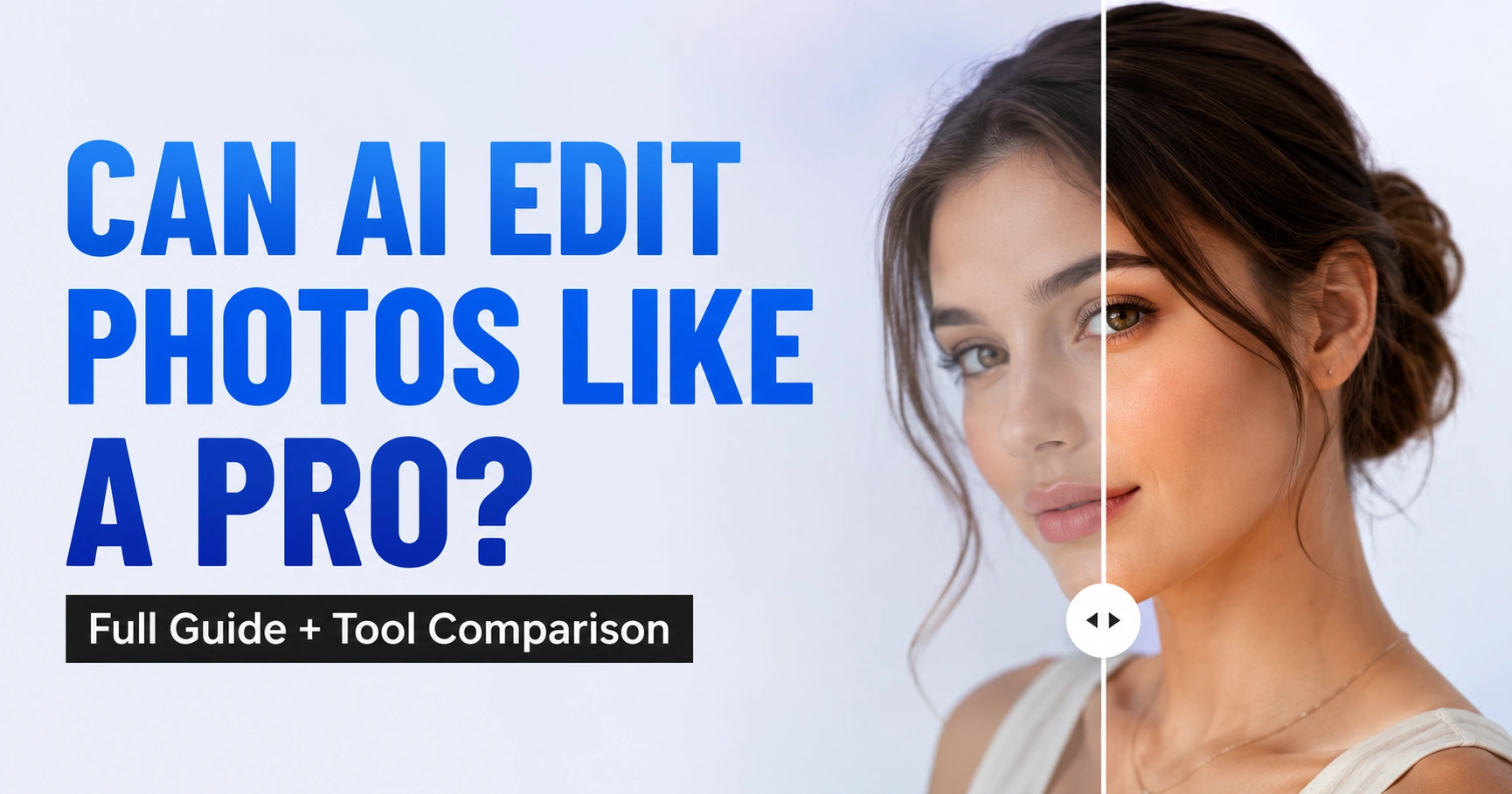
Yes, AI can edit photos, and now AI tools can handle many editing tasks with impressive speed and accuracy. They can remove unwanted objects, replace backgrounds, retouch portraits, restore old photos, improve image quality, and even expand images in seconds.
AI Image Editing Tools are a great choice for photographers, content creators, marketers, eCommerce sellers, and small businesses that want to save time on everyday editing. For commercial projects where accuracy and consistency matter, AI works best as a tool that speeds up the workflow rather than replacing professional photo editing.
In this guide, I’ll explain what AI photo editing does well, where it still struggles, and which AI tools are worth using. You’ll also see a comparison of the best AI image editors, understand when batch editing makes sense, and know when professional editing is the better choice for consistent, high-quality results.
Looking for easy ways to improve your photos? Read our Photo Editing Tips to learn practical techniques used by professionals.
How Does AI Edit Photos?
AI edits photos using computer vision, machine learning, and generative AI. Computer vision detects people, objects, edges, and backgrounds. Machine learning recognizes patterns from millions of training images, while generative AI creates new pixels to remove objects, extend backgrounds, or fill missing areas naturally.
Unlike traditional editing, AI models analyze the entire image before making changes. Most AI tools also automate selections that would normally require manual work in Photoshop.
AI photo editors work in two ways:
- One-click editing: Automatically removes backgrounds, enhances images, or retouches portraits.
- Prompt-based editing: Uses text instructions like “remove the person” or “replace the sky with a sunset” to generate the requested edit.
For detailed masking, layer editing, and pixel-level retouching. In commercial editing workflows, AI is usually the starting point rather than the final step. Editors often let AI handle selections, object removal, or background generation first, then manually refine edges, lighting, and fine details before exporting the finished image.
A List of What AI Can Edit In Photos
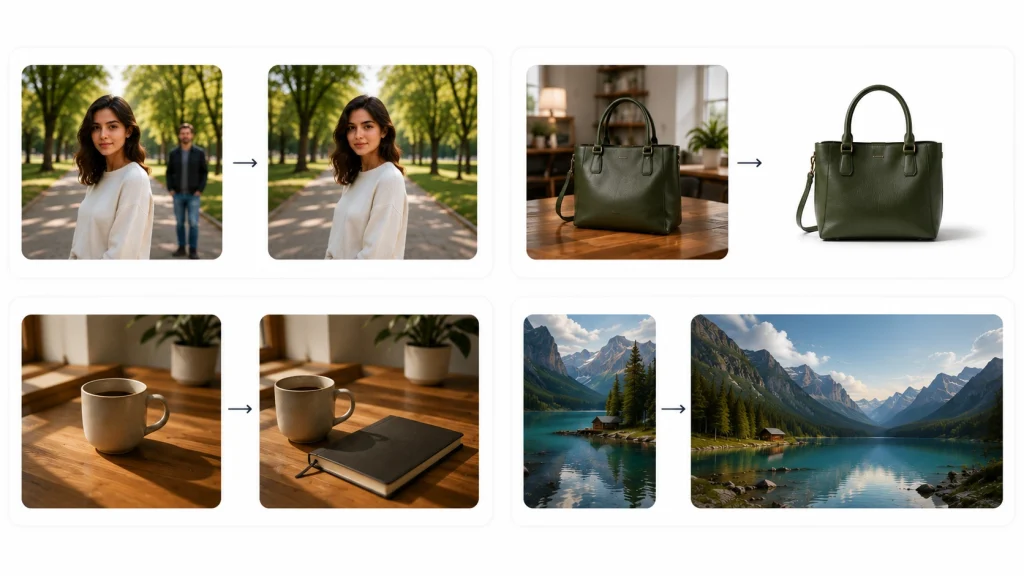
AI can handle far more than basic photo enhancements. AI photo editor online recognizes subjects, understands image context, and generates realistic pixels to complete complex edits automatically.
From removing distractions to restoring old photos, AI speeds up tasks that once required advanced editing skills. However, each feature has its own strengths and limitations, so knowing where AI performs best helps you achieve better results.
Remove Unwanted Objects
AI uses generative inpainting to remove unwanted people or objects by recreating the missing area using nearby textures, colors, and lighting. It works best on consistent backgrounds like skies, walls, roads, or grass but may require manual refinement for complex patterns and reflections. Using an object-specific prompt usually produces much better results than using a generic AI prompt.
Prompt You Can Use:
Remove the person standing behind the subject. Reconstruct the background naturally and keep the subject, lighting, shadows, colors, and image quality unchanged.
Replace Or Remove Image Backgrounds
AI performs semantic subject segmentation to separate the main subject from the background automatically. This makes it ideal for product photography, profile pictures, marketing graphics, and eCommerce listings, although transparent objects and fine hair may still need edge refinement.
Prompt You Can Use
Remove the existing background and replace it with a clean, natural-looking background that matches the subject’s lighting, shadows, perspective, color temperature, and overall scene. Create accurate edges around fine details such as hair, fur, transparent objects, and soft fabrics. If no replacement background is specified, use a pure white (#FFFFFF) background. Preserve the subject exactly as it is without altering facial features, body shape, clothing, colors, textures, or proportions. Maintain the original image resolution, framing, and quality. Avoid halos, jagged edges, color spill, blur, or other AI artifacts.
If You Only Want To Remove The Background (Transparent):
Remove the background completely and create a clean transparent background while preserving the subject exactly as it appears. Maintain accurate edge details, including hair, fur, and semi-transparent areas. Keep the original colors, lighting, shadows, textures, proportions, image quality, and resolution unchanged. Avoid halos, rough edges, missing details, or AI artifacts.
Blurry backgrounds, inconsistent colors, and distracting imperfections can hurt sales. Discover our eCommerce Image Editing Services for polished product photos.
Add Or Replace Objects
AI uses generative fill to insert or replace objects while matching the surrounding perspective, lighting, shadows, and colors. This helps create realistic edits without manually compositing multiple images.
Prompt You Can Use
Add or replace the specified object while seamlessly matching the image’s lighting, shadows, reflections, perspective, depth of field, colors, textures, and overall composition. Ensure the new object blends naturally into the scene as if it were originally present. Preserve the original subject, background, image quality, resolution, framing, and aspect ratio. Avoid unrealistic proportions, inconsistent lighting, visible seams, repeated patterns, or AI-generated artifacts. Do not modify any other part of the image unless explicitly instructed.
Expand Photos Beyond The Original Frame
AI uses outpainting to generate new content outside the original image boundaries while preserving perspective, textures, and scene composition. This is useful for creating banners, social media posts, and print-ready images from tightly cropped photos.
Prompt You Can Use
Expand the image beyond its original frame by naturally extending the surrounding scene. Maintain consistent background, textures, patterns, lighting, shadows, reflections, perspective, and depth so the expansion looks seamless and realistic. Preserve the original subject exactly as it is without altering facial features, body shape, clothing, colors, or proportions. Match the existing image quality, sharpness, and color tone. Avoid repeated patterns, distorted objects, unrealistic details, visible seams, or AI-generated artifacts. Keep the original content untouched and generate only the newly expanded areas.
Prompt You Can Use For Wider Composition:
Expand the image horizontally to create a wider composition by naturally extending the background on both sides. Do not modify the original subject or existing image content.
Prompt You Can Use For Social Media Format:
Expand the image to fit a 16:9 aspect ratio by realistically generating the missing areas around the original photo. Preserve the original image exactly and extend only the surrounding background naturally.
Improve Image Quality
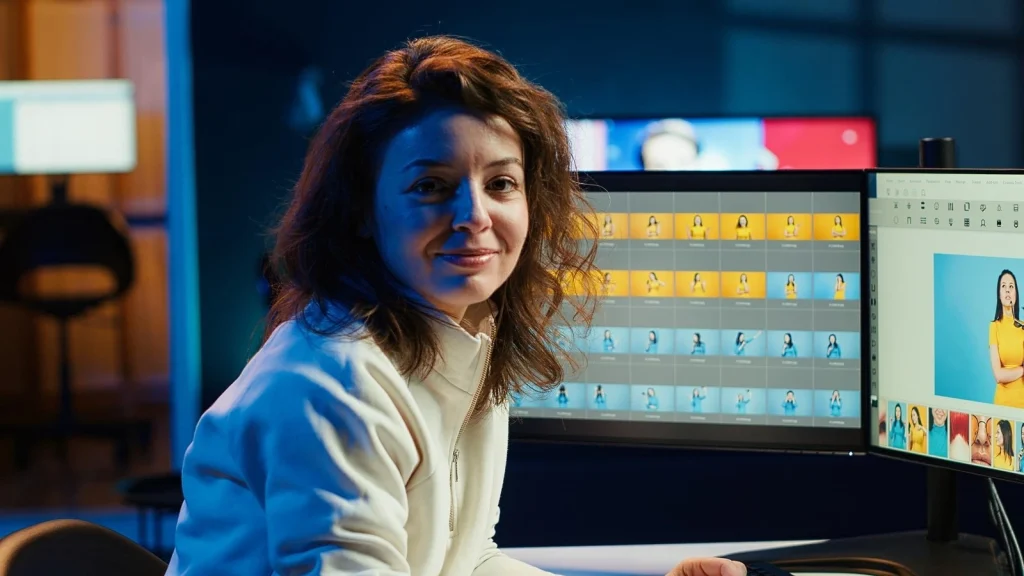
AI analyzes exposure, white balance, contrast, color distribution, and sharpness to improve overall image quality automatically. While the results are often impressive, reviewing the final image helps avoid over-sharpening or unnatural contrast.
Prompt You Can Use
Enhance the overall image quality while preserving a natural and realistic appearance. Increase sharpness, clarity, detail, and dynamic range without over-processing. Reduce noise, blur, compression artifacts, banding, and grain while maintaining accurate textures, colors, skin tones, lighting, and shadows. Improve exposure, contrast, and color balance only where needed. Preserve the original composition, subject, proportions, and image content. Keep the original resolution and aspect ratio unless otherwise specified. Avoid artificial sharpening, oversaturated colors, plastic-looking skin, halos, or other AI-generated artifacts.
Prompt You Can Use If The Image Is Blurry:
Improve the image by reducing blur and restoring fine details while maintaining natural textures, accurate colors, and realistic sharpness. Do not alter the original subject or composition.
Upscale Low-Resolution Images
AI uses super-resolution models to generate missing pixels based on learned image patterns instead of simply enlarging the image. This produces sharper results for printing, product photography, and digital marketing, although details absent from the original image cannot be fully recovered.
Prompt You Can Use (mention upscale size (e.g., 4×)
Upscale this image by (4×) while preserving natural details, realistic textures, accurate colors, and the original composition. Remove pixelation and compression artifacts without introducing artificial details or changing the subject.
Restore Old Or Damaged Photos
AI restoration tools detect scratches, fading, tears, and noise while reconstructing missing details using image restoration models. Many editors can also colorize black-and-white photos, though valuable historical images often benefit from manual finishing.
Prompt You Can Use
Restore this old or damaged photo while preserving its original identity, historical authenticity, and natural appearance. Repair scratches, cracks, tears, stains, dust, fading, discoloration, creases, and missing areas without altering the person’s facial features, expression, clothing, hairstyle, or other important details. Improve sharpness, clarity, contrast, and color balance where necessary while maintaining realistic textures and lighting. Reconstruct damaged sections seamlessly so they blend naturally with the surrounding image. Preserve the original composition, proportions, and aspect ratio. Avoid over-restoration, artificial skin, excessive sharpening, or AI-generated artifacts.
Portrait Retouching
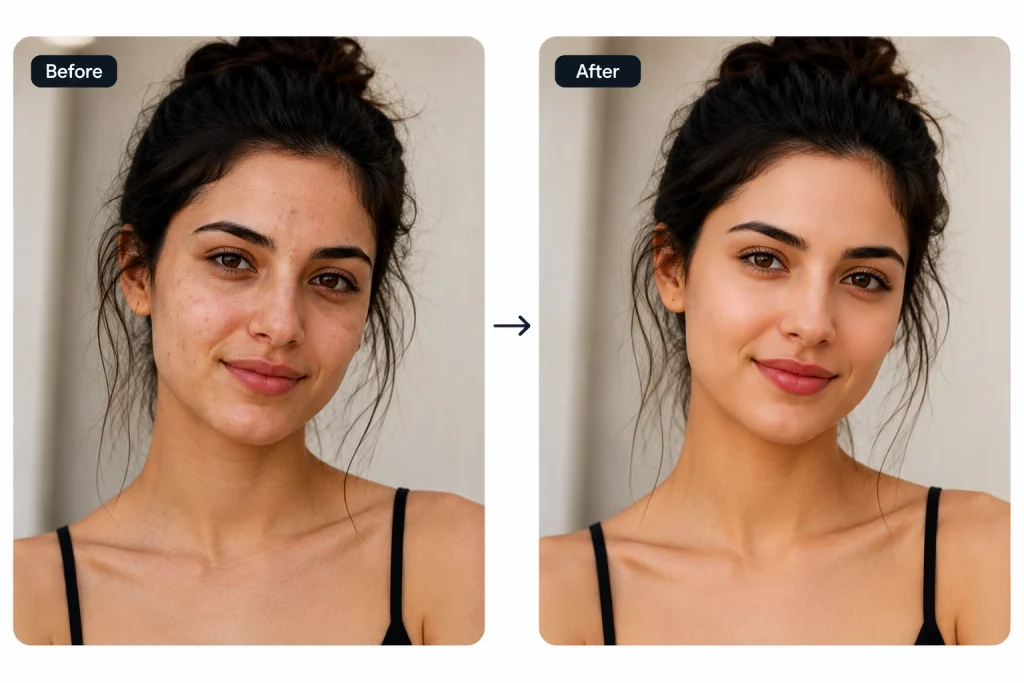
AI detects facial landmarks such as the eyes, lips, skin, and hair to apply targeted enhancements instead of editing the entire image. This produces natural-looking portraits while preserving facial identity.
Prompt You Can Use
Retouch the portrait while preserving the subject’s natural appearance and unique identity. Remove temporary skin imperfections such as acne, blemishes, stray hairs, dark circles, and minor distractions without changing facial features, skin texture, age, or expression. Improve skin tone, lighting, contrast, and color balance naturally. Enhance the eyes, lips, and hair subtly while maintaining realistic detail. Preserve the original body shape, proportions, clothing, background, composition, and image quality. Avoid excessive skin smoothing, beauty filters, unrealistic facial changes, or AI-generated artifacts.
Color Correction And Lighting Adjustments
AI evaluates histograms, exposure, white balance, highlights, and shadows to create balanced, natural-looking images. It is especially useful for editing large photo collections captured under different lighting conditions.
Prompt You Can Use
Correct the image’s colors and lighting while preserving a natural, realistic appearance. Adjust white balance, exposure, brightness, contrast, highlights, shadows, blacks, whites, and color balance to produce accurate, well-balanced tones. Remove unwanted color casts and improve dynamic range without clipping details. Maintain realistic skin tones, textures, lighting direction, shadows, and reflections. Preserve the original composition, subject, proportions, and image quality. Avoid oversaturation, excessive contrast, unnatural HDR effects, blown highlights, crushed shadows, or AI-generated artifacts.
AI enhances colors quickly, but inconsistent tones can affect product presentation. See how our Photo Color Correction Services deliver accurate, marketplace-ready images.
Sky Replacement
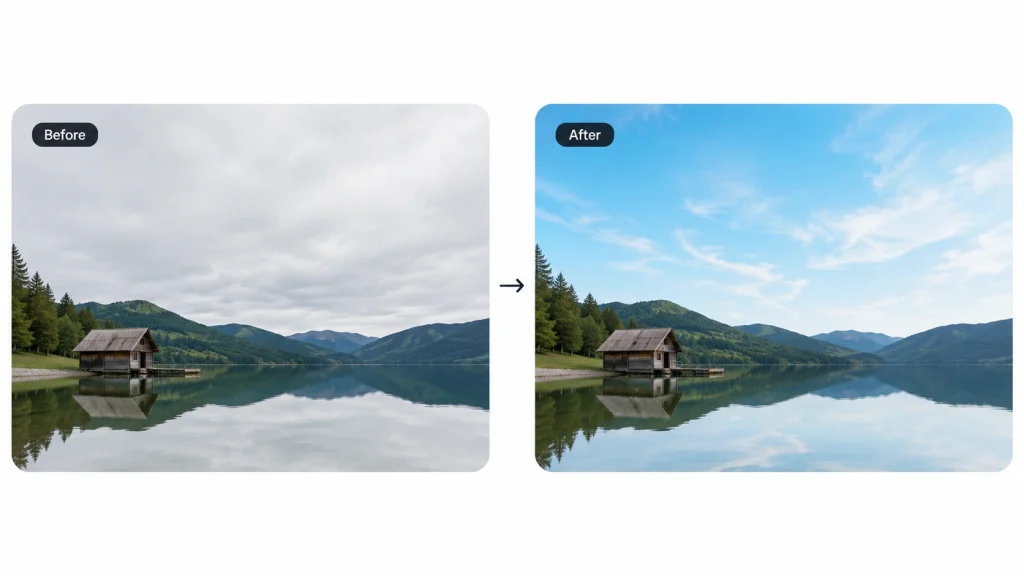
AI automatically identifies the sky mask, horizon, and lighting direction before blending a new sky into the scene. Many editors also adjust foreground lighting and color to create a more realistic final image.
Prompt You Can Use
Replace the existing sky with a realistic, high-quality sky that naturally matches the scene’s lighting, time of day, weather, color temperature, perspective, and atmosphere. Blend the new sky seamlessly with the horizon, clouds, reflections, shadows, and ambient light so it appears original to the photograph. Preserve the subject, landscape, buildings, trees, and all foreground elements without altering their colors or proportions except where natural light and reflections should realistically change. Maintain the original image quality, composition, and aspect ratio. Avoid halos, mismatched lighting, unrealistic clouds, oversaturated colors, or AI-generated artifacts.
Automatic Subject Selection and AI Masking
AI recognizes people, animals, products, vehicles, and other subjects to create precise masks automatically. This allows selective adjustments without affecting the rest of the image and significantly speeds up local editing.
Prompt You Can Use
Automatically detect and create a precise mask around the main subject while preserving every fine detail, including hair, fur, transparent objects, soft edges, lace, and semi-transparent materials. Produce clean, accurate edges without halos, jagged outlines, missing details, or color spill. Keep the subject’s original colors, textures, lighting, shadows, and proportions unchanged. Apply all edits only within the masked area unless otherwise specified. Preserve the background, image quality, resolution, composition, and aspect ratio. Ensure the mask is professional-quality and suitable for further editing or compositing.
Artistic Style Transfer
AI recreates photos in artistic styles using neural style transfer, preserving the original composition while applying textures, colors, and brushwork inspired by paintings, sketches, anime, or comic art. It is best suited for creative projects rather than commercial product photography.
Prompt You Can Use
Transform the image into the specified artistic style while preserving the original subject, composition, proportions, and important details. Apply the chosen style consistently across the entire image, including colors, brush strokes, textures, lighting, and artistic effects, while maintaining a natural, high-quality result. Ensure the transformed image retains recognizable facial features, objects, and scene structure. Avoid distorted anatomy, inconsistent textures, oversaturated colors, blurry details, or AI-generated artifacts. Produce a clean, professional-quality stylized image without changing the image content unless explicitly instructed.
Face Swap (Ethical Considerations)
AI uses facial recognition and expression mapping to replace one face with another while matching lighting, skin tone, and camera angle. Always obtain proper permission before creating or sharing face-swapped images to avoid privacy, ethical, and legal issues.
Prompt You Can Use
Swap the face in the target image with the face from the reference image while preserving a natural and realistic appearance. Match skin tone, facial expression, lighting, shadows, head angle, perspective, and image quality so the result blends seamlessly. Keep the original hairstyle, clothing, body, background, composition, and proportions unchanged unless otherwise specified. Preserve fine facial details without introducing distortions, artifacts, or unnatural textures. Ensure the final image looks authentic and professionally edited.
30+ AI Photo Editing Tools Compared
AI photo editors come in different categories. Some focus on quick one-click edits, while others are designed for professional retouching, batch processing, or eCommerce workflows.
Instead of choosing the most popular tool, choose one that matches your editing goals, budget, and experience level. The comparison below highlights where each tool performs best.
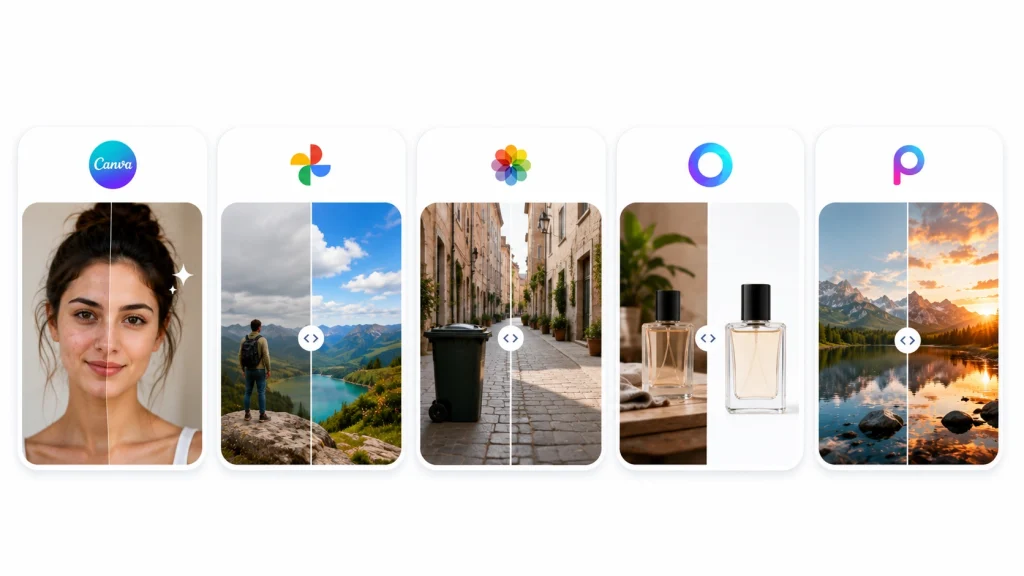
Canva AI
Canva’s Magic Studio is one of the easiest options for beginners because it does not require coding or advanced editing skills. It also has strong adoption: Canva says its AI-powered Magic Studio has been used 5 billion times, and the platform is used by more than 175 million people monthly.
How to use it:
- Upload your photo to Canva.
- Select the “Magic Edit” tool and brush over the area you want to change.
- Type a prompt, for example: “replace the sky with a sunset” or “add soft studio lighting”.
- AI will generate a few variations within seconds; pick the one you like.
Google Photos Magic Editor
The easiest way to improve any photo on your phone in one tap. It’s already built into a tool most people use daily, so quality edits happen without installing anything new.
Steps:
- Open the photo in Google Photos, go to “Edit,” then select “Magic Editor.”
- Tap on the object you want to remove (like a person in the background or a trash bin) and hit “Erase.”
- To change the sky or background, tap the “Sky” option and pick a preset.
- Apply the changes and save directly; no need to type any prompts.
Apple Photos Clean Up
A built-in AI object removal tool for iPhone/iPad users. Native to iOS, so it’s fast, free, and works offline directly within the Photos app
Steps:
- Open the photo in the Photos app and go to “Edit.”
- Tap the “Clean Up” icon.
- Highlight the unwanted object (person, wire, blemish) with your finger.
- AI will automatically remove it and fill in the background.
Pixlr
Pixlr is best for freelancers, bloggers, and marketers who need quick edits without installing desktop software. Works entirely in the browser with zero setup, making it the quickest way to try AI editing without commitment.
Steps:
- Upload your photo at Pixlr.com.
- From the “AI Tools” menu, choose Background Remover or Retouch tool.
- Remove/blur the background in one click, or generate a new one using a text prompt.
- Download the image in PNG/JPG format.
PicsArt
A mobile-first AI editor with creative effects, suitable for both beginners and casual social media users. Combines AI editing with fun creative effects, making it ideal for beginners who also want stylish, social-ready results.
Steps:
- Import your photo into the app.
- Select “Replace Background” or “AI Enhance” from AI-powered Tools.
- Add a prompt if needed, like: “beach background at sunset”.
- Apply a filter/effect and export.
Adobe Photoshop
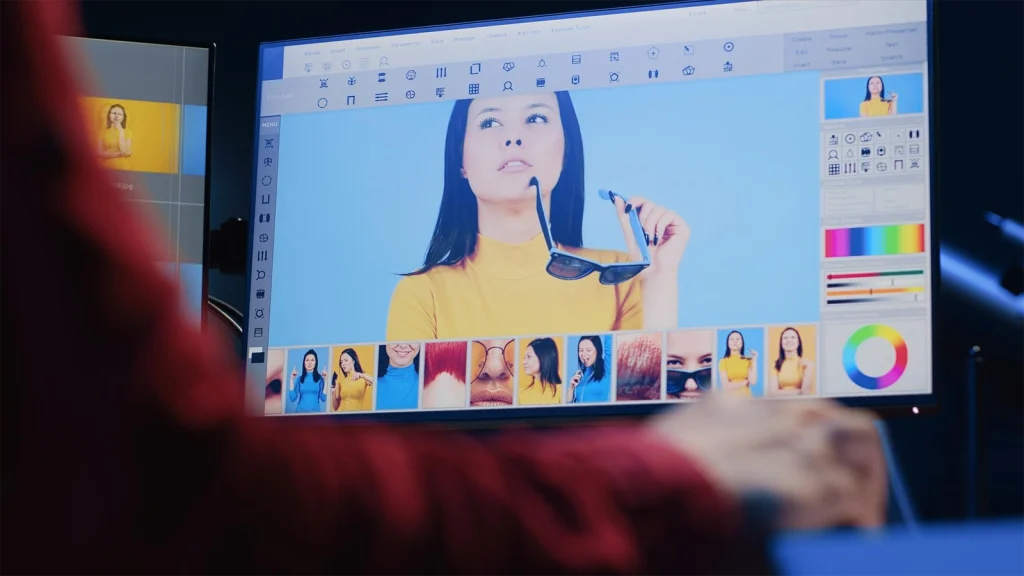
Photoshop’s Generative Fill has now become the industry standard for professional retouching. Unmatched precision and control; Generative Fill integrates directly with layers, masks, and non-destructive workflows professionals rely on.
Steps:
- Use the Lasso or Object Selection Tool to select the object.
- Click “Generative Fill” and enter a prompt, for example: “remove the wrinkles, keep skin texture natural”.
- You’ll get layer-based results that can be further adjusted manually.
- Combine with Frequency Separation for high-end retouching.
Adobe Lightroom
The go-to choice for professional photographers when it comes to batch editing and color grading. Its AI masking and batch tools save professionals hours when editing hundreds of images with consistent results.
Steps:
- Use “AI Denoise” to reduce noise in low-light shots.
- Use the “Select Subject/Sky” AI tool to mask and adjust specific areas.
- Create a preset and apply it across the entire shoot at once (batch editing).
- Fine-tune sharpening and color grading before exporting.
Luminar Neo
An advanced AI-driven editor for landscape and portrait photographers. Purpose-built AI modules like Sky AI and Structure AI deliver dramatic, high-quality results without complex manual masking.
Steps:
- Replace the entire sky in one click with “Sky AI.”
- Add background blur using “Portrait Bokeh AI.”
- Increase detail using the “Structure AI” slider.
- Use layer stacking to combine multiple AI effects.
Topaz Photo AI
Mainly used for sharpening, denoising, and upscaling, especially for print-quality output. Best-in-class for recovering detail and sharpness, especially useful for large prints and salvaging soft or noisy shots.
Steps:
- Import the photo; AI will automatically detect blur/noise.
- Apply the “Sharpen AI” and “Denoise AI” modules.
- Use “Face Recovery” to sharpen small or blurry faces if needed.
- Apply “Gigapixel” upscaling to increase resolution, then export.
PortraitPro
A professional-grade tool built specifically for portrait retouching. Specialized entirely around faces, giving retouchers far more precise control than general-purpose editors.
Steps:
- The face will be automatically detected in the photo.
- Fine-tune skin, eyes, and lighting with separate sliders.
- Subtly adjust face shape/jawline using the “Sculpt” tool.
- Compare before/after and export.
Clipdrop
Stability AI’s free-tier tool, popular for background removal and relighting. Delivers studio-grade background removal and relighting for free, backed by Stability AI’s research-grade models.
Steps:
- Upload your photo at Clipdrop.co.
- Select “Remove Background” or “Relight.”
- Drag to adjust the light source position if needed.
- Download for free in PNG format.
DeepAI
Free to use for general AI image enhancement and style transfer. A no-cost way to experiment with AI enhancement and colorization without creating a paid account.
Steps:
- Upload an image to DeepAI’s Image Editor tool.
- Select the “Enhance” or “Colorize” feature.
- Preview the result once processing is complete.
- Download it; no subscription needed for basic use.
Fotor
Basic AI retouching and background removal are available on the free plan. Bundles auto-enhancement with easy-to-use design tools, making it a solid all-rounder on a free plan.
Steps:
- Upload the photo and select “AI Photo Enhancer.”
- Apply “Auto Enhance” in one click.
- Use a separate tool if you want to remove the background.
- Save in free export resolution.
Remove.bg
Exactly as the name suggests, the fastest free tool for just removing backgrounds. Purpose-built for one job and does it extremely well, fast, accurate cutouts with minimal effort.
Steps:
- Drag & drop your photo to Remove.bg.
- AI will automatically detect the subject and remove the background.
- Add a new solid color or image background if needed.
- The free version allows low-res download; HD requires a paid plan.
BeFunky
A beginner-friendly free editor, good for basic retouching and creating collages. Balances retouching with collage and design features, useful for casual users who want more than just editing.
Steps:
- Upload the photo and use “AI Enhance.”
- Use the “Touch Up” tool to fix minor skin/blemish issues.
- Add a filter/effect.
- Export in JPG/PNG format.
Remini
Popular on mobile mainly for enhancing old or low-quality photos and improving face clarity. Unmatched at restoring old, blurry, or low-res photos, which most general editors handle poorly.
Steps:
- Upload the photo in the app.
- Tap “Enhance”; AI will automatically sharpen the face and details.
- Use the “AI Photo” feature to generate a new-style portrait (by selecting a prompt).
- Export in HD (the free version may include a watermark).
ChatGPT (Image Feature)
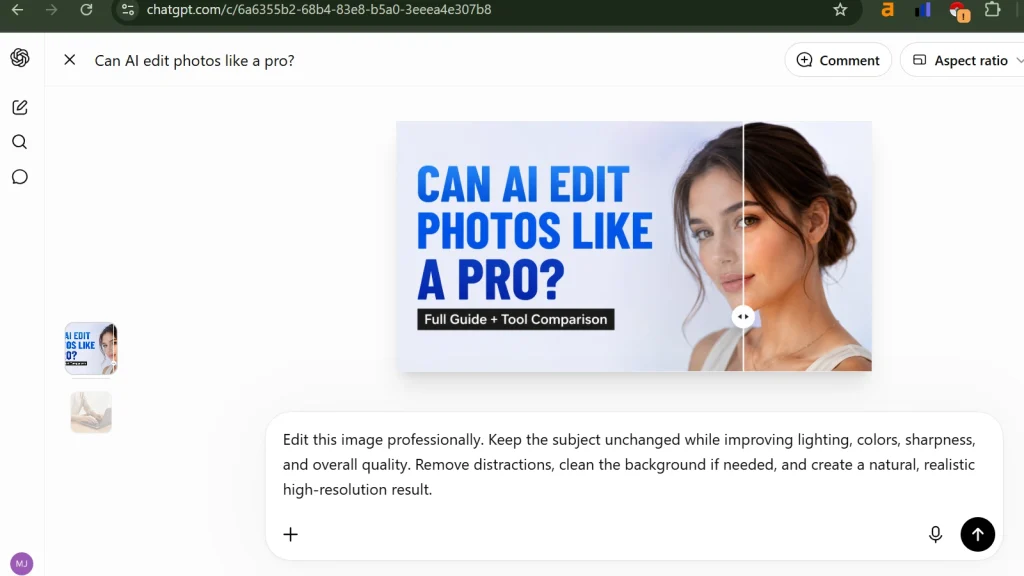
You can also write a prompt from the mobile app to create or edit images. Conversational editing means you can refine results through natural back-and-forth prompts instead of manual tools.
Steps:
- Upload the photo in the ChatGPT app.
- Type: “remove the background and make it a plain white studio background”.
- Choose your preferred version from the AI-generated results.
- Save and download the image.
Gemini
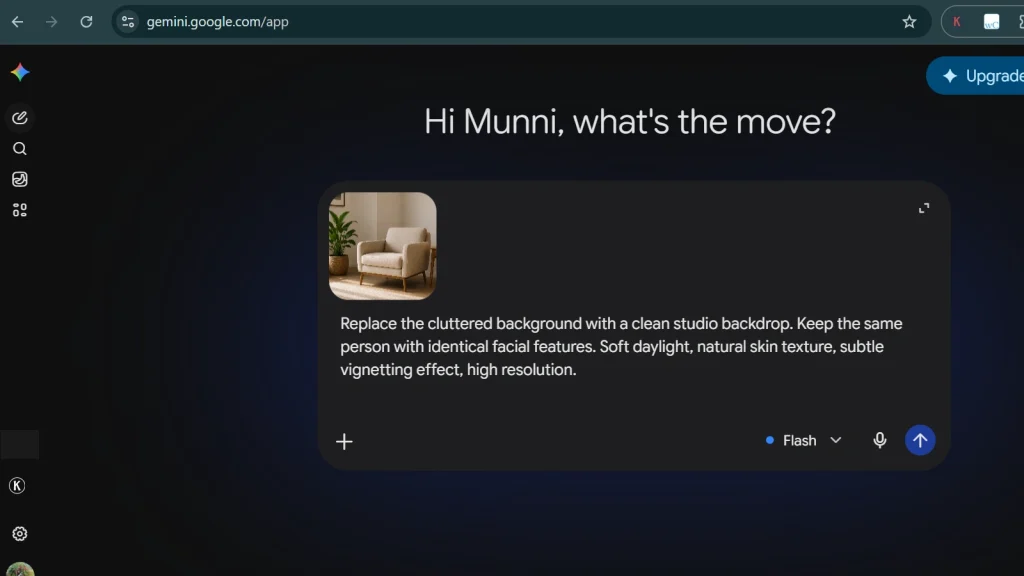
You can directly give image editing prompts through Google’s AI assistant. Tightly integrated with Google’s ecosystem, making prompt-based edits fast and accessible on the go.
Steps:
- Attach the photo in the Gemini app.
- Give a prompt, like: “change the outfit color to blue, keep everything else the same”.
- Review the result and give a follow-up prompt if you want further refinement.
- Download the image.
PhotoRoom
The fastest tool on mobile for removing/replacing backgrounds for products and portraits. Optimized specifically for product and portrait background swaps, making it the fastest mobile option for that task. One external report from Worldmetrics claims 60 million total users, 100 million downloads, and 35% market share in AI photo editing apps. Treat the market-share claim cautiously because it comes from a secondary statistics site, not the company itself.
Steps:
- Take or upload a photo.
- “Remove Background” will apply automatically.
- Choose a new background from templates or generate a custom scene with a prompt.
- Export and share directly to social media.
FaceApp / Facetune
A mobile-first tool for portrait retouching and face enhancement. Offers granular, face-specific controls that are hard to find in general mobile editing apps.
Steps:
- Upload the photo; the face will be auto-detected.
- Adjust skin smoothing, teeth whitening, and lighting sliders.
- Apply a filter for a natural or dramatic look.
- Export in high resolution.
Photoshop Express
A lightweight mobile version of Photoshop for quick on-the-go edits. Brings a trusted, familiar Photoshop-style workflow to mobile for quick edits on the move.
Steps:
- Import the photo into the app.
- Use “Auto Fix” or the “Remove” tool.
- Apply a filter/preset.
- Export directly to your phone’s gallery.
Adobe Creative Cloud
Adobe Creative Cloud combines Photoshop, Lightroom, Adobe Firefly, and other creative apps into a single ecosystem for AI-powered photo editing. It’s ideal for professionals who need advanced retouching, color grading, generative editing, and seamless cloud-based workflows across devices.
Steps:
- Open your image in Photoshop or Lightroom through Creative Cloud.
- Use AI features like Generative Fill, Remove Tool, AI Masking, or Denoise.
- Sync edits automatically across Creative Cloud apps.
- Export the final image in your preferred format.
Nano Banana
Nano Banana is a prompt-based AI image editing model designed for fast, conversational edits. It can remove objects, replace backgrounds, restyle images, and generate realistic scene changes from simple text instructions, making it suitable for creators, marketers, and rapid concept editing.
Steps:
- Upload your image to a Nano Banana-powered editor.
- Describe the edit using a text prompt, such as “replace the background with a modern office” or “remove the people behind the subject”.
- Review the generated variations.
- Refine the result with another prompt if needed, then download the final image.
Adobe Firefly
A powerful generative AI for creating product backgrounds and mockups. Generates realistic, commercially safe product backgrounds and scenes directly from text prompts.
Steps:
- Upload the product photo.
- Use “Generative Fill” and give a background prompt, for example: “marble surface with soft natural light”.
- Add a reflection/shadow with a prompt, “add subtle shadow beneath the product”.
- Export the best result from the multiple variations generated.
Imagen AI
Mainly used by photographers for bulk product/event photo culling and editing. Learns each photographer’s editing style, so bulk edits stay consistent without manual repetition.
Steps:
- Upload the entire shoot folder.
- AI will automatically select the best shots and color-correct them.
- Set a style profile so all photos maintain a consistent tone.
- Batch export for client delivery.
Aftershoot
Handles both culling and editing together for wedding and product photographers. Combines culling and editing in one pass, cutting down hours of post-production work per shoot.
Steps:
- Import the RAW image folder.
- Use AI to auto-filter duplicate and blurry shots.
- Select an editing style (preset) and apply it in batch.
- Export the final selected photos.
Evoto AI
Specialized in portrait and product retouching, especially for e-commerce photographers. Delivers fast, consistent retouching across large batches, ideal for high-volume e-commerce catalogs.
Steps:
- Upload photos in batch.
- Use “AI Retouch” to smooth skin/product surfaces.
- Remove/replace the background in one click.
- Export all photos while maintaining a consistent style.
Pixelcut
A tool mainly for e-commerce sellers to quickly create product photos. Built specifically for sellers, turning raw product shots into marketplace-ready images in minutes.
Steps:
- Upload the product photo.
- Remove the background and select a backdrop from templates.
- Generate a custom scene with a prompt, “product on wooden table with plants”.
- Export at the correct size for social media/marketplaces.
Slazzer
A fast API-based tool for bulk background removal. API access makes it easy to automate background removal at scale for larger workflows.
Steps:
- Upload photos (single or bulk).
- AI will automatically detect and remove the background.
- Add a transparent or custom background.
- Export everything as a ZIP file for bulk jobs.
Erase.bg
A simple and fast one-click background remover. Extremely fast and simple, ideal when you just need a clean cutout without extra features.
Steps:
- Drag & drop your photo.
- Preview the result once processing is complete.
- Fine-tune the edges manually with the eraser if needed.
- Download in PNG format.
Removal.AI
High-accuracy background removal, especially good for hair and fine edges. Handles fine details like hair strands more accurately than most standard background removers.
Steps:
- Upload the photo.
- AI edge detection will perform a high-precision cutout.
- Add a new background (color/image).
- Export in HD format.
Booth AI
A background remove/replace tool mainly for real estate and product photographers. Tailored to real estate and product needs, offering scene presets that generic tools don’t provide.
Steps:
- Upload the photo.
- Auto background removal will apply.
- Add a new background using a preset scene or prompt.
- Batch export.
How Can I Use AI to Edit a Photo? (Step-by-Step)
Editing a photo with AI follows a simple, repeatable workflow regardless of which tool you use. Whether you’re removing a background, enhancing lighting, or generating a whole new scene, the process stays the same: pick the right tool, upload your image, guide the AI, apply the edit, refine it, then export. Here’s exactly how it works, step by step.
Step 1: Choose the right AI editor
Match the tool to your goal, pick a beginner app for quick fixes, a professional editor like Photoshop for precise control, or a specialized tool for background removal or product photography.
Step 2: Upload your photo
Import your image directly into the chosen tool via drag-and-drop, file browser, or camera capture, making sure you’re using the highest quality version available.
Step 3: Write an effective editing prompt (if needed)
Describe the change clearly and specifically, mention the object, action, and desired outcome, such as “remove the background and add soft studio lighting.”
Step 4: Apply AI edits
Run the tool’s AI feature (Generative Fill, Magic Edit, Auto Enhance, etc.) and let it process the image, generating one or multiple result variations.
Step 5: Review and refine the results
Compare the AI output against the original, check edges and lighting for accuracy, and reapply or adjust the prompt if the result isn’t quite right.
Step 6: Export your final image
Choose the correct format and resolution (PNG for transparency, JPG for smaller size) and download or save the finished photo for use.
Can AI Edit Multiple Photos at Once?
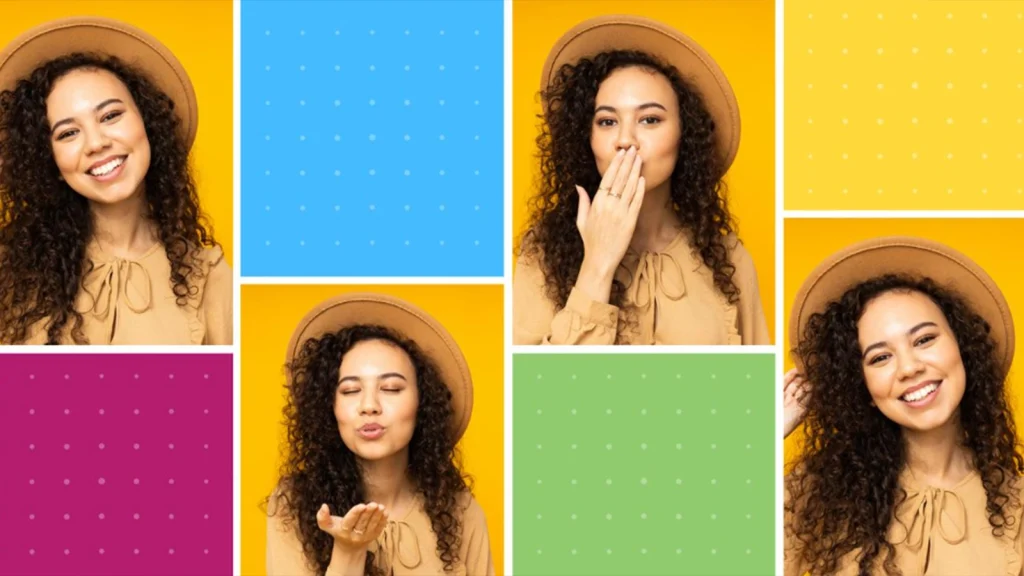
Yes, AI can edit many photos at the same time. This is called batch editing. Instead of fixing one photo at a time, the AI applies the same edit to a whole folder of photos at once. This means you can edit hundreds of photos in the time it used to take to edit just a few.
What is AI batch editing?
Batch editing means using AI to make the same change, like fixing colors, removing backgrounds, or sharpening, on many photos at once, instead of doing each one by hand.
Review a few exported images before applying the same AI settings to an entire shoot. A small exposure error can be repeated across hundreds of photos.
Which AI-powered tools support batch editing?
Tools like Adobe Lightroom, Imagen AI, Aftershoot, Evoto AI, and Slazzer are made for batch editing. They let you edit a whole photo shoot or product catalog in one go.
Benefits of batch photo editing
Batch photo editing saves a lot of time. It also keeps the look and color the same across all your photos. This helps photographers and online sellers finish big orders fast without losing quality.
When batch editing isn’t enough
Some photos need extra care. Tricky lighting, odd angles, or small details like jewelry or hair often need a human touch after the AI is done. This is where a real editor still matters.
AI Photo Editing vs Photoshop: Which One Is Better?
There’s no single winner; AI is faster and better for editing many photos at once, while Photoshop is better for careful, detailed work. The best approach is often to use both: AI for quick, repeated edits and Photoshop for fine detail work.
Speed
AI can edit a photo in seconds and handle hundreds at once. Photoshop needs you to select and adjust things by hand, which takes longer.
Editing quality
AI is good for common edits. But Photoshop still gives cleaner results for tricky, detailed retouching because you control every part of the image.
Creative flexibility
AI is great at making fast changes just by typing what you want. Photoshop gives you full control over every layer and effect, with no limits.
Learning curve
AI-assistant tools are easy to learn; most people can use them right away. Photoshop takes much longer to learn well.
Cost
Many AI tools are free or cheap to start with. Photoshop needs a paid subscription to use fully.
Where AI performs best
AI is best for fast, repeated tasks, like removing backgrounds, fixing colors, or editing many photos at once.
Where Photoshop still wins
Photoshop is still the best choice for detailed retouching, complex photo combining, and full creative control.
What AI Still Can’t Edit Well
AI is fast and helpful, but it still struggles with certain tricky details. It often gets confused by fine textures, tricky lighting, and anything that needs a trained human eye. For these situations, AI alone isn’t enough; some manual work is still needed to get it right.
Hair and fine edges
AI often blurs or cuts off small hair strands and fuzzy edges. This happens because the AI groups pixels together instead of tracing each thin strand one by one.
Transparent and reflective objects
Glass, water, and shiny metal confuse AI because it can’t always tell what’s part of the object and what’s just a reflection or see-through area behind it.
Complex shadows and lighting
AI can miss or misplace shadows when a photo has multiple light sources or unusual angles. It guesses based on patterns it has seen before, not real physics.
Product photography accuracy
For online stores, small color or shape mistakes can mislead buyers. AI sometimes changes small details like texture or true color, which isn’t safe for product listings.
Brand consistency
AI doesn’t always know a brand’s exact colors, style, or rules. Without clear guidance, it can create photos that don’t match a brand’s look across many images.
Commercial-quality image editing
For big campaigns or print work, even tiny flaws matter. AI can leave small errors that go unnoticed until printed or blown up large, where humans still catch mistakes better.
When Should You Use AI vs Hire a Professional Photo Editor?
Use AI for quick, simple edits, but hire a professional editor when the photo needs to be perfect, especially for products, brands, or print. The safest approach for important work is combining both.
When AI is the best choice
AI works well for fast, everyday edits, like removing a background, brightening a photo, or making quick social media posts, where small flaws don’t matter much.
When professional editing makes more sense
A professional editor is worth it for product photos, real estate images, or brand campaigns, where accuracy, consistency, and clean edges really matter.
How OffshoreClipping helps when AI isn’t enough
OffshoreClipping.com combines AI speed with real human expertise to close the gap AI leaves behind.
Photos first go through AI for quick background removal and initial cleanup, then trained editors manually refine the fine details AI struggles with: hair strands, transparent objects, shadows, and reflections, using precise clipping paths and manual masking.
Every image also goes through a human quality check before delivery, so clients get both the speed of AI and the accuracy of expert editing, without sacrificing either.
FAQ
Can AI edit existing photos?
Yes. AI can edit existing photos by removing objects, replacing backgrounds, improving image quality, restoring old images, adjusting colors, and applying creative edits without starting from scratch.
How can I use AI to edit a photo?
Upload your photo to an AI image editor, choose an editing tool or enter a prompt, review the results, make small adjustments if needed, and export the final image.
What AI can edit photos for free?
Several AI photo editors offer free plans, including ChatGPT, Adobe Express, Canva, Photoroom, Pixlr, and Clipdrop. Most free versions have feature limits or export restrictions.
Can AI edit RAW photos?
Yes, many professional AI photo editors support RAW files. This allows you to adjust exposure, colors, and details while preserving more image information than JPEG files.
Can AI remove people from photos?
Yes. AI can remove unwanted people by analyzing nearby textures and generating matching background details. It works best when the person does not block important parts of the scene.
Can ChatGPT edit photos?
Yes. ChatGPT can edit photos by following text prompts, such as removing objects, replacing backgrounds, expanding images, or changing visual elements, depending on the available image editing features.
Is AI photo editing safe?
Yes, AI photo editing is generally safe when you use trusted tools and follow their privacy policies. Avoid uploading sensitive or confidential images to unknown platforms.
Can AI replace Photoshop?
No. AI can automate many editing tasks, but Photoshop still offers greater control, precision, and flexibility for complex retouching, commercial projects, and detailed image manipulation.
Can AI edit product photos?
Yes. AI can remove backgrounds, enhance lighting, improve colors, and clean product images quickly. However, high-end eCommerce photos often need manual refinement for consistent, marketplace-ready results.
Conclusion
So, can AI edit photos? Absolutely. From removing unwanted objects and enhancing image quality to restoring old photos and generating entirely new content, AI has made photo editing faster and more accessible than ever before.
However, AI is only as effective as the way you use it. Choosing the right tool and understanding its strengths and limitations will help you achieve better results, whether you’re editing personal memories, creating social media content, or preparing professional images.