So, here are the Gemini prompts for photo editing that actually work. I’ve tested thousands of prompts on different types of images using all the models of Gemini AI. After weeks of testing, I’ve listed around 70 ready-to-use prompts that anybody can use. Just copy the prompt from this blog and paste it in the Gemini chat along with the photo you want to upload.
Knowing the right photo editing prompt is crucial. Because no matter which AI you use, it won’t give you the best output unless you tell the AI exactly what you are trying to change or achieve in the photo. The right prompt is the key to efficient AI photo editing without any professional tools.
A lazy prompt gives you a warped, plasticky mess, while a precise one gives you an edit that looks like real photography. Every prompt here precisely edits a photo you upload, not a picture made from scratch. Whether you are looking for a Gemini AI photo prompt for portraits or product work, I have sorted them into twelve categories so you can find the exact edit you need fast.
Not sure Gemini can pull off the edit you have in mind, or whether you are even eligible? Start with our honest breakdown of what Gemini can and cannot edit.
70+ Gemini Prompts for Photo Editing (Copy & Paste)
Here is the full library; you can copy and paste every AI prompt straight into Gemini after uploading your photo. The words in [square brackets] are your swap points, so change them to fit your own image. Add a preserve line whenever a face or product must stay the same.
1. Photo Enhancement & Restoration
These fix the everyday problems: blur, noise, low light, and age damage, without touching the subject. For heavier repair work, our guide to digital photo retouching shows what a trained editor adds.
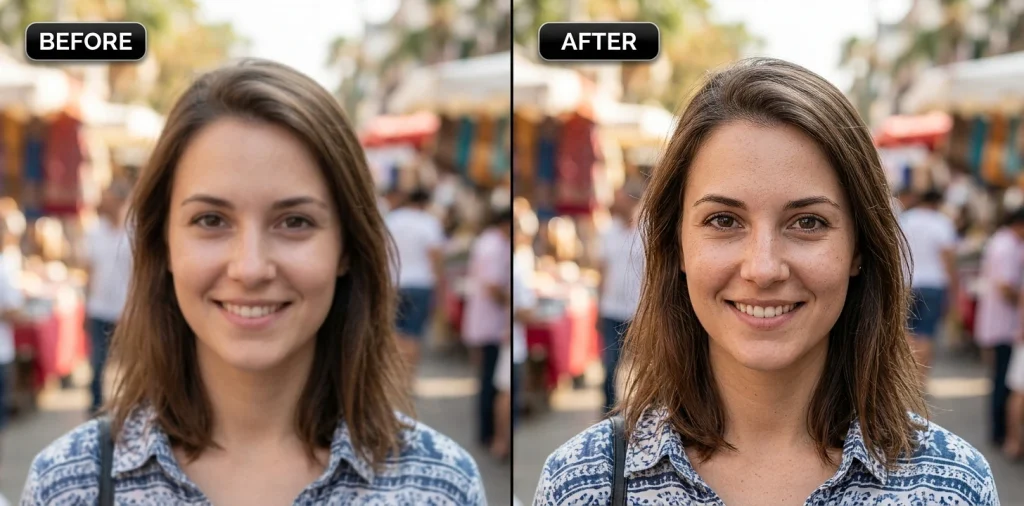
Sharpen a Blurry Photo
Best for: Soft, slightly out-of-focus shots
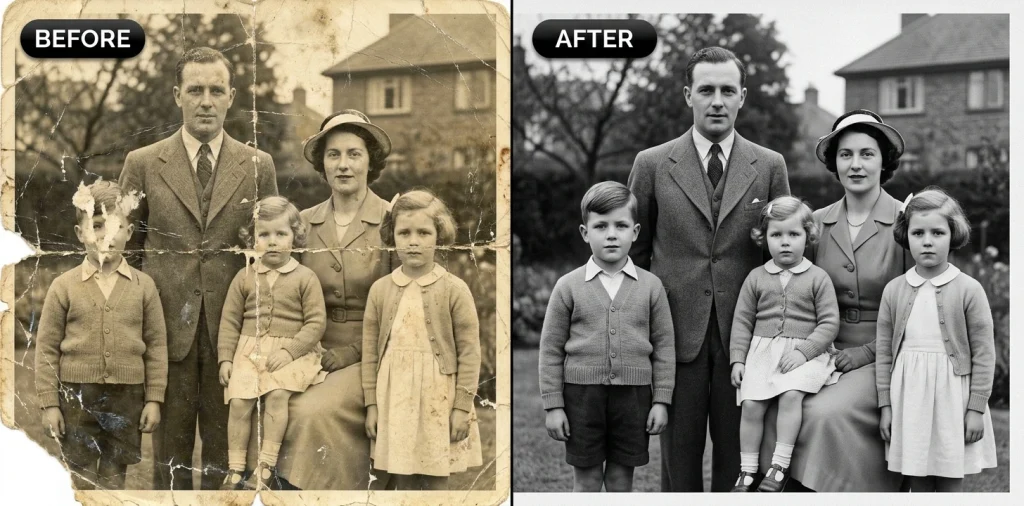
Restore an Old Photo
Best for: Faded, scratched family prints
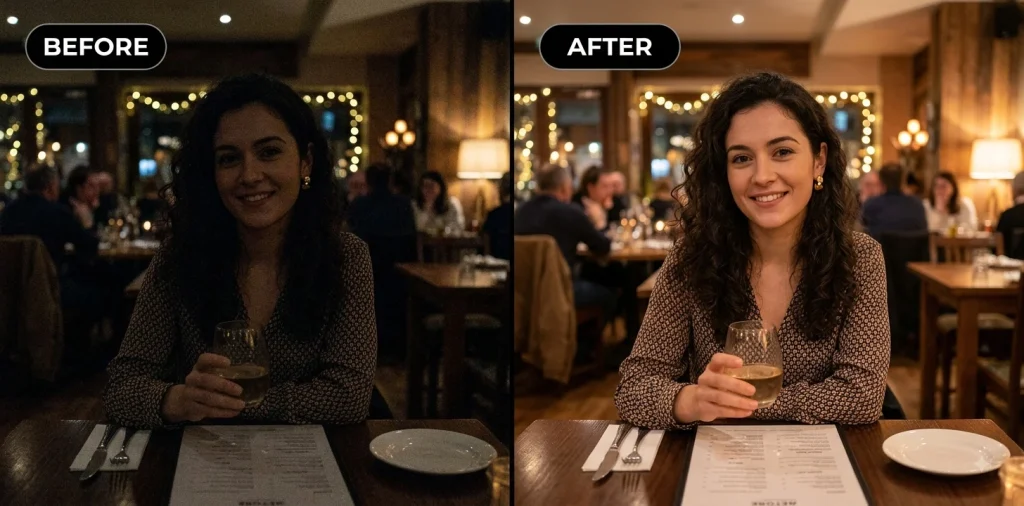
Fix a Low-Light Photo
Best for: Dark, underexposed indoor shots
Upscale a Low-Resolution Image
Best for: Small or pixelated files
Denoise a Grainy Photo
Best for: High-ISO or night photos
Remove Compression Artifacts
Best for: Over-compressed downloads
2. Portrait Retouching & Skin
Natural retouching keeps real skin looking like skin. Every prompt here protects identity and texture, so nobody comes out looking like a wax figure.
Natural Skin Retouch
Best for: Everyday portraits
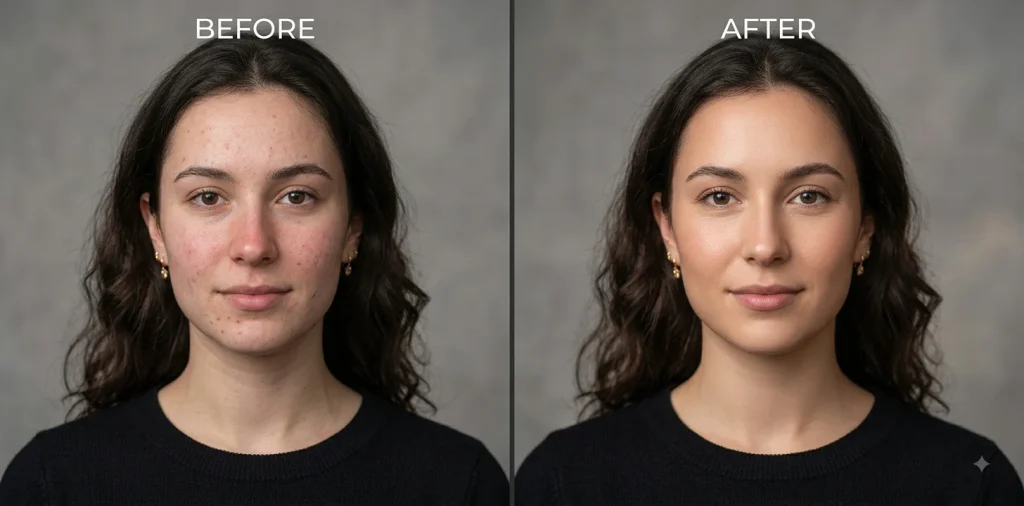
Blemish & Acne Removal
Best for: Temporary spots and breakouts
Brighten the Eyes
Best for: Flat or tired-looking eyes
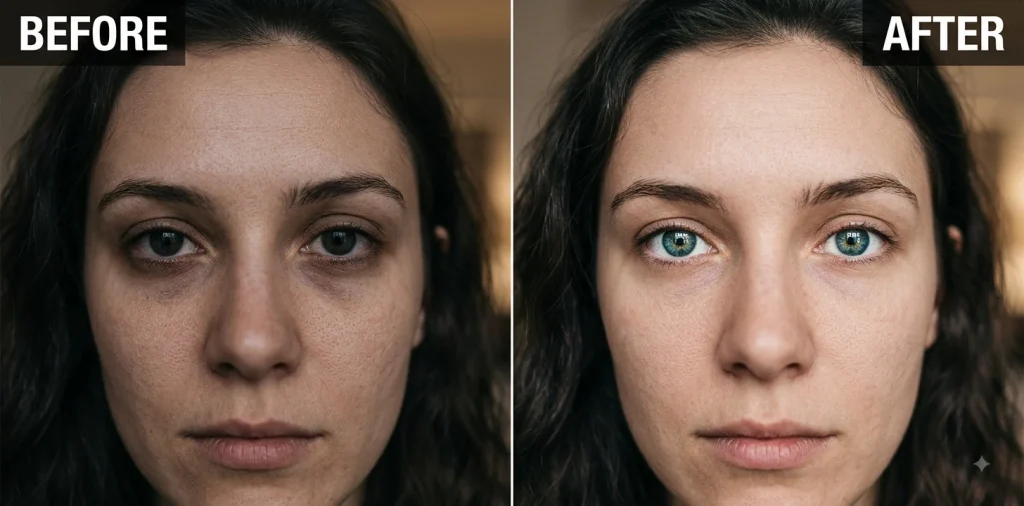
Even Out Skin Tone
Best for: Redness or patchy tone
Whiten Teeth Naturally
Best for: Smiling portraits
Soften Harsh Face Shadows
Best for: Midday or hard-flash photos
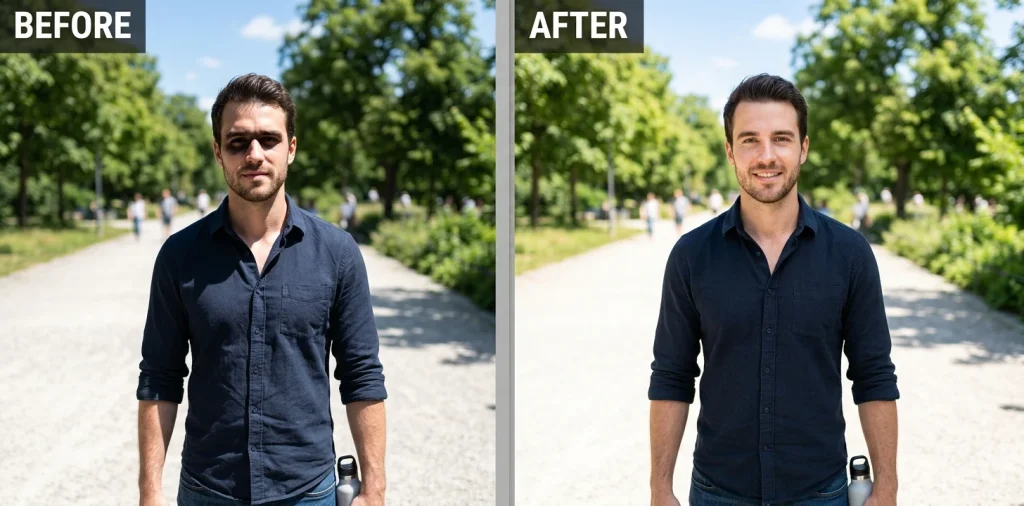
3. Professional Headshots
These are the detailed, high-value prompts, and they double as a strong nano banana portrait prompt when you want Gemini to polish a real headshot. The trick is stacking specifics, wardrobe, lighting, lens, and a strict preserve-face clause. Pair them with real headshot photography tips for the best source shots.
Did you know that I also made a list of image editing prompts for ChatGPT? Grab our complete ChatGPT photo editing prompts guide and become a pro AI photo editor.
Clean Corporate Headshot
Best for: LinkedIn and team pages
Executive Headshot (Detailed)
Best for: Leadership and about pages
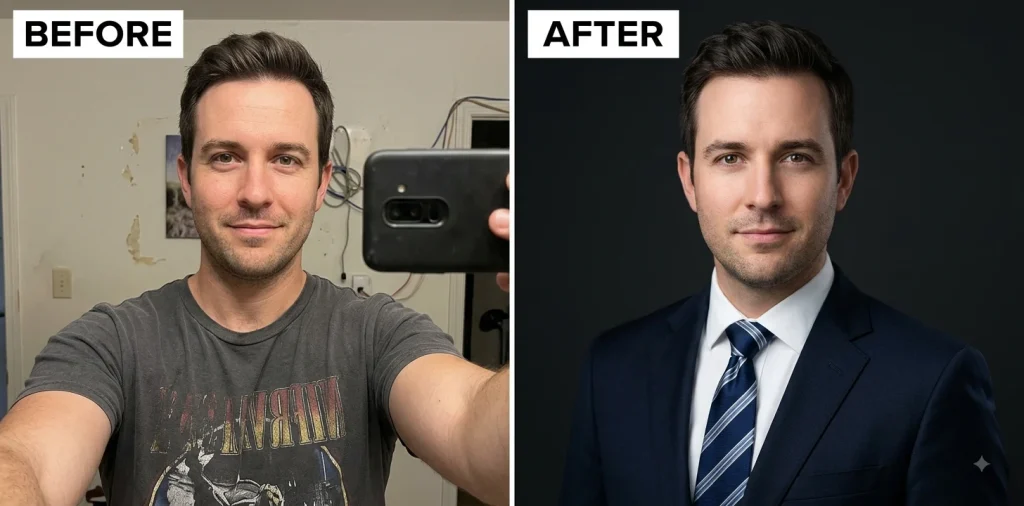
Approachable Headshot
Best for: Founders and creatives
Black-and-White Editorial Headshot
Best for: Portfolios and press kits
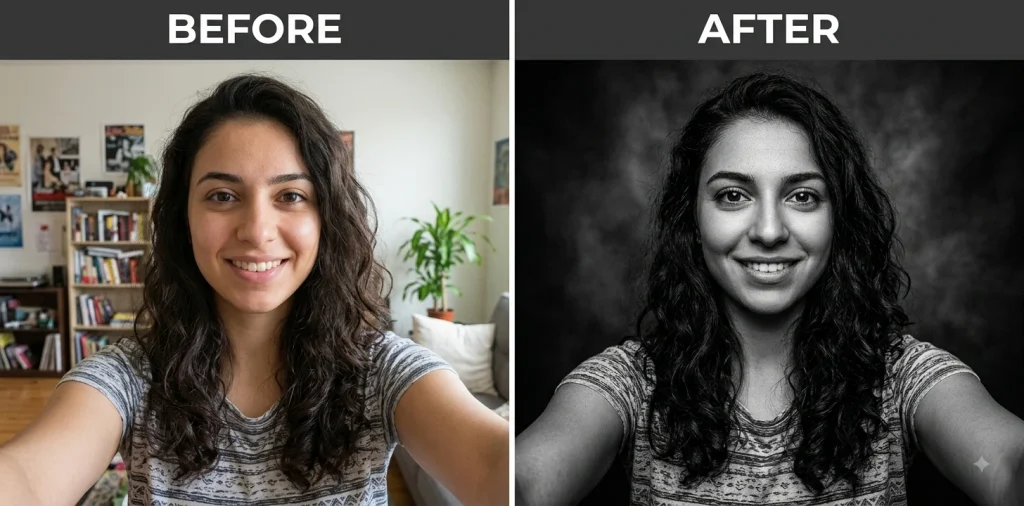
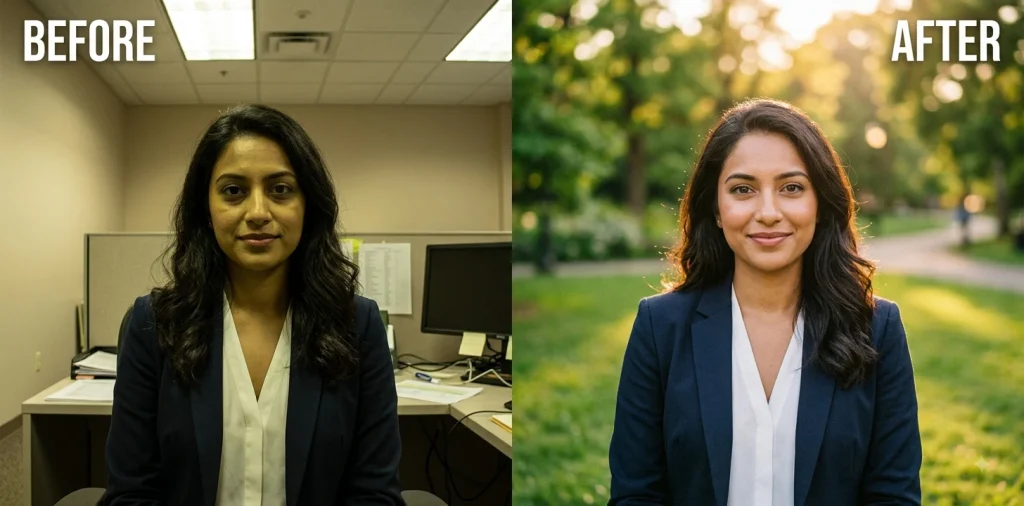
Outdoor Natural-Light Headshot
Best for: Approachable brand photos
Actor-Style Headshot
Best for: Casting and profiles
4. Background Removal & Replacement
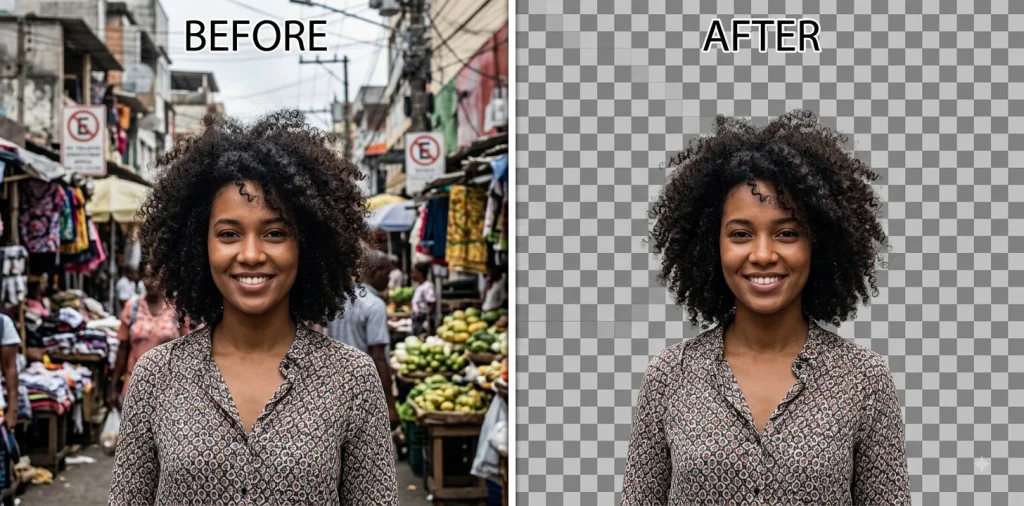
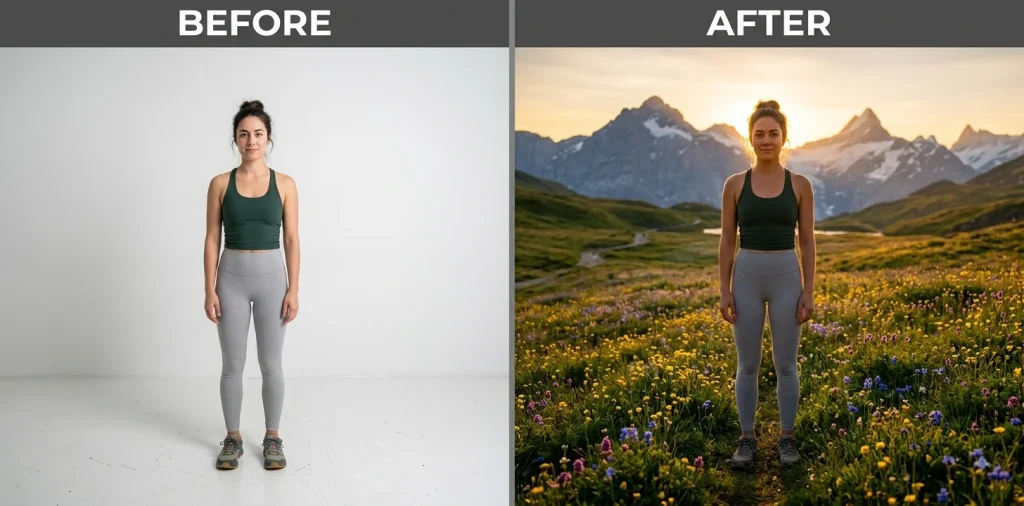
Swapping a background is one of Gemini’s most reliable jobs. Name the new scene clearly and always ask it to match the lighting so the result does not look pasted on.
Transparent PNG Cutout
Best for: Logos, stickers, design assets
Pure White Background
Best for: Marketplace and catalog shots
Neutral Studio Backdrop
Best for: Portraits and products
Nature Background
Best for: Lifestyle and social portraits
Modern Office Background
Best for: Professional and corporate use
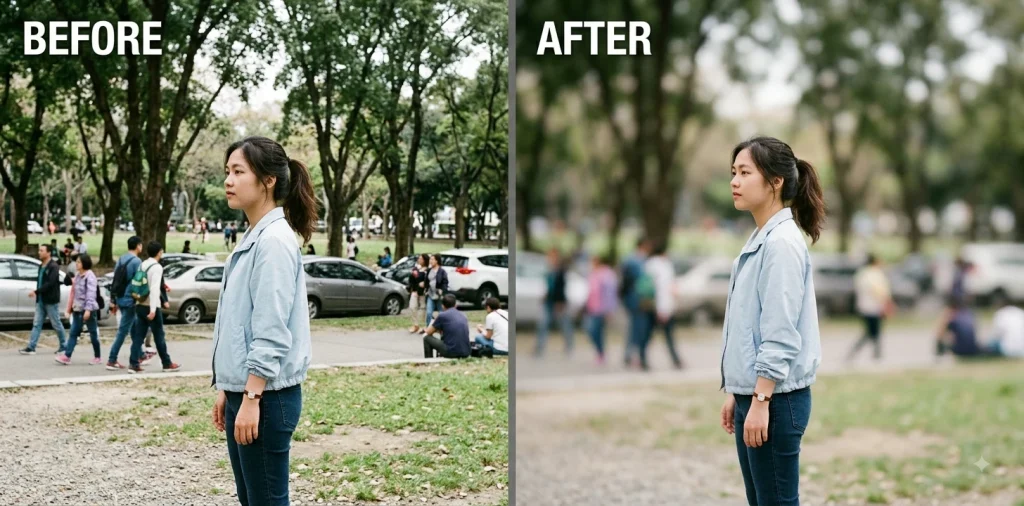
Blur the Background
Best for: Busy or distracting scenes
5. Object & Person Removal
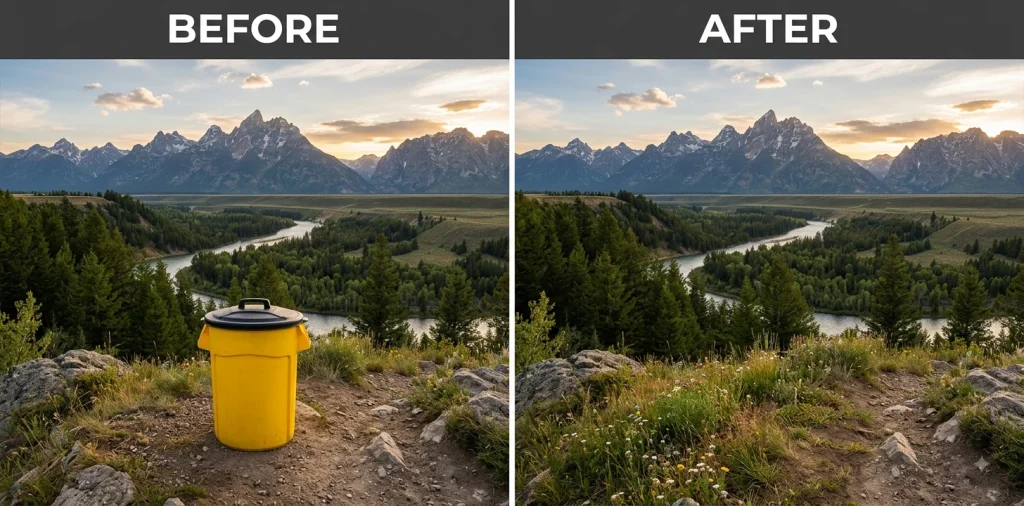
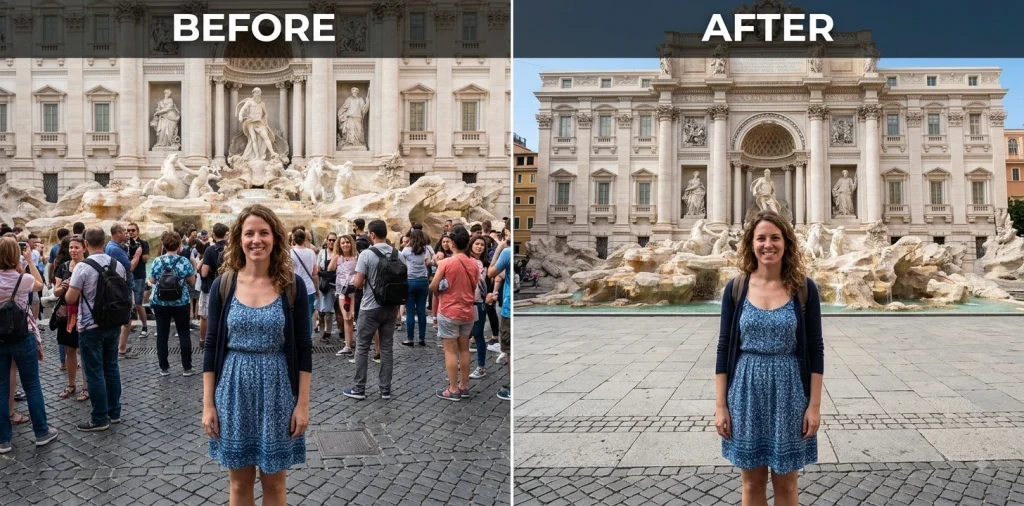
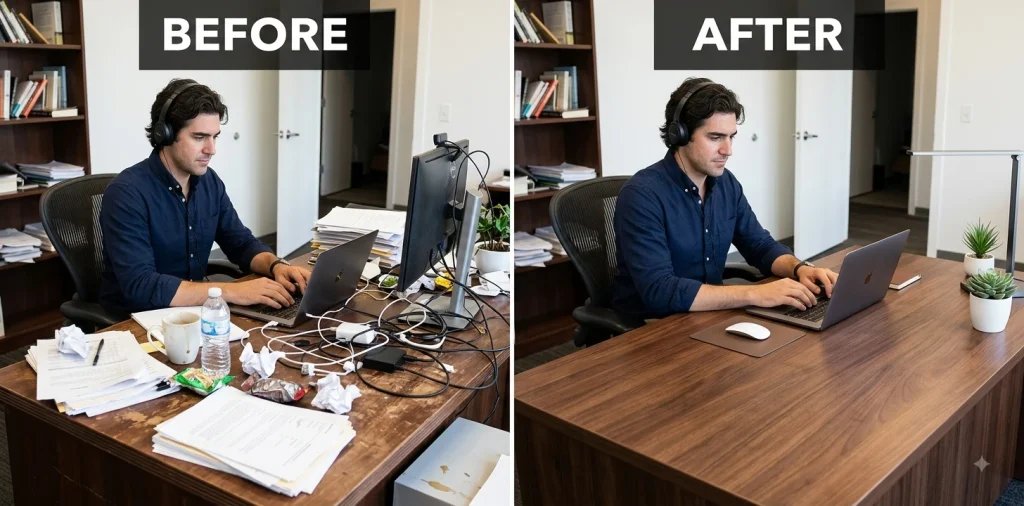
Cleaning distractions out of a frame works well on simple scenes. The key is telling Gemini to rebuild what was behind the object so nothing looks smeared.
You can also check our guide on editing photos using professional tools.
Remove an Unwanted Object
Best for: Stray items in the frame
Remove Background People
Best for: Crowded backdrops
Remove Power Lines
Best for: Outdoor and travel shots
Clean Up Tourists
Best for: Landmark and street photos
Remove Background Clutter
Best for: Messy rooms and desks
Remove a Photobomber
Best for: Group and candid shots
6. Outfit, Hair & Wardrobe Edits
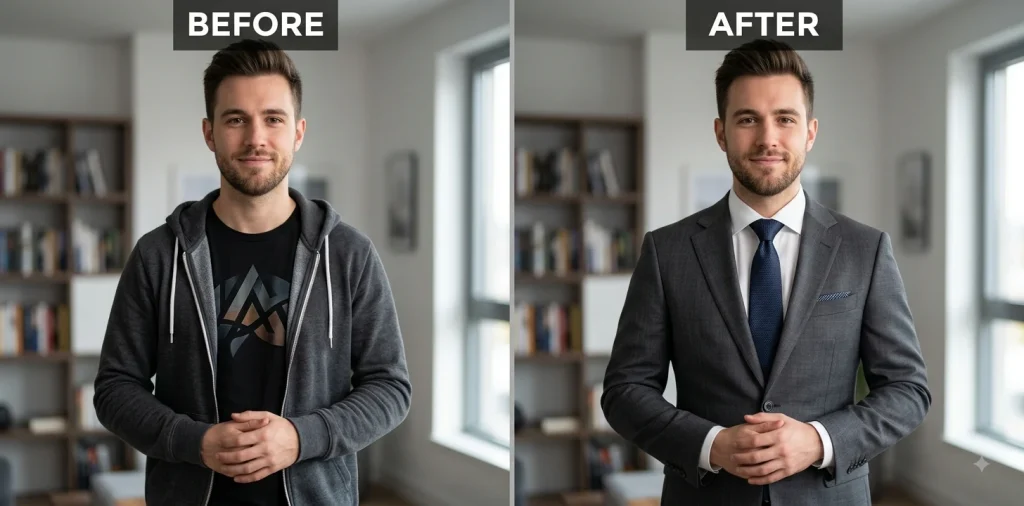
Wardrobe and hair swaps hold up well when you lock the pose and face. For the manual approach behind these, see how pros change wardrobe and backgrounds in model photography.
Change to a Formal Suit
Best for: Turning casual shots professional
Change the Hairstyle
Best for: Trying a new look
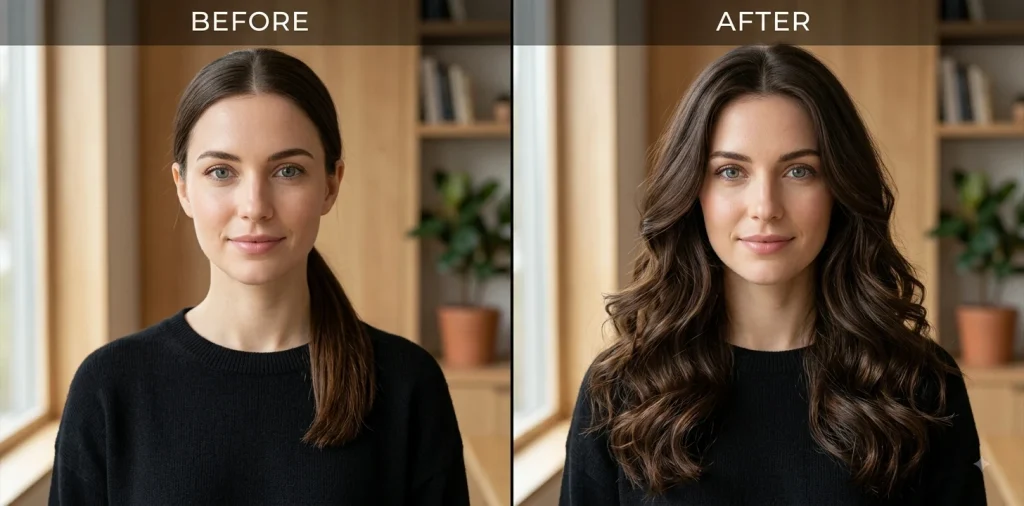
Change Hair Color
Best for: Testing a color before the salon
Streetwear Restyle
Best for: Fashion and social content
Remove Clothing Wrinkles
Best for: Product and portrait cleanup
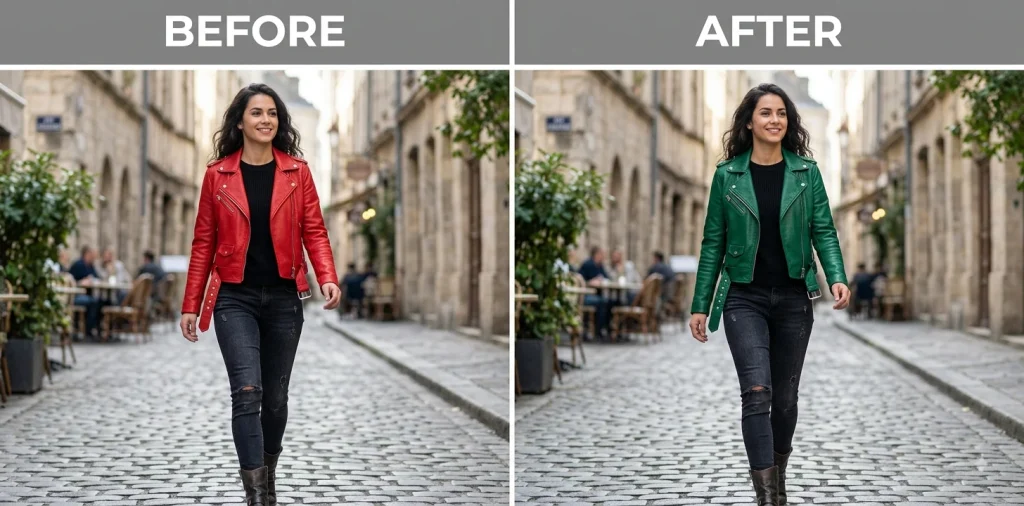
Swap an Outfit Color
Best for: Wardrobe variations
7. Color Correction & Grading
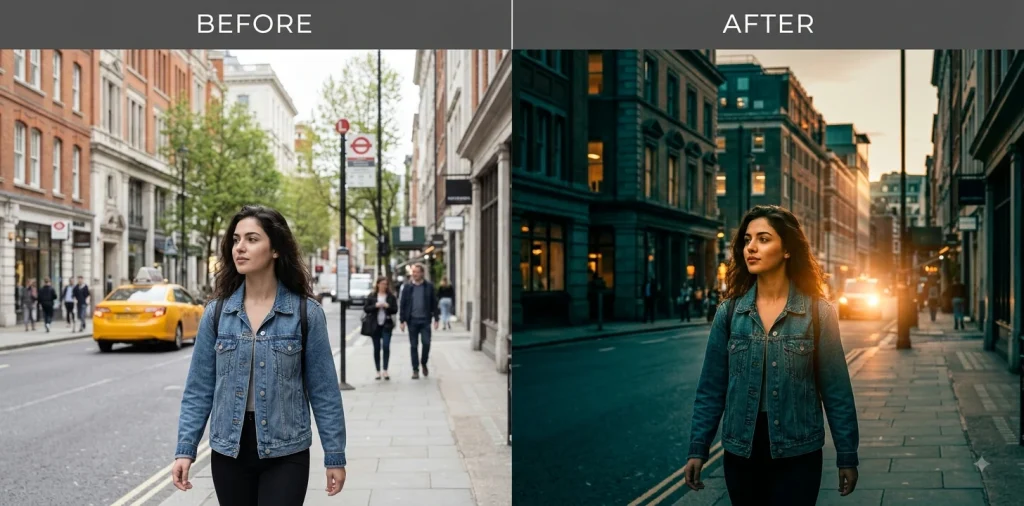
Color sets the mood of a whole image. Gemini responds well to named looks, so ask for the feeling you want and tell it to keep skin tones honest.
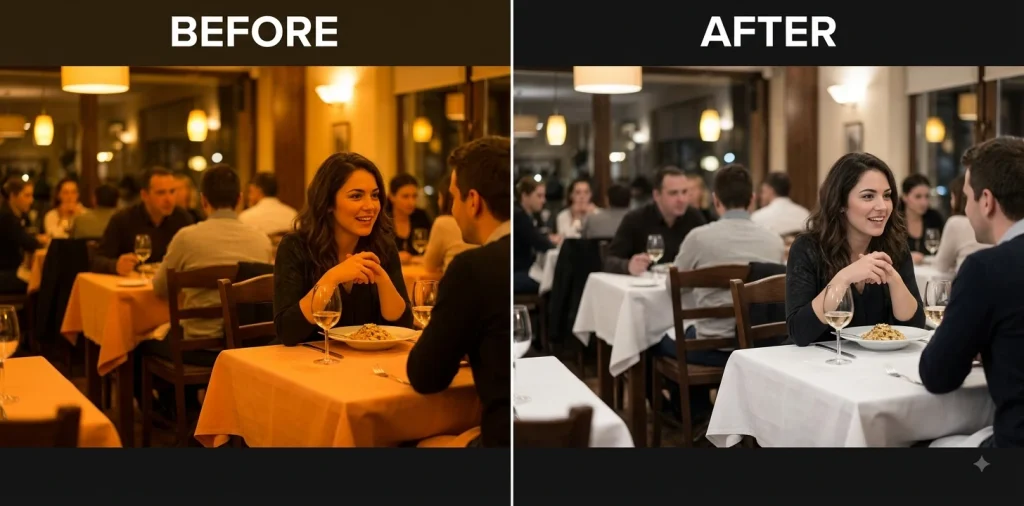
Fix the White Balance
Best for: Photos with a color cast
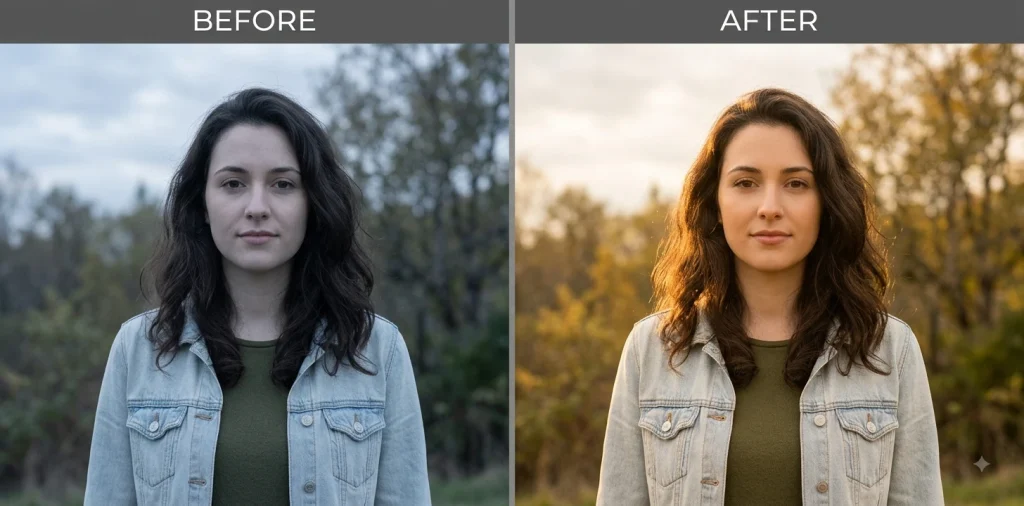
Add Golden-Hour Warmth
Best for: Flat, cool-toned shots
Moody Cinematic Grade
Best for: Dramatic portraits and scenes
Bright & Airy Edit
Best for: Lifestyle and wedding photos
Vibrant Landscape Color
Best for: Travel and nature shots
Match Color to a Reference
Best for: Consistent look across photos
8. Creative Style Transformations
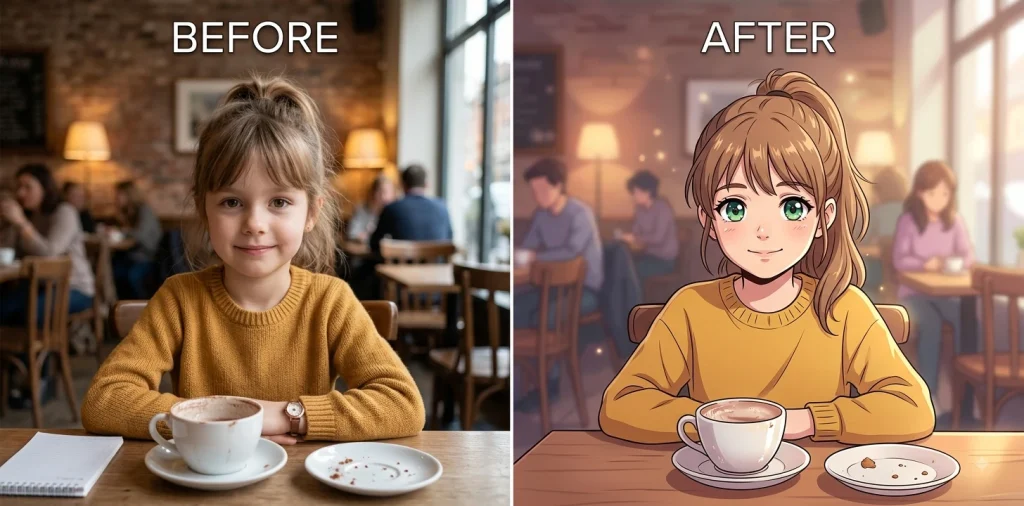
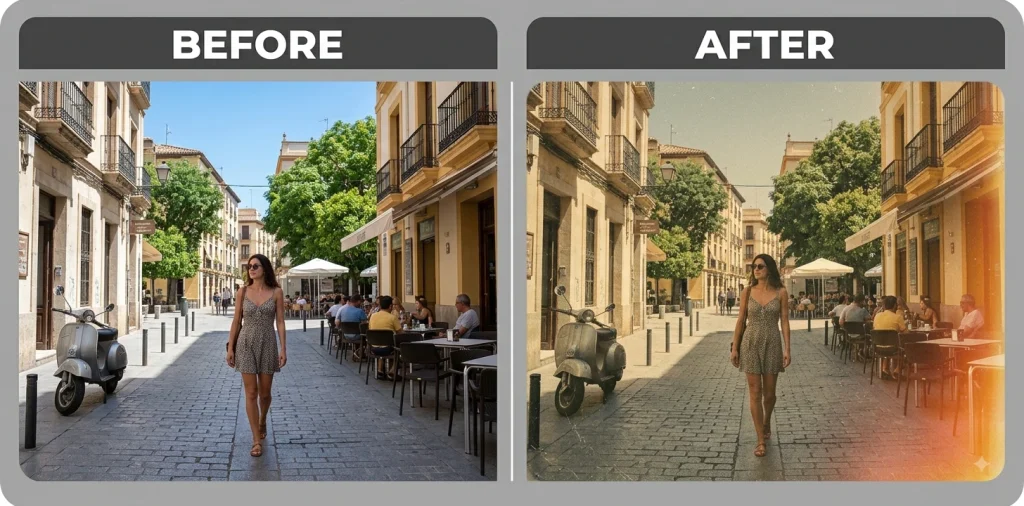
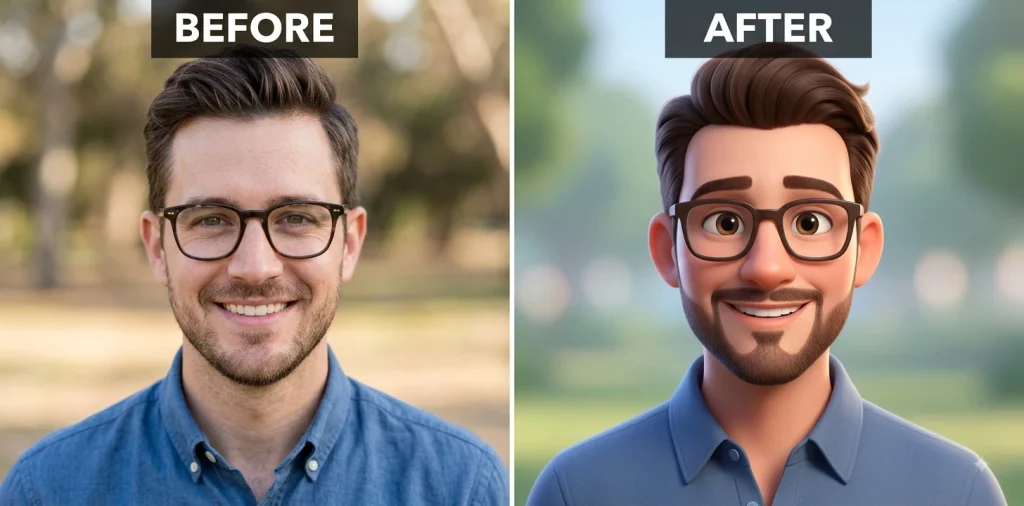
This is the fun lane, where a normal photo becomes art. Some of the most popular and funny Gemini prompts live here, turning an ordinary selfie into anime, a 3D character, or a vintage film still. Each one keeps the subject recognizable so the style feels like you, not a random character.
Anime Style
Best for: Avatars and fun social posts
Watercolor Painting
Best for: Gifts and prints
Vintage Film Look
Best for: Nostalgic, editorial vibes
Cyberpunk Neon
Best for: Bold, trend-driven edits
3D Character Style
Best for: Playful profile pictures
Pencil Sketch
Best for: Artistic keepsakes
9. Pose & Expression Edits
Gemini is surprisingly good with people. You can nudge a pose or expression while keeping identity intact, which is perfect for salvaging an almost-perfect shot.
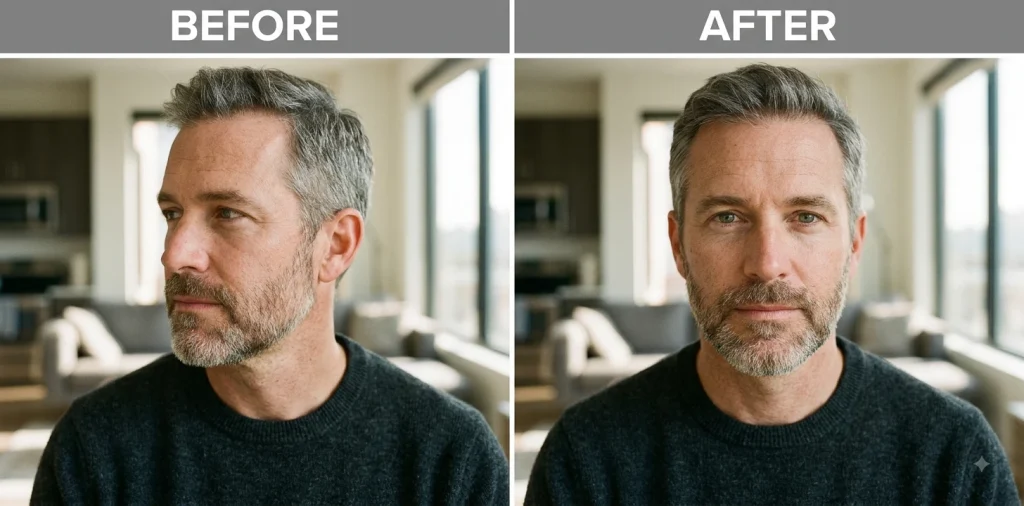
Make the Subject Face the Camera
Best for: Off-angle group photos
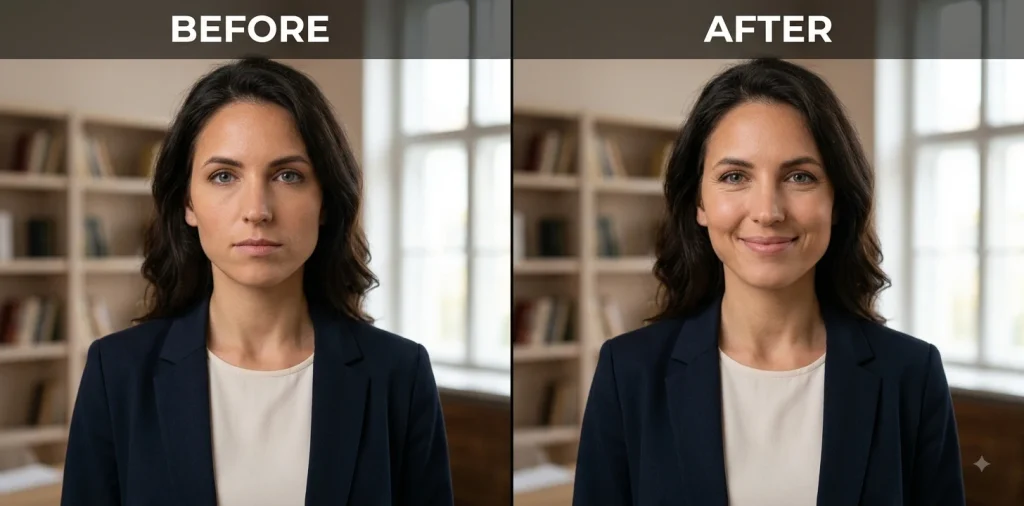
Add a Natural Smile
Best for: Stiff or serious portraits
Straighten the Posture
Best for: Slouched candids
Turn the Head Slightly
Best for: Improving portrait angle
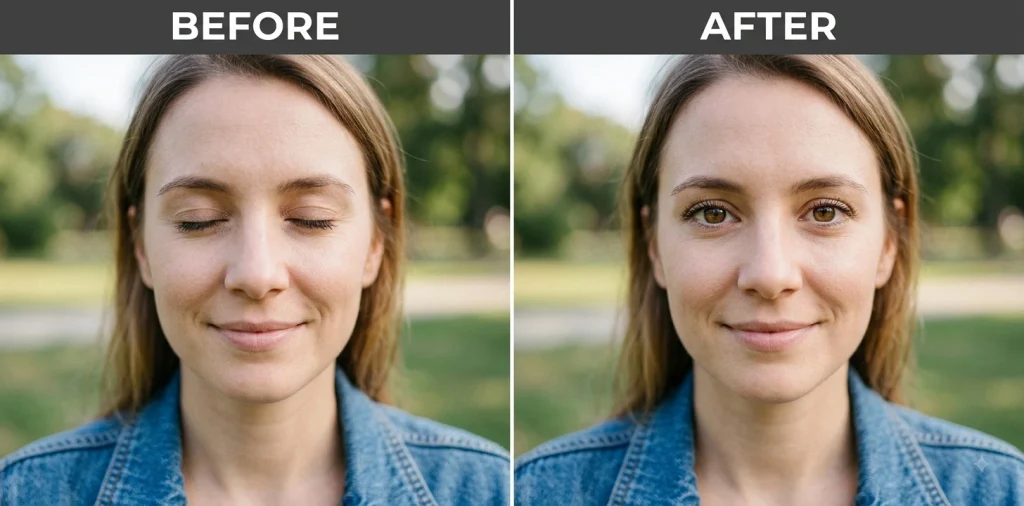
Open Closed Eyes
Best for: Blinked group shots
Relax a Tense Expression
Best for: Awkward candids
10. Product & Ecommerce Photo Editing
These map straight onto real store needs. Gemini gets you a draft fast, though catalog consistency is another matter, which is where ghost mannequin photo editing and pro cutouts still win.
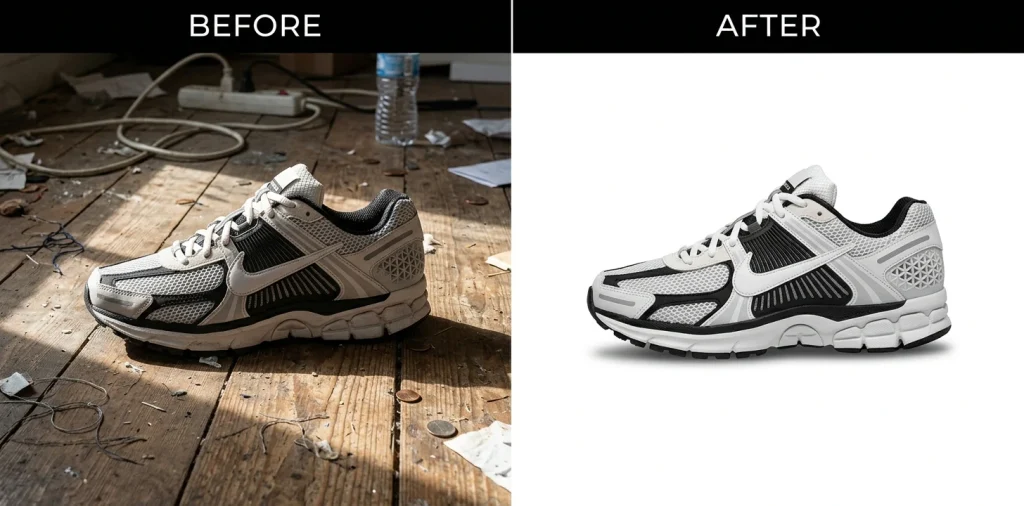
White-Background Product Shot
Best for: Amazon and Shopify listings
Remove Glare & Reflections
Best for: Glossy or metallic products
Product Color Variation
Best for: Showing every color option
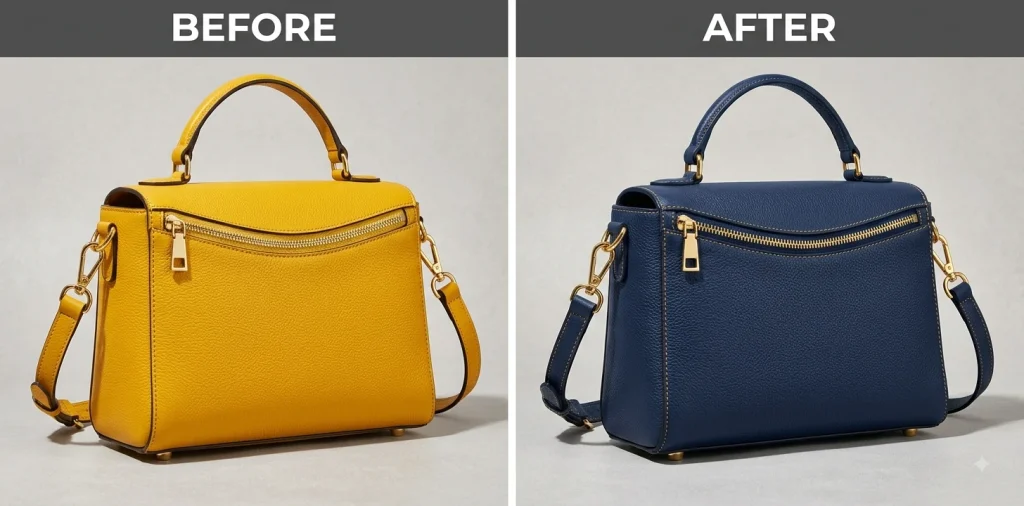
Ghost Mannequin Effect
Best for: Apparel listings
Lifestyle Product Scene
Best for: Ads and social commerce
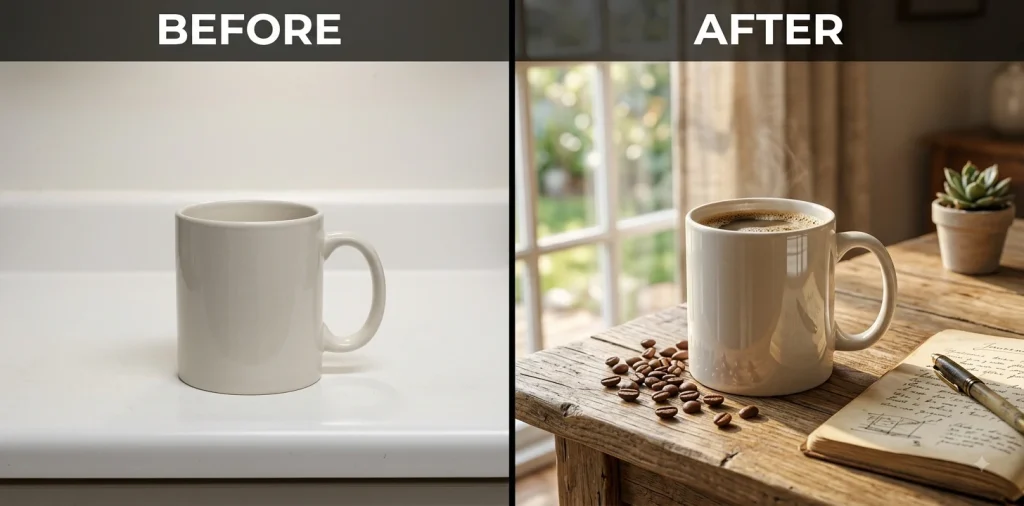
Clean Up a Product Photo
Best for: Pre-listing polish
11. Image Expansion & Reformatting
Need one photo in five aspect ratios? Gemini can extend a scene naturally so a single shot fits every placement without awkward cropping.
Extend the Background
Best for: Tight crops needing room
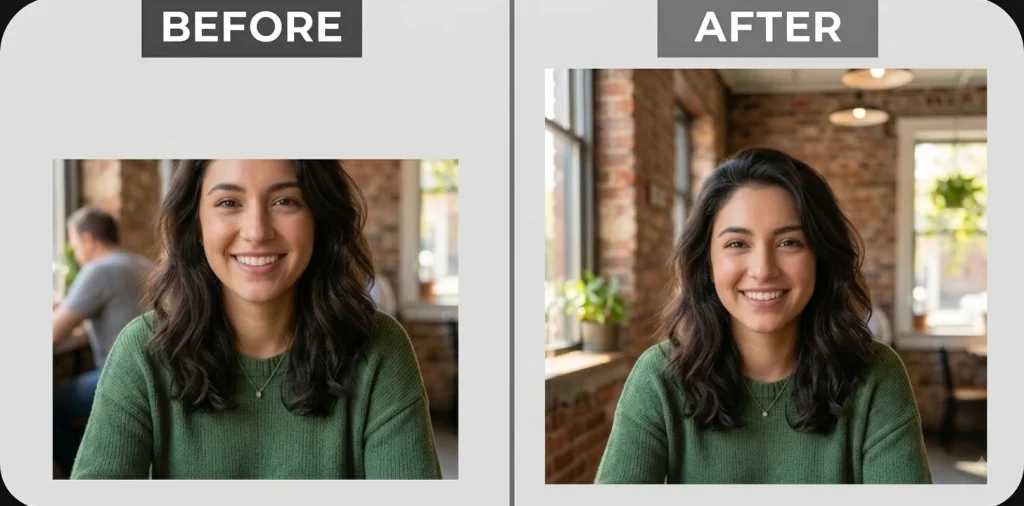
Widen to Cinematic
Best for: Banners and hero images
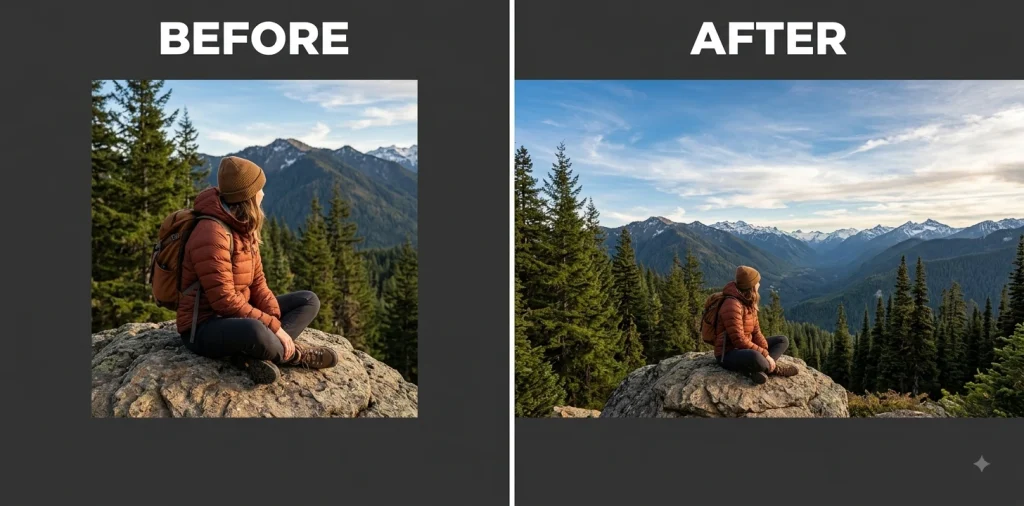
Reformat for Stories
Best for: Vertical social placements
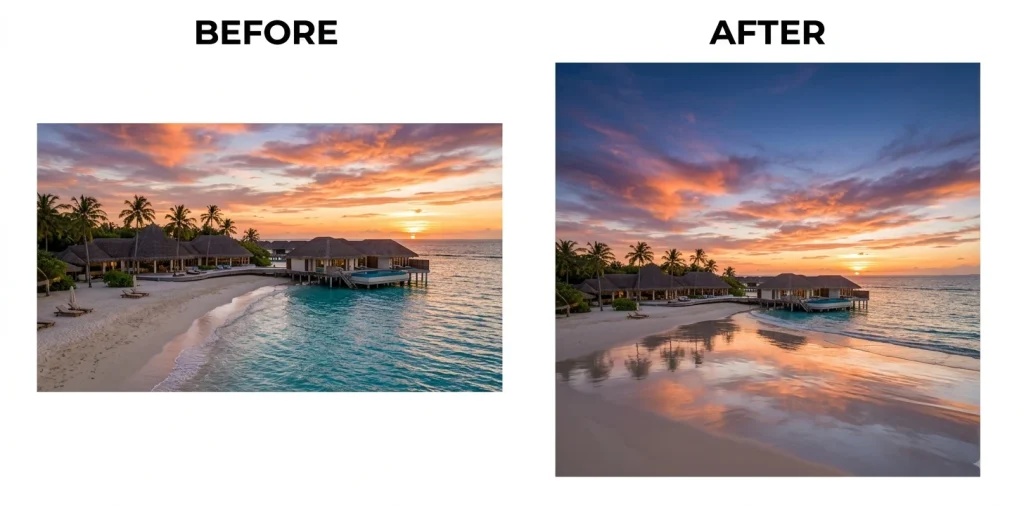
Square Crop for Feed
Best for: Instagram grid posts
Add Headroom
Best for: Photos cropped too tight
Fill to Full Frame
Best for: Odd-sized or cut-off shots
12. Industry Edits: Real Estate, Food, Jewelry & Wedding
Every vertical has its own look. These starters cover the big four, and for polished commercial results, our real estate photo editing and jewelry photo editing guides go further.
Real Estate Day-to-Dusk
Best for: Listing hero photos
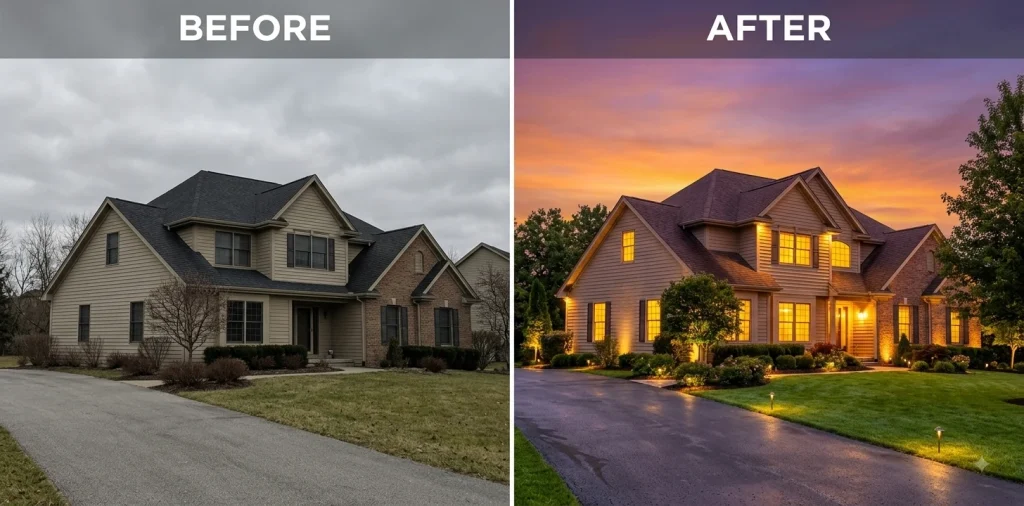
Brighten a Real Estate Interior
Best for: Dark room photos
Food Photo Enhancement
Best for: Menus and delivery apps
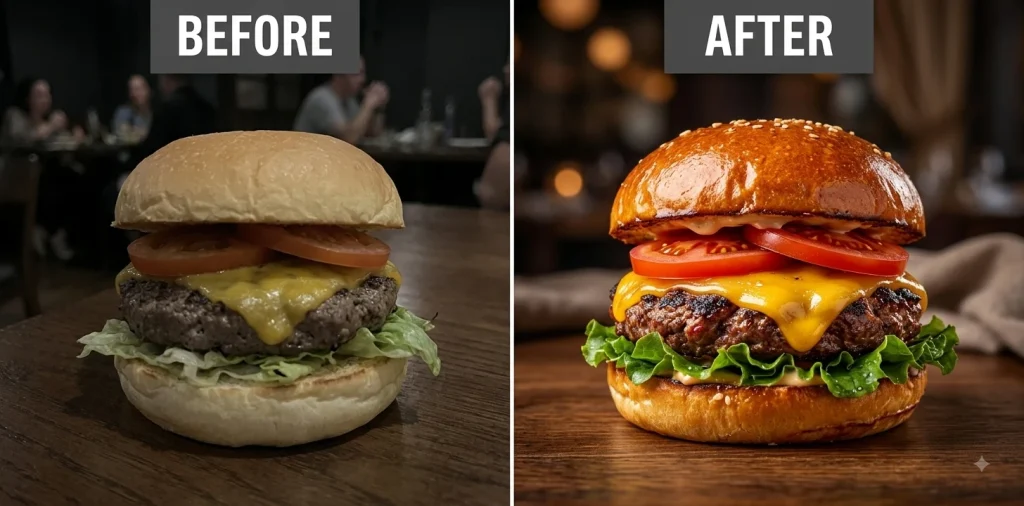
Jewelry Retouch
Best for: Luxury product listings
Wedding Golden-Hour Portrait
Best for: Couple keepsakes
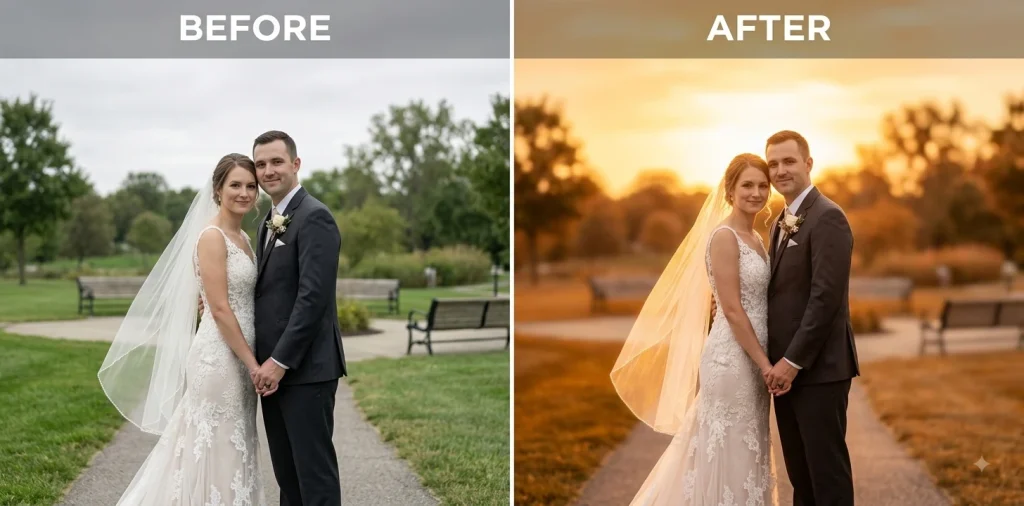
Wedding Photo Cleanup
Best for: Busy venue shots
Can Gemini Edit an Existing Photo?
Yes, and this is the part people mix up. Google Gemini can generate a brand-new image from a text description, but it can also work as a Gemini photo editor on a photo you already have. This whole guide is about the second one. You upload your image, describe the change, and it returns an edited version.
The catch is that Gemini rebuilds the image rather than nudging pixels like Photoshop. That is why it edits so naturally, and also why it can quietly change a face or a product if you do not tell it what to leave alone.
So the single most important habit is writing a preserve instruction. Something like: keep the person’s facial features, hairstyle, skin texture, clothing details, and body proportions unchanged. That one line prevents most disappointing results.
You can also check: Can AI edit photos?
How to Write a Gemini Prompt for Photo Editing
Once you see the structure, you can build any edit you want. Almost every strong Gemini prompt for photo editing follows the same five steps, whether it is a simple cleanup or a full restyle.
- Identify the subject. Tell it what the photo is: this portrait, this product shot, this landscape.
- State exactly what to change. Be specific: replace the background with white, remove the object on the left.
- State what must stay unchanged. This is the one people skip: keep the face, colors, and proportions identical.
- Specify the visual result. Set the mood and light: soft golden-hour light, natural skin texture, realistic shadows.
- Specify composition and output. Name the format: 1:1 square, 9:16 vertical, high resolution.
Here is the difference in practice. A weak prompt leaves the AI guessing, and a strong one removes the guesswork.
Weak:
Make this photo look professional.
Strong:
Edit this product photo into a clean ecommerce image. Replace the background with pure white, remove the harsh shadows, and keep the product’s exact shape, color, texture, proportions, and branding unchanged. Preserve realistic edges and natural lighting. 1:1 ratio.
Prompt Modifiers That Give You More Control
Modifiers are the descriptive words that steer the look. You do not stack all of them at once. You pick the two or three that match the result you want and drop them into the formula above.
Lighting: softbox, diffused light, golden-hour light, rim light, overcast daylight.
Camera look: shallow depth of field, 85mm portrait look, macro, DSLR quality, and a slower shutter speed for motion blur.
Composition: centered, close-up, wide angle, negative space, rule of thirds.
Style and mood: editorial, cinematic, minimalist, moody, luxury, and clean fashion-editing tones.
Realism: natural skin texture, realistic shadows, accurate materials, photorealistic detail.
Output format: square 1:1, portrait 4:5, vertical 9:16, landscape 16:9, high resolution.
Which Gemini Image Model Should You Use for Photo Editing?
The engine behind Gemini image editing is nicknamed Nano Banana. The same model also powers the Gemini image generator and handles Gemini AI photo tasks, so the naming trips everyone up. Here is the current lineup, based on Google’s documentation. Verify the latest before you rely on specifics, since Google updates these fast.
| Model | What it is | Best for |
|---|---|---|
| Nano Banana | The original, Gemini 2.5 Flash Image (2025) | Basic edits, still used on older surfaces |
| Nano Banana 2 | Gemini 3.1 Flash Image, now the app default | Everyday editing, fast and free-tier friendly |
| Nano Banana Pro | Gemini 3 Pro Image, the high-end tier | Native 4K, complex scenes, sharp in-image text |
For almost everyone, Nano Banana 2 is what runs when you edit in the Gemini app, and it is plenty. A nano banana prompt and a Gemini photo prompt are the same thing; they just hit different models depending on your plan. Reach for Nano Banana Pro prompts when you need native 4K output or dense text rendered cleanly inside the image.
How to Refine a Gemini Edit Without Starting Over
This is the skill that separates people who fight Gemini from people who direct it. Because it remembers the conversation, you rarely rewrite a full prompt. You nudge one thing at a time and build on the last result.
- Change one thing per turn. Fix the background, see it, then fix the lighting. Stacking five changes at once invites drift.
- Refer to the previous version. Say keep everything the same as the last image, but warm up the light.
- Say exactly what went wrong. The face changed; restore the original face and only swap the background.
- Use Draw to Edit where available. Trace the exact area you mean so the change stays local instead of rebuilding the whole frame.
- Reinforce the preserve line every turn. Identity drifts across regenerations, so restate what must stay fixed each time.
How to Use These Prompts in Gemini
On Desktop and Web
- Go to gemini.google.com and start a new chat, then upload your photo with the image icon.
- Paste a prompt from the library, fill in any bracketed details, and send it.
- Refine in the same chat with one change at a time until it looks right, then download.
On Mobile
The Gemini app works the same way on Android and iPhone, and most trend edits happen on a phone anyway. Tap the image icon, pick your photo, paste your prompt, and refine. Expect two or three tries on complex edits with text or several people.
Which Photos Give the Best Results
Your source photo decides most of the outcome. Well-lit, high-resolution shots with an uncluttered background and one clear subject give Gemini something solid to work with. Blurry files, heavy filters, and several overlapping faces are where edits fall apart fastest.
Learn more: Professional photo editing tips.
Common Gemini Photo Editing Problems and How to Fix Them
Every one of these has caught me out. Match your symptom on the left and apply the prompt fix on the right.
| Problem | Likely cause | The prompt fix |
|---|---|---|
| The face changes | No preserve instruction | Add: keep the exact facial identity, features, and skin texture |
| A stranger appears | Request read as identity change | State keep the same person; drop anything that alters who they are |
| Product shape shifts | Ambiguous edit request | Name the exact elements to preserve: shape, color, texture, branding |
| Colors look oversaturated | Vague style instruction | Add: natural color, realistic contrast, no over-processing |
| Text comes out garbled | Text rendering limits | Keep text short, put it in quotes, or add it separately |
| Quality drops each edit | Too many successive edits | Restart from the highest-resolution original |
| Edit is refused | Safety filters on people or copyright | Reword, and avoid real public figures or protected characters |
Can You Use Gemini-Edited Images Commercially?
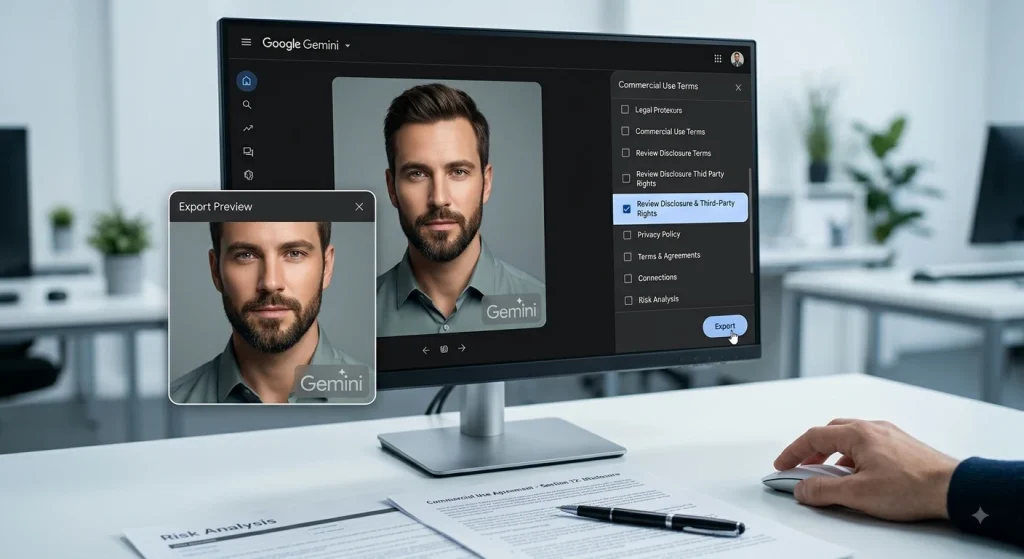
Generally yes, for photos you own or have rights to, as long as you follow Google’s terms and prohibited-use policy. But two things matter before you publish, and both can change, so confirm the current rules at the time you use them.
First, watermarks. At the time of writing, Gemini adds an invisible SynthID marker to edited images, and free-tier output also carries a visible Gemini badge. That has real consequences for client and marketplace work. Our Gemini capability guide covers the watermark reality in full.
Second, disclosure and rights. Some marketplaces ask you to label AI-edited images, and Google’s permission does not override someone else’s copyright or likeness. For anything high-stakes, this is not legal advice, so check the current terms and, when it matters, a professional.
When Should You Hire a Professional Photo Editor?
I lean on these prompts daily, and I still tell people the truth. Gemini is brilliant for concepts, social content, and quick wins. It is not built for work where every pixel gets judged.
Hand it to a professional when you need pixel-perfect product cutouts on hair, fur, or glass, a large batch edited to look identical, a full catalog with consistent color and shadow, delicate restoration of a damaged original, or brand-consistent, production-ready ecommerce imagery. AI gets you most of the way. The last stretch is where reputations are made.
Have a batch that has to look flawless and consistent? Send us a few files and request a quote to see the difference a human editor makes.
Frequently Asked Questions
Can Gemini edit existing photos?
Yes. Upload your photo, describe the change, and Gemini returns an edited version. It can also generate images from scratch, but for editing you always start from a photo you provide and tell it what to change.
Can I use Gemini photo editing for free?
Yes. Gemini image editing is available on the free tier, powered by Nano Banana 2. You will hit daily limits, and free output carries a visible badge, but for casual edits it is genuinely usable at no cost.
What is the best Gemini prompt for photo editing?
The best prompt names the subject, the exact change, what to preserve, the style, and the output format. A vague prompt like make this better underperforms every time. Specificity is what separates a clean edit from a warped one.
Can Gemini preserve someone’s face while editing a photo?
Usually, if you ask directly. Add a line telling it to keep the exact facial identity, features, and skin texture, and repeat that on every follow-up. Without it, the face tends to drift across regenerations.
Can Gemini remove and replace a background?
Yes, and it is one of its strongest jobs. Name the new background clearly and ask it to match the lighting and edges. For clean cutouts on hair or fur, a professional editor still gets sharper results.
Can Gemini edit product photos?
Yes, for drafts and concepts. It handles white backgrounds, color variations, and cleanup well. The weak spot is consistency across a full catalog, where each image is generated slightly differently.
Are Nano Banana Pro prompts different from regular ones?
The prompts themselves are written the same way. Nano Banana Pro just renders them at higher quality, with native 4K and cleaner in-image text, so the same prompt returns a more detailed result.
Can Gemini edit RAW or HEIC photos?
HEIC and HEIF usually upload fine, which is handy for iPhone photos. RAW camera files are not supported, so export them to JPEG or PNG first. Very large files of any type may fail to upload.
Final Thought
Here is what to take away. The prompt is the craft, not the tool. Once you internalize the five-part formula, lock your preserve line, and refine one change at a time, you can create almost any edit you can picture in a Gemini prompt for photo editing.
Start with one prompt from the library that matches a photo on your phone right now. Change the background, fix the light, or restyle the whole thing. Then refine, one nudge at a time, until it feels like yours.